

Logitech Harmony 665 Advanced Remote Control

Thank you!
The Harmony 665 Advanced Remote Control is your answer to effortless home entertainment. The Activities buttons enable control of all your devices in one convenient remote. You can go from watching TV to watching a DVD to listening to music with the touch of an Activity button. You no longer need to type in codes to get your remote working with your entertainment system. The guided online setup walks you through the step-by-step configuration of your Harmony 665 with your entertainment system and then you’ll be ready to sit back and enjoy!
Package contents
- Harmony 665 Advanced Remote Control
- USB cable
- 2 AA batteries
- User documentation
Getting to know your Harmony 665

- A The Activity buttons allow you to start your Activities. If an Activity does not start as expected, press the Help button and answer simple questions to get your Activity working the way you expect.
- B The buttons around the screen control the functions that appear on the screen such as favorite channels. It also gives you access to other commands and remote functions.
- C The menu area controls your TV-screen guides and menu.
- D The color-coded buttons perform cable and satellite functions or you can customize them with your favorite commands.
- E The channel area puts the most popular buttons at your fingertips. You can control the volume or change channels from one location.
- F The play area puts your play, pause, skip, and other buttons in one area for quick access.
- G The number pad.
What to expect
Set aside at least 45 minutes to set up your Harmony remote.
- Collect your manufacturer and model numbers of all the devices in your entertainment system.
- Visit setup.myharmony.com on your computer and download the MyHarmony desktop software, create your account, and set up your devices an Activities.
- Test your remote.
Get details about your system
You will need to collect your devices’ manufacturer and model numbers before you start.
- Find the model numbers on the front, back or bottom of each device in your entertainment system.
- Write down the information in the table provided on page 8 (Device type, Manufacturer, Model number).
- Take note of how your devices are connected together. For example, your DVD player is plugged into Video 1 on your TV etc. For more help, see What are Inputs… on the page 8.
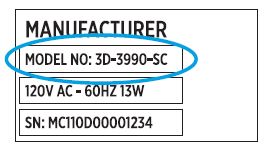
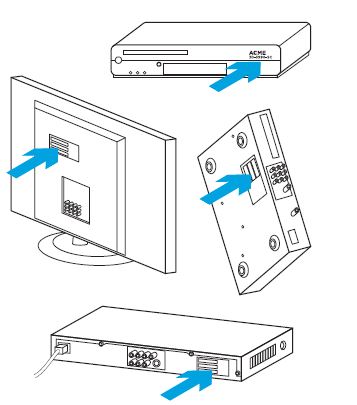
| Device | Manufacturer | Model number |
| TV | ||
| Cable/Satellite | ||
| DVD | ||
What are inputs… and why do I need to know about them?
Inputs are how your devices are connected. For example, if your DVD player is connected to your TV using Video 1 input, you would need to select Video 1 when setting up your Watch a DVD Activity in the MyHarmony software. Once you set up Activities on your remote, one touch of an Activity button will power on and set the inputs on all the devices needed for that Activity.
Setup
Create an account in the MyHarmony desktop software so that you can set up your Harmony 665 to control your home entertainment system.
- Visit setup.myharmony.com to download the MyHarmony desktop software.
- After installing the software, connect your remote to your computer using the supplied USB cable.
- Follow the on-screen instructions to create a new account or sign in to a current Harmony account, and then set up your devices and Activities.
- Update or sync your remote before you disconnect it from your computer.

Test your remote
Test your remote to make sure everything is working.
- Disconnect your remote from your computer and go to your entertainment system.
- Go through the tutorial provided on the remote to get to know your remote better.
- Try your remote to see that it works. If you want to make changes, launch the MyHarmony desktop software from your computer and login to your Harmony account.
Note: Once setup is complete, use Harmony 665 as your only remote; using other remotes could cause the devices in your Activities to go out of sync. If this happens, use the “Help” button and follow the on-screen instructions.
We’re here to help
Visit support.myharmony.com/665 to find additional support including:
- Set up tutorials
- Support articles
- Troubleshooting guides
- User forums
© 2017 Logitech. Logitech, Logi, the Logitech logo, Harmony, and other Logitech marks are owned by Logitech and may be registered. All other trademarks are the property of their respective owners.
FREQUENTLY ASKED QUESTIONS
What is the Logitech Harmony 665 Advanced Remote Control?
What is the main purpose of the Harmony 665 remote control?
How does the Harmony 665 work?
What devices can the Harmony 665 control?
How do I program the Harmony 665 for my devices?
Can I customize the buttons on the remote control?
Does the Harmony 665 have a display screen?
Can I control smart home devices with the Harmony 665?
Is the Harmony 665 compatible with voice assistants like Alexa or Google Assistant?
How does the remote control communicate with devices?
Can I control devices that are hidden behind cabinets or walls?
Can the Harmony 665 replace all my remotes?
Does the remote require batteries?
Is the Harmony 665 compatible with Mac or PC?
DOWNLOAD THE PDF LINK: Logitech Harmony 665 Advanced Remote Control Setup Guide
References
- User Manualmanual.tools