1. ບົດແນະນຳ
The COMFAST CF-E113A is a high-power outdoor wireless WiFi bridge designed for long-range wireless data transmission. It operates in the 5.8GHz frequency band, offering enhanced stability and reduced interference compared to 2.4GHz devices. This device is suitable for various outdoor applications, including video surveillance backhaul and extending network coverage over distances up to 3 kilometers.

Image: The COMFAST CF-E113A Wireless WiFi Bridge, a white rectangular outdoor unit with the Comfast logo.
Its robust design ensures reliable operation in diverse outdoor environments, featuring dustproof and waterproof capabilities, and resistance to extreme temperatures.
2. ເນື້ອໃນຊຸດ
ກວດສອບວ່າລາຍການທັງຫມົດທີ່ລະບຸໄວ້ຂ້າງລຸ່ມນີ້ແມ່ນມີຢູ່ໃນຊຸດຂອງທ່ານ:
- 1x CF-E113A WiFi Bridge
- 2x PoE Power Adapter
- 2x Stainless Steel Ties
- 1x ຄູ່ມືຜູ້ໃຊ້ (ເອກະສານນີ້)

Image: Contents of the CF-E113A package, including the WiFi bridge unit, PoE adapters, stainless steel ties, and user manual.
3. ຜະລິດຕະພັນເກີນview
The CF-E113A features a compact design with essential ports and indicators for easy setup and monitoring.

ຮູບພາບ: ລາຍລະອຽດ view of the CF-E113A showing its components: Rotating Base, Indicator LEDs, Reset button, Toggle Switches (STA/AP), WAN port, LAN port, Cover, and Wire Holes.
ອົງປະກອບທີ່ສໍາຄັນ:
- ພື້ນຖານການຫມຸນ: For flexible mounting and angle adjustment.
- ຕົວຊີ້ວັດ LED: Provide status information, including signal strength.
- ປຸ່ມຣີເຊັດ: ໃຊ້ເພື່ອຟື້ນຟູການຕັ້ງຄ່າເລີ່ມຕົ້ນຈາກໂຮງງານ.
- Toggle Switches (STA/AP): For configuring the device as a Station (client) or Access Point.
- ພອດ WAN: Connects to the network source (e.g., router, NVR).
- LAN Port: Connects to local devices (e.g., IP camera, computer).
- ໜ້າປົກ: Protects the ports from environmental elements.
- ຮູລວດ: For cable management and weather sealing.
4. ຂໍ້ມູນຈໍາເພາະ
| ຄຸນສົມບັດ | ຂໍ້ມູນຈໍາເພາະ |
|---|---|
| ຕົວແບບ | CF-E113A |
| CPU | Qualcomm AR9344 560MHz |
| ຊິບເຊັດ | Y85735YXNUMX |
| ເສົາອາກາດ | 11dBi Directional |
| ມາດຕະຖານ WiFi | IEEE 802.11a/an |
| ພະລັງງານຜົນຜະລິດ | 200mW (23dBm) |
| ໄດ້ຮັບຄວາມອ່ອນໄຫວ | -96dBm |
| ຄວາມຖີ່ RF | 5.180GHz-5.825GHz |
| ອັດຕາການສົ່ງຜ່ານ | 300Mbps |
| ການເຊື່ອມໂຍງເຄືອຂ່າຍ | 1x 10/100Mbps WAN + 1x LAN RJ45 Ethernet Port |
| ຕົວຊີ້ວັດ | 8 LEDs |
| ພະລັງງານ | 9-24V PoE Supply Power |
| ການບໍລິໂພກພະລັງງານ | <8W |
| ດັດຊະນີ IP | IP65, 2KV Lightning protection |
| ການຕິດຕັ້ງ | Wall-mounted, pole-mounted, bracket |
| ອຸນຫະພູມເຮັດວຽກ | -40 ℃ ~ 55 ℃ |
| ອຸນຫະພູມການເກັບຮັກສາ | -55 ℃ ~ 75 ℃ |
| ຄວາມຊຸ່ມຊື່ນທີ່ເຮັດວຽກ | 10% ~ 90%RH, non-condensing |
| ຄວາມຊຸ່ມຊື້ນ | 5% ~ 90%RH, non-condensing |
| ຂະໜາດ | ຂະ ໜາດ 165 x 95 x 31 ມມ (6.5 x 3.74 x 1.22 ນິ້ວ) |

Image: The CF-E113A device highlighting its outdoor protection features against snow, rain, sun exposure, and frost, indicating its IP65 rating and ability to withstand extreme temperatures.
5. ການຕິດຕັ້ງແລະການຕິດຕັ້ງ
5.1. ການຕິດຕັ້ງທາງດ້ານຮ່າງກາຍ
The CF-E113A supports wall-mounted, pole-mounted, and bracket installations. Use the provided stainless steel ties for pole mounting or appropriate hardware for wall mounting.
Ensure the device is positioned with a clear line of sight to the other bridge unit(s) for optimal signal transmission.
5.2. ການເປີດອຸປະກອນ
Connect the PoE power adapter to the WAN/LAN port of the CF-E113A and then plug the adapter into a power outlet. The device will power on automatically.
5.3. One-Click Pairing
The CF-E113A features a simplified pairing process for establishing a wireless bridge connection:
- ການຕິດຕັ້ງເຄື່ອງສົ່ງສັນຍານ: Set the toggle switch on the first CF-E113A unit to AP (Access Point) mode.
- ຕັ້ງຄ່າຕົວຮັບ: Set the toggle switch on the second CF-E113A unit to STA (Station) mode.
- ການຈັບຄູ່: The devices will automatically attempt to pair. A successful pairing will be indicated by specific LED patterns (refer to the LED indicator section in the full manual for details).
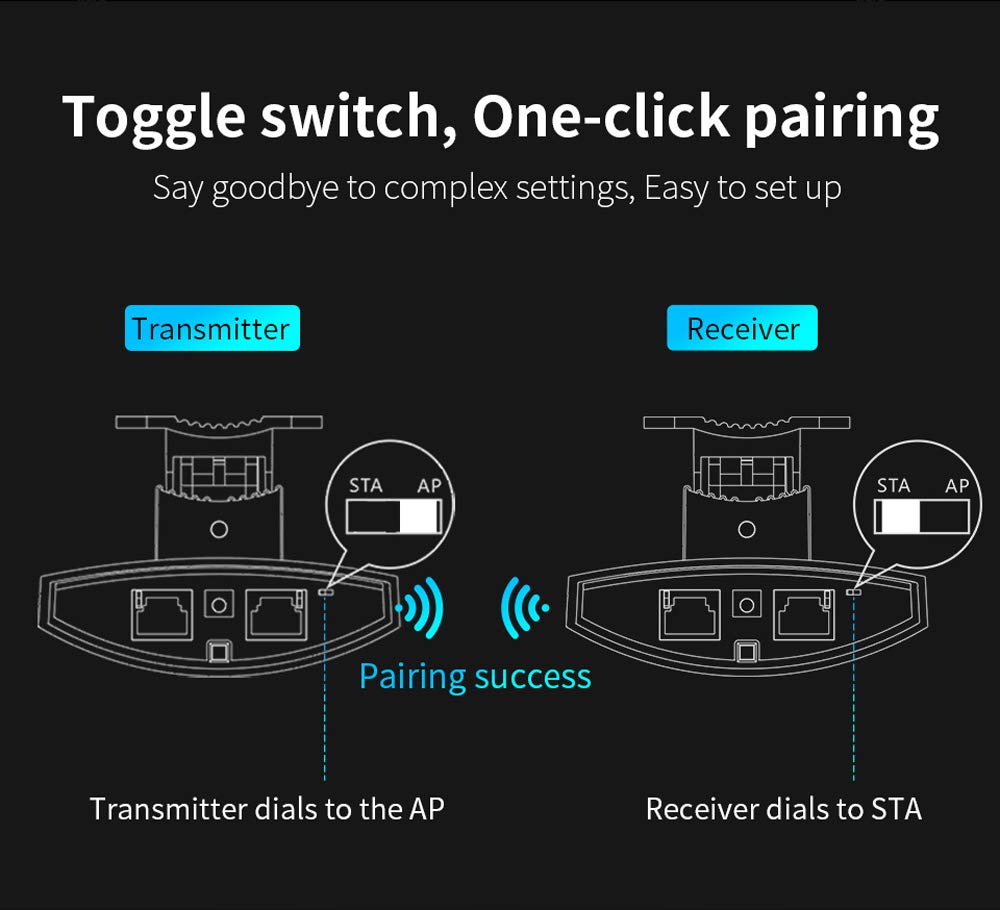
Image: Illustration of the one-click pairing process. One device is set to AP (Transmitter) and the other to STA (Receiver) using toggle switches, leading to a successful wireless connection.
5.4. Signal Alignment
After physical installation and initial pairing, optimize the signal strength by adjusting the angle of the CPE units. The device includes a signal strength indicator to assist with precise alignment.
- Very Strong: All indicator LEDs lit (e.g., green).
- ແຂງແຮງ: Most indicator LEDs lit (e.g., green).
- ທົ່ວໄປ: Some indicator LEDs lit (e.g., red/orange).
- Weak: Few or no indicator LEDs lit (e.g., red).
Adjust the device angle until the signal strength indicators show the strongest possible connection.

Image: Close-up of the CF-E113A's signal strength indicator LEDs, showing how different levels of illumination correspond to signal quality (very strong, strong, general, weak).
6. ຮູບແບບການເຮັດວຽກ
The CF-E113A can be configured for various wireless bridge scenarios.
6.1. ການເຊື່ອມຕໍ່ຈຸດຫາຈຸດ
This is the most common setup, involving two CF-E113A units to create a direct wireless link between two locations. One unit acts as an Access Point (AP) and the other as a Station (STA).
6.2. Point-to-Multi-Point Connection
For scenarios requiring multiple remote locations to connect to a central point, one CF-E113A can act as an AP, and several other CF-E113A units can act as STAs. This is suitable for applications like distributed video surveillance.
ສຳຄັນ: For optimal performance in a point-to-multi-point setup, ensure that the angle between the cameras/CPEs and the central monitoring CPE is less than 60 degrees. This configuration requires careful planning to meet broadband requirements and minimize signal degradation.

Image: Diagram illustrating a point-to-multi-point connection. Multiple cameras connected to individual CPEs transmit wirelessly to a central CPE, which then connects to an NVR and monitoring computer. The diagram emphasizes the 60-degree transmission angle requirement.
6.3. ອະດີດample Application: Elevator Monitoring
The CF-E113A can be used to establish wireless links for elevator monitoring systems, providing connectivity between cameras inside elevators and a central security and monitoring center. This eliminates the need for complex wiring within elevator shafts.

Image: Two diagrams showing different ways to implement elevator monitoring using wireless CPEs. Both methods connect cameras within elevators wirelessly to a central security and monitoring center.
7. ບໍາລຸງຮັກສາ
The COMFAST CF-E113A is designed for minimal maintenance due to its robust outdoor casing. However, periodic checks can ensure optimal performance:
- ການກວດຮ່າງກາຍ: Periodically inspect the device and its mounting for any signs of damage, loose connections, or obstruction to the line of sight.
- ທໍາຄວາມສະອາດ: ຖ້າຈຳເປັນ, ຄ່ອຍໆທຳຄວາມສະອາດດ້ານນອກຂອງອຸປະກອນດ້ວຍຜ້າອ່ອນໆ.amp ຜ້າ. ຢ່າໃຊ້ສານເຄມີທີ່ຮຸນແຮງຫຼືວັດສະດຸຂັດ.
- ການອັບເດດເຟີມແວ: Check the official COMFAST webເວັບໄຊທ໌ສຳລັບການອັບເດດເຟີມແວທີ່ມີຢູ່. ການຮັກສາເຟີມແວໃຫ້ອັບເດດຢູ່ສະເໝີສາມາດປັບປຸງປະສິດທິພາບ, ຄວາມໝັ້ນຄົງ ແລະ ຄວາມປອດໄພໄດ້.
- ເງື່ອນໄຂສິ່ງແວດລ້ອມ: ໃຫ້ແນ່ໃຈວ່າອຸປະກອນຍັງຄົງຢູ່ພາຍໃນຂອບເຂດອຸນຫະພູມປະຕິບັດການ ແລະ ຄວາມຊຸ່ມຊື່ນທີ່ກຳນົດໄວ້.
8. ການແກ້ໄຂບັນຫາ
This section addresses common issues you might encounter with your CF-E113A WiFi Bridge.
8.1. ບໍ່ມີພະລັງງານ
- Ensure the PoE adapter is correctly connected to the device and a working power outlet.
- ກວດສອບວ່າປ່ຽງໄຟແມ່ນເຮັດວຽກໄດ້.
- Check the Ethernet cable connecting the PoE adapter to the CF-E113A for damage.
8.2. No Wireless Connection / Poor Signal
- Line of Sight: Ensure there is a clear, unobstructed line of sight between the two bridge units. Obstacles like trees, buildings, or hills can severely degrade signal quality.
- ຈັດຮຽງ: Re-adjust the angle of both CF-E113A units using the signal strength indicators to achieve optimal alignment.
- ການຕັ້ງຄ່າໂໝດ: Confirm that one unit is set to AP mode and the other to STA mode using the toggle switches.
- ແຊກແຊງ: The 5.8GHz band is less prone to interference than 2.4GHz, but other 5.8GHz devices or strong electromagnetic sources could still cause issues. Try repositioning the devices slightly if possible.
- ໄລຍະທາງ: While rated for 3km, extreme weather or environmental factors can affect maximum range. Ensure the distance is within reasonable limits for your specific environment.
8.3. Network Connectivity Issues (After Wireless Link is Established)
- ການເຊື່ອມຕໍ່ສາຍ: Check all Ethernet cables connecting the CF-E113A units to your network devices (router, NVR, PC).
- ທີ່ຢູ່ IP ຂໍ້ຂັດແຍ່ງ: If you have manually configured IP addresses, ensure there are no conflicts on your network.
- Router/NVR Settings: Verify that your connected router or NVR is properly configured and functioning.
8.4. ການຕັ້ງຄ່າຄືນໃໝ່ເປັນຄ່າເລີ່ມຕົ້ນຂອງໂຮງງານ
If you encounter persistent issues or forget your configuration settings, you can reset the device to its factory defaults using the Reset button. Typically, this involves pressing and holding the Reset button for 5-10 seconds while the device is powered on, then releasing it. Refer to the full product manual for the exact procedure.
9. ການຮັບປະກັນແລະການສະຫນັບສະຫນູນ
The COMFAST CF-E113A typically comes with a ຮັບປະກັນ 1 ປີ ຈາກວັນທີ່ຊື້. ການຮັບປະກັນນີ້ກວມເອົາຄວາມບົກຜ່ອງດ້ານການຜະລິດແລະການເຮັດວຽກຜິດປົກກະຕິພາຍໃຕ້ເງື່ອນໄຂການນໍາໃຊ້ປົກກະຕິ.
For technical support, warranty claims, or further assistance, please contact your retailer or visit the official COMFAST webສະຖານທີ່ສໍາລັບຂໍ້ມູນຕິດຕໍ່ແລະຊັບພະຍາກອນສະຫນັບສະຫນູນ.
ກະລຸນາເກັບຫຼັກຖານການຊື້ຂອງທ່ານໄວ້ເພື່ອກວດສອບການຮັບປະກັນ.


