1. Destpêk
Spas ji bo kirînêasing the DREAM TV BLUEPRINT 8K Android Media Player. This device is designed to provide a superior home entertainment experience with its advanced features, including 8K ultra-high-definition video playback, dual-band Wi-Fi, Gigabit LAN, and Google Play integration. This manual will guide you through the setup, operation, and maintenance of your new media player.
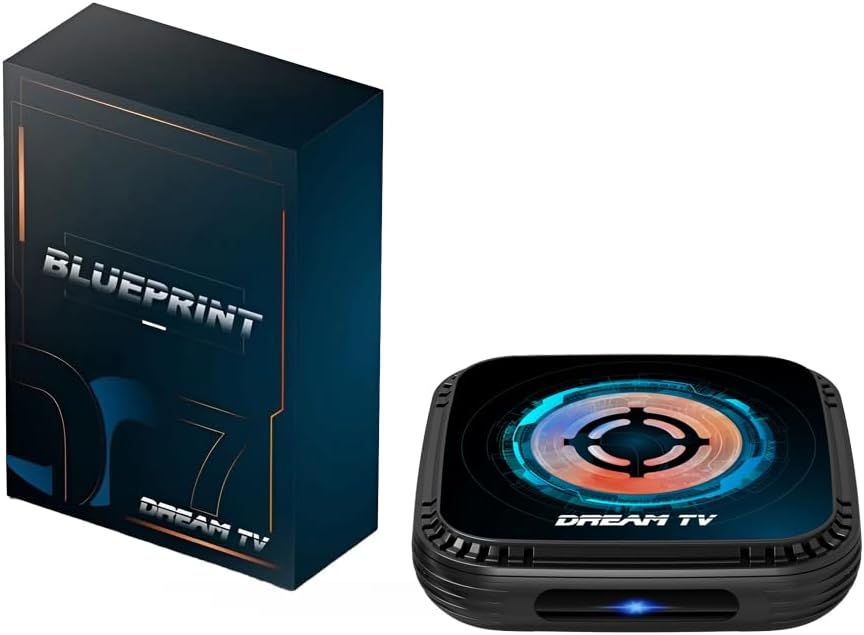
Image 1.1: DREAM TV BLUEPRINT Media Player and Packaging
This image displays the DREAM TV BLUEPRINT media player alongside its product packaging. The device is a compact, black square unit with a distinctive circular design on its top surface, featuring blue and orange accents. The packaging box is also dark-colored with "BLUEPRINT" and "DREAM TV" branding.
2. Hilbera Serîview û Taybetmendî
The DREAM TV BLUEPRINT is equipped with cutting-edge technology to deliver an immersive media experience. Key features include:
- 8K Ultra-High Definition Playback: Supports next-generation 8K video technology, providing a more vivid and realistic visual experience. Enjoy movies and videos with an immersive visual quality.
- Gigabit Wired LAN Port: Features a 1Gbps wired LAN port for stable, high-speed communication. This ensures smooth streaming and fast transfer of large data files.
- Dual-Band Wi-Fi Support (2.4G / 5G): Equipped with a Wi-Fi module compatible with both 2.4GHz and 5GHz bands. This allows for high-speed communication with less interference, making video viewing comfortable.
- Included Gamepad for Large Screen Gaming: Comes with a wireless game controller. Enjoy action, racing, simulation, and other games comfortably on your living room's large screen.
- Bluetooth Remote Control & HDMI Output: Easy operation with the included Bluetooth remote control. Connects to TVs and projectors via the HDMI port, functioning as a versatile home entertainment terminal.

Image 2.1: Key Features of DREAM TV BLUEPRINT
This image highlights the core features of the DREAM TV BLUEPRINT. Icons represent Bluetooth 5.0+, Wi-Fi 6, AI Smart Technology, 4GB Memory, 8K Ultra-High Definition, Voice Assistant, 64GB Storage, and a Fan System, all surrounding a central image of the media player.

Image 2.2: 8K Decoding Capability
This image emphasizes the 8K decoding support of the device, promising a sharper visual experience. It features a large "8K" graphic with vibrant floral elements, and the media player is shown at the bottom, reinforcing its 8K capability.
3. Guide Setup
3.1. Naveroka pakêtê
Berî ku hûn dest pê bikin, ji kerema xwe pê ewle bin ku hemî pêkhateyên di pakêtê de hene:
- DREAM TV BLUEPRINT Media Player
- Bluetooth Remote Control
- Power Adapter
- Manual Bikarhêner (ev belge)
3.2. Girêdana Amûrê We
- Bi TV-yê ve girêdayî bike: Use an HDMI cable (not included) to connect the HDMI OUT port on the DREAM TV BLUEPRINT to an HDMI IN port on your television or projector.
- Girêdana hêzê: Plug the power adapter into the DC IN port on the media player, then plug the other end into a wall outlet. The device will automatically power on.
- Girêdana Torê (Vebijarkî):
- Têkiliya Wired: For the most stable connection, connect an Ethernet cable from your router to the Gigabit LAN port on the media player.
- Têkiliya Wireless: During initial setup, you will be prompted to connect to a Wi-Fi network. Select your network and enter the password. The device supports both 2.4GHz and 5GHz bands.
3.3. Sazkirina Destpêkê û Hevberdana Ji Dûr
Upon first power-on, follow the on-screen instructions to complete the initial setup. This typically includes:
- Hilbijartina Ziman: Zimanê xwe yê bijarte hilbijêrin.
- Hevberkirina Dûr: The Bluetooth remote control may need to be paired. Follow the on-screen prompts, usually involving holding down specific buttons on the remote near the device until pairing is successful.
- Veavakirina Torê: If not already connected via Ethernet, select and connect to your Wi-Fi network.
- Têketina Hesabê Google: Log in with your Google account to access Google Play Store and other Google services.
4. Telîmatên Operating
4.1. Navîgasyon bingehîn
Use the directional pad (D-pad) and OK button on the Bluetooth remote control to navigate through the Android TV interface. The Home button will return you to the main screen, and the Back button will go back to the previous screen.
4.2. Gihîştina Serlêdanan
From the home screen, you can access pre-installed applications or download new ones from the Google Play Store. Navigate to the "Apps" section or the Google Play Store icon to browse and install applications.
4.3. Lîstina Medyayê
The DREAM TV BLUEPRINT supports various media formats. You can play local media files from connected USB drives or network storage, or stream content from online services like YouTube (pre-installed) and other streaming apps downloaded from Google Play.
For 8K content, ensure your display supports 8K resolution and that you are using a high-speed HDMI cable capable of 8K transmission.
4.4. Lîstik
With the included wireless gamepad, you can enjoy a wide range of Android games available on the Google Play Store. Connect the gamepad via Bluetooth (if not already paired) and launch your favorite games for an enhanced gaming experience on your TV.

Image 4.1: Usage Scenario - Entertainment on the Go
This image illustrates a usage scenario where the DREAM TV BLUEPRINT can be used for entertainment during breaks or while away from home, implying its portability or connectivity features. It shows a person using a smartphone and the media player connected to a larger display, suggesting seamless integration for entertainment.
5. Maintenance
5.1. Paqijkirin
To clean the device, gently wipe the exterior with a soft, dry cloth. Do not use liquid cleaners or abrasive materials, as they may damage the surface.
5.2. Pergala sarkirinê
The DREAM TV BLUEPRINT features an optimized cooling system to ensure stable operation and extend device lifespan. Ensure the ventilation holes are not blocked and the device is placed in a well-ventilated area to prevent overheating.

Image 5.1: Optimized Cooling System
This image illustrates the optimized cooling system of the DREAM TV BLUEPRINT, designed to extend the device's lifespan. It shows a fan and heat sink components, with cool air flowing through the device, emphasizing efficient heat dissipation.
5.3. Nûvekirinên Nivîsbariyê
Periodically check for system updates in the device settings. Keeping your software up-to-date ensures optimal performance, security, and access to new features.
6. Destpêkirin
If you encounter issues with your DREAM TV BLUEPRINT, please refer to the following common solutions:
| Pirsegirêk | Sedema gengaz / Çareserî |
|---|---|
| Hêz tune |
|
| Sînyal li ser TV-yê tune ye |
|
| Pirsgirêkên Têkiliya Wi-Fi |
|
| Kontrola Dûr Bersiv nade |
|
7. Specifications
| Taybetî | Hûrî |
|---|---|
| Navê Model | BLUEPRINT |
| Hejmara Modela Hilberê | DREAM BOX |
| Nîşan | HT (komgilk) |
| Reng | Reş |
| Faktora Form | TV Box |
| Type Controller | Remote Control |
| Karûbarên Înternetê piştgirî kirin | YouTube (and others via Google Play) |
| Resolution | 8K |
| Taybetmendiya Taybet | DLNA |
| Teknolojiya Girêdanê | HDMI, Dual-Band Wi-Fi (2.4G/5G), Gigabit LAN, Bluetooth |
| Pêkhateyên Tê de | Player, Remote Control, Power Adapter, User Manual |
| Mezinahiya Hilberê | 25 x 12 x 5 cm |
| Giraniya hilberê | 412 g |
8. Garantî û Piştgirî
For warranty information and technical support, please refer to the official HT (komgilk) website or contact their customer service directly. Details regarding warranty coverage and support channels are typically provided with your purchase documentation or on the manufacturer's official product page.
For further assistance, you may also visit the product page on Amazon.co.jp: Rûpela Berhema Amazonê