소개
This manual provides essential information for the safe and efficient use of your Samsung Galaxy Tab S10 FE 5G. Please read these instructions carefully before using your device to ensure proper setup, operation, and maintenance. Keep this manual for future reference.

그림 1: 전면 view of the Samsung Galaxy Tab S10 FE 5G.
설정
1. 언박싱 및 초기 충전
Upon unboxing, ensure all accessories are present. Connect the provided fast charger to your tablet and a power outlet. Allow the device to charge fully before first use. The tablet features an 8000mAh battery.
2. 전원 켜기 / 끄기
- 전원을 켜려면: Samsung 로고가 나타날 때까지 전원 버튼을 길게 누르세요.
- 전원을 끄려면: 전원 버튼을 길게 누른 다음 옵션에서 '전원 끄기'를 선택하세요.
3. SIM Card and eSIM Setup
The Galaxy Tab S10 FE 5G supports Nano-SIM and eSIM for cellular connectivity. Use the provided SIM ejector tool to open the SIM tray. Insert your Nano-SIM card as shown in the diagram. For eSIM activation, follow the on-screen instructions during initial setup or via the device settings.
4. 초기 장치 구성
Follow the on-screen prompts to complete the initial setup. This includes selecting your language, connecting to a Wi-Fi network (supports Wi-Fi 6E), setting up your Google account, and configuring security features.
5. S-Pen Compatibility
Note that the S-Pen is not included with this renewed device. However, the tablet is compatible with the S-Pen, allowing for enhanced interaction and creative tasks if an S-Pen is acquired separately.
작동 지침
1. 디스플레이 및 탐색
The tablet features a 10.9-inch IPS LCD with a 90Hz adaptive refresh rate and 2304 x 1440 resolution. Navigate the interface using touch gestures such as tap, swipe, pinch, and zoom.

Figure 2: Device dimensions highlighting the 10.9-inch screen and thin profile.

Figure 3: Display features: 90Hz refresh rate and Vision Booster.
2. 카메라 사용
The tablet is equipped with a 13MP rear camera (f/2.0 wide) and a 12MP front camera (f/2.4 ultrawide). Open the Camera app to capture photos and videos. Various modes and settings are available for different shooting conditions.
3. Smart Features with AI
- Google로 검색하려면 동그라미를 치세요: Use your finger or S-Pen to circle any object on your screen to instantly search for information about it online.
- Math Assistant: If using an S-Pen, this feature can help solve complex equations by recognizing handwritten input.
- Calligraphy Assistant: When taking notes with an S-Pen, AI can help organize and refine your handwritten notes.

Figure 4: Circle to Search with Google feature.

Figure 5: Math Assistant for solving equations.

Figure 6: Calligraphy Assistant for note organization.
4. Multi-tasking and Second Screen
The tablet supports multi-window functionality, allowing you to run multiple apps simultaneously. You can also expand your workspace by connecting the tablet as a second screen to a compatible Galaxy Book or other device.
5. 빠른 공유
Use Quick Share to easily send and receive files, photos, and videos with other compatible Galaxy devices and even non-Galaxy devices.
6. 방수 및 방진(IP68)
The Galaxy Tab S10 FE 5G is rated IP68 for water and dust resistance. This means it can withstand immersion in up to 1.5 meters of fresh water for up to 30 minutes. Avoid exposure to saltwater or other liquids. Ensure the USB port is dry before charging.

Figure 7: IP68 Water and Dust Resistance rating.
유지
1. 기기 청소
Use a soft, lint-free cloth to clean the screen and body of your tablet. Avoid using abrasive cleaners or solvents, as these can damage the device. For stubborn smudges, lightly damp천에 물을 적셔요.
2. 배터리 최적화
To maximize battery life (up to 20 hours), adjust screen brightness, disable unused features like Bluetooth or GPS, and close background applications. Avoid exposing the device to extreme temperatures.
3. 소프트웨어 업데이트
Regularly check for and install software updates to ensure your device has the latest features, security patches, and performance improvements. Updates are typically found in the device's Settings menu under 'Software update'. The tablet runs on Android 15 with One UI 7.
4. 스토리지 관리
The tablet comes with 128GB of internal storage, expandable via a dedicated microSD card slot. Regularly review 그리고 불필요한 것을 삭제하세요 file저장 공간을 확보하고 최적의 성능을 유지하기 위해 앱, 미디어를 업데이트합니다.
문제 해결
1. 장치 전원이 켜지지 않음
- 배터리가 충전되어 있는지 확인하세요. 충전기를 연결하고 몇 분 정도 기다린 후 전원을 켜보세요.
- 강제 재시작을 실행하려면 전원 버튼을 최소 10초 동안 길게 누르세요.
2. 연결 문제 (Wi-Fi/5G)
- 와이파이 또는 모바일 데이터를 껐다가 켜세요.
- 와이파이 연결 문제가 발생하면 라우터 또는 모뎀을 재시작하세요.
- Ensure your SIM card is properly inserted and activated for 5G connectivity.
3. 앱 충돌 또는 정지
- 앱을 닫았다가 다시 엽니다.
- 설정 > 앱에서 앱의 캐시와 데이터를 지웁니다.
- 앱이 최신 버전으로 업데이트되었는지 확인하세요.
4. 느린 성능
- 사용하지 않는 백그라운드 애플리케이션을 닫습니다.
- Clear device cache (via device care settings).
- 충분한 저장 공간을 확보하세요.
5. 공장 초기화(최후의 수단)
If issues persist, a factory reset may resolve them. This will erase all data on your device, so ensure you back up important information first. Navigate to Settings > General management > Reset > Factory data reset.
명세서
| 특징 | 세부 사항 |
|---|---|
| 모델 번호 | SM-X528U |
| 표시하다 | 10.9-inch IPS LCD, 2304 x 1440 (WUXGA+), 90Hz Adaptive Refresh Rate |
| 프로세서 | Samsung Exynos 1580 (4nm), Octa-core |
| 숫양 | 8GB (XNUMX기가바이트) |
| 저장 | 128GB(microSD로 확장 가능) |
| 운영 체제 | 안드로이드 15, 원 UI 7 |
| 후방 카메라 | 13 MP, f/2.0 (Wide) |
| 전면 카메라 | 12 MP, f/2.4 (Ultrawide) |
| 배터리 | 8000 mAh (Up to 20 hours average battery life) |
| 연결성 | 5G, Wi-Fi 6E (802.11ax), Bluetooth 5.3, USB Type-C 2.0 |
| 방수 및 방진 | IP68 |
| 치수(길이x너비x높이) | 10 x 8 x 1.5 인치 |
| 무게 | 2.2파운드 |

Figure 8: Samsung Exynos 1580 Processor.
보증 및 지원
1. Amazon 갱신 조건
This product is an Amazon Renewed device. All Amazon Renewed products are fully functional and come with generic or original accessories and packaging. The condition of renewed products is categorized as Excellent, Good, or Acceptable based on cosmetic damage, screen condition, and battery life (always greater than 80%).
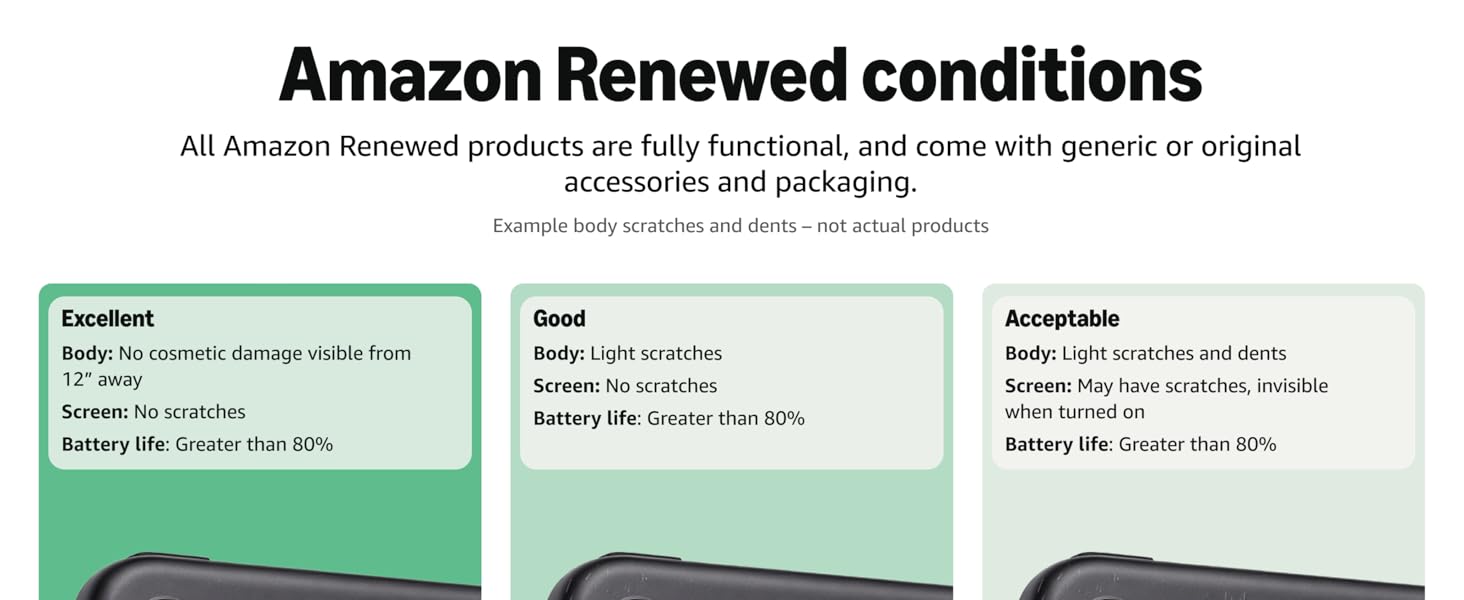
그림 9: Amazon Renewed 제품 상태 가이드라인.
2. 보증 정보
For specific warranty details regarding your Amazon Renewed Samsung Galaxy Tab S10 FE 5G, please refer to the documentation provided with your purchase or contact the seller directly. Amazon Renewed products typically come with a satisfaction guarantee.
3. 고객 지원
If you encounter issues not covered in this manual or require further assistance, please contact Amazon Renewed customer support or the specific seller from whom you purchased the device. You can usually find contact information on your order details page.


