1. 서론
This manual provides comprehensive instructions for the DAREU EK87PROTKL Wireless Mechanical Gaming Keyboard and the DAREU A950 4K Polling Rate Wireless Gaming Mouse. Please read this manual carefully before using the products to ensure proper setup and operation. Keep this manual for future reference.
2. Keyboard Features Overview (EK87PROTKL)
- Gasket Mount & PCB Single Key Slotting: Features a gasket structure with a 1.2mm thick FR4 PCB and single key slotted design for enhanced resilience, stability, and a softer, more responsive feel. Six-layer padding reduces noise and provides a focused, crisp sound.
- 3중 모드 연결: Supports Bluetooth 5.1, 2.4GHz wireless, and USB-C wired connections. Connects to up to five devices simultaneously.
- 핫스왑 가능: Equipped with a hot-swappable PCB supporting almost all 3-pin or 5-pin mechanical switches on the market. Comes with pre-lubed Cloud linear switches.
- 남향 RGB 조명: Offers up to 26 backlight modes and 16.8 million colors. Brightness and speed are adjustable via the driver software.
- 긴 배터리 수명: Features a 4000mAh battery, providing up to 45 days of playtime in lights-off mode.

Figure 2.1: Keyboard Gasket Structure Diagram. This image details the layered construction of the keyboard, highlighting components that contribute to its sound and feel.

Figure 2.2: Keyboard Tri-Mode Connection. This image illustrates the three available connection methods and how to switch between them using Fn key combinations.

Figure 2.3: Keyboard RGB Lighting Controls. This image shows various RGB lighting modes and the Fn key combinations for adjusting brightness and color.
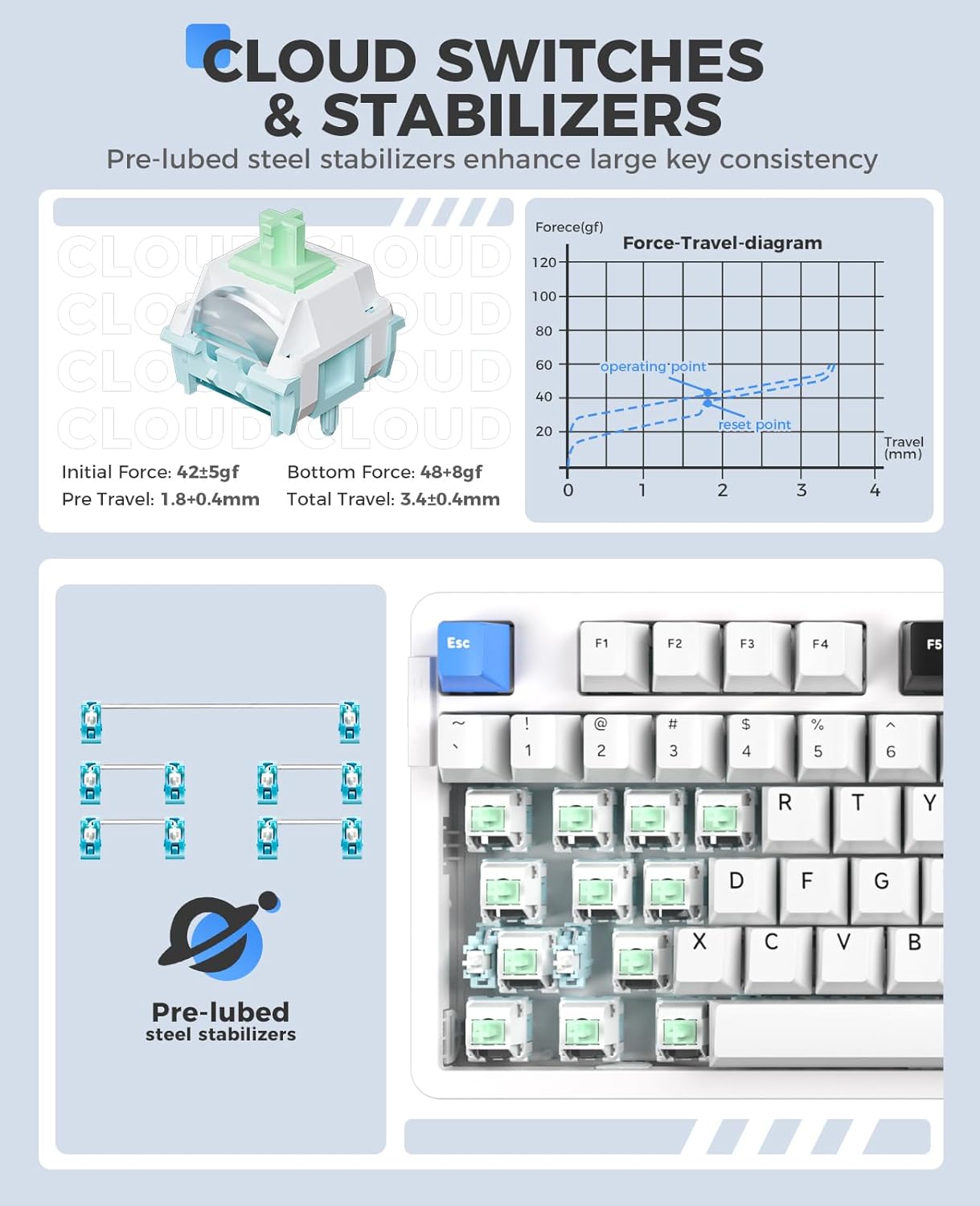
Figure 2.4: Cloud Switches and Stabilizers. This image details the characteristics of the pre-lubed Cloud linear switches and steel stabilizers.

Figure 2.5: Hot-Swappable PCB Socket. This image illustrates the hot-swappable design, allowing users to easily change switches.
3. Mouse Features Overview (A950)
- 4K 폴링 속도: Equipped with a 4KHz receiver, sending signals to the computer in 0.25ms, which is four times faster than standard gaming mice.
- PAW 3395 광학 센서: Features a high-precision PAW 3395 sensor with up to 26000 DPI, 650 IPS tracking speed, and 50G acceleration for accurate tracking.
- Kailh Black GM8.0 Switches: Utilizes durable Kailh black GM8.0 mouse switches, rated for 80 million clicks.
- Tri-Mode Connection & Programmable: Supports multiple connection methods and offers programmable buttons via software.
- 가벼운 디자인: Weighs 54g for comfortable and agile use.
- 빠른 충전: 300mAh battery with 30-minute fast charging to reach 90% power. Provides approximately 37 days of use in BT5.1 mode and 6 days in 2.4G mode (based on 4 hours of connection per day).

Figure 3.1: Mouse 4K Report Rate. This image shows the mouse and its 4K receiver, emphasizing the high report rate for responsiveness.

Figure 3.2: Mouse PAW3395 Optical Sensor. This image focuses on the mouse's sensor capabilities, including its high DPI and tracking speed.

Figure 3.3: Mouse Fast Charging Technology. This image provides details on the mouse's battery life and quick charging feature.
4. 설정 지침
4.1 Keyboard (EK87PROTKL)
- 유선 연결: Connect the keyboard to your computer using the provided USB-C cable. The keyboard will be automatically recognized.
- 2.4GHz 무선 연결:
- 2.4GHz USB 수신기를 찾으십시오.
- 수신기를 컴퓨터의 사용 가능한 USB 포트에 연결하십시오.
- Turn on the keyboard and switch it to 2.4GHz mode (refer to the keyboard's mode switch or Fn key combination). The keyboard should connect automatically.
- Bluetooth 5.1 연결:
- Ensure the keyboard is in Bluetooth mode (refer to the keyboard's mode switch or Fn key combination, typically Fn + 1/2/3).
- 컴퓨터나 기기에서 Bluetooth 설정으로 가서 새 기기를 검색하세요.
- Select "DAREU EK87PROTKL" from the list of available devices to pair.
- The keyboard can store up to three Bluetooth connections. Switch between them using Fn + 1, Fn + 2, 또는 Fn + 3.
4.2 Mouse (A950)
- 유선 연결: Connect the mouse to your computer using the provided USB-C cable. The mouse will function immediately.
- 2.4GHz 무선 연결:
- Plug the 4K USB receiver into an available USB port on your computer.
- Turn on the mouse and switch it to 2.4GHz mode. The mouse should connect automatically.
- 블루투스 연결 :
- 마우스가 블루투스 모드인지 확인하십시오.
- 컴퓨터나 기기에서 Bluetooth 설정으로 가서 새 기기를 검색하세요.
- Select "DAREU A950" from the list of available devices to pair.
- 충전 중: Connect the mouse to a computer USB port using the USB-C cable for charging. The mouse supports fast charging.
5. 사용 설명서
5.1 Keyboard (EK87PROTKL)
- RGB 조명 제어:
- Fn + 위쪽 화살표: 밝기를 높입니다.
- Fn + 아래쪽 화살표: 밝기를 줄입니다.
- Fn + { : 백라이트 색상을 변경합니다.
- Fn + } : 백라이트 모드를 변경하세요.
- 운영 체제 스위치: 사용 Fn + 1 (Windows의 경우) 또는 Fn + 2 (for Mac) to switch between operating system layouts.
- 드라이버 소프트웨어: For advanced customization of RGB lighting, macros, and key assignments, download and install the official DAREU driver software from the DAREU web대지.
5.2 Mouse (A950)
- DPI 조정: The mouse typically has a dedicated DPI button or can be adjusted via software. Refer to the DAREU driver software for precise DPI settings.
- 프로그래밍 가능한 버튼: Utilize the DAREU driver software to customize button functions, create macros, and adjust other performance settings.
6. 유지관리
6.1 일반 청소
- 청소하기 전에 키보드와 마우스를 컴퓨터에서 모두 분리하십시오.
- 부드럽고 털이 없는 천을 살짝 사용하세요.ampened with water or a mild cleaning solution to wipe down the surfaces.
- For the keyboard, use compressed air to remove dust and debris from between the keycaps.
- 독한 화학 약품, 연마성 세척제 또는 액체를 기기에 직접 분사하는 것을 피하십시오.
6.2 Keyboard Switch Replacement
- Ensure the keyboard is disconnected from power.
- Use a keycap puller to carefully remove the desired keycap.
- Use a switch puller to gently grip and pull the switch vertically out of the PCB.
- 새로운 3핀 또는 5핀 기계식 스위치의 핀을 PCB의 구멍에 맞춥니다.
- 새 스위치를 '딸깍' 소리가 날 때까지 단단히 눌러 제자리에 고정하세요. 스위치가 제대로 장착되었고 구부러지지 않았는지 확인하세요.
- 키캡을 교체하세요.
7. 문제 해결
7.1 키보드 문제
| 문제 | 가능한 해결책 |
|---|---|
| 키보드가 응답하지 않음(유선) | Check USB-C cable connection. Try a different USB port or cable. |
| 키보드가 연결되지 않음(2.4GHz) | Ensure the keyboard is in 2.4GHz mode. Re-insert the USB receiver. Try a different USB port. Ensure the keyboard battery is charged. |
| 키보드가 연결되지 않음(블루투스) | Ensure the keyboard is in Bluetooth pairing mode (Fn + 1/2/3). Forget the device on your computer and re-pair. Ensure the keyboard battery is charged. |
| RGB 조명이 작동하지 않거나 잘못되었습니다. | Adjust brightness/mode using Fn key combinations. Check settings in the DAREU driver software. Ensure the keyboard battery is charged. |
| 키가 등록되지 않음 | Check if the switch is properly seated. If hot-swappable, try re-seating or replacing the switch. |
7.2 마우스 문제
| 문제 | 가능한 해결책 |
|---|---|
| 마우스가 응답하지 않음(유선) | Check USB-C cable connection. Try a different USB port or cable. |
| Mouse not connecting (2.4GHz) | Ensure the mouse is in 2.4GHz mode. Re-insert the 4K USB receiver. Try a different USB port. Ensure the mouse battery is charged. |
| 마우스가 블루투스에 연결되지 않습니다. | Ensure the mouse is in Bluetooth pairing mode. Forget the device on your computer and re-pair. Ensure the mouse battery is charged. |
| 마우스 커서가 불규칙적으로 움직이거나 움직이지 않습니다. | Clean the optical sensor. Ensure the mouse pad or surface is clean and suitable. Check DPI settings. |
| 마우스가 충전되지 않습니다 | Ensure the USB-C cable is properly connected. Try a different USB port or charging cable. Use a computer USB port for charging, not a wall adapter. |
8. 사양
8.1 DAREU EK87PROTKL Keyboard
- 구조: 가스켓 마운트, PCB 단일 키 슬롯팅
- PCB: FR4 material, 1.2mm thick, hot-swappable (3/5 pin switches)
- 스위치: Pre-lubed Cloud Linear Switch
- 안정제: Pre-lubed Steel Stabilizers
- 연결: Bluetooth 5.1 / 2.4GHz Wireless / USB-C Wired (Tri-Mode)
- 배터리: 4000mAh
- 조명: South-Facing RGB, 26 modes, 16.8 million colors
- 키: 87 keys, N-key rollover (all keys conflict-free)
8.2 DAREU A950 Mouse
- 감지기: PAW 3395 광학 센서
- 폴링 속도: 4kHz (4kHz 수신기 포함)
- 해상도: 최대 26000 DPI
- 추적 속도: 650 IPS
- 가속: 50G
- 스위치: Kailh Black GM8.0 (80 million clicks)
- 무게: 54g
- 연결: Bluetooth / 2.4GHz Wireless / USB-C Wired (Tri-Mode)
- 배터리: 300mAh, 30-minute fast charging (90% power)
9. 보증 및 지원
DAREU 제품에는 표준 제조업체 보증이 제공됩니다. 구체적인 보증 조건은 제품에 동봉된 보증 카드를 참조하거나 DAREU 공식 웹사이트를 방문하십시오. website. For technical support, troubleshooting assistance, or driver downloads, please visit the DAREU official support page or contact DAREU customer service.
공식 DAREU Web대지: www.dareu.com


