1. 서론
The Logitech MK950 Signature Slim Wireless Keyboard and Mouse Combo provides a versatile and efficient input solution for multiple devices. Designed for quiet operation and extended battery life, this combo enhances productivity across various operating systems.
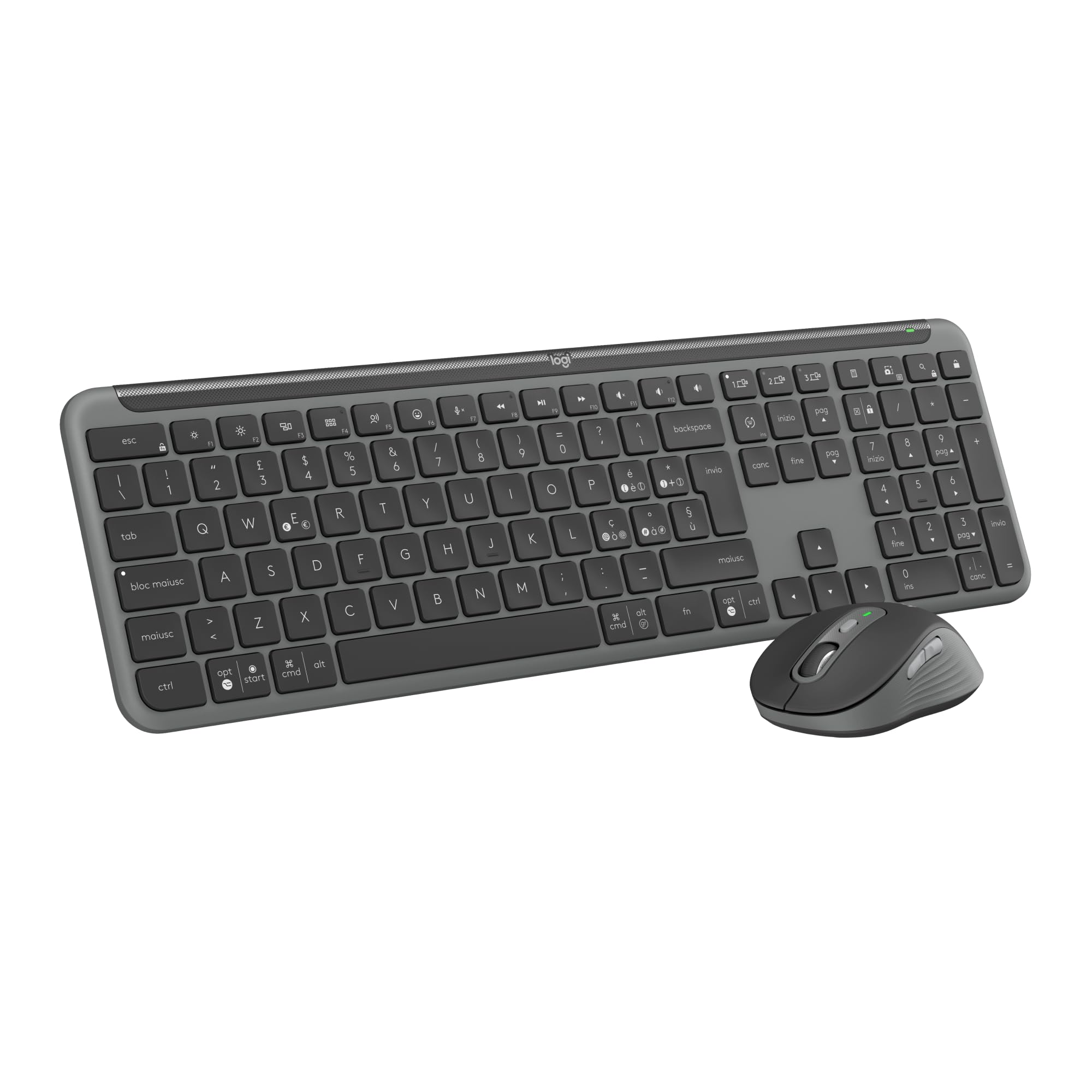
Image: The Logitech MK950 Signature Slim Wireless Keyboard and Mouse Combo, showcasing both the keyboard and mouse in Graphite Grey.
2. 설정
2.1 포장 해제 및 초기 전원 켜기
Upon unboxing, ensure all components are present: the wireless keyboard, wireless mouse, and Logi Bolt USB receiver. The keyboard and mouse come with pre-installed AAA batteries. Remove any protective tabs from the battery compartments to activate them.
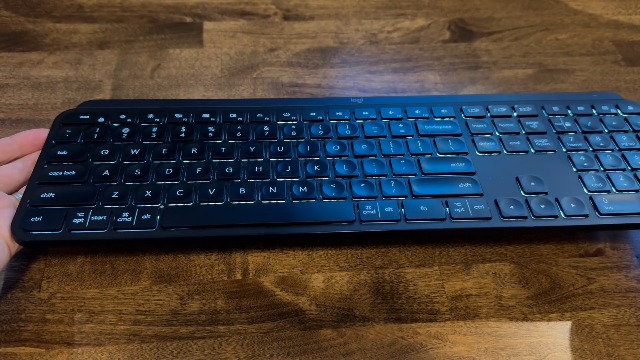
Image: A hand opening the battery compartment of the Logitech MK950 keyboard, revealing the pre-installed batteries and a storage slot for the Logi Bolt USB receiver.
2.2 연결 옵션
The MK950 combo offers two primary connection methods:
- Logi Bolt USB 수신기: Plug the Logi Bolt USB receiver into an available USB port on your computer. The keyboard and mouse are pre-paired with the receiver for immediate use.
- 블루투스: For devices without a USB port or to free up a port, connect via Bluetooth. Activate Bluetooth on your device and follow the pairing instructions in your device's settings. The keyboard and mouse feature Easy-Switch buttons to manage connections across up to three devices.
3. 사용 설명서
3.1 키보드 작동
The K950 Signature Slim keyboard provides a familiar typing experience similar to a laptop. It includes a full numeric keypad and dedicated media keys for convenience.
3.2 마우스 조작
The M750 Signature Plus wireless mouse features SilentTouch technology, reducing click sounds by 90% for a quieter work environment. The SmartWheel allows for precise line-by-line scrolling or fast scrolling through long documents and web 페이지.
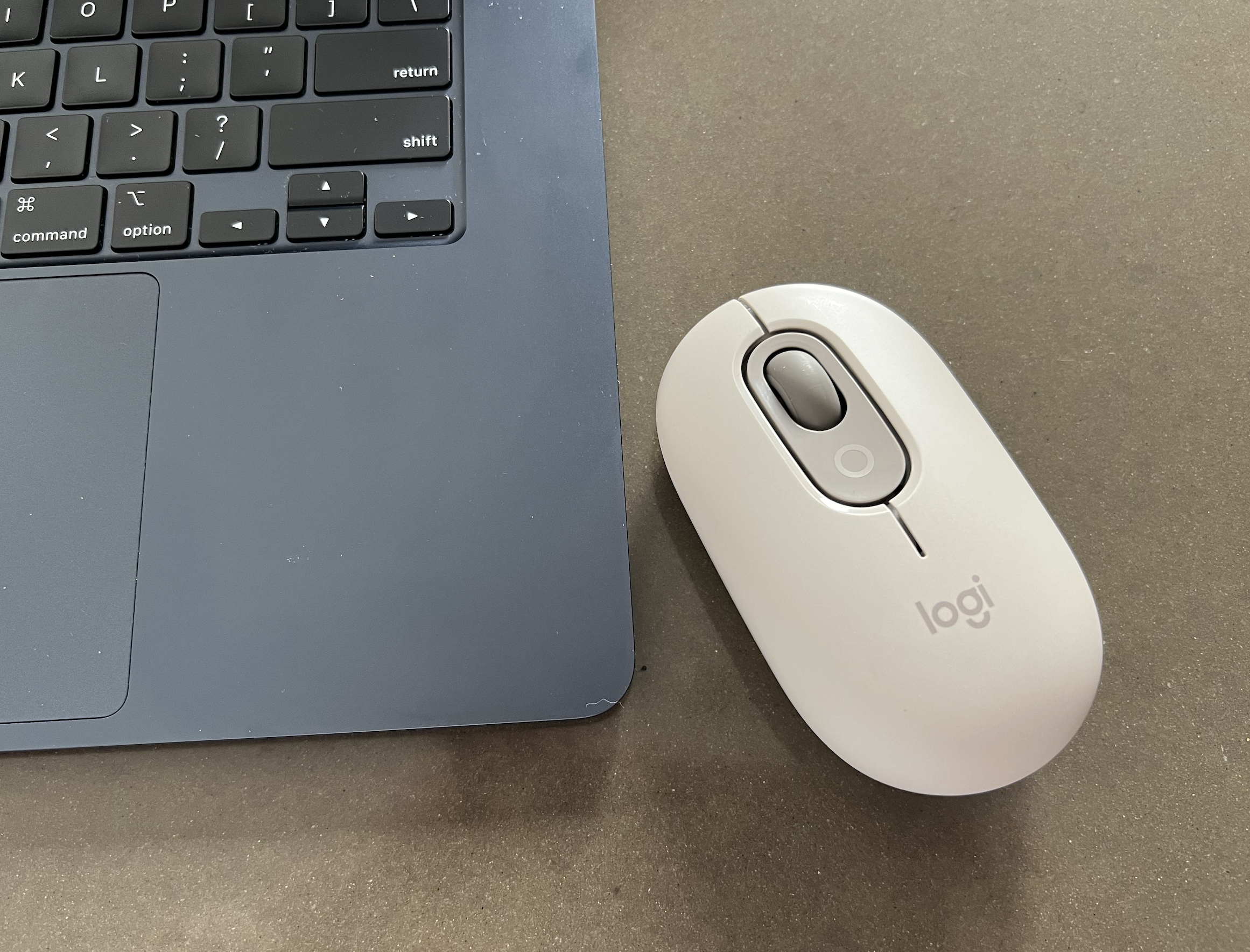
Image: The Logitech M750 Signature Plus wireless mouse, highlighting its ergonomic design and scroll wheel.
3.3 다중 장치 전환
Both the keyboard and mouse are equipped with Easy-Switch buttons, allowing you to seamlessly switch between up to three connected devices (e.g., laptop, tablet, smartphone) with a single tap.
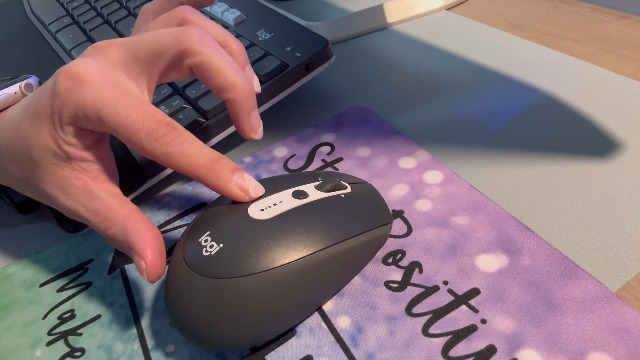
Image: A hand demonstrating the multi-device switching function on the Logitech MK950 keyboard, with numbered keys indicating different device connections.
4. 사용자 정의
Enhance your workflow by customizing keys, buttons, and shortcuts using the Logi Options+ App. This application is available for Windows and macOS, providing extended possibilities for personalized control over your wireless mouse and keyboard.
5. Battery Life and Maintenance
The keyboard offers up to 36 months of battery life, while the mouse provides up to 24 months, ensuring long periods of uninterrupted use. Both devices use standard AAA alkaline batteries. Replace batteries when the low battery indicator illuminates.
5.1 배터리 교체
To replace batteries, open the designated battery compartment on the underside of the device. Insert new AAA batteries, ensuring correct polarity, and close the compartment securely.
5.2 청소
키보드와 마우스를 청소하려면 부드러운 천을 사용하십시오.amp 천을 사용하십시오. 표면을 손상시킬 수 있는 강한 화학 물질이나 연마재는 사용하지 마십시오.
6. 호환성
The Logitech MK950 Signature Slim combo is compatible with a wide range of operating systems, including:
- 윈도우 10, 11 이상
- macOS 11 이상
- 크롬 OS
- 리눅스
- iPadOS and iOS 14 or later
- 안드로이드 9.0 이상
7. 사양
| 특징 | 세부 사항 |
|---|---|
| 상표 | 로지텍 |
| 모델 번호 | 920-012488 |
| 연결 기술 | 블루투스, Logi Bolt USB 수신기 |
| 키보드 설명 | 막 |
| 움직임 감지 기술 | 광학 |
| 손의 방향 | 양손잡이 |
| 특별 기능 | Connect up to three devices, Noiseless Clicks, Programmable Buttons, Shortcuts & Media Buttons, Smartwheel |
| 전원 유형 | 배터리 구동(AAA 배터리 2개 포함) |
| 재료 | Plastic parts include certified recycled consumer plastic (minimum 48% for keyboard, 25% for mouse) |
8. 문제 해결
8.1 연결 문제
- 전원 확보: Check that the keyboard and mouse are powered on and have sufficient battery life.
- Receiver Check: If using the Logi Bolt receiver, ensure it is securely plugged into a working USB port. Try a different USB port if necessary.
- 블루투스 페어링 : For Bluetooth connections, verify that Bluetooth is enabled on your device and the keyboard/mouse are in pairing mode. Re-initiate the pairing process if connection is lost.
- 이지스위치: Confirm that the correct Easy-Switch channel (1, 2, or 3) is selected on both the keyboard and mouse for the device you intend to use.
8.2 Unresponsive Keys/Clicks
- 배터리 교체: Replace batteries in both devices, even if the indicator light is not yet active.
- 간섭: Move the devices closer to the receiver or Bluetooth-enabled computer to minimize potential wireless interference.
- 소프트웨어 업데이트: Ensure the Logi Options+ App and your operating system are up to date.
9. 보증 및 지원
자세한 보증 정보 및 기술 지원은 로지텍 공식 웹사이트를 참조하십시오. web웹사이트를 방문하거나 로지텍 고객 서비스에 문의하십시오. 제품 보증을 활성화하려면 제품 등록이 필요할 수 있습니다.


