1. 서론
The NETVIP 300Mbps WiFi Repeater is designed to extend the coverage of your existing wireless network, eliminating Wi-Fi dead zones and providing a strong, reliable connection throughout your home or office. This device supports both Repeater Mode for extending an existing Wi-Fi signal and AP (Access Point) Mode for creating a new Wi-Fi network from a wired connection. It is compatible with all standard Wi-Fi routers (IEEE 802.11n/g/b) and features a convenient WPS function for easy setup.

Figure 1.1: NETVIP WiFi Repeater plugged into a wall outlet, showing its compact design and indicator lights.
2. 패키지 내용
- 1 x NETVIP WiFi Repeater
- RJ45 네트워크 케이블 1개
- 1 x 사용자 설명서
3. 설정
3.1 물리적 설치
Plug the NETVIP WiFi Repeater into a standard electrical outlet in the area where you want to extend your Wi-Fi coverage. Ensure the device is within range of your existing router's Wi-Fi signal for optimal performance in Repeater Mode.

Figure 3.1: The NETVIP WiFi Repeater being plugged into a wall socket, ready for operation.
3.2 WPS One-Touch Setup (Repeater Mode)
The WPS (Wi-Fi Protected Setup) function allows for a quick and easy connection to your existing router without manual configuration.
- Plug the Repeater into a power outlet. Wait for the power indicator light to stabilize.
- 호스트 라우터에서 WPS 버튼을 누르세요.
- Within 2 minutes, press the WPS button on the NETVIP WiFi Repeater. The WPS indicator light on the repeater will flash.
- Wait for 1-2 minutes for the connection to establish. The signal strength indicator lights on the repeater will illuminate, indicating a successful connection.

Figure 3.2: Visual guide for WPS one-touch connection, illustrating the steps to connect the repeater to your router.
3.3 수동 설정 Web 인터페이스
If your router does not support WPS, or for advanced configuration, you can set up the repeater via its web 인터페이스.
- Plug the Repeater into a power outlet.
- Connect your computer or mobile device to the repeater's default Wi-Fi network (e.g., "Wireless-N" or "NETVIP_XXXX"). No password is required initially.
- 열기 web 브라우저를 열고 기본 IP 주소를 입력하세요(일반적으로 192.168.10.1) 또는 기본값 web address (check the included manual for specifics, often ap.설정 or repeater.setup).
- 기본 사용자 이름과 비밀번호(일반적으로)를 사용하여 로그인하세요. 관리자/관리자).
- Follow the on-screen wizard to select your desired mode (Repeater or AP).
- 리피터 모드용: Select your existing Wi-Fi network from the list, enter its password, and optionally change the repeater's SSID (network name) and password.
- AP 모드의 경우: Connect an Ethernet cable from your main router to the repeater's RJ45 port. Then, configure a new Wi-Fi network name (SSID) and password for the repeater.
- Save the settings and wait for the repeater to restart. Your devices can now connect to the extended or new Wi-Fi network.
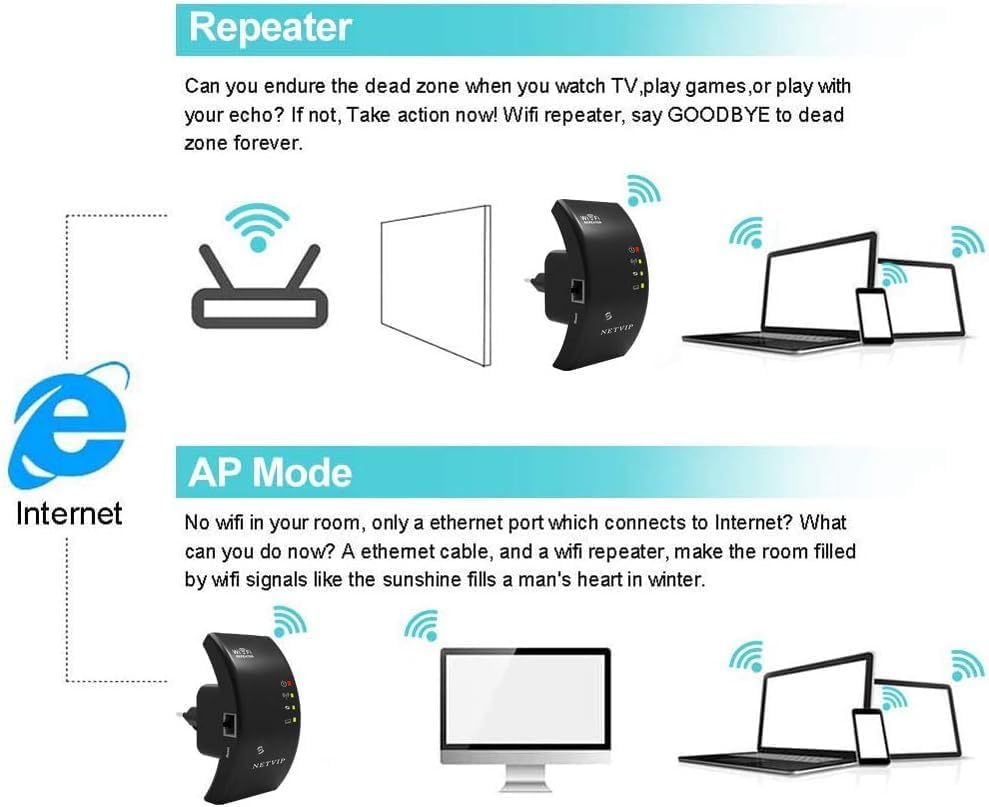
Figure 3.3: Explanation of Repeater Mode (extending existing Wi-Fi) and AP Mode (creating new Wi-Fi from wired connection).
4. 장치 작동
4.1 LED 표시등
The repeater features several LED indicators to show its status:
- 전원 LED: 장치의 전원이 켜져 있는지 여부를 나타냅니다.
- WPS LED: Flashes during WPS setup, solid when WPS connection is active.
- Wi-Fi/Signal LED: Indicates Wi-Fi activity and signal strength. Multiple lights usually mean a stronger signal.
- 랜 LED: 이더넷 포트의 활동을 나타냅니다.
4.2 장치 연결
Once the repeater is set up, you can connect your wireless devices (smartphones, tablets, laptops, smart TVs, gaming consoles, etc.) to the extended Wi-Fi network. The network name (SSID) will be either the same as your main router (if you chose to keep it) or a new one you configured during setup.

Figure 4.1: The repeater supports connection for up to 20 devices, including phones, pads, laptops, smart bulbs, smart plugs, and smart cameras.
4.3 최적의 배치
For best performance, place the repeater halfway between your router and the area where you need improved Wi-Fi coverage. Avoid placing it near large metal objects, concrete walls, or other electronic devices that may cause interference.

Figure 4.2: Illustration of how the repeater extends Wi-Fi coverage throughout a multi-story home, showing signal amp조명 영역.
5. 유지관리
5.1 청소
To maintain optimal performance, periodically clean the exterior of the repeater with a soft, dry cloth. Do not use liquid cleaners or aerosols.
5.2 장치 재설정
If the device is not functioning correctly or you wish to revert to factory settings, you can perform a factory reset. Locate the small "Reset" button (often recessed) on the device. Use a paperclip or a thin object to press and hold the button for approximately 5-10 seconds until the indicator lights flash, then release. The device will restart with factory default settings.
6. 문제 해결
| 문제 | 가능한 원인 | 해결책 |
|---|---|---|
| 전원/LED 꺼짐 | Device not plugged in or power outlet issue. | Ensure the repeater is securely plugged into a working power outlet. Try a different outlet. |
| Cannot connect to repeater's Wi-Fi | Incorrect Wi-Fi password or repeater not broadcasting. | Verify the Wi-Fi password. Perform a factory reset and reconfigure. |
| Poor signal strength/slow speed | Repeater too far from router or interference. | Relocate the repeater closer to your main router. Avoid obstacles and interference sources. |
| Repeater not extending network | Incorrect configuration or WPS failure. | Re-run the setup process, ensuring correct mode selection (Repeater Mode). Try manual setup if WPS fails. |
| LAN port not working in AP Mode | Faulty Ethernet cable or incorrect mode. | Ensure the Ethernet cable is securely connected and functional. Confirm the repeater is set to AP Mode. |
7. 사양
- 상표: 넷VIP
- 모델: B0CTLS6ZBT
- 무선 통신 표준: 802.11n
- 데이터 전송 속도: 300 Megabits per Second
- 주파수 대역: 2.4GHz
- 특별 기능: WPS, AP Mode, Fast Ethernet Port (RJ45)
- 색상: 검은색
- 품목 무게: 170그램
- 치수: Approximately 12.6 x 9.6 x 7.4 cm (Packaging)
8. 보증 및 지원
NETVIP products come with a standard manufacturer's warranty. For detailed warranty information, technical support, or service inquiries, please refer to the contact information provided on the product packaging or visit the official NETVIP web사이트. 보증 청구를 위해 구매 증빙 자료를 보관하세요.
추가적인 도움이 필요하시면 제품을 구매하신 판매점에 문의하셔도 됩니다.


