1. 서론
This manual provides detailed instructions for the setup, operation, and maintenance of your SANSUI 24 Inch Gaming Monitor, model ES-G24F4. Please read this manual thoroughly before using the product to ensure proper functionality and to prevent damage.
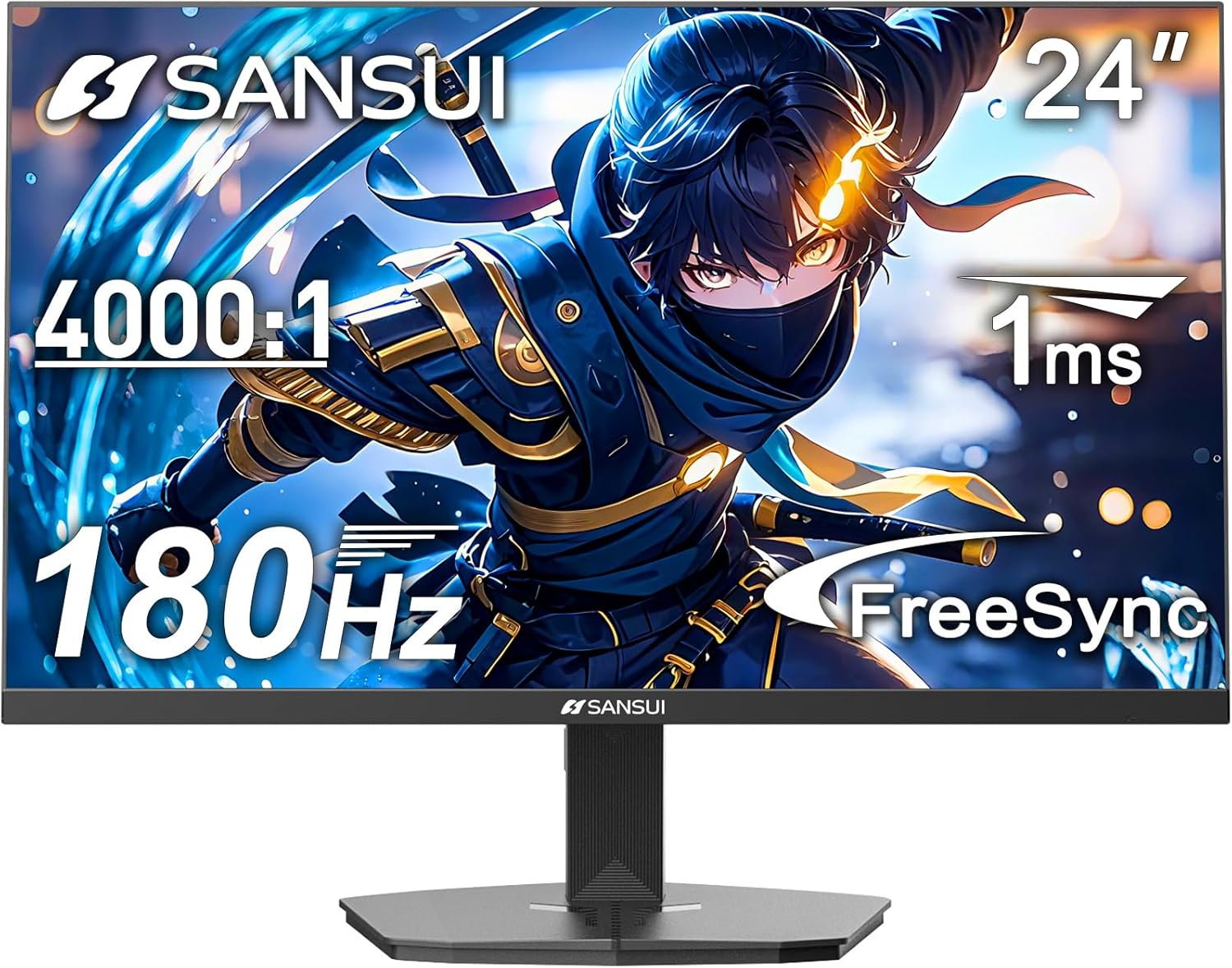
그림 1: 전면 view of the SANSUI 24 Inch Gaming Monitor (ES-G24F4).
2. 제품 오버view
The SANSUI ES-G24F4 is a 24-inch Full HD gaming monitor designed for an enhanced visual experience. Key features include:
- 디스플레이 크기 및 해상도: 24 Inch Full HD (1920x1080)
- 새로 고침 빈도: 180Hz for smooth visuals
- 응답 시간: 1ms MPRT to minimize motion blur
- 색상 영역: 110% sRGB for vibrant and accurate colors
- 명도: 300 Nits
- 적응 동기화: Technology to eliminate screen tearing and stuttering
- 연결성: DP 1.4 and HDMI 2.0 Ports (HDMI Cable included)
- 설치: 75x75mm VESA compatibility
- 인간 공학: Eye care features, stable stand with -5° to 15° tilt, 178° view잉 각도
- 오디오: No built-in speakers

그림 2: 이상view of monitor features.

Figure 3: Multimedia connection options for the monitor.
3. 설정
3.1 스탠드 조립
The monitor comes with a detachable stand for desktop use. To assemble:
- 모니터와 스탠드 구성품을 포장에서 조심스럽게 꺼내세요.
- Attach the base to the stand pillar using the provided screws.
- Align the stand pillar with the mounting slot on the back of the monitor.
- Push the stand firmly into the slot until it clicks into place. Ensure the latch is engaged for a secure connection.
To detach the stand for VESA mounting, pull the latch located on the back of the monitor near the stand connection point, and gently pull the stand away from the monitor.
3.2 연결 케이블
필요한 케이블을 모니터 포트에 연결합니다.
- 전원 케이블 : 전원 어댑터를 모니터의 DC 입력 포트에 연결한 다음 전원 콘센트에 연결하십시오.
- 비디오 케이블: Connect one end of the HDMI cable (included) or a DisplayPort (DP) cable to the corresponding port on your computer's graphics card and the other end to the HDMI 2.0 or DP 1.4 port on the monitor.
- 오디오 출력: If using external speakers or headphones, connect them to the Audio Out port on the monitor.
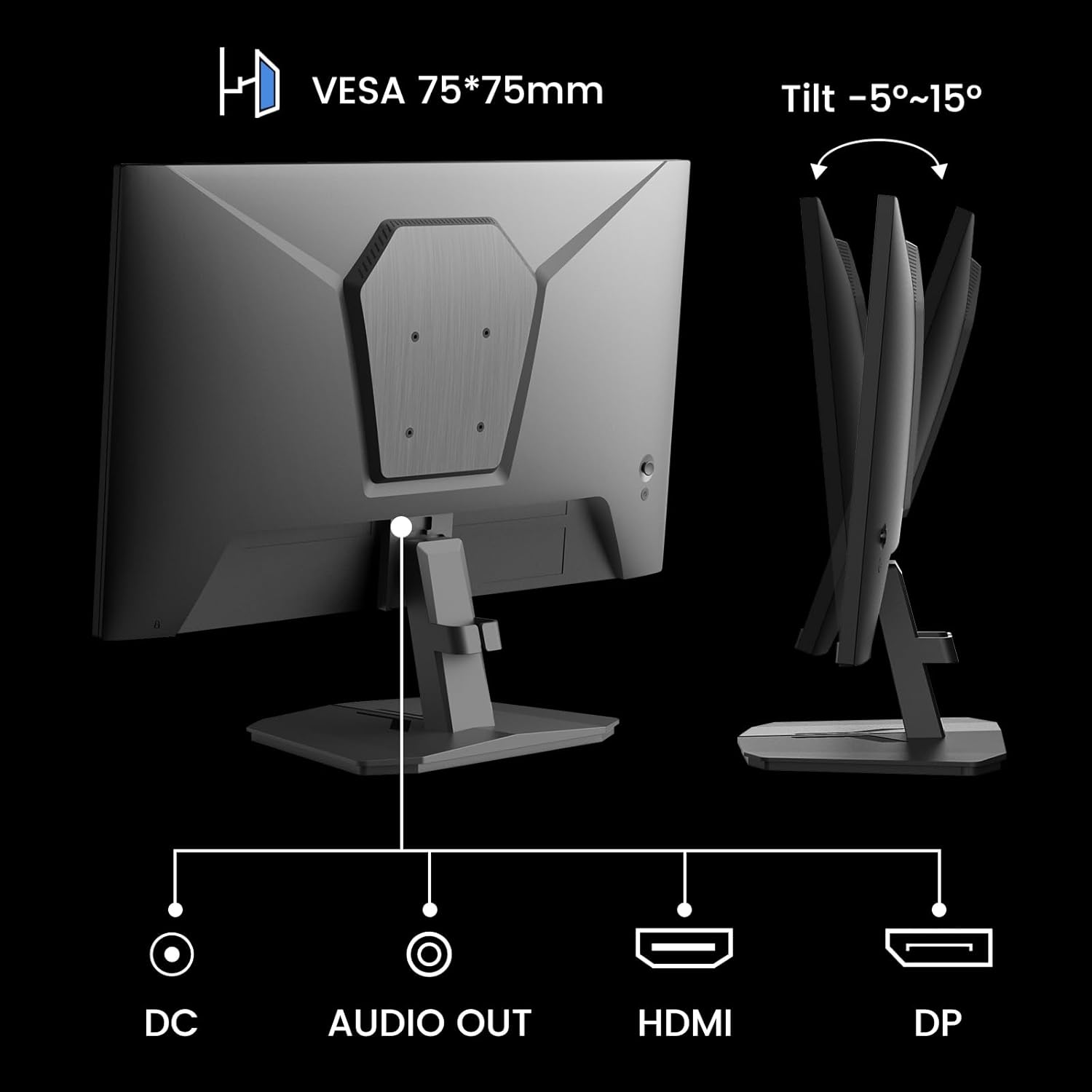
Figure 4: Monitor ports and tilt adjustment.
3.3 VESA 마운팅
The monitor supports VESA 75x75mm mounting standards. If you wish to mount the monitor on a wall or an alternative stand, ensure the VESA mount is compatible and can support the monitor's weight (approximately 5.94 pounds).
Video 1: Demonstrates the monitor's thin design and detachable stand, highlighting its suitability for various setups including wall mounting.
4. 사용 설명서
4.1 OSD 메뉴 탐색
The On-Screen Display (OSD) menu is controlled by buttons located on the back of the monitor. Use these buttons to navigate through settings and adjust display parameters.
4.2 영상 설정
- 명도: 화면의 전반적인 밝기를 조정합니다.
- 차이: 가장 밝은 부분과 가장 어두운 부분의 차이를 조절합니다.
- 날카로움: 이미지 가장자리의 선명도를 높입니다.
- 블랙 레벨: Adjusts the depth of black colors.
4.3 색상 설정
- 감마: Adjusts the tone response curve of the display.
- 로우 블루 라이트: 눈의 편안함을 위해 청색광 방출량을 줄입니다.
- 색온도: 사전 설정된 색온도(예: 따뜻함, 차가움, 사용자 지정)를 선택합니다.
- 색조/채도: Fine-tunes color tones and intensity.

Figure 5: Color depth and gamut information.
4.4가지 게임 모드
The monitor offers optimized gaming modes for different genres:
- FPS(1인칭 슈팅 게임): Enhances visibility in dark areas.
- RTS(실시간 전략): Optimizes clarity for strategic gameplay.
- 경마: Provides a smooth and immersive experience for racing games.

Figure 6: Exclusive Gaming Modes (RTS, FPS, Racing).

Figure 7: Different display modes for various content types.
4.5 Adaptive Sync (FreeSync)
Adaptive Sync technology synchronizes the monitor's refresh rate with your graphics card's frame rate, eliminating screen tearing and stuttering for a smoother gaming experience. Ensure this feature is enabled in both the monitor's OSD and your graphics card settings.

Figure 8: FreeSync ON vs. FreeSync OFF comparison.
4.6 HDR 지원
The monitor supports HDR (High Dynamic Range) for a clearer display of moving graphics and enhanced visual depth. Enable HDR in your operating system's display settings and ensure it is activated on the monitor if applicable.
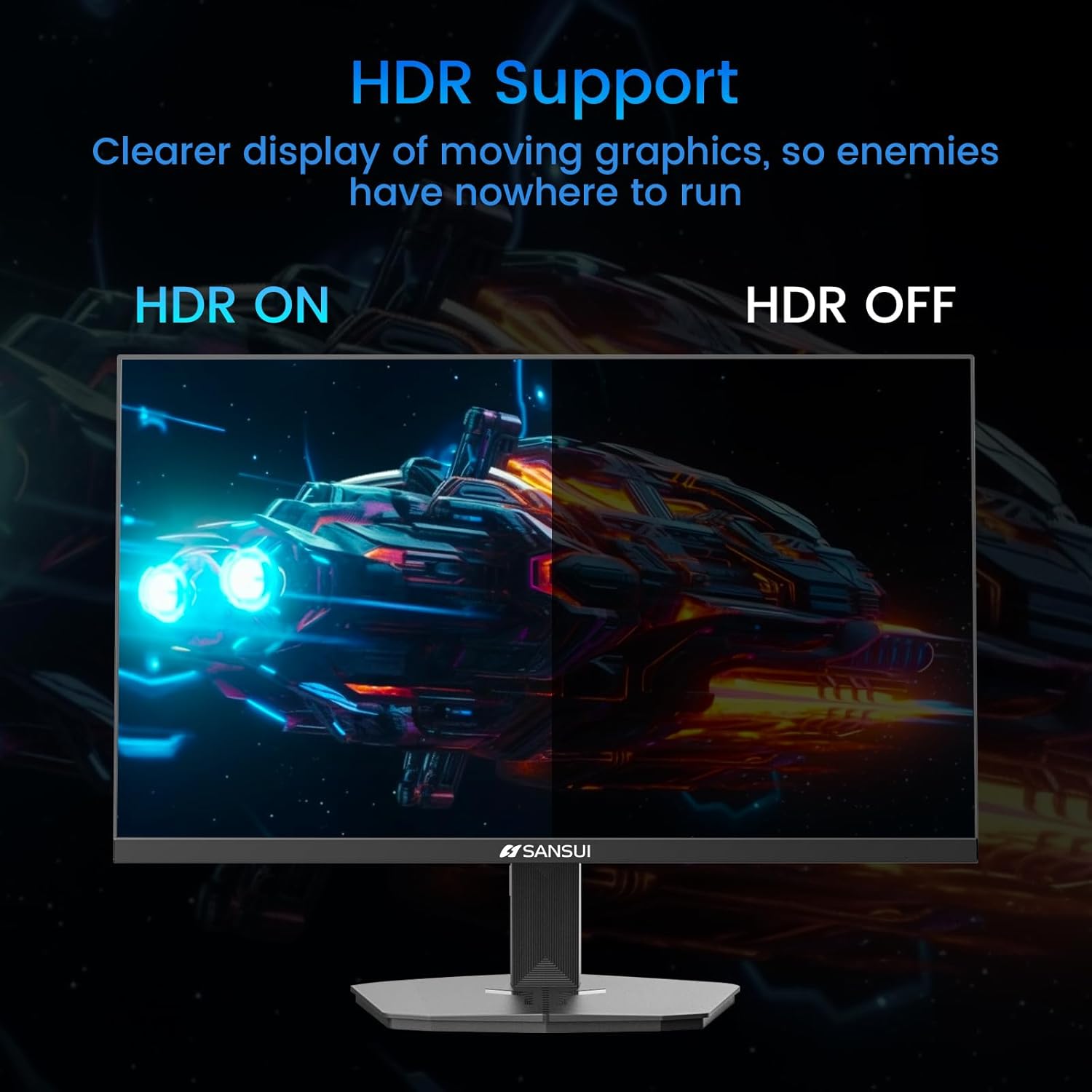
Figure 9: HDR ON vs. HDR OFF comparison.
5. 유지관리
모니터의 수명과 최적의 성능을 보장하려면 다음 유지 관리 지침을 따르세요.
- 화면 청소: 부드럽고 보풀이 없는 천을 살짝 사용하십시오. damp물이나 암모니아, 알코올 성분이 없는 화면 세척제로 닦으십시오. 액체를 화면에 직접 분사하지 마십시오.
- C 청소asing: 부드럽고 마른 천을 사용하여 모니터를 닦으세요.asing. 연마성 세척제는 피하세요.
- 통풍: 과열을 방지하려면 모니터의 통풍구가 막히지 않았는지 확인하세요.
- 전원 끄기 : 모니터를 청소하거나 장기간 사용하지 않을 경우에는 항상 모니터 전원을 끄고 전원 콘센트에서 플러그를 뽑으십시오.
6. 문제 해결
모니터에 문제가 발생하면 다음의 일반적인 문제와 해결 방법을 참조하세요.
| 문제 | 가능한 원인 | 해결책 |
|---|---|---|
| 화면에 이미지가 없습니다. | 전원 케이블이 분리되었거나, 비디오 케이블이 헐거워졌거나, 입력 소스가 잘못되었습니다. | 전원 및 비디오 케이블 연결을 확인하세요. OSD 메뉴에서 올바른 입력 소스를 선택하세요. |
| 이미지 깜빡임이나 왜곡 | Faulty video cable, refresh rate mismatch, Adaptive Sync issue. | Replace video cable. Ensure refresh rate is set correctly in OS. Check Adaptive Sync settings. |
| 색상이 잘못 표시됩니다 | Incorrect color settings, HDR not enabled/disabled properly. | Adjust color settings in OSD. Verify HDR settings in OS and monitor. |
| Monitor wobbles on desk | Stand not securely attached, uneven surface. | Ensure stand is fully clicked into place. Place monitor on a stable, level surface. |
If the problem persists after attempting these solutions, please contact SANSUI customer support for further assistance.
7. 사양
| 특징 | 사양 |
|---|---|
| 모델 번호 | ES-G24F4 |
| 화면 크기 | 24 인치 |
| 해결 | 1920 x 1080(풀HD) |
| 새로 고침 빈도 | 180Hz |
| 응답 시간 | 1ms MPRT |
| 명도 | 300 Nits |
| 색상 영역 | 110% sRGB |
| 종횡비 | 16시 9분 |
| View잉 각도 | 178° (수평/수직) |
| 연결성 | 1x DisplayPort 1.4, 2x HDMI 2.0, 1x Audio Out |
| VESA 호환성 | 75x75mm |
| 기울기 조정 | -5° ~ 15° |
| 품목 무게 | 5.94파운드 |
| 포함된 케이블 | 1.5m HDMI 케이블 |

그림 10: 제품 치수
8. 보증 및 지원
SANSUI provides the following support for your monitor:
- 보증: A 30-day money-back and free replacement warranty from the order date.
- 기술 지원: 평생 기술 지원이 제공됩니다.
For warranty claims, technical assistance, or any product-related inquiries, please contact SANSUI customer service through their official channels.

그림 11: 보증 및 지원 세부 정보.


