1. 서론
The Poly Studio is an all-in-one USB video and audio conferencing system designed for home offices and small meeting rooms. It integrates a 4K camera, smart microphones, and a speaker into a single, sleek bar, offering a plug-and-play solution for enhanced virtual meetings.

Image: Poly Studio Premium USB Video & Audio Conferencing System, showcasin컴팩트한 디자인입니다.
주요 특징:
- 올인원 솔루션: Combines a 4K camera, smart microphone, and speaker into a single bar, ideal for small meeting rooms and home offices.
- 플러그 앤 플레이 USB 연결: No software required for basic functionality. Connect via USB to instantly elevate your Zoom, Teams, Skype, and Google Meet experience.
- Exceptional Audio Clarity: Features Polycom noise-blocking technology and beamforming microphones for crystal-clear sound.
- Smart Camera Framing: Automatically adjusts framing and tracking based on speaker movement and participants in the room.
2. 설정
Follow these steps to set up your Poly Studio conferencing system:
- 장치 포장 풀기: Carefully remove the Poly Studio bar and all accessories from the packaging.
- 장착 옵션을 선택하세요: The Poly Studio can be mounted on a tabletop, wall, or tripod.
- 탁상용 마운트: 장치를 안정된 표면에 놓으세요.
- 벽걸이 : Use the provided wall mount bracket and hardware to securely attach the device to a wall, typically above or below your display.
- 삼각대 마운트: Attach the device to a standard tripod using the integrated tripod thread.
- 전원 연결: Plug the power cable into the Poly Studio and then into a power outlet.
- 컴퓨터에 연결: Connect the USB cable from the Poly Studio to an available USB port on your laptop or PC.
- 소프트웨어 인식: Your computer should automatically recognize the device as a USB camera, microphone, and speaker.

Image: Poly Studio connected to a display, highlighting its compatibility with various video conferencing applications.
3. 사용 설명서
The Poly Studio is designed for ease of use with popular video conferencing platforms.
- Select Device in Application: In your preferred video conferencing application (e.g., Zoom, Microsoft Teams, Skype, Google Meet), navigate to the audio and video settings. Select "Poly Studio" as your camera, microphone, and speaker.
- Utilize Smart Camera Features: The device's smart camera framing and speaker tracking features will automatically adjust the view to keep participants in frame and focus on the active speaker.
- Experience Clear Audio: Polycom's noise-blocking and beamforming technologies work automatically to ensure clear audio transmission and reception.
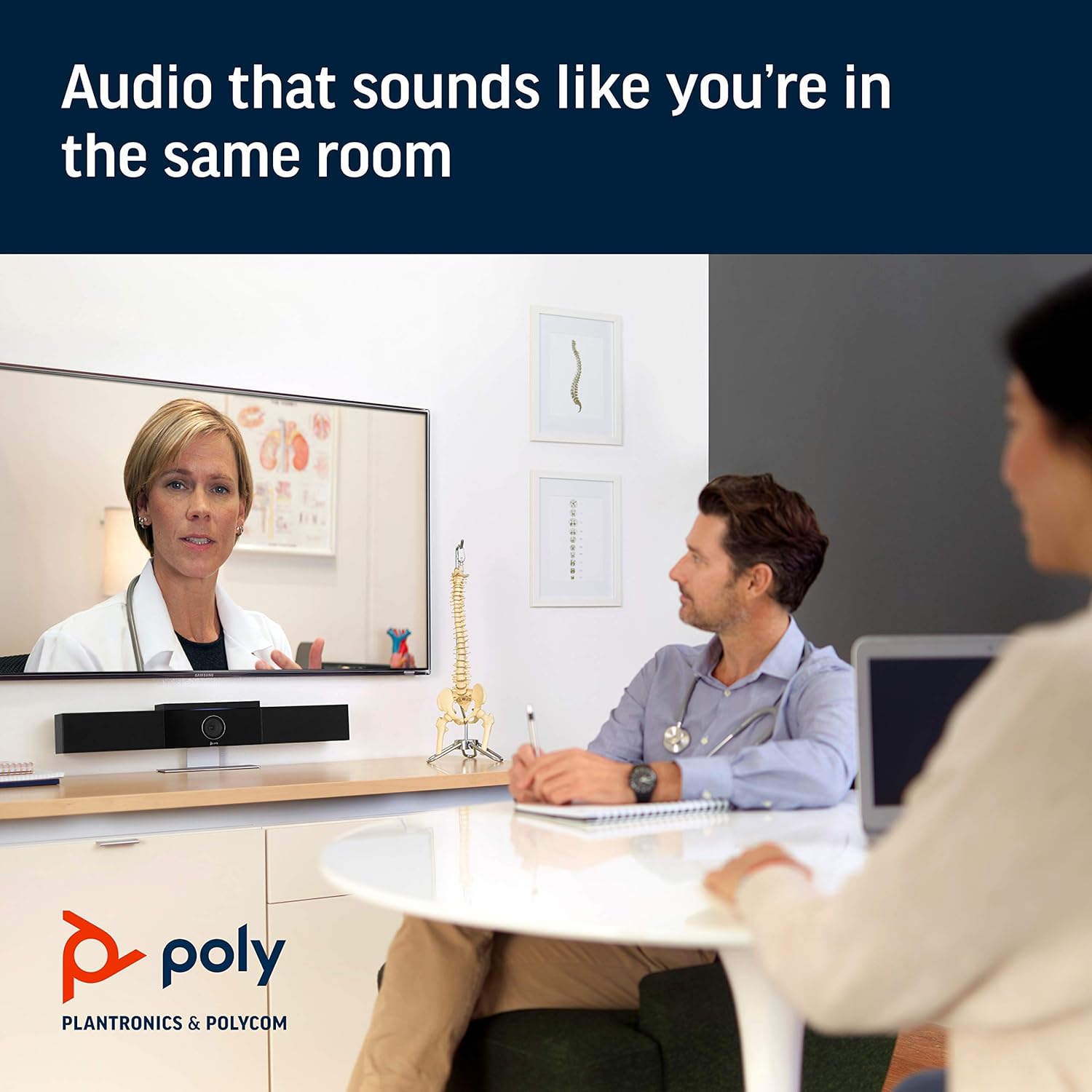
Image: Poly Studio in a meeting room, illustrating its capability to deliver clear audio for all participants.

Image: Poly Studio capturing vivid details and facial expressions of meeting participants.
4. 유지관리
To ensure optimal performance and longevity of your Poly Studio, regular maintenance is recommended:
- 청소: 부드럽고 마른 천으로 기기를 살살 닦아주세요. 강한 화학 약품이나 연마제를 사용하지 마세요.
- 소프트웨어 업데이트: Regularly check for and install software updates. These updates often include performance improvements, new features, and bug fixes. Poly Lens remote device management software can assist with this.
- 케이블 관리 : 모든 케이블이 깔끔하게 정리되어 있고 무리가 가지 않는지 확인하여 손상을 방지하세요.
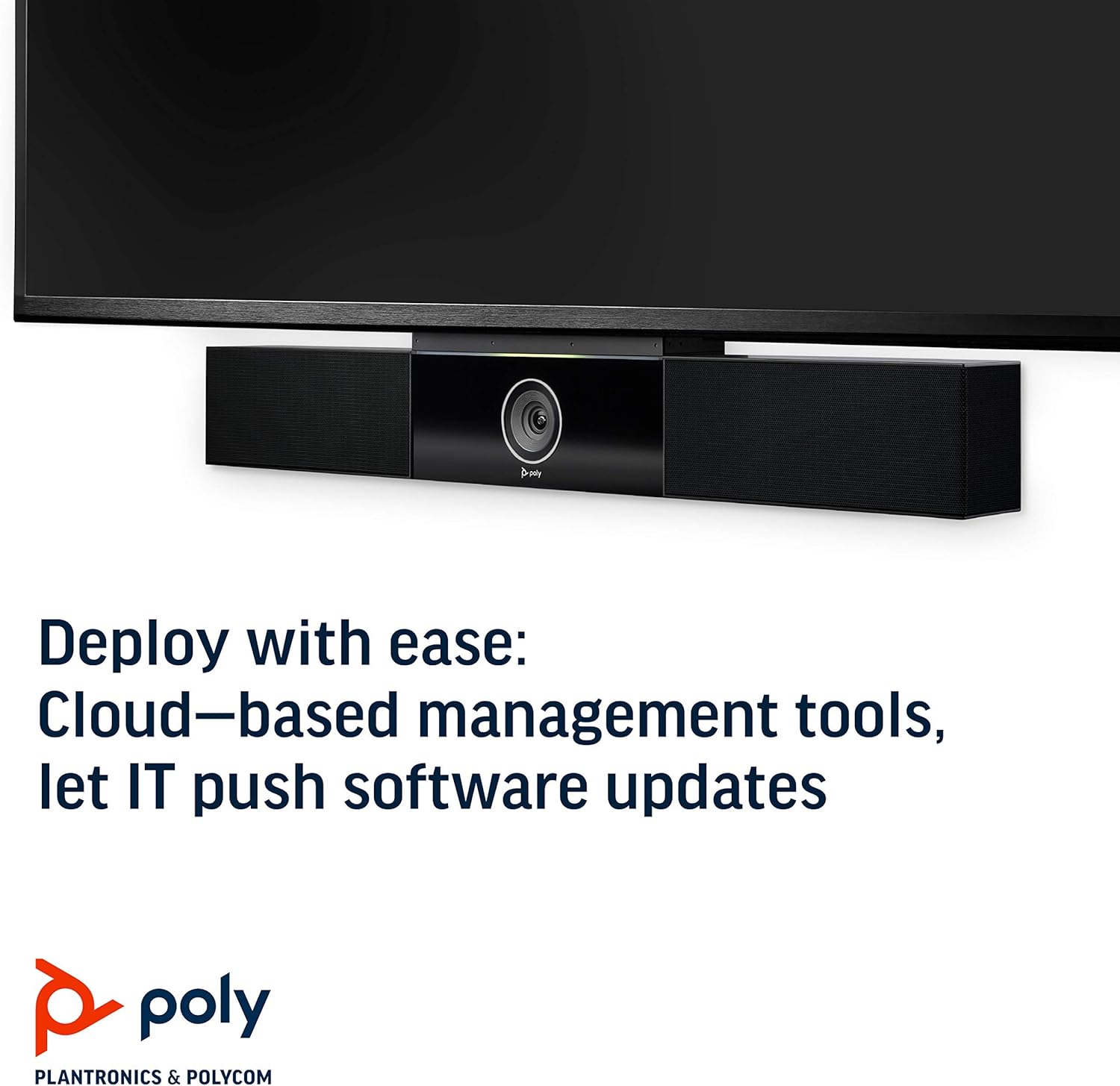
Image: Poly Studio, illustrating its compatibility with cloud-based management tools for easy software updates.
5. 문제 해결
If you encounter issues with your Poly Studio, try the following troubleshooting steps:
- 전원 없음: Ensure the power cable is securely connected to both the device and the power outlet. Try a different outlet if necessary.
- 비디오/오디오 없음: Verify that the USB cable is securely connected to both the Poly Studio and your computer. Check your video conferencing application settings to ensure the Poly Studio is selected as the active camera, microphone, and speaker.
- 낮은 오디오 품질: Ensure the device is placed in a central location in the room. Check for any physical obstructions blocking the microphones or speakers. Update the device firmware via the Poly Lens app.
- 카메라 추적 안 됨: Ensure the room is adequately lit. Check the Poly Lens app settings for camera tracking modes and adjust as needed.
- 인식되지 않는 장치: Try connecting the USB cable to a different USB port on your computer. Restart your computer.
6. 사양
| 특징 | 세부 사항 |
|---|---|
| 장착 유형 | 탁상 마운트 |
| 모델명 | 649661882596 |
| 스피커 유형 | 스테레오 재생 |
| 특징 | 낮은 조명 |
| 제품의 권장 용도 | video conferencing in home offices and small conference rooms |
| 호환 장치 | 랩탑 |
| 서라운드 사운드 채널 구성 | 2.0 |
| 색상 | 검은색 |
| 포함된 구성 요소 | camera, stereo speakers, microphones, control unit |
| 방수 | 거짓 |
| 보증 유형 | 제한된 |
| 항목 수 | 1 |
| 제어 방법 | 목소리 |
| 무선 통신 기술 | 무선 통신 기술 없음 |
| 스피커 크기 | 21.59 센티미터 |
| 전원 | 코드식 전기 |
| 방수 레벨 | 방수가 되지 않음 |
| 오디오 드라이버 유형 | 동적 드라이버 |
| 서브우퍼 연결 기술 | 열광한 |
| 제품의 특정 용도 | Home office, Small conference rooms, Video conferencing with Zoom and Microsoft Teams |
| 한국어: | 649661882596 |
| 실내/실외 사용 | 실내 |
| 제조업체 | 주식회사 폴리콤 |
| 모양 | 직육면체 |
| 제품 치수 | 30 x 6 x 4 인치 |
| 품목 무게 | 10.58파운드 |
| ASIN | B091YCFF84 |
| 품목 모델 번호 | 649661882596 |
| 첫 번째 이용 가능 날짜 | 7년 2021월 XNUMX일 |
| 상표 | 폴리 |
| 스피커 최대 출력 전력 | 40 와트 |
| 주파수 응답 | 120 kHz (XNUMX kHz) |
| 연결 기술 | USB |
| 오디오 출력 모드 | 스테레오 재생 |
7. 보증 및 지원
Your Poly Studio Premium USB Video & Audio Conferencing System comes with a 한정 보증. For specific details regarding the warranty period and coverage, please refer to the official Poly documentation or contact Poly support.
This product is also eligible for a 90일 환불/교체 policy under the Amazon Renewed Guarantee, as it is a renewed product. For support or to claim warranty/return, please contact the seller or refer to the product's official support channels.


