1. 서론
This manual provides detailed instructions for the setup, operation, maintenance, and troubleshooting of your HP Officejet 6700 Premium e-All-in-One Wireless Color Photo Printer. This device combines printing, scanning, copying, and faxing functionalities, designed for both personal and professional use.
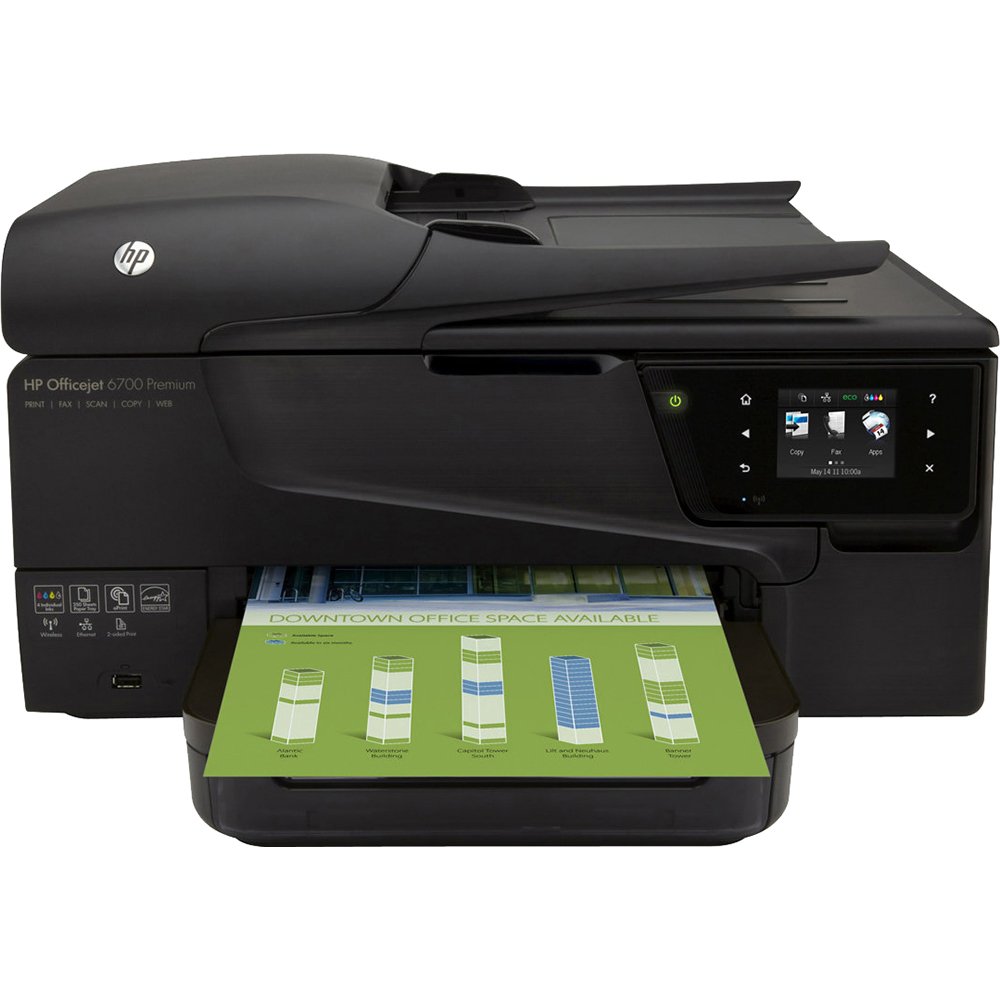
Image: HP Officejet 6700 Premium e-All-in-One Printer, showcasin컴팩트한 디자인과 전면 제어 패널이 특징입니다.
2. 설정
2.1 언박싱 및 초기 배치
Carefully remove the printer from its packaging. Place the printer on a stable, flat surface with adequate space for paper trays and ventilation. Ensure all packing materials and protective tapes are removed before proceeding.
2.2 전원 연결
프린터에 전원 코드를 연결한 다음 접지된 콘센트에 꽂으세요. 전원 버튼을 눌러 프린터를 켜세요.
2.3 잉크 카트리지 설치
Open the ink cartridge access door. Install the individual color ink cartridges (Cyan, Magenta, Yellow, Black) into their respective slots. Ensure they are securely latched. The printer uses individual color inks, allowing you to replace only the color that runs out.
2.4 용지 넣기
Load paper into the 250-sheet input tray. Adjust the paper guides to fit the paper size. The printer supports various media types and sizes, including Letter (8.5 x 11 inches) and Tabloid (11 x 17 inches).
2.5 네트워크 연결
The HP Officejet 6700 Premium offers wired (Ethernet) and wireless connectivity options. Follow the on-screen instructions on the 2.65-inch touchscreen to connect to your local network. For wireless printing from mobile devices, utilize HP ePrint, HP Wireless Direct, or Apple AirPrint.
For a visual guide on setting up mobile printing features, refer to the video below:
Video: Demonstrates how to use HP ePrint and HP Wireless Direct for printing from various mobile devices and locations. This video is provided by a merchant.
3. 사용 설명서
3.1 인쇄
The printer delivers professional color prints with a maximum color print resolution of 4800 x 1200 dpi and a maximum black and white print resolution of 600 dpi. It features automatic two-sided printing (duplex) to save paper.
- 인쇄 속도: Up to 34 ppm (monochrome) and 31 ppm (color) maximum. ISO speeds are 16 ppm (black) and 9 ppm (color).
- 모바일 인쇄: Use HP ePrint to send documents or photos via email to your printer from any internet-connected device. HP Wireless Direct allows direct connection from mobile devices without a network. Apple AirPrint enables printing from iPhone, iPad, and iPod Touch.
- 미디어 유형: Supports various paper types, including glossy photo paper, in sizes like Letter and Tabloid.
3.2 스캔
The flatbed scanner and 35-sheet Automatic Document Feeder (ADF) allow for efficient scanning of documents and photos. The scanner offers a resolution of 1200 x 2400 dpi, ensuring sharp details and true colors.
- Scan to PC/Email: Documents can be scanned directly to a connected PC or sent as an email attachment.
- ADF 용량: The Automatic Document Feeder can hold up to 35 sheets for multi-page scanning.
3.3 복사
The printer functions as a copier with a maximum copy speed of 16 ppm for black and white documents. Color copy resolution is up to 4800 x 1200 dpi, and black and white copy resolution is 600 dpi. It can also create a one-sided copy of a two-sided ID.
3.4 팩스
The HP Officejet 6700 Premium includes full fax capabilities for sending and receiving documents.
3.5 제어판
Navigate printer functions and settings using the intuitive 2.65-inch touchscreen display. Voice control is also supported for certain functions.
4. 유지관리
4.1 잉크 카트리지 교체
When an ink cartridge runs low or is empty, the printer will notify you. Replace individual cartridges as needed. Always use Original HP printer ink and toner cartridges for optimal performance and print quality. Using non-HP cartridges may lead to costly reprints and affect printer reliability.
4.2 청소
프린터 외부를 부드러운 천으로 정기적으로 청소하십시오.amp cloth. Refer to the on-screen prompts or the full user guide for instructions on cleaning the printhead or scanner glass if print quality issues arise.
4.3 에너지 절약
The printer is designed with energy efficiency in mind. You can set the printer to turn on or off automatically, potentially saving up to 40% on energy consumption.
5. 문제 해결
If you encounter issues with your HP Officejet 6700 Premium, consider the following common troubleshooting steps:
- Wi-Fi 연결 끊김: Ensure your printer is within range of your wireless router. Restart both the printer and your router. Check network settings on the printer's touchscreen. Update printer firmware if available.
- 용지 걸림: Follow the on-screen instructions or refer to the full user guide for clearing paper jams from the input tray, output tray, or internal areas. Always remove jammed paper carefully to avoid tearing.
- 인쇄 품질 문제: Check ink levels and replace any empty or low cartridges. Perform a printhead cleaning or alignment from the printer's maintenance menu. Ensure you are using appropriate paper for your print job.
- 스캐너가 응답하지 않음: Verify the printer is properly connected to your computer (wired or wireless). Ensure printer drivers are up-to-date. Restart both the printer and your computer.
- 느린 인쇄: Check the print settings to ensure you are not printing at the highest quality for everyday documents, which can slow down print speed.
For more detailed troubleshooting, consult the comprehensive user manual available on the HP support web대지.
6. 사양
| 상표 | HP |
| 모델명 | 6700 |
| 인쇄 기술 | 잉크젯 |
| 연결 기술 | USB, 이더넷, 무선 |
| 특징 | Auto Document Feeder, Duplex Printing |
| 프린터 출력 | 색상 |
| 최대 인쇄 속도(흑백) | 34ppm(XNUMXppm) |
| 최대 인쇄 속도(컬러) | 31ppm(XNUMXppm) |
| 최대 컬러 인쇄 해상도 | 4800 x 1200dpi |
| 최대 흑백 인쇄 해상도 | 600dpi |
| 스캐너 유형 | 문서 |
| 최대 입력 시트 용량 | 용지 적재 용량: 250매(기본 용지함), 35매(자동 문서 공급기) |
| 최대 복사 속도(흑백) | 16ppm(XNUMXppm) |
| 최대 복사 해상도(컬러) | 4800 x 1200dpi |
| 최대 복사 해상도(흑백) | 600dpi |
| 양면 인쇄 | 오토매틱 |
| 제어 방법 | Voice, Touchscreen (2.65") |
| 전력 소비 | 43 와트 |
| 제품 치수 | 11.81 x 20 x 17.05 인치 |
| 품목 무게 | 21.9파운드 |
| 메모리 저장 용량 | 128메가바이트 |
7. 보증 및 지원
Your HP Officejet 6700 Premium printer may include Accidental Damage Protection. For specific warranty details and terms, please refer to the documentation included with your product or visit the official HP support web대지.
For technical assistance, driver downloads, or further information, please visit the HP support website or contact HP customer service. Ensure you have your printer's model number and serial number ready when seeking support.