1. ព័ត៌មានសុវត្ថិភាពសំខាន់ៗ
Please read all safety instructions carefully before using the Makeid E1 Label Printer. Failure to follow these instructions may result in product damage or personal injury.
- This label printer is designed to be used exclusively with official Makeid labels. Using labels from other brands may cause damage to the device and void the warranty.
- Avoid touching the print head with your fingers. If the print head becomes dirty, gently wipe it with a soft, lint-free cloth.
- Do not place foreign objects into the label slot or any other opening of the machine to prevent damage.
- Do not expose the label printer to direct sunlight, rain, high humidity, or excessive dust.
- Keep the device away from heat sources such as radiators, heaters, or the dashboard/tail of a car, and avoid environments with extremely high or low temperatures.
- The standard operating temperature range for this device is 5 °C to 35 °C (41 °F to 95 °F).
2. ផលិតផលលើសview
Familiarize yourself with the components of your Makeid E1 Label Printer.

រូបភាពទី 1: ខាងមុខ view of the Makeid E1 Label Printer, showing the label output slot and control buttons.
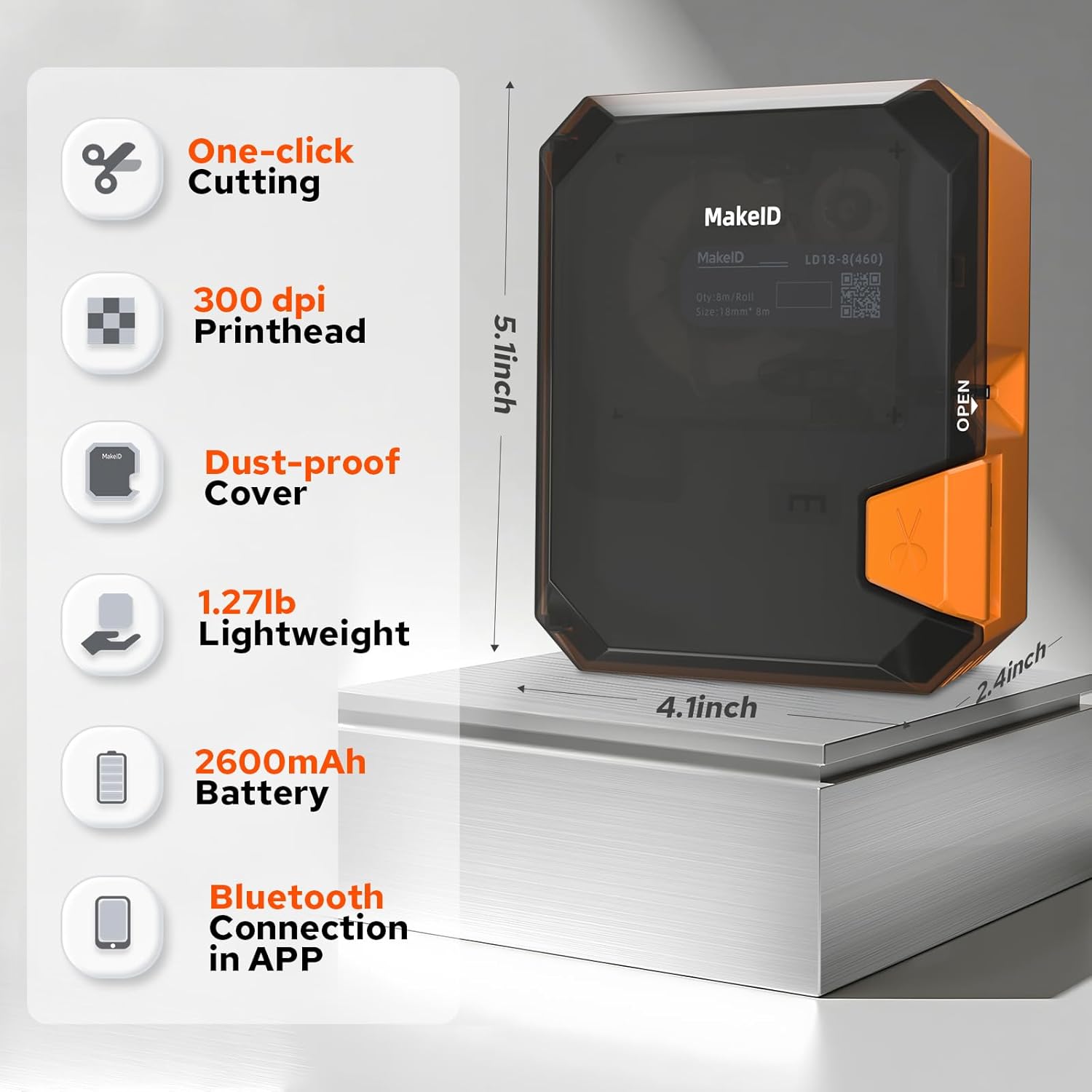
Image 2: Diagram illustrating key features and dimensions of the Makeid E1 Label Printer. Features include one-click cutting, 300 dpi printhead, dust-proof cover, lightweight design (1.27 lbs), 2600mAh battery, and Bluetooth connectivity via app. Dimensions are approximately 5.1 inches (height), 4.1 inches (width), and 2.4 inches (depth).
3. រៀបចំ
3.1 ការសាកថ្មឧបករណ៍
The Makeid E1 Label Printer is equipped with a rechargeable Lithium-ion battery (1000 mAh). Before first use, fully charge the device using the provided USB cable.
- Connect the USB cable to the printer's charging port and to a standard USB power adapter (not included) or a computer's USB port.
- The charging indicator light will show the charging status. Refer to the device's display or indicator for full charge notification.
- A full charge cycle can last over 500 times, ensuring long-term use.
៦.១ ការផ្ទុកស្លាក
Ensure you use official Makeid labels for optimal performance.
- Locate the label compartment on the printer.
- បើកគម្របបន្ទប់។
- Insert the label roll with the printing surface facing the correct direction, as indicated by a diagram inside the compartment.
- Pull a small portion of the label out past the print head.
- បិទគម្របបន្ទប់ដោយសុវត្ថិភាព។
The printer supports label widths of 9 mm, 12 mm, and 16 mm.
3.3 Connecting via Bluetooth (for App Use)
To utilize advanced features and design options, connect your printer to a smartphone via the Makeid app.
- Download the official Makeid app from your device's app store (compatible with Android and iOS).
- ត្រូវប្រាកដថាប៊្លូធូសត្រូវបានបើកនៅលើស្មាតហ្វូនរបស់អ្នក។
- Turn on the Makeid E1 printer.
- Open the Makeid app and follow the on-screen instructions to search for and pair with your printer.
4. សេចក្តីណែនាំប្រតិបត្តិការ
The Makeid E1 offers two primary modes of operation: direct input via the QWERTY keyboard and advanced design via the mobile application.
4.1 Using the QWERTY Keyboard
The integrated QWERTY keyboard allows for quick and convenient label creation without a smartphone.
- ថាមពលនៅលើឧបករណ៍។
- Use the QWERTY keys to type your desired text. The 3.4-inch LCD screen will display your input.
- Utilize the dedicated keys for various functions, including prototypes, squares, and clear instructions. The device features over 40 keys for ease of use.
- Access a variety of fonts and symbols directly from the keyboard interface.
- The printer supports up to 4 lines of text printing.
- Press the 'Print' button to print your label. The manual cutting blade allows for precise label separation.
4.2 Using the Mobile Application
The Makeid app provides extensive customization options and advanced printing features.

Image 3: Screenshot of the Makeid app interface, highlighting versatile templates, over 200 stickers, more than 40 fonts, and additional features like text, barcode, QR code, date, picture, sticker, shape, and scan options.
- After connecting the printer via Bluetooth (Section 3.3), open the Makeid app.
- ការបញ្ចូលអត្ថបទ៖ Type your text directly into the app.
- ការបោះពុម្ពច្រើនជួរ៖ The app supports printing up to 4 lines of text.
- Special Content: Generate timestamps, QR codes, and barcodes with a single click.
- ការប្ដូរតាមបំណង៖ Access a rich library of materials, including 16 types of frames, 600 stickers and symbols, and over 54 templates.
- DIY & Images: Support for DIY designs and uploading images/icons to personalize your labels.
- កំពុងរក្សាទុកគំរូ៖ Store up to 9 customized label templates for future use.
- ការបោះពុម្ពជាបាច់៖ Print up to 9 copies of a label in a single batch.
- Once your design is complete, tap the 'Print' button in the app to send it to the printer.
5. ការថែទាំ
5.1 ការសម្អាតក្បាលបោះពុម្ព
Regular cleaning of the print head ensures optimal print quality and extends the life of your printer.
- Ensure the printer is turned off before cleaning.
- Gently open the label compartment to access the print head.
- ដោយប្រើក្រណាត់ទន់គ្មានសរសៃជូតស្រាលៗampened with isopropyl alcohol, carefully wipe the print head. Do not use abrasive materials or excessive force.
- Allow the print head to dry completely before closing the compartment and resuming use.
5.2 ការថែទាំថ្ម
ដើម្បីបង្កើនអាយុកាលថ្ម និងដំណើរការ៖
- ជៀសវាងការរំសាយថ្មពេញញឹកញាប់។
- Store the printer in a cool, dry place if not used for extended periods.
- Recharge the battery periodically if stored for a long time to prevent deep discharge.
6. ការដោះស្រាយបញ្ហា
If you encounter issues with your Makeid E1 Label Printer, refer to the following common problems and solutions.
- គ្មានថាមពល៖ Ensure the device is charged. Connect it to a power source using the USB cable.
- គុណភាពបោះពុម្ពខ្សោយ៖ Check if the print head is clean (refer to Section 5.1). Ensure you are using official Makeid labels. Verify the label roll is inserted correctly.
- បញ្ហាការតភ្ជាប់ប៊្លូធូស៖ Make sure Bluetooth is enabled on your smartphone and the printer is turned on. Restart both the printer and your smartphone, then try pairing again. Ensure the Makeid app is up to date.
- Label Jam: Turn off the printer, open the label compartment, and carefully remove any jammed labels. Ensure the label roll is properly seated and not creased.
- ម៉ាស៊ីនបោះពុម្ពមិនឆ្លើយតប៖ Try resetting the device by turning it off and on again. If the issue persists, contact customer support.
7. លក្ខណៈបច្ចេកទេស
| លក្ខណៈ | ការបញ្ជាក់ |
|---|---|
| ម៉ាក | Makeid |
| ឈ្មោះម៉ូដែល | E1 |
| លេខម៉ូដែល | P31S |
| បច្ចេកវិទ្យាបោះពុម្ព | កំដៅ |
| បច្ចេកវិទ្យាតភ្ជាប់ | ប៊្លូធូស, USB |
| ឧបករណ៍ដែលត្រូវគ្នា។ | ស្មាតហ្វូន (Android, iOS) |
| គុណភាពបោះពុម្ពអតិបរមា (B&W) | 203 dpi |
| គុណភាពបោះពុម្ពអតិបរមា (ពណ៌) | 203 dpi (Monochrome output) |
| ល្បឿនបោះពុម្ពអតិបរមាពណ៌តែមួយ | 24 (units unspecified, typical for label printers) |
| ទំហំមេឌៀអតិបរមា | 110 x 50 ម។ |
| Supported Label Widths | 9 មម, 12 មម, 16 មម |
| សមត្ថភាពសន្លឹកអតិបរមា | 100 |
| ការបោះពុម្ពពីរជាន់ | ទេ |
| ចំនួនច្បាប់ចម្លងអតិបរមាក្នុងមួយស៊េរី | 9 |
| ថាមពល | 1000 mAh (Lithium-ion battery) |
| វិមាត្រផលិតផល | 10D x 20W x 8H សង់ទីម៉ែត្រ (ប្រហែល) |
| លក្ខណៈពិសេស | Portable, QWERTY Keyboard, App Control |
| សមាសធាតុរួមបញ្ចូល | Labels (typically one roll) |
8. ការធានា និងការគាំទ្រ
For warranty information and technical support, please refer to the documentation included with your purchase or visit the official Makeid webគេហទំព័រ។ រក្សាភស្តុតាងនៃការទិញរបស់អ្នកសម្រាប់ការទាមទារធានា។
If you require further assistance or have questions not covered in this manual, please contact Makeid customer service.


