The CRKD Nitro Deck is a professional handheld deck engineered to enhance your gaming experience on the Nintendo Switch and Switch OLED models. Designed for ultimate comfort and speed, it features advanced technology to ensure precise control and immersive gameplay. This manual will guide you through setting up and utilizing all the innovative features of your Nitro Deck.
Key features include zero stick drift Hall Effect thumbsticks, low latency USB-C connection, re-mappable back buttons, swappable thumbstick toppers, gyro compatibility, rumble support, and convenient pass-through charging.
2. រៀបចំ
2.1 ភាពឆបគ្នា។
The CRKD Nitro Deck is compatible with both the original Nintendo Switch and the Nintendo Switch OLED model.
2.2 Inserting and Removing Your Nintendo Switch
To insert your Nintendo Switch, gently slide it into the Nitro Deck until it locks securely into place. The deck features PTFE rails for a smooth slide and a scratch-resistant backsplash to protect your console.
រូបភាពទី 2.1: ផ្នែកខាងមុខ view of the CRKD Nitro Deck with a Nintendo Switch console inserted, showcasing its ergonomic design and integrated controls.
To remove the Switch, push the slider located on the back of the Nitro Deck upwards. While holding the slider in the up position, gently slide the Switch out of the deck. Always be gentle when inserting or removing the console to prevent damage.
រូបភាពទី 2.2: ខាងក្រោយ view of the CRKD Nitro Deck, highlighting the release slider used to safely eject the Nintendo Switch console.
2.3 Enabling Wired Communication
For optimal performance and to ensure your Nitro Deck is recognized by your Nintendo Switch, you must enable Pro Controller Wired Communication in your Switch's system settings.
From the Switch Home Menu, navigate to ការកំណត់ប្រព័ន្ធ.
Video 2.1: A detailed guide on how to enable Pro Controller Wired Communication in the Nintendo Switch system settings, which is essential for the Nitro Deck to function correctly.
3. Operating Your Nitro Deck
3.1 Handheld and Wired Modes
The Nitro Deck operates seamlessly in handheld mode when your Switch is inserted. For use as an extra controller while your Switch is docked (wired mode), you will need to switch the Nitro Deck into wired mode.
To switch to wired mode, plug a USB-C cable into the ទិន្នផល port on your Nitro Deck and connect the other end to a USB port on your Switch dock or PC. Once the CRKD LED lights up in white, press and hold both the left and right thumbsticks for 3 seconds. The LED will turn orange, indicating it's in wired mode.
Video 3.1: Demonstrates how to switch the CRKD Nitro Deck between handheld and wired modes, including connecting via USB-C and activating the wired mode LED indicator.
To switch back to handheld mode, repeat the process: hold down both thumbsticks for 3 seconds. The LED will turn white, confirming you are back in handheld mode. You can then remove the USB-C cable from the output port.
3.2 Swappable Thumbstick Toppers
The Nitro Deck features replaceable thumbstick toppers, allowing for customization and easy replacement of worn-out parts. To replace a topper, grip it firmly, gently twist, and pull upwards. It will pop right off. To install a new topper, push it down onto the stem until it slides securely into place.
រូបភាពទី ៦៖ ការបិទជិត view of the CRKD Nitro Deck's swappable thumbstick, illustrating how the topper can be removed and replaced for customization or maintenance.
3.3 Re-mappable Back Buttons
The Nitro Deck includes four re-mappable back buttons (S1, S2, S3, S4) for enhanced control. Out of the box, they have standard programming: S1 is ZL, S2 is R, S3 is ZL, and S4 is L.
To remap a back button:
ចុចឱ្យជាប់ កម្មវិធី button on the back of the Nitro Deck until the CRKD LED flashes purple.
Within 10 seconds, press the input(s) you want to program (e.g., face buttons, D-pad, bumpers, triggers, L3/R3, or directional inputs on joysticks).
Press the back button you want to bind the input(s) to. The LED will turn white, indicating successful programming.
3.4 របៀប Turbo
The Nitro Deck features a Turbo Mode, allowing you to assign a button to rapidly spam inputs while held down. To activate Turbo Mode, hold the ZL and Minus buttons simultaneously until the CRKD LED flashes green. The LED will flash at the rate your turbo is set to (faster flash means quicker spamming).
Adjust the speed by pressing the Plus button to increase or the Minus button to decrease. The Nitro Deck will vibrate when you reach the fastest or slowest setting. To apply Turbo to a button, press the desired button while the LED is flashing green. To exit Turbo Mode, hold ZL and Minus again until the LED flashes green and then turns white.
4. CRKD Companion App
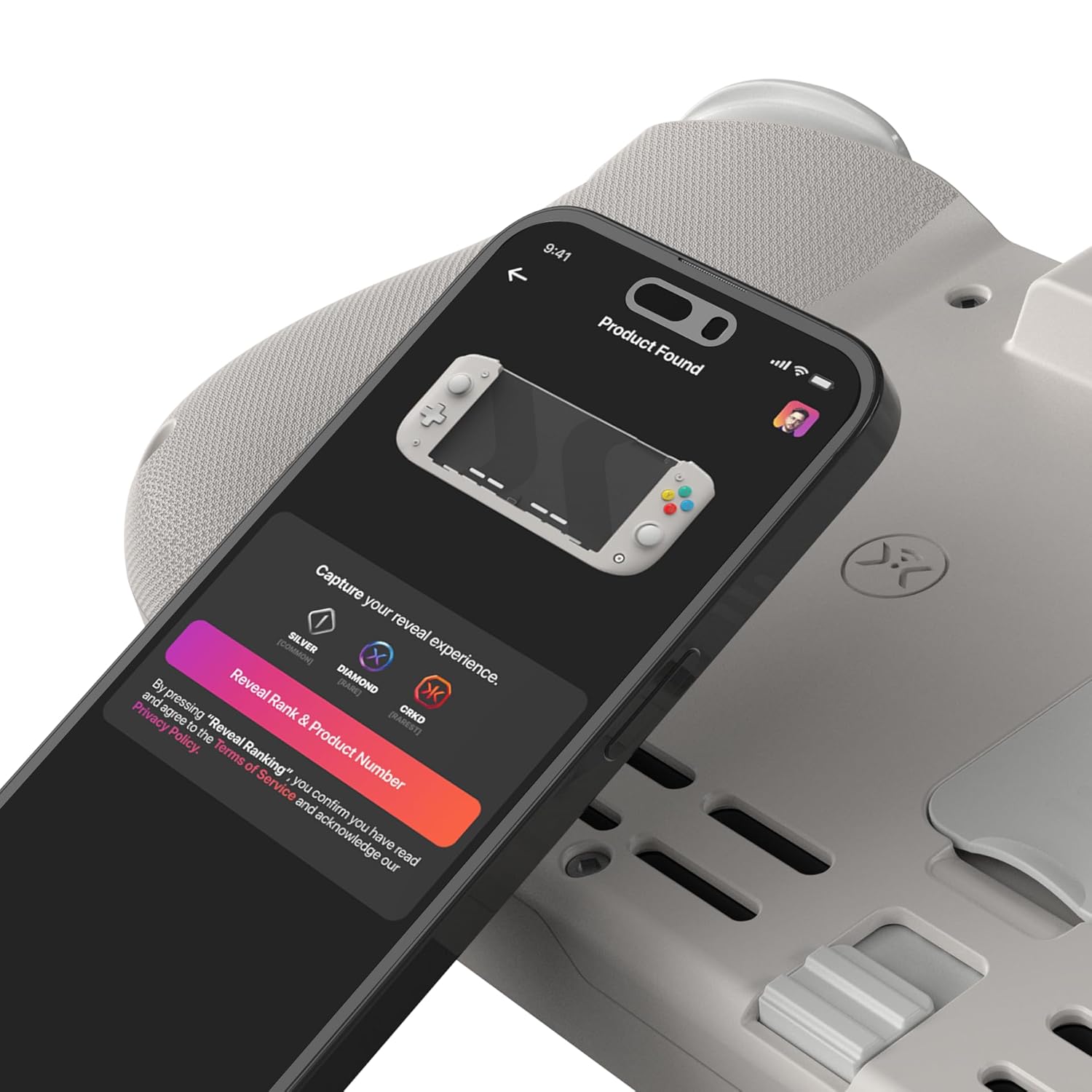
The CRKD Nitro Deck connects to the CRKD Companion app, part of the innovative True Collection System. This app provides digital proof of physical ownership for your product and allows you to learn more about its rarity ranking and batch number. The app is available for both iOS and Android devices.
Figure 4.1: A smartphone displaying the CRKD Companion app interface, showing its interaction with the Nitro Deck for product registration and information.
5. ការថែទាំ
To ensure the longevity of your CRKD Nitro Deck, keep it clean and free from dust and debris. Use a soft, dry cloth for cleaning. Avoid exposing the device to extreme temperatures or moisture. Store it in a safe place when not in use, ideally in a protective case.
6. ការដោះស្រាយបញ្ហា
6.1 Controller Not Responding
ធានា
ឯកសារពាក់ព័ន្ធ - 24ND
CRKD NITRO DECK CK24ND User Manual and Features Comprehensive guide to the CRKD NITRO DECK CK24ND gaming controller for Nintendo Switch. Features Hall effect sticks, programmable back buttons, RGB lighting, and audio integration. Includes setup instructions and safety information.
CRKD Nitro Deck User Guide User guide for the CRKD Nitro Deck, covering firmware updates, setup, layout, wired mode operation, back button programming, LED brightness adjustment, turbo settings, rumble settings, trigger actuation settings, and safety information.
CRKD Nitro Deck+ User Guide - Enhance Your Nintendo Switch Gaming Discover the full capabilities of the CRKD Nitro Deck+, an innovative controller accessory for Nintendo Switch. This user guide provides comprehensive instructions on setup, programming, customization, docked mode, wireless operation, and safety guidelines.
CRKD Neo S Controller User Manual and Setup Guide Comprehensive guide for the CRKD Neo S Controller, covering setup, connection to Nintendo Switch, PC, iOS, and Android devices, safety information, specifications, and warranty details.
CRKD Neo S Controller User Guide Comprehensive user guide for the CRKD Neo S gaming controller, detailing setup, connectivity options for Nintendo Switch, PC, iOS, and Android, button programming, turbo mode, rumble and trigger adjustments, and safety information.