សេចក្តីផ្តើម
This manual provides instructions for the proper use and application of Avery 05200 Print or Write File Folder Labels. These labels are designed to help organize file folders with a professional appearance, featuring a dark blue bar for enhanced visibility and color-coding capabilities. They are compatible with both hand-writing and printing using laser or inkjet printers.
ផលិតផលលើសview
The Avery 05200 labels are 1/3 cut file folder labels, meaning they are designed to fit the 1/3 cut tab of standard file folders. Each pack contains 252 labels. The labels feature a permanent adhesive to ensure they remain securely attached without curling.

រូបភាពទី 1៖ Packaging for Avery 05200 File Folder Labels. The image displays the product in its retail packaging, highlighting the "Easy Peel" feature, "5200" model number, and specifications like "252 Labels" and "2/3" x 3-7/16" size.
ការរៀបចំនិងការរៀបចំ
Before applying or printing on your Avery 05200 labels, consider the following steps:
- Determine Label Content: Decide what information will be placed on each label. This could include names, dates, categories, or project titles.
- Choose Application Method:
- Hand-Writing: If writing by hand, use a permanent marker or pen to ensure legibility and prevent smudging.
- ការបោះពុម្ព៖ For a professional appearance, use the Avery Design & Print software.
- Access Avery Design & Print (for printing):
ទស្សនា Avery.com/templates to access free templates and design tools. This online tool allows you to format your labels for printing with either a laser or inkjet printer.
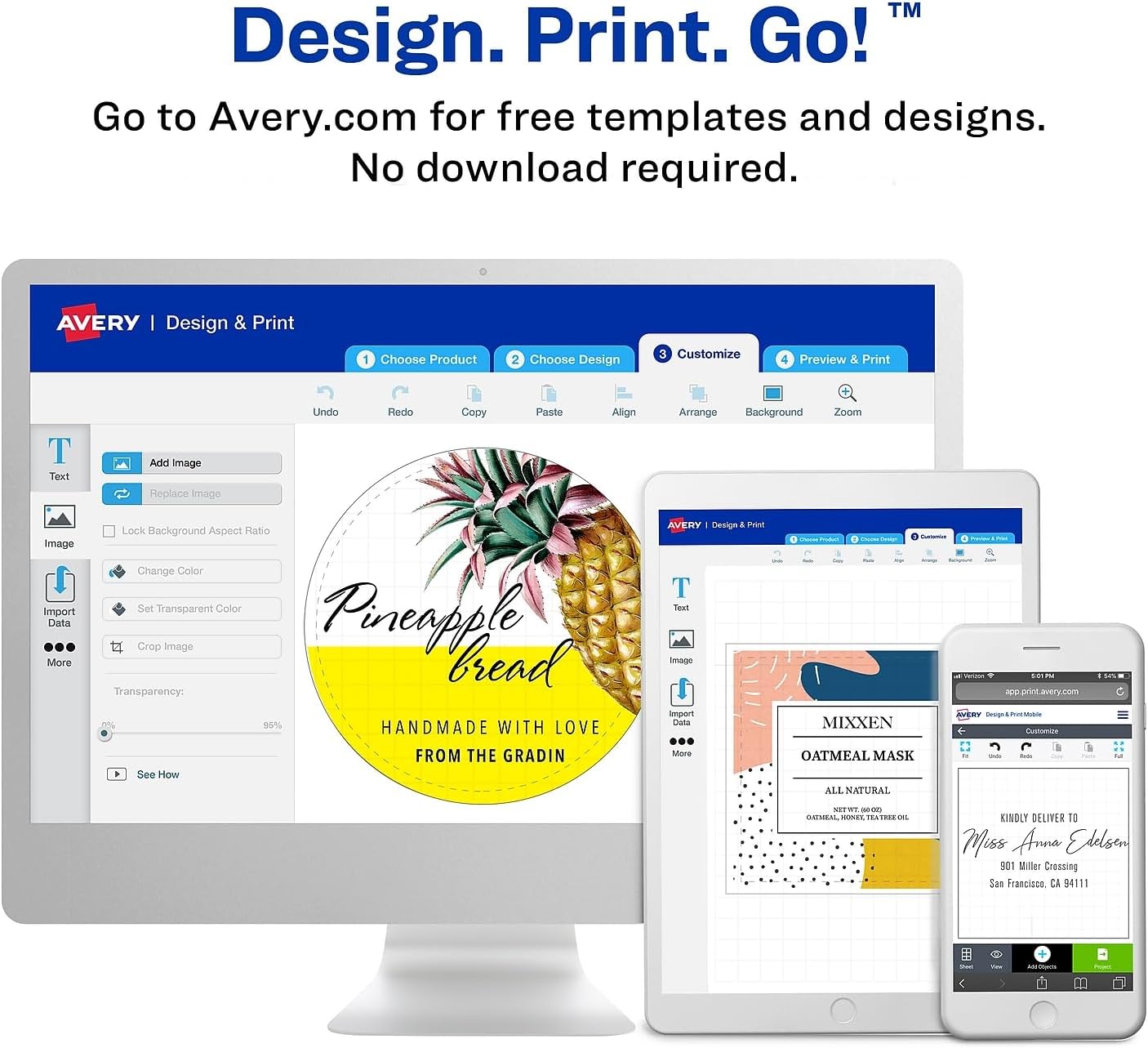
រូបភាពទី 2៖ Screenshot of the Avery Design & Print online software. This image illustrates the user interface for designing and printing labels, showing options for choosing a product, designing, customizing, and previewing the print.
សេចក្តីណែនាំប្រតិបត្តិការ
បោះពុម្ពស្លាក
- ជ្រើសរើសគំរូ៖ On Avery Design & Print, search for model 05200 to find the correct template.
- Design Labels: Enter your desired text, choose fonts, and adjust alignment within the template.
- Print Test Sheet: It is recommended to print a test sheet on plain paper first to check alignment before printing on the actual label sheet.
- ផ្ទុកស្លាក៖ Load the Avery label sheets into your printer according to your printer's instructions and the Avery Design & Print guidance. Ensure the correct side is facing up for printing.
- បោះពុម្ព៖ Print your labels.
Applying Labels to File ថតឯកសារ
The Avery 05200 labels are designed for easy application to 1/3 cut file folder tabs.
- Peel Label: Carefully peel a label from the sheet. The "Easy Peel" feature assists in this process.
- Align Label: Position the label over the tab of your file folder. Ensure it is centered and straight for a neat appearance. The dark blue bar should align with the top edge of the tab.
- ចុចឱ្យខ្លាំង៖ Once aligned, press down firmly across the entire label to ensure the permanent adhesive bonds securely to the folder tab.

រូបភាពទី 3៖ Example of Avery labels applied to file folders. The image shows two file folders with labels reading "March" and "February" on their tabs, demonstrating proper application and visibility.

រូបភាពទី 4៖ អតីតម្នាក់ទៀត។ample of Avery labels on file folders, showing "Accounts Payable" and "Year End Sales". This illustrates how the labels can be used for specific departmental or financial organization.
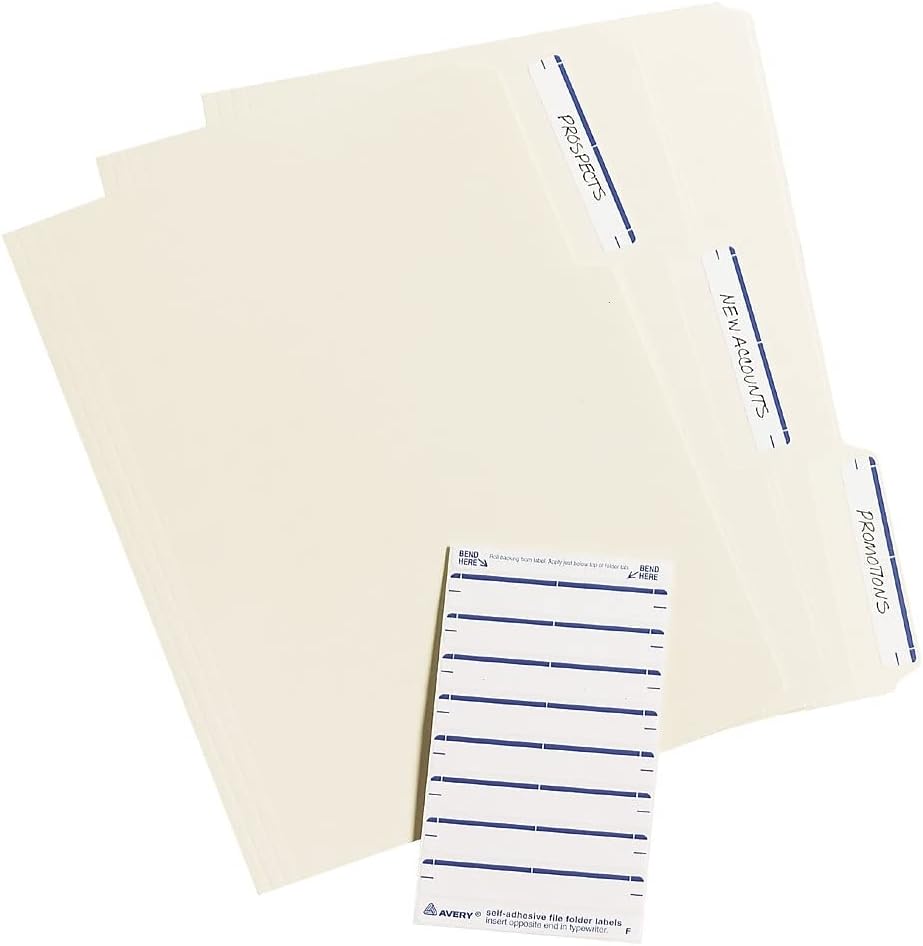
រូបភាពទី 5៖ A view នៃមួយចំនួន file folders with labels such as "Prospects," "New Accounts," and "Promotions," alongside an unapplied sheet of Avery labels. This demonstrates the product in use and the appearance of the label sheets.
ការថែទាំនិងការផ្ទុក
To maintain the quality and adhesive properties of your Avery 05200 labels:
- Store unused label sheets in their original packaging in a cool, dry place, away from direct sunlight and extreme temperatures.
- Avoid bending or creasing label sheets to prevent damage to the labels and ensure proper feeding through printers.
ការដោះស្រាយបញ្ហា
- Labels Not Sticking: ធានាបាននូវ file folder surface is clean, dry, and free of dust or oils. Apply firm, even pressure across the entire label.
- Printing Alignment Issues:
- Always use the correct Avery template for model 05200.
- Perform a test print on plain paper before printing on actual label sheets.
- Check your printer settings to ensure they match the paper type and size specified by Avery Design & Print.
- Ensure label sheets are loaded correctly into the printer tray.
- Labels Curling After Application: This is uncommon due to the permanent adhesive. Ensure the label was applied to a clean, flat surface and pressed firmly.
លក្ខណៈបច្ចេកទេស
| លក្ខណៈ | លម្អិត |
|---|---|
| ម៉ាក | អេវើរី |
| លេខម៉ូដែល | 05200 |
| ប្រភេទស្លាក | File Folder Labels, 1/3 Cut |
| ពណ៌ | Dark Blue Bar |
| Labels Per Pack | 252 |
| វិមាត្រស្លាក | 2/3" x 3-7/16" |
| ប្រភេទ adhesive | អចិន្ត្រៃយ៍ |
| ភាពឆបគ្នារបស់ម៉ាស៊ីនបោះពុម្ព | Laser and Inkjet |
| ទំងន់ធាតុ | 3.52 អោន |
| វិមាត្រផលិតផល | 6.9 x 4.5 x 0.8 អ៊ីញ (វេចខ្ចប់) |

រូបភាពទី 6៖ A close-up image of an Avery label sheet, clearly indicating "7 labels per sheet." This visual confirms the quantity and layout of labels on each individual sheet.
ការធានា និងការគាំទ្រ
Specific warranty information for Avery 05200 File Folder Labels is not provided in this manual. For detailed warranty terms, product support, or to contact customer service, please visit the official Avery webគេហទំព័រ ឬយោងទៅលើព័ត៌មានទំនាក់ទំនងដែលបានផ្តល់នៅលើការវេចខ្ចប់ផលិតផល។
You can typically find support resources and contact information at www.avery.com.


