1. Кіріспе
Welcome to the user manual for your Logitech M705 Marathon Wireless Mouse. This document provides essential information for setting up, operating, and maintaining your device, ensuring optimal performance and longevity. The M705 mouse is designed for comfort and efficiency, featuring a long battery life and customizable controls for enhanced productivity.
2. Өнім аяқталдыview
Негізгі мүмкіндіктер
- Ұзартылған батареяның қызмет ету мерзімі: Enjoy up to 3 years of battery life, reducing the need for frequent replacements.
- Эргономикалық дизайн: Sculpted to fit the natural curve of your right hand, providing comfort during prolonged use.
- Гипер-жылдам айналдыру: Navigate through long documents and web pages with a single spin of the scroll wheel, or switch to click-to-click scrolling for precision.
- Бағдарламаланатын түймелер: Five customizable buttons, including forward/back thumb buttons, allow for personalized shortcuts and enhanced control.
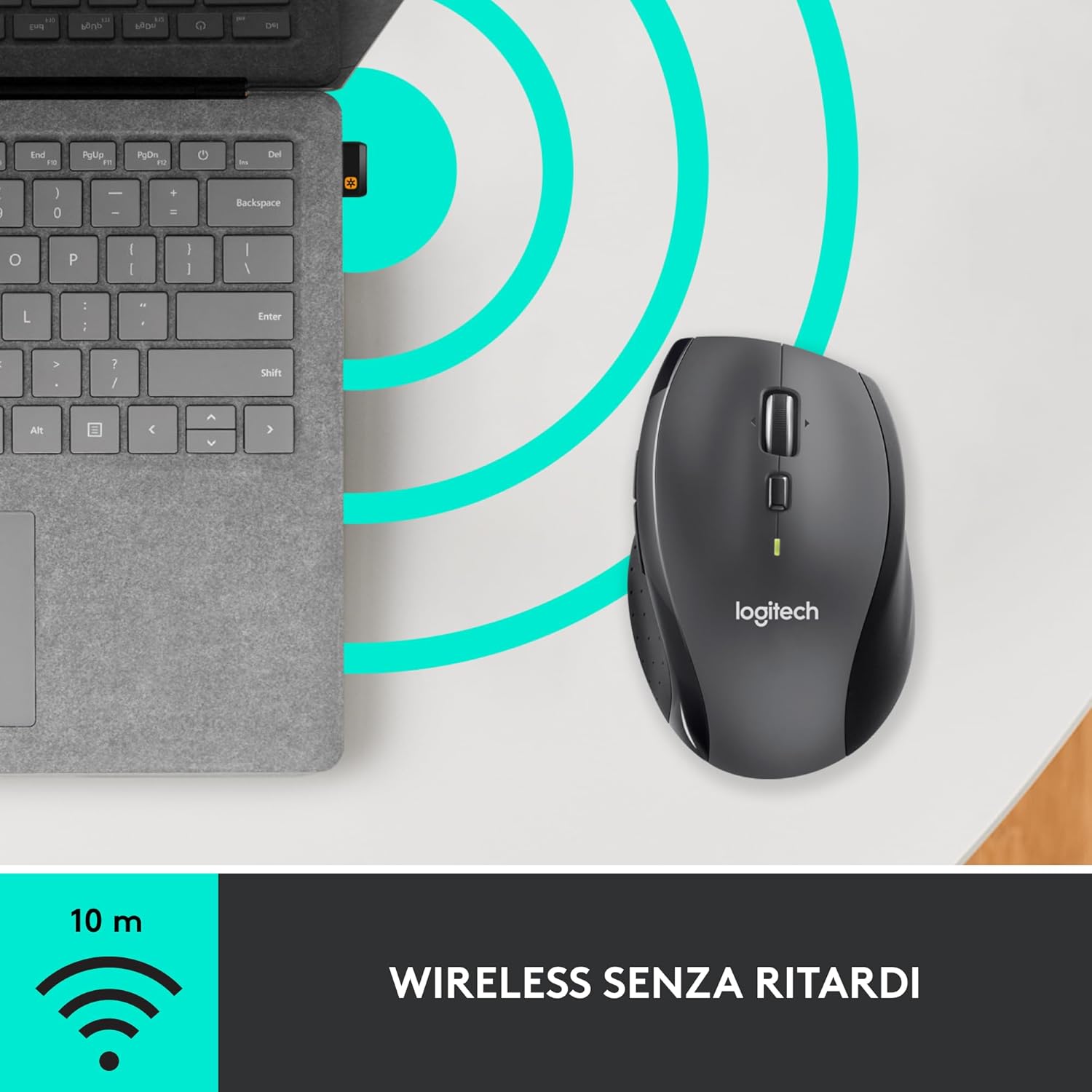
- Біріктіруші қабылдағыш: A small USB Unifying receiver connects up to six compatible Logitech devices, freeing up USB ports.
- Кең үйлесімділік: Windows, macOS, Chrome OS және Linux операциялық жүйелерімен үйлесімді.
Пакет мазмұны
The Logitech M705 Marathon Wireless Mouse package typically includes:
- Logitech M705 сымсыз тінтуірі
- Logitech Unifying USB қабылдағышы
- 2 AA Alkaline Batteries (may vary by region/packaging)

3. Орнату нұсқаулары
3.1. Батареяларды орнату
- Turn the mouse over and locate the battery compartment cover on the underside.
- Press the release button or slide the cover to open the compartment.
- Дұрыс полярлықты (+/-) қамтамасыз етіп, екі AA батареясын салыңыз.
- Батарея бөлігінің қақпағын орнына салыңыз.

3.2. Connecting the USB Unifying Receiver
- Locate the small USB Unifying receiver. It may be stored inside the battery compartment of the mouse.
- USB ресиверін компьютердегі қол жетімді USB портына қосыңыз.
- Тінтуірді төменгі жағында орналасқан қосу/өшіру қосқышын пайдаланып қосыңыз.
- Your computer should automatically detect the mouse. If not, visit the Logitech support website for driver installation.
4. Пайдалану нұсқаулары
4.1. Тінтуірдің негізгі функциялары
The M705 mouse features standard left and right-click buttons, a scroll wheel, and additional programmable buttons.

4.2. Гипер-жылдам айналдыру
Айналдыру дөңгелегі екі режимді ұсынады:
- Гипер-жылдам режим: Press the button directly below the scroll wheel to unlock it for smooth, rapid scrolling through long documents or web беттер.
- Click-to-Click Mode: Press the button again to engage precise, stepped scrolling, ideal for navigating lists or image galleries.

4.3. Бағдарламаланатын түймелер
The M705 features five programmable buttons, including two thumb buttons and tilt-scroll functionality. These can be customized using the Logitech Options software.

5. Баптау
M705 тінтуірінің толық мүмкіндіктерін ашу үшін Logitech Options бағдарламалық құралын ресми Logitech компаниясынан жүктеп алып, орнатыңыз. webсайт. Бұл бағдарламалық құрал сізге мүмкіндік береді:
- Assign custom functions to the five programmable buttons.
- Бақылау жылдамдығын (DPI) реттеңіз.
- Configure application-specific settings.
- Батареяның күйін тексеріңіз.

6. Техникалық қызмет көрсету
6.1. Тазалау
Тінтуірді тазалау үшін жұмсақ, түксіз матаны пайдаланыңыз. Қатты кір үшін, аздап dampen the cloth with water. Avoid using harsh chemicals or abrasive materials, as these can damage the mouse surface or internal components.
6.2. Батареяны ауыстыру
When the battery indicator light on your mouse begins to flash or if performance degrades, it's time to replace the batteries. Follow the steps in Section 3.1 to replace the two AA batteries. Dispose of old batteries responsibly according to local regulations.
7. Ақаулықтарды жою
7.1. Тінтуір жауап бермейді
- Тінтуірдің қосулы екеніне көз жеткізіңіз.
- Check the battery level and replace batteries if necessary.
- Verify the USB Unifying receiver is securely plugged into a working USB port.
- Try plugging the receiver into a different USB port or a different computer to isolate the issue.
- Егер USB хабын пайдалансаңыз, компьютерге тікелей қосылып көріңіз.
7.2. Меңзердің ретсіз қозғалысы
- Тінтуірдің астыңғы жағындағы оптикалық сенсорды тазалаңыз.
- Ensure you are using the mouse on a suitable surface. Highly reflective or transparent surfaces may cause tracking issues. A mouse pad is recommended.
- Check for interference from other wireless devices. Move the mouse closer to the USB receiver.
7.3. Unifying Receiver Issues
If the mouse loses connection or you need to pair it with a new receiver, download the Logitech Unifying Software from the Logitech support website. This software guides you through the pairing process.
8. Техникалық сипаттамалар
| Ерекшелік | Мәлімет |
|---|---|
| Бренд | Logitech |
| Модель атауы | M705 |
| Үлгі нөмірі | 910-001949 |
| Қосылу технологиясы | Wireless (2.4 GHz USB Unifying Receiver) |
| Қозғалысты анықтау технологиясы | Лазер |
| Қозғалыс рұқсаты | 1000 DPI (up to 3200 DPI maximum resolution) |
| Түймелердің саны | 5 Бағдарламаланатын түймелер |
| Қуат көзі | Battery (2 x AA Alkaline) |
| Батареяның орташа қызмет ету мерзімі | 3 жылға дейін |
| Сымсыз Range | 10 метрге дейін |
| Форма факторы | Right-hand ergonomic |
| Өлшемдері (L x W x H) | 20 x 13 x 12 cm (Product packaging dimensions) |
| Салмағы | 136 грамм |
| Үйлесімді операциялық жүйелер | Windows 7, 8, 10; macOS 10.11 or later; Chrome OS; Linux |
9. Кепілдік және қолдау
Кепілдік туралы егжей-тегжейлі ақпаратты және техникалық қолдауды ресми Logitech компаниясынан қараңыз webсайтына өтіңіз немесе Logitech тұтынушыларға қызмет көрсету орталығына хабарласыңыз. Кепілдік шағымдары үшін сатып алуды растайтын құжатты сақтаңыз.


