1. პროდუქტი დასრულდაview
The HP OfficeJet Pro 9125e is a versatile All-in-One printer designed for office and hybrid workspace environments. This certified refurbished unit offers print, scan, copy, and fax functionalities, along with advanced features like a color touchscreen and HP Wolf Pro Security. It is engineered for professional-quality color documents and efficient operation.
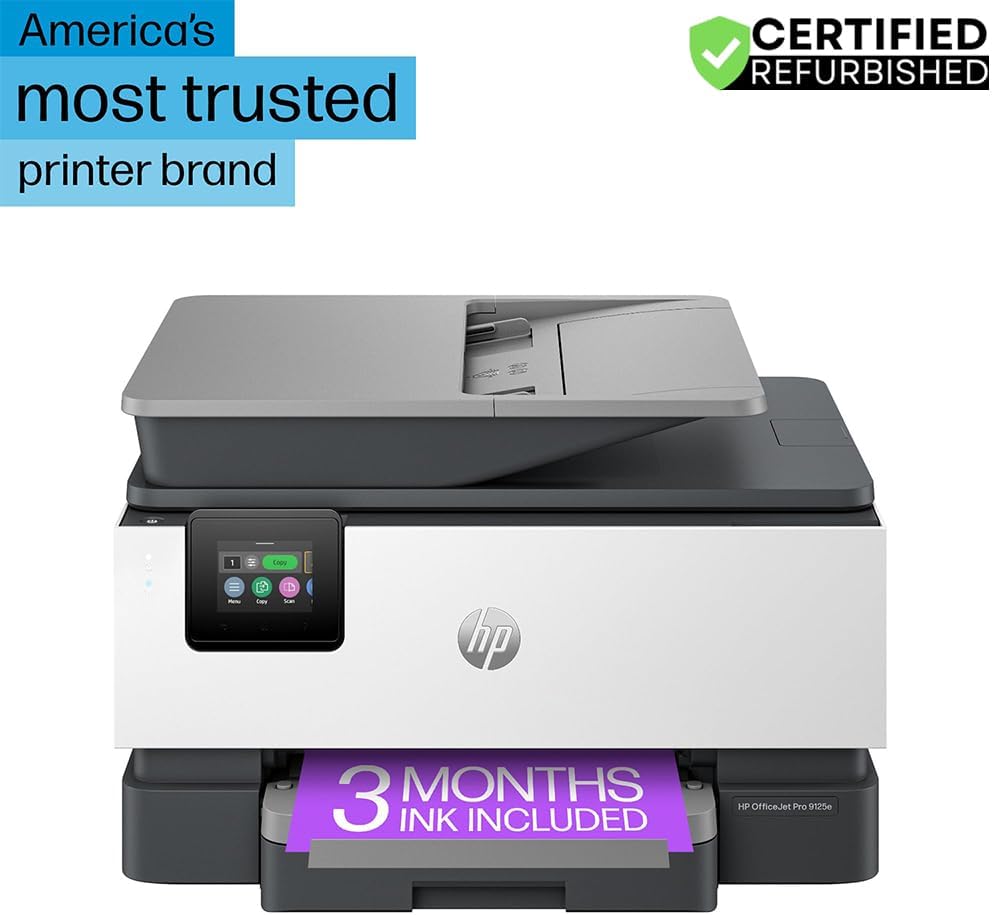
სურათი 1: წინა view of the HP OfficeJet Pro 9125e All-in-One Printer.
ძირითადი მახასიათებლები:
- All-in-One ფუნქციონალობა: Print, copy, scan, and fax capabilities.
- მაღალსიჩქარიანი ბეჭდვა: Up to 22 pages per minute (ppm) for black and 18 ppm for color.
- უსადენო კავშირი: Reliable dual-band Wi-Fi with automatic connection issue resolution.
- HP Smart აპლიკაცია: Enables printing, scanning, copying, and faxing directly from a smartphone.
- HP Wolf Pro უსაფრთხოება: Integrated security tools to protect data and networks.
- 2.7 დიუმიანი ფერადი სენსორული ეკრანი: Intuitive user interface for easy navigation.
- დოკუმენტის ავტომატური მიმწოდებელი (ADF): ეფექტური მრავალგვერდიანი სკანირებისა და კოპირებისთვის.
- ორმხრივი ბეჭდვა: ავტომატური ორმხრივი ბეჭდვა.
- მდგრადი დიზაინი: Constructed with over 40% recycled plastic.

სურათი 2: დასრულდაview of the HP OfficeJet Pro 9125e's primary functions and features.
2. დაყენების ინსტრუქციები
2.1 გახსნა და შიგთავსი
Carefully unpack the printer and ensure all components are present. The package should contain the following:
- HP OfficeJet Pro 9125e ყველა ერთში პრინტერი
- HP 936 შავი მელნის კარტრიჯი
- HP 936-ის ცისფერი მელნის კარტრიჯი
- HP 936-ის დასაყენებელი მელანის კარტრიჯი
- HP 936 ყვითელი მელნის კარტრიჯი
- დენის კაბელი
- მარეგულირებელი ფლაერი
- მელნის გაფრთხილების ფლაერი
- დაყენების აფიშა
- საცნობარო გზამკვლევი

Figure 3: Included items in the HP OfficeJet Pro 9125e package.
2.2 პრინტერის საწყისი დაყენება
- დენის კავშირი: შეაერთეთ დენის კაბელი პრინტერთან, შემდეგ კი კედლის სოკეტთან.
- ჩართვა: დააჭირეთ ჩართვის ღილაკს პრინტერის ჩასართავად.
- მელნის კარტრიჯის მონტაჟი: Follow the on-screen instructions on the 2.7-inch touchscreen to install the HP 936 setup ink cartridges. Ensure each cartridge clicks into place.
- ქაღალდის ჩატვირთვა: Load plain paper into the 250-sheet input tray. Adjust the paper guides to fit the paper size.
- ენა და რეგიონი: Select your preferred language and region on the touchscreen.
- ქსელთან კავშირი: Connect the printer to your wireless network using the touchscreen. The dual-band Wi-Fi will help ensure a stable connection.
- HP Smart App Installation: Download the HP Smart App on your smartphone or computer for guided setup and advanced features.
- HP+ Activation (Optional): If you wish to enroll in the Instant Ink delivery service and extend your warranty, activate HP+ during the setup process. This may include 3 months of Instant Ink.
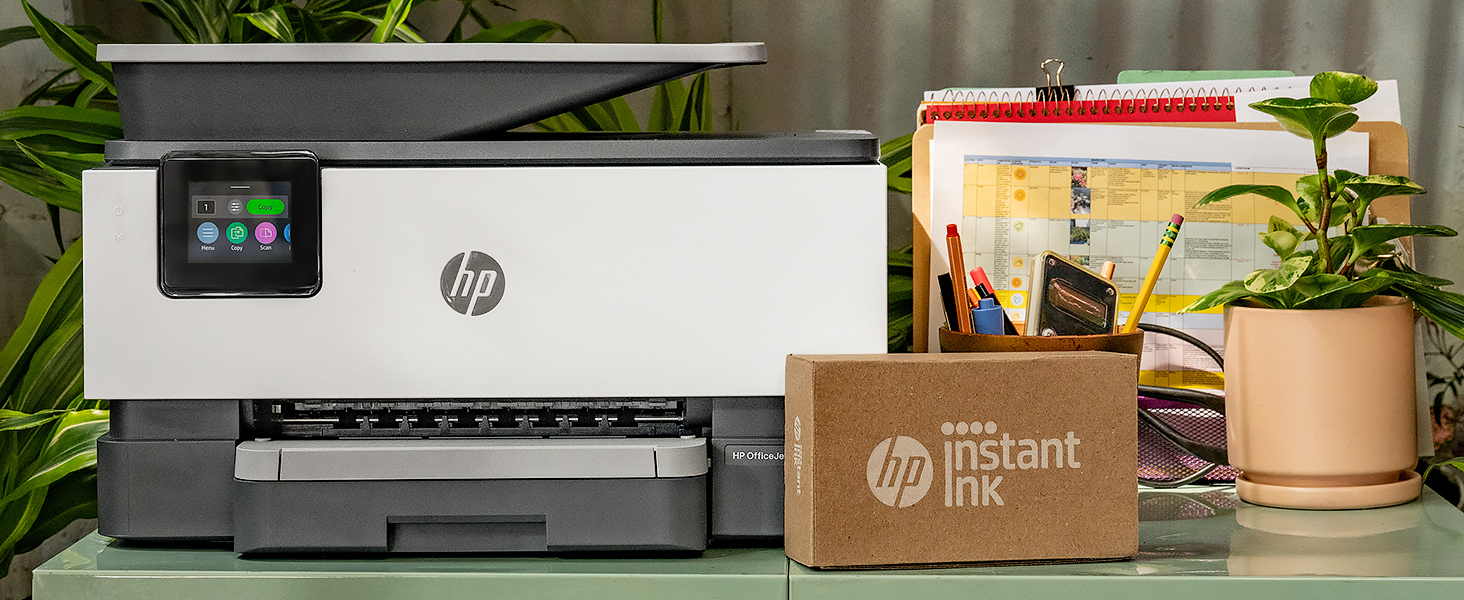
Figure 4: Printer ready for setup, showing the Instant Ink box.
3. საოპერაციო ინსტრუქციები
3.1 დოკუმენტების ბეჭდვა
The HP OfficeJet Pro 9125e supports printing from various devices, including computers and smartphones.
- კომპიუტერიდან: Ensure the printer drivers are installed. Select "Print" from your application, choose the HP OfficeJet Pro 9125e, and adjust settings as needed (e.g., color, black and white, duplex printing).
- მობილური მოწყობილობიდან (HP Smart აპლიკაცია): Open the HP Smart App, select "Print Documents" or "Print Photos," choose the fileდა გაგზავნეთ პრინტერში.
- ბეჭდვის სიჩქარე: Up to 22 ppm for black and 18 ppm for color.
- ორმხრივი ბეჭდვა: The printer supports automatic two-sided printing. This option can be selected in your print settings.
3.2 დოკუმენტების სკანირება
დოკუმენტების სკანირება შესაძლებელია ბრტყელი სკანერის ან ავტომატური დოკუმენტების მიმწოდებლის (ADF) გამოყენებით.
- ბრტყელი პლატფორმის გამოყენება: Place a single document face down on the scanner glass. Close the lid. Select "Scan" on the printer's touchscreen or through the HP Smart App.
- ADF-ის გამოყენება: Load multiple pages face up into the ADF. The ADF supports dual-pass 2-sided scanning. Select "Scan" on the printer's touchscreen or through the HP Smart App and choose the ADF option.
- სკანირების მიმართულებები: Scanned documents can be sent to a computer, email, or cloud services via the HP Smart App.
3.3 დოკუმენტების კოპირება
The printer allows for quick and efficient copying.
- Initiate Copy: Press the "Copy" icon on the printer's touchscreen.
- დოკუმენტის განთავსება: Place the document on the flatbed scanner or in the ADF.
- დაარეგულირეთ პარამეტრები: Select the number of copies (up to 99), color or black and white, and other options like resizing or quality.
- კოპირების დაწყება: Press the "Start Copy" button on the touchscreen.
3.4 დოკუმენტების ფაქსით გაგზავნა
The HP OfficeJet Pro 9125e includes fax functionality.
- დოკუმენტის ჩატვირთვა: Place the document on the flatbed scanner or in the ADF.
- შეიყვანეთ ნომერი: Press the "Fax" icon on the touchscreen and enter the recipient's fax number.
- ფაქსის გაგზავნა: Confirm settings and send the fax.
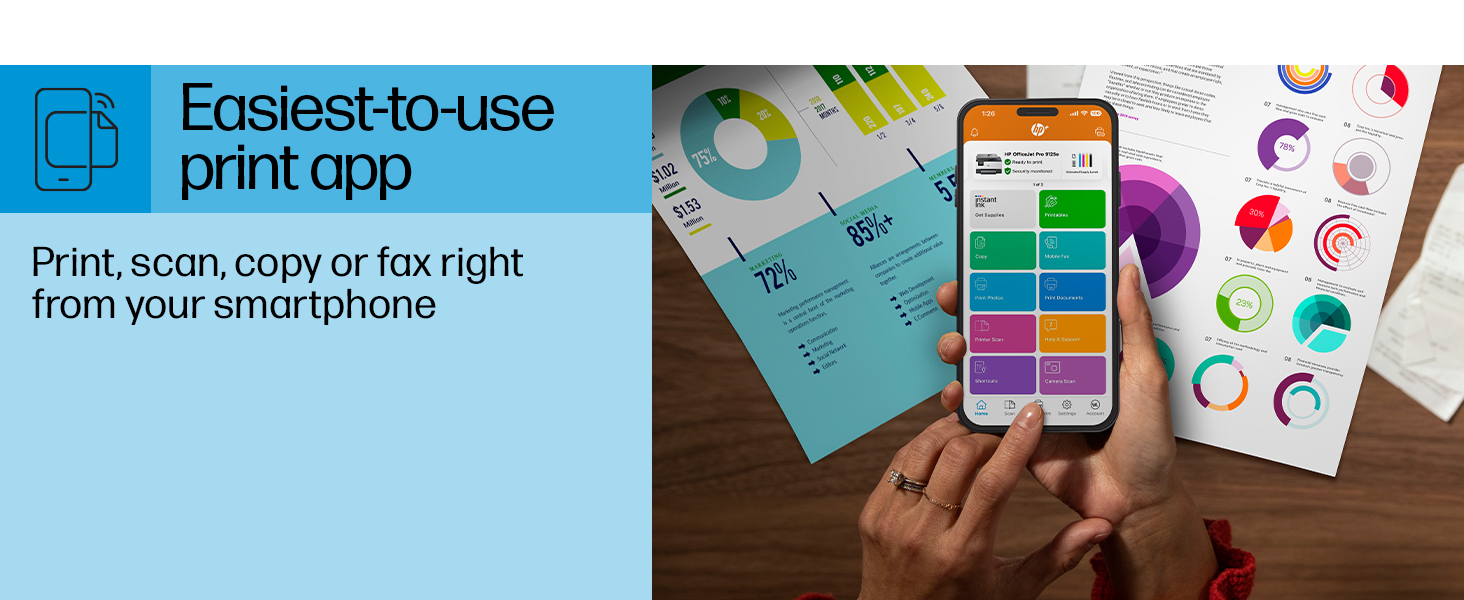
Figure 5: The HP Smart App allows control of print, scan, copy, and fax functions from a smartphone.
4. მოვლა
4.1 მელნის კარტრიჯის შეცვლა
The printer uses HP 936 series ink cartridges (Black, Cyan, Magenta, Yellow). The touchscreen will indicate when ink levels are low or when a cartridge needs replacement.
- გახსენით მელნის კარტრიჯის შესასვლელი კარი.
- ძველ კარტრიჯზე არსებულ ჩანართს დააჭირეთ მის გასათავისუფლებლად, შემდეგ კი ამოიღეთ.
- Unpack the new HP 936 cartridge, being careful not to touch the electrical contacts or ink nozzles.
- ჩადეთ ახალი კარტრიჯი შესაბამის ჭრილში, სანამ არ დააწკაპუნებს.
- დახურეთ მელნის კარტრიჯის შესასვლელი კარი.
4.2 ქაღალდის დამუშავება
- შეყვანის უჯრა: The printer features a 250-sheet input tray. Ensure paper is loaded correctly and paper guides are adjusted to prevent jams.
- გამომავალი უჯრა: The output tray has a capacity of 60 sheets.
- მხარდაჭერილი მედია: The printer supports various paper types and sizes, including plain paper, photo paper, and envelopes. Supported sizes range from 3 x 5 inches to 8.5 x 14 inches.
- Envelope Stopper: Utilize the built-in envelope stopper to prevent jams when printing envelopes.
4.3 დასუფთავება
რეგულარული წმენდა ხელს უწყობს ბეჭდვის ხარისხის შენარჩუნებას და პრინტერის ხანგრძლივ მუშაობას.
- ექსტერიერი: გაწმინდეთ პრინტერის გარე ზედაპირი რბილი,...amp, უნაყოფო ქსოვილი.
- სკანერის მინა: გაწმინდეთ სკანერის მინა რბილი ქსოვილით და არააბრაზიული მინის საწმენდით.
- ADF ლილვაკები: იხილეთ HP-ის მხარდაჭერის სერვისი website or the HP Smart App for instructions on cleaning ADF rollers if paper feed issues occur.
5. Დიაგნოსტიკა
This section provides solutions to common printer issues. For more detailed troubleshooting, refer to the HP support webსაიტი ან HP Smart აპლიკაცია.
5.1 დაკავშირების პრობლემები
- პრინტერი ოფლაინშია: Ensure the printer is powered on and connected to the correct Wi-Fi network. Restarting both the printer and your router can often resolve temporary network glitches.
- Wi-Fi გათიშვა: The printer's dual-band Wi-Fi is designed to automatically resolve connection issues. If problems persist, try reconnecting through the printer's touchscreen or the HP Smart App.
- USB/Ethernet Connection: If using a wired connection, ensure cables are securely plugged into both the printer and the computer/router.
5.2 ბეჭდვის ხარისხის პრობლემები
- გაცვეთილი ან ზოლიანი ანაბეჭდები: Check ink levels and replace any low or empty cartridges. Perform a printhead cleaning cycle through the printer's maintenance menu.
- არასწორი ფერები: Ensure you are using genuine HP ink cartridges. Run a printhead alignment from the printer's maintenance menu.
- ქაღალდის ჯემები: Follow the on-screen instructions to clear any jammed paper. Ensure paper is loaded correctly and not overfilled in the input tray.
5.3 Scanning/Copying Issues
- Blank Scans/Copies: Ensure the document is placed correctly on the scanner glass or in the ADF.
- Lines on Scans/Copies: Clean the scanner glass and the ADF rollers.
6. ტექნიკური მახასიათებლები
| ფუნქცია | სპეციფიკაცია |
|---|---|
| მოდელის სახელი | HP OfficeJet Pro 9125e |
| ფუნქციები | ბეჭდვა, კოპირება, სკანირება, ფაქსი |
| ბეჭდვის ტექნოლოგია | Inkjet (Four-color inkjet cartridges) |
| მაქსიმალური ბეჭდვის სიჩქარე (შავი) | 22 ppm |
| მაქსიმალური ბეჭდვის სიჩქარე (ფერადი) | 18 ppm |
| მაქსიმალური ბეჭდვის გარჩევადობა (შავი) | 1200 x 1200 dpi |
| მაქსიმალური ბეჭდვის გარჩევადობა (ფერადი) | 4800 x 1200-მდე ოპტიმიზირებული dpi |
| დუპლექსის ბეჭდვა | ავტომატური |
| სკანერის ტიპი | ადვილად მოსახსნელი მინა, ორმაგი გავლის ორმხრივი ADF |
| მაქსიმალური კოპირების გარჩევადობა | 600 x 600 dpi (შავი და ფერადი) |
| Max Copies per Run | 99 |
| დაკავშირება | Ethernet, USB, Wi-Fi (Dual-band) |
| კონტროლის მეთოდი | აპლიკაცია, სენსორული ეკრანი |
| სენსორული ეკრანის ზომა | 2.7 ინჩი |
| შეყვანის ფურცლის ტევადობა | 250 ფურცელი |
| გამომავალი ფურცლის ტევადობა | 60 ფურცელი |
| მხარდაჭერილი მედია ზომები | 3 x 5 ინჩიდან 8.5 x 14 ინჩამდე |
| მეხსიერების შენახვის მოცულობა | 512 მბ |
| პროდუქტის ზომები (D x W x H) | 13.48" x 17.3" x 10.94" |
| ნივთის წონა | 20.5 ფუნტი |
| ენერგიის მოხმარება | 5.06 ვატი |

Figure 6: Physical dimensions of the HP OfficeJet Pro 9125e.
7. გარანტია და მხარდაჭერა
7.1 ინფორმაცია გარანტიის შესახებ
- Certified Refurbished Warranty: This unit comes with a 90-day manufacturer warranty, ensuring reliable, like-new performance.
- Extended Protection Pack: The product bundle includes a 2-year CPS Enhanced Protection Pack.
- HP+ Offer Warranty: A one-year limited hardware warranty is provided, with an option to extend to two years upon acceptance of the HP+ Offer during setup.
For specific terms and conditions regarding your warranty, please refer to the documentation included with your product or visit the official HP support webსაიტი.
7.2 მომხმარებელთა მხარდაჭერა
For further assistance, technical support, or to access detailed user guides and drivers, please visit the official HP support webსაიტი:
You can also utilize the HP Smart App for troubleshooting and accessing support resources directly from your mobile device.