შესავალი
This user guide provides detailed instructions to help you get started with and master your Samsung Galaxy A25 smartphone. It covers essential setup procedures, customization options, security features, and how to utilize the device's camera and applications effectively. This manual is designed for all users, from beginners to those familiar with Android devices, ensuring a smooth and comprehensive learning experience.
What's New in Samsung Galaxy A25
The Samsung Galaxy A25 introduces several enhancements designed to improve your mobile experience. This section highlights key new features and improvements that differentiate the Galaxy A25 from previous models, ensuring you can take full advantagე მისი შესაძლებლობები.
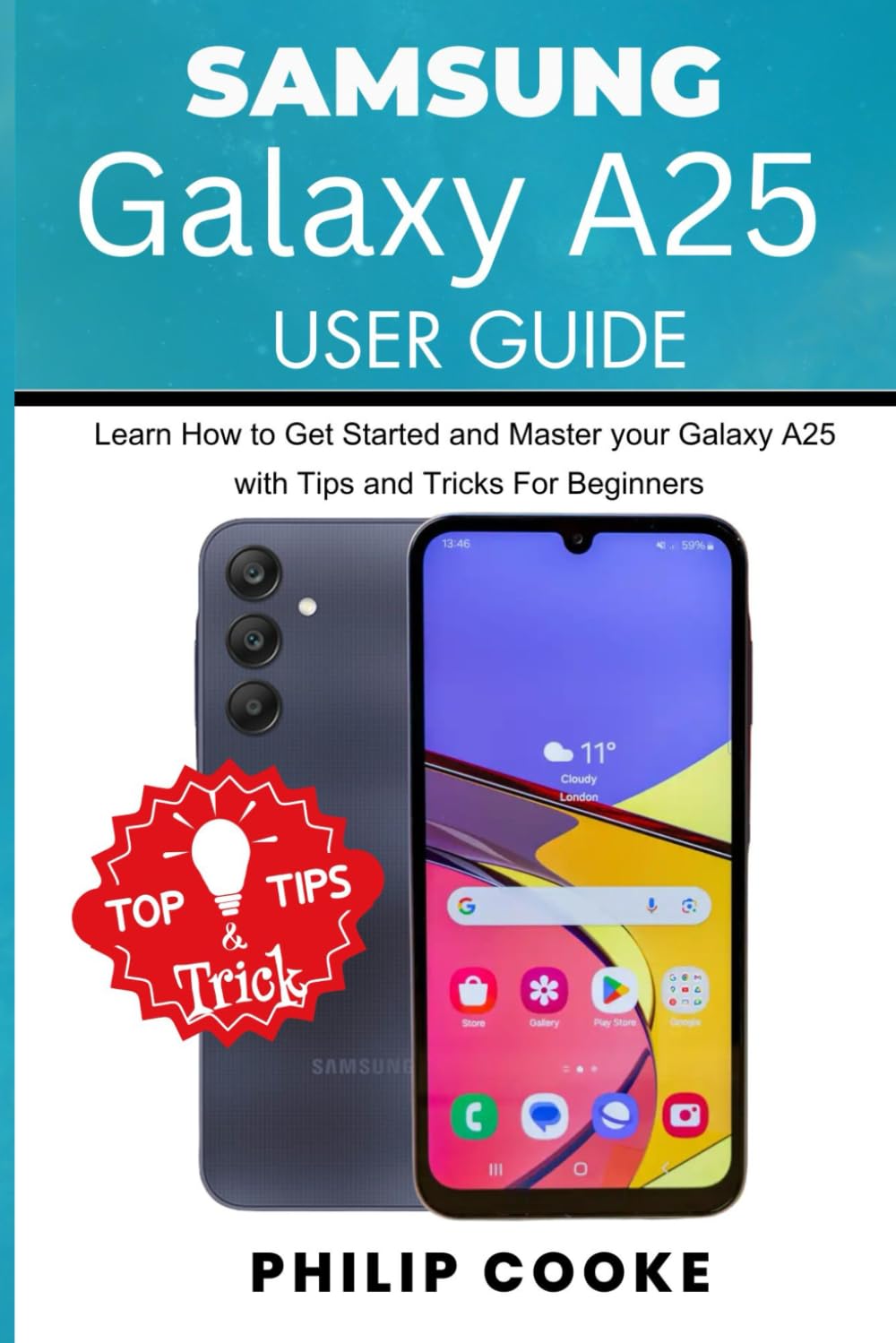
სურათი: წინა და უკანა მხარე view of the Samsung Galaxy A25 smartphone, highlighting its design and interface. The screen displays a home screen with various app icons and a weather widget. A "Top Tips & Tricks" graphic is overlaid on the image.
საწყისი დაყენება
Follow these steps to set up your Samsung Galaxy A25 for the first time:
- ჩართვა: დააჭირეთ და გააჩერეთ ჩართვის ღილაკი, სანამ Samsung-ის ლოგო არ გამოჩნდება.
- ენის შერჩევა: აირჩიეთ თქვენთვის სასურველი ენა სიიდან.
- დაუკავშირდით Wi-Fi-ს: Select your Wi-Fi network and enter the password. This is crucial for downloading updates and setting up your Google account.
- წესები და პირობები: Read and accept the End User License Agreement and Privacy Policy.
- დააკოპირეთ აპები და მონაცემები: შეგიძლიათ მონაცემების გადატანა ძველი მოწყობილობიდან ან ახლის დაყენება.
- Google ანგარიში: შედით თქვენი Google ანგარიშით ან შექმენით ახალი. ეს აუცილებელია Google Play Store-სა და Google-ის სხვა სერვისებზე წვდომისთვის.
- უსაფრთხოების დაყენება: Configure your preferred screen lock method (PIN, pattern, password, fingerprint, or face recognition).
- Samsung ანგარიში: Optionally sign in or create a Samsung account to access Samsung-specific services and features.
- დაყენების დასრულება: Complete any remaining setup prompts to finish configuring your device.
თქვენი მოწყობილობის მუშაობა
თქვენი მოწყობილობის მორგება
Personalize your Galaxy A25 to suit your preferences:
- Home Screen and Wallpaper: To change your wallpaper, long-press on an empty area of the home screen, then select "Wallpaper and style." You can also add widgets and change grid size from here.
- თემები: Explore and apply themes from the Galaxy Themes store to change the overall look and feel of your device.
- ხმა და ვიბრაცია: Adjust ringtones, notification sounds, system sounds, and vibration patterns in Settings > Sounds and vibration.
- ეკრანის პარამეტრები: Customize brightness, dark mode, screen timeout, font size, and zoom in პარამეტრები > ჩვენება.
უსაფრთხოების პარამეტრები
Protect your device and data with robust security features:
- Ეკრანის დაბლოკვა: Set up or modify your screen lock (PIN, pattern, password, fingerprint, face recognition) via Settings > Security and privacy > Screen lock.
- ბიომეტრია: Register your fingerprints and face for quick and secure unlocking and authentication.
- იპოვე ჩემი მობილური: Enable this feature to locate, lock, or erase your device remotely if it's lost or stolen. Access it through Settings > Security and privacy > Find My Mobile.
- კონფიდენციალურობის საინფორმაციო დაფა: Monitor and manage app permissions for your camera, microphone, location, and more in Settings > Security and privacy > Privacy.
აპლიკაციებისა და თამაშების ჩამოტვირთვა
Access a vast library of applications and games:
- Google Play Store: Open the "Play Store" app, browse categories, search for apps, and tap "Install" to download.
- Galaxy Store: Samsung's own app store offers exclusive apps, themes, and deals.
Web Browsing and Social Media
Stay connected and informed:
- ინტერნეტ ბრაუზერი: Use the pre-installed Samsung Internet browser or download Google Chrome from the Play Store for web დათვალიერება
- Social Media Apps: Download popular social media applications like Facebook, Instagram, X (formerly Twitter), and TikTok from the Google Play Store to connect with friends and family.
კამერისა და ვიდეოჩანაწერი
The Samsung Galaxy A25 features a versatile camera system for capturing high-quality photos and videos.
Mastering the Camera
- Opening the Camera: Tap the Camera app icon or double-press the power button for quick access.
- რეჟიმები: Swipe left or right on the camera screen to switch between modes like Photo, Video, Portrait, Pro, Panorama, and Food.
- მასშტაბირება: Pinch in or out on the screen, or tap the zoom icons (e.g., 0.5x, 1x, 2x) to adjust magnification.
- პარამეტრები: Tap the gear icon to access camera settings, where you can adjust resolution, aspect ratio, timer, and more.
ვიდეო გადაღება
- ჩაწერის დაწყება/შეწყვეტა: In Video mode, tap the record button to start and stop recording.
- პაუზა: Tap the pause icon during recording to temporarily stop, then tap again to resume.
- ვიდეო რეზოლუცია: Adjust video quality in camera settings for different needs (e.g., Full HD, HD).
ფოტო რედაქტირება
After capturing your moments, enhance them using the built-in editing tools:
- Accessing Editor: Open a photo in the Gallery app and tap the "Edit" icon (pencil).
- ინსტრუმენტები: Utilize tools for cropping, rotating, adjusting brightness, contrast, saturation, applying filters, and adding stickers or text.
- შენახვა: Tap "Save" to apply changes. You can often save a copy to preserve the original.
სპეციფიკაციები
Key technical specifications for the Samsung Galaxy A25:
| ფუნქცია | დეტალი |
|---|---|
| ASIN | B0DCFSQLKG |
| გამომცემელი | დამოუკიდებლად გამოქვეყნებული |
| გამოქვეყნების თარიღი | 6 წლის 2024 აგვისტო |
| ენა | ინგლისური |
| ბეჭდვის სიგრძე | 98 გვერდი |
| ISBN-13 | 979-8335155304 წწ |
| ნივთის წონა | 7 უნცია |
| ზომები | 6 x 0.23 x 9 ინჩი |
Note: The specifications listed above pertain to the physical book (user guide) itself, as provided in the product data. For detailed device specifications of the Samsung Galaxy A25 smartphone, please refer to Samsung's official website or the device's packaging.
პრობლემების მოგვარება
This section provides general guidance for common issues you might encounter with your Samsung Galaxy A25. For specific problems, always refer to Samsung's official support resources.
- მოწყობილობა არ პასუხობს: If your device is frozen, press and hold the Power button and Volume Down button simultaneously for about 7-10 seconds to force restart.
- ბატარეის დაცლა: შეამოწმეთ ბატარეის გამოყენება პარამეტრები > ელემენტისა და მოწყობილობის მოვლა > ელემენტი to identify apps consuming excessive power. Reduce screen brightness and disable unnecessary features like Wi-Fi, Bluetooth, or GPS when not in use.
- აპლიკაციის ავარია: Try clearing the app's cache and data in პარამეტრები > აპლიკაციები > [აპლიკაციის სახელი] > მეხსიერებათუ პრობლემა კვლავ მოგვარდება, წაშალეთ და ხელახლა დააინსტალირეთ აპლიკაცია.
- დაკავშირების პრობლემები (Wi-Fi/Bluetooth): Toggle Wi-Fi or Bluetooth off and on. Restart your device. For Wi-Fi, also try restarting your router.
- ნელი შესრულება: გასუფთავება არასაჭირო files and cache using პარამეტრები > ელემენტისა და მოწყობილობის მოვლა > შენახვა. Close background apps and consider uninstalling rarely used applications.
გარანტია და მხარდაჭერა
For information regarding your Samsung Galaxy A25's warranty, please refer to the warranty card included with your device or visit the official Samsung support website. Samsung provides comprehensive support services, including:
- ონლაინ დახმარება: Access FAQs, troubleshooting guides, and software updates.
- მომხმარებელთა მომსახურება: Contact Samsung customer service via phone, chat, or email for personalized assistance.
- სერვის ცენტრები: Locate authorized service centers for repairs and technical support.
Always ensure you are consulting official Samsung resources for the most accurate and up-to-date information.


