1. შესავალი
The DIGITNOW! USB 2.0 Digital Audio Capture Card is designed to convert analog audio sources into digital formats such as MP3 or WAV. This device allows you to preserve your old vinyl records, cassette tapes, and other audio media by digitizing them on your computer. It is compatible with Windows and Mac operating systems.

Image 1: The DIGITNOW! USB 2.0 Digital Audio Capture Card, including the main unit, RCA cables, 3.5mm audio cable, and software installation CD.
2. უსაფრთხოების ინფორმაცია
- შეინახეთ მოწყობილობა წყლისა და ტენისგან.
- არ სცადოთ მოწყობილობის გახსნა ან შეცვლა.
- Use only with compatible audio sources and computer systems.
- მოერიდეთ ექსტრემალურ ტემპერატურას და მზის პირდაპირ სხივებს.
- Disconnect the device from your computer when not in use.
3. პაკეტის შიგთავსი
დარწმუნდით, რომ თქვენს პაკეტში ყველა ნივთია:
- DIGITNOW! USB 2.0 Digital Audio Capture Card
- USB კაბელი (ინტეგრირებული)
- RCA Audio Cables (Red/White)
- 3.5 მმ აუდიო კაბელი
- სწრაფი ინსტალაციის სახელმძღვანელო
- Software Installation CD (Audacity)
- Additional Adapters (e.g., RCA to 3.5mm, 3.5mm to 3.5mm)
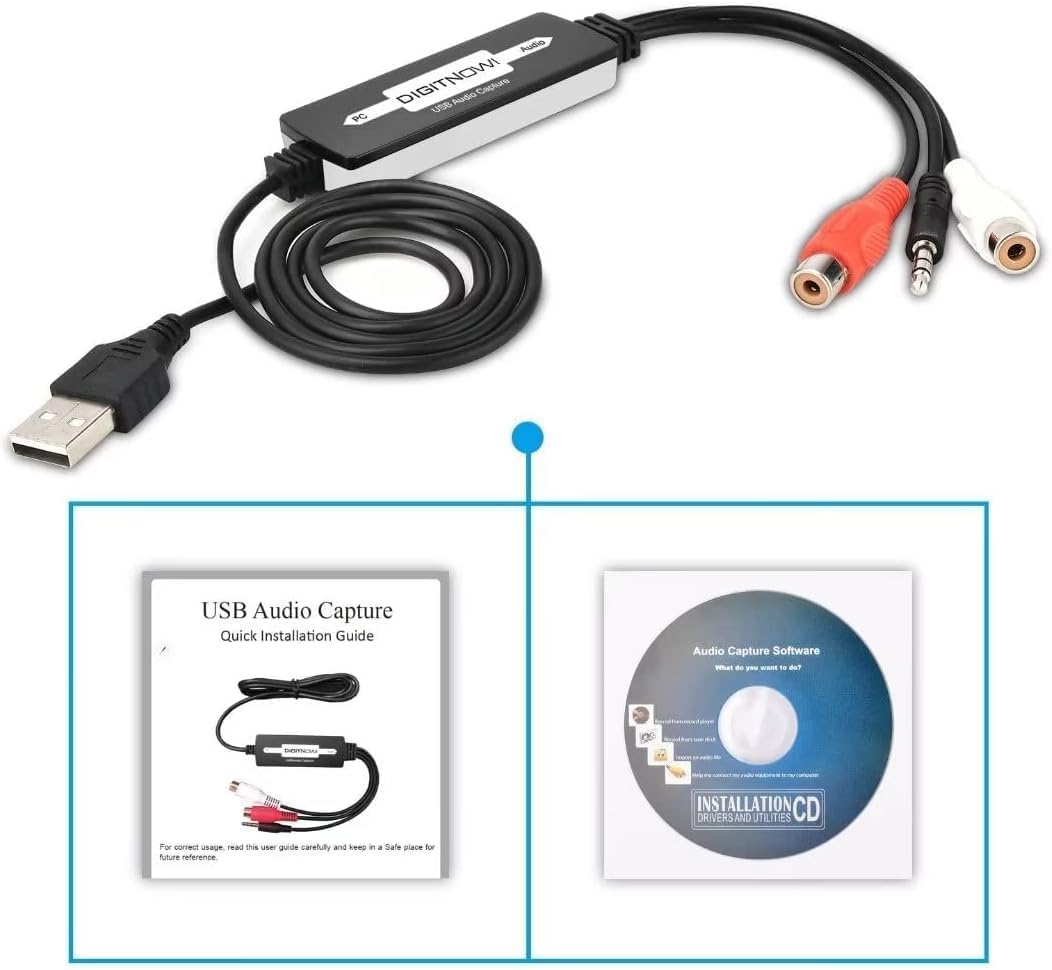
Image 2: The Quick Installation Guide and the included software installation CD.
4. პროდუქტი დასრულდაview
The audio capture card features a USB connector for your computer and various audio input options for your analog devices. It is a compact, plug-and-play device designed for ease of use.
4.1 მოწყობილობის კომპონენტები
- USB კონექტორი: Connects to your computer's USB port.
- RCA Input (Red/White): For connecting audio sources with RCA output (e.g., record players, CD players).
- 3.5 მმ აუდიო შეყვანა: For connecting audio sources with a 3.5mm jack (e.g., cassette players, MP3 players).
5. დაყენების გზამკვლევი
5.1 პროგრამული უზრუნველყოფის ინსტალაცია
- Insert the provided software installation CD into your computer's CD/DVD drive.
- Follow the on-screen instructions to install the Audacity audio capture and editing software.
- Alternatively, you can download the latest version of Audacity from its official website for updated features and compatibility.
5.2 თქვენს კომპიუტერთან დაკავშირება
- იპოვეთ თავისუფალი USB პორტი თქვენს კომპიუტერზე (დესკტოპზე ან ლეპტოპზე).
- Plug the USB connector of the audio capture card into the USB port. Your computer should automatically detect the device.

Image 3: Illustration of connecting various audio sources like a radio, cassette player, or record player to the DIGITNOW! audio capture card, which then connects to a computer.
5.3 აუდიო წყაროების დაკავშირება
The audio capture card supports various analog audio devices. Choose the appropriate connection method for your source:
- For devices with RCA output (e.g., Record Players, CD Players, Receivers):
- Connect the red RCA plug from your audio source to the red RCA input on the capture card.
- Connect the white RCA plug from your audio source to the white RCA input on the capture card.
- Ensure your record player has a built-in pre-amplifier or is connected to a receiver with a phono input, as the capture card does not provide phono pre-ampგაცოცხლება
- For devices with 3.5mm audio output (e.g., Cassette Players, MP3 Players, Portable Radios):
- Connect the 3.5mm audio cable from your audio source's headphone or line-out jack to the 3.5mm input on the capture card.
- Use the provided adapters if necessary (e.g., a 3.5mm female to female adapter if your source has a male 3.5mm plug).

Image 4: A record player connected to a laptop using the DIGITNOW! USB audio capture card.

Image 5: Detailed diagram illustrating both 3.5mm audio cable and RCA (left and right channel) cable connections from various audio devices to a laptop via the USB audio capture card.
6. საოპერაციო ინსტრუქციები
6.1 Recording Audio with Audacity
- Open the Audacity software on your computer.
- In Audacity, go to Edit > Preferences (ან Audacity > Preferences on Mac).
- ქვეშ მოწყობილობები tab, select the DIGITNOW! USB Audio Capture Card as your recording device.
- Adjust the recording volume levels within Audacity to prevent clipping or distortion. Start with a lower volume and gradually increase it while monitoring the input levels.
- Start playback on your analog audio source (e.g., play a record or cassette).
- დააწკაპუნეთ ჩანაწერი button (red circle) in Audacity to begin capturing the audio.
- Once the audio has finished playing, click the გაჩერდი button (yellow square) in Audacity.
6.2 Editing and Exporting Audio
- Use Audacity's editing tools to trim silence, remove noise, or split tracks as needed.
- To save your recording, go to File > Export.
- Choose your desired format (e.g., MP3, WAV) and select a destination folder on your computer.
- Fill in any metadata (artist, title, etc.) if prompted, then click შენახვა.
Video 1: An instructional video demonstrating the setup and basic operation of the DIGITNOW! USB 2.0 Digital Audio Capture Card.
7. მოვლა
- გაწმინდეთ მოწყობილობა რბილი, მშრალი ქსოვილით. არ გამოიყენოთ თხევადი საწმენდი საშუალებები.
- შეინახეთ მოწყობილობა გრილ, მშრალ ადგილას, როდესაც არ იყენებთ.
- Regularly check for and install updates for the Audacity software to ensure optimal performance and compatibility.
8. Დიაგნოსტიკა
| პრობლემა | შესაძლო მიზეზი | გამოსავალი |
|---|---|---|
| No audio input detected by computer/software. | Incorrect device selection in software; loose connections; faulty cable; audio source not playing. |
|
| Low recording volume. | Input volume too low in software; audio source volume too low; no pre-amplifier for phono. |
|
| Distorted or clipped audio. | Input volume too high in software or on source. |
|
| Software CD not readable. | Mini CD incompatibility; drive issue. |
|
9. სპეციფიკაციები
| ფუნქცია | დეტალი |
|---|---|
| მოდელის ნომერი | BR605-111 |
| აპარატურა ინტერფეისი | USB 2.0, 3.5mm Audio, RCA Audio (L/R) |
| ოპერაციული სისტემის თავსებადობა | Windows 10 / 8.1 / 8 / 7 / Vista / XP, Mac OS 10.7-10.14 (Not compatible with Mac OS 10.15 and above) |
| რეკომენდებული გამოყენება | Audio Recording (Analog to Digital Conversion) |
| პროდუქტის ზომები | 3.54 x 0.98 x 0.43 ინჩი |
| ნივთის წონა | 1.92 უნცია |
| სპეციალური ფუნქცია | Analog-to-digital audio conversion and broad operating system compatibility |

Image 6: Technical diagram illustrating the dimensions of the audio capture card and its cable, along with icons indicating compatibility with Linux, Windows, and Mac OS systems.
10. გარანტია და მხარდაჭერა
For warranty information and technical support, please refer to the DIGITNOW! official webსაიტზე ან პირდაპირ დაუკავშირდით მათ მომხმარებელთა მომსახურების სამსახურს. შეინახეთ თქვენი შესყიდვის ქვითარი გარანტიის მოთხოვნებისთვის.
For software-related issues with Audacity, please visit the official Audacity support forums or documentation.


