1. შესავალი
The Comfast CF-WU720N is a compact 150Mbps Wireless USB Adapter designed to provide high-speed wireless connectivity for your desktop or notebook computer. It allows you to connect to a wireless network and access the internet, share files, and enjoy online gaming at speeds up to 150Mbps. This adapter is compliant with IEEE 802.11b/g/n standards and supports USB 2.0 for efficient data transfer.
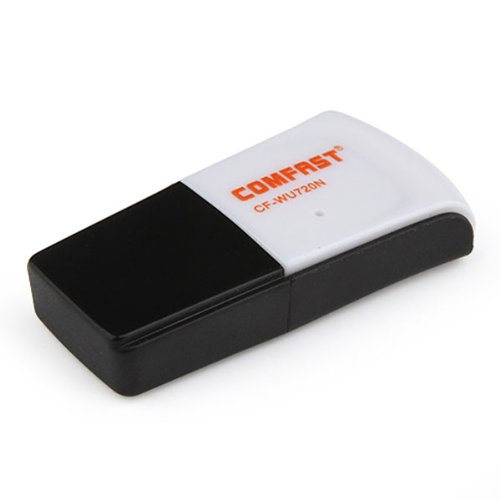
Image 1.1: The Comfast CF-WU720N Wireless USB Adapter, a compact device for wireless connectivity.
2. პროდუქტის მახასიათებლები
- Meets IEEE 802.11b/g/n wireless standards.
- Supports USB 2.0 interface for broad compatibility.
- Utilizes Realtek 8191 SU chipset for reliable performance.
- Achieves wireless connection rates up to 150Mbps.
- Supports wireless roaming technology for seamless connectivity.
- Strong compatibility with various popular operating systems.
- Compact size: approximately 39 x 12 x 7mm (1.5 x 0.7 x 0.3 inches).
- Lightweight design: approximately 5g.
3. პაკეტის შიგთავსი
გთხოვთ, დარწმუნდეთ, რომ შეფუთვაში ყველა ნივთია:
- 1 x Comfast CF-WU720N Wireless USB Adapter
- 1 x სწრაფი ინსტალაციის სახელმძღვანელო
- 1 x CD-ROM Driver
- 1 x საგარანტიო ბარათი

Image 3.1: The retail packaging for the Comfast CF-WU720N, showing the adapter inside.
4. დაყენება და ინსტალაცია
4.1. დრაივერის ინსტალაცია
Before connecting the USB adapter, it is recommended to install the necessary drivers from the provided CD-ROM. This ensures proper functionality and compatibility with your operating system.
- Insert the driver CD-ROM into your computer's optical drive.
- If the installer does not launch automatically, navigate to "My Computer" or "This PC," open the CD-ROM drive, and run the setup executable (e.g., "setup.exe" or "autorun.exe").
- Follow the on-screen instructions to complete the driver installation. You may be prompted to restart your computer after installation.
- შენიშვნა: If your computer does not have an optical drive, you may need to download the latest drivers from the manufacturer's official webსაიტი.
4.2. Connecting the USB Adapter
Once the drivers are installed, you can connect the Comfast CF-WU720N Wireless USB Adapter to your computer.
- Locate an available USB 2.0 or 3.0 port on your desktop or laptop computer.
- Carefully insert the Comfast CF-WU720N adapter into the USB port. Ensure it is fully seated.
- The operating system should automatically detect the adapter and configure it using the installed drivers. A small LED indicator on the adapter may light up or blink, indicating activity.
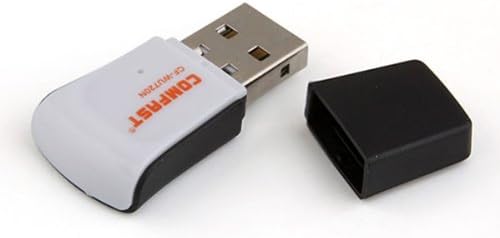
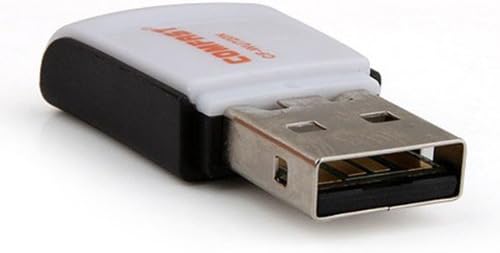
Image 4.1: The Comfast CF-WU720N adapter with its protective cap removed, revealing the USB connector. Image 4.2: A side view of the adapter, highlighting its compact design and USB interface.
5. საოპერაციო ინსტრუქციები
After successful driver installation and adapter connection, you can now connect to a wireless network.
- ქსელის პარამეტრებზე წვდომა:
- Windows: Click the wireless network icon in the system tray (usually bottom-right corner).
- macos: Click the Wi-Fi icon in the menu bar (usually top-right corner).
- Linux: Access network settings through your desktop environment's network manager.
- აირჩიეთ თქვენი ქსელი: A list of available wireless networks (SSIDs) will appear. Select the name of your desired network.
- დაკავშირება: Click "Connect" or "Join." If the network is secured, you will be prompted to enter the network security key (password).
- დაადასტურეთ კავშირი: Once connected, the network icon will typically change to indicate a successful connection, and you should be able to access the internet.
6. მოვლა
To ensure optimal performance and longevity of your Comfast CF-WU720N Wireless USB Adapter, follow these simple maintenance guidelines:
- Დაიცავი სისუფთავე: მტვრის მოსაშორებლად ადაპტერი ფრთხილად გაწმინდეთ რბილი, მშრალი ქსოვილით. მოერიდეთ თხევადი საწმენდი საშუალებების ან გამხსნელების გამოყენებას.
- USB კონექტორის დაცვა: როდესაც არ იყენებთ, დამცავი თავსახური USB კონექტორზე შეინახეთ მტვრისა და დაზიანების თავიდან ასაცილებლად.
- მოერიდეთ ექსტრემალურ პირობებს: არ დაუშვათ ადაპტერის გამოყენება ექსტრემალურ ტემპერატურაზე, ტენიანობაზე ან მზის პირდაპირ სხივებზე.
- ფრთხილად დამუშავება: მოერიდეთ ადაპტერის დავარდნას ან ძლიერ დარტყმებს.
- დრაივერის განახლებები: პერიოდულად შეამოწმეთ მწარმოებლის website for updated drivers to ensure the best performance and compatibility.
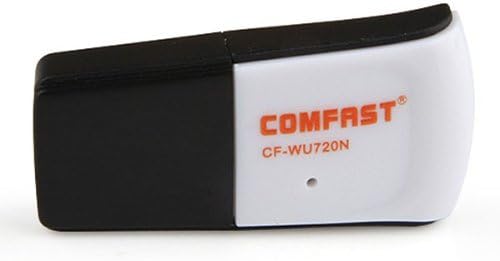
Image 6.1: The Comfast CF-WU720N adapter with its protective cap in place, ready for storage or transport.
7. Დიაგნოსტიკა
If you encounter issues with your Comfast CF-WU720N Wireless USB Adapter, refer to the following common solutions:
| პრობლემა | შესაძლო გამოსავალი |
|---|---|
| Adapter not detected / No Wi-Fi networks visible. |
|
| Cannot connect to a specific Wi-Fi network. |
|
| Slow connection speed or frequent disconnections. |
|
8. სპეციფიკაციები
| ფუნქცია | დეტალი |
|---|---|
| მოდელი | CF-WU720N |
| უკაბელო სტანდარტები | IEEE 802.11b/g/n |
| ინტერფეისი | USB 2.0 |
| ჩიპსეტი | Realtek 8191 SU |
| უკაბელო სიჩქარე | 150 Mbps-მდე |
| სიხშირის დიაპაზონი | 2.4 გჰც |
| უსაფრთხოების მახასიათებლები | WPA/WPA2, WPA-PSK/WPA2-PSK, 64/128-bit WEP |
| ოპერაციული სისტემები | Windows XP/Vista/7/8/10, macOS, Linux (driver dependent) |
| ზომები (L x W x H) | დაახლოებით 39 x 12 x 7 მმ (1.5 x 0.7 x 0.3 ინჩი) |
| წონა | დაახლ. 5 გ |
9. გარანტია და მხარდაჭერა
This product comes with a warranty as specified on the included Warranty Card. Please refer to the card for details regarding warranty period, terms, and conditions.
For technical support, driver updates, or further assistance, please visit the official Comfast webსაიტზე ან დაუკავშირდით მათ მომხმარებელთა მომსახურების განყოფილებას. საკონტაქტო ინფორმაცია, როგორც წესი, შეგიძლიათ იხილოთ პროდუქტის შეფუთვაზე ან მწარმოებლის დოკუმენტაციაში. webსაიტი.
გთხოვთ, შეინახოთ თქვენი შესყიდვის ქვითარი გარანტიის მიზნებისთვის.


