1. შესავალი
Welcome to the user manual for your Logitech M705 Marathon Wireless Mouse. This document provides essential information for setting up, operating, and maintaining your device, ensuring optimal performance and longevity. The M705 mouse is designed for comfort and efficiency, featuring a long battery life and customizable controls for enhanced productivity.
2. პროდუქტი დასრულდაview
ძირითადი მახასიათებლები
- გახანგრძლივებული ბატარეის ხანგრძლივობა: Enjoy up to 3 years of battery life, reducing the need for frequent replacements.
- ერგონომიული დიზაინი: Sculpted to fit the natural curve of your right hand, providing comfort during prolonged use.
- ჰიპერ-სწრაფი გადახვევა: Navigate through long documents and web pages with a single spin of the scroll wheel, or switch to click-to-click scrolling for precision.
- პროგრამირებადი ღილაკები: Five customizable buttons, including forward/back thumb buttons, allow for personalized shortcuts and enhanced control.
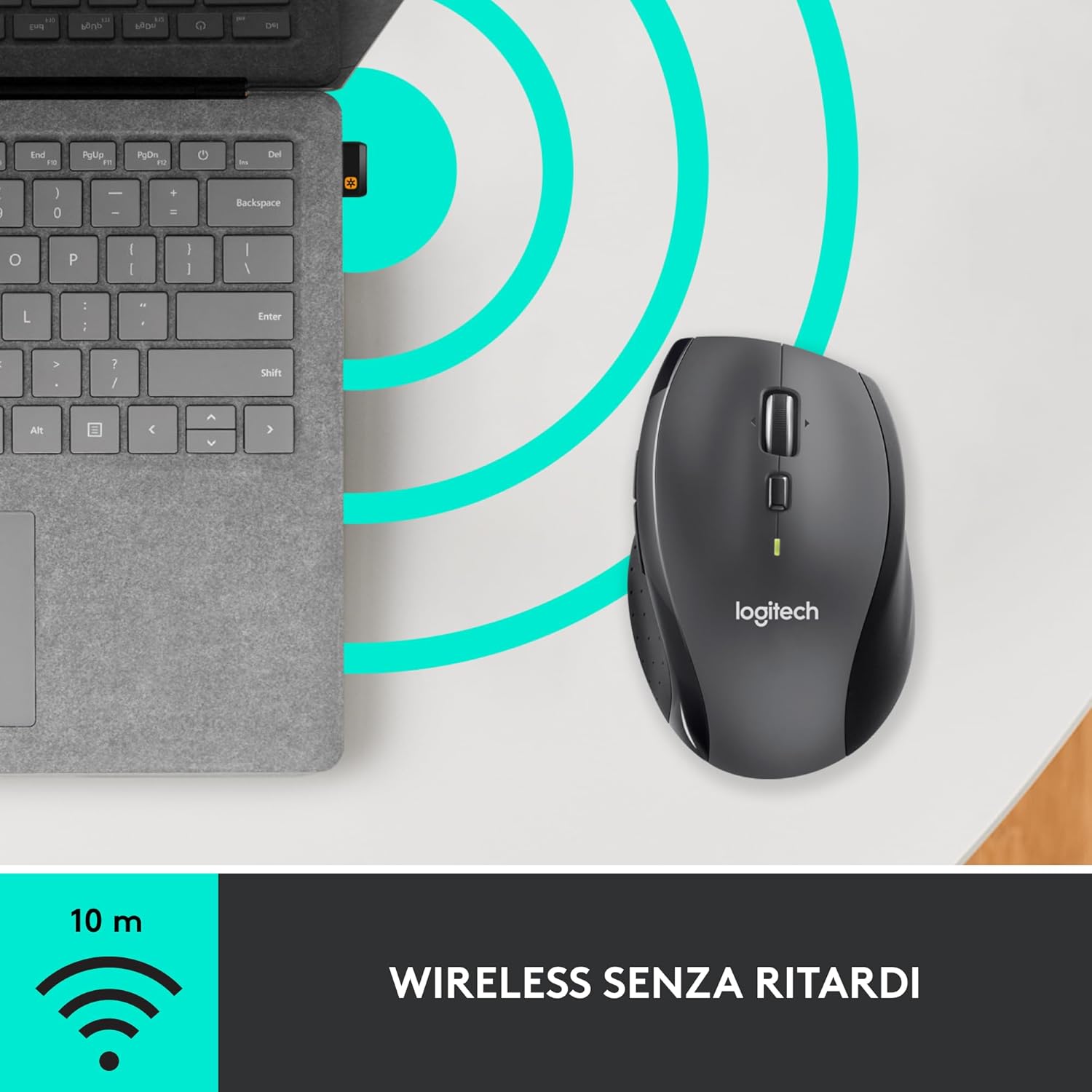
- გამაერთიანებელი მიმღები: A small USB Unifying receiver connects up to six compatible Logitech devices, freeing up USB ports.
- ფართო თავსებადობა: თავსებადია Windows, macOS, Chrome OS და Linux ოპერაციულ სისტემებთან.
პაკეტის შიგთავსი
The Logitech M705 Marathon Wireless Mouse package typically includes:
- Logitech M705 უკაბელო მაუსი
- Logitech Unifying USB რესივერი
- 2 AA Alkaline Batteries (may vary by region/packaging)

3. დაყენების ინსტრუქციები
3.1. ბატარეების დაყენება
- Turn the mouse over and locate the battery compartment cover on the underside.
- Press the release button or slide the cover to open the compartment.
- ჩადეთ ორი AA ტიპის ელემენტი, დარწმუნდით, რომ სწორი პოლარობა (+/-) გაქვთ.
- შეცვალეთ ბატარეის განყოფილების საფარი.

3.2. Connecting the USB Unifying Receiver
- Locate the small USB Unifying receiver. It may be stored inside the battery compartment of the mouse.
- შეაერთეთ USB მიმღები თქვენს კომპიუტერში არსებულ USB პორტში.
- Turn on the mouse using the On/Off switch located on the underside.
- Your computer should automatically detect the mouse. If not, visit the Logitech support website for driver installation.
4. საოპერაციო ინსტრუქციები
4.1. მაუსის ძირითადი ფუნქციები
The M705 mouse features standard left and right-click buttons, a scroll wheel, and additional programmable buttons.

4.2. Hyper-Fast Scrolling
The scroll wheel offers two modes:
- ჰიპერ-სწრაფი რეჟიმი: Press the button directly below the scroll wheel to unlock it for smooth, rapid scrolling through long documents or web გვერდები.
- დაწკაპუნება-დაწკაპუნების რეჟიმი: Press the button again to engage precise, stepped scrolling, ideal for navigating lists or image galleries.

4.3. პროგრამირებადი ღილაკები
The M705 features five programmable buttons, including two thumb buttons and tilt-scroll functionality. These can be customized using the Logitech Options software.

5. მორგება
To unlock the full potential of your M705 mouse, download and install the Logitech Options software from the official Logitech webსაიტი. ეს პროგრამა საშუალებას გაძლევთ:
- Assign custom functions to the five programmable buttons.
- Adjust tracking speed (DPI).
- Configure application-specific settings.
- შეამოწმეთ ბატარეის მდგომარეობა.

6. მოვლა
6.1. დასუფთავება
მაუსის გასაწმენდად გამოიყენეთ რბილი, უბუშტო ქსოვილი. ჯიუტი ჭუჭყის შემთხვევაში, ოდნავampen the cloth with water. Avoid using harsh chemicals or abrasive materials, as these can damage the mouse surface or internal components.
6.2. ბატარეის გამოცვლა
When the battery indicator light on your mouse begins to flash or if performance degrades, it's time to replace the batteries. Follow the steps in Section 3.1 to replace the two AA batteries. Dispose of old batteries responsibly according to local regulations.
7. Დიაგნოსტიკა
7.1. მაუსი არ რეაგირებს
- დარწმუნდით, რომ მაუსი ჩართულია.
- Check the battery level and replace batteries if necessary.
- Verify the USB Unifying receiver is securely plugged into a working USB port.
- პრობლემის მოსაგვარებლად, სცადეთ მიმღების სხვა USB პორტში ან სხვა კომპიუტერში შეერთება.
- თუ USB ჰაბს იყენებთ, სცადეთ პირდაპირ კომპიუტერთან დაკავშირება.
7.2. კურსორის არასტაბილური მოძრაობა
- გაწმინდეთ მაუსის ქვედა მხარეს არსებული ოპტიკური სენსორი.
- Ensure you are using the mouse on a suitable surface. Highly reflective or transparent surfaces may cause tracking issues. A mouse pad is recommended.
- Check for interference from other wireless devices. Move the mouse closer to the USB receiver.
7.3. Unifying Receiver Issues
If the mouse loses connection or you need to pair it with a new receiver, download the Logitech Unifying Software from the Logitech support website. This software guides you through the pairing process.
8. სპეციფიკაციები
| ფუნქცია | დეტალი |
|---|---|
| ბრენდი | Logitech |
| მოდელის სახელი | M705 |
| მოდელის ნომერი | 910-001949 წწ |
| დაკავშირების ტექნოლოგია | Wireless (2.4 GHz USB Unifying Receiver) |
| მოძრაობის გამოვლენის ტექნოლოგია | ლაზერი |
| მოძრაობის რეზოლუცია | 1000 DPI (up to 3200 DPI maximum resolution) |
| ღილაკების რაოდენობა | 5 პროგრამირებადი ღილაკი |
| დენის წყარო | Battery (2 x AA Alkaline) |
| ბატარეის საშუალო ხანგრძლივობა | 3 წლამდე |
| უსადენო დიაპაზონი | 10 მეტრამდე |
| ფორმის ფაქტორი | Right-hand ergonomic |
| ზომები (L x W x H) | 20 x 13 x 12 cm (Product packaging dimensions) |
| წონა | 136 გრამი |
| თავსებადი ოპერაციული სისტემები | Windows 7, 8, 10; macOS 10.11 or later; Chrome OS; Linux |
9. გარანტია და მხარდაჭერა
დეტალური გარანტიის შესახებ ინფორმაციისა და ტექნიკური მხარდაჭერისთვის, გთხოვთ, იხილოთ Logitech-ის ოფიციალური ვებგვერდი. webსაიტზე ან დაუკავშირდით Logitech-ის მომხმარებელთა მომსახურების სამსახურს. შეინახეთ შეძენის დამადასტურებელი საბუთი გარანტიის მოთხოვნებისთვის.


