1. はじめに
Thank you for choosing the OBZ USB Wired Desktop Barcode Scanner. This device is designed for efficient and reliable scanning of 1D and 2D barcodes, offering a hands-free operation experience. It is suitable for various applications including retail, inventory management, and point-of-sale systems. This manual provides essential information for the proper setup, operation, and maintenance of your scanner.

画像: The OBZ Desktop Barcode Scanner is versatile, suitable for diverse environments such as bookstores, supermarkets, retail outlets, and medical facilities, demonstrating its broad applicability.
2. 主な特徴
- ハンズフリー操作: Designed for desktop use, eliminating the need to hold the scanner, thereby improving efficiency.
- 多用途のデコード: Capable of scanning 1D, 2D, and QR codes from labels, paper, and digital displays. It can decode challenging barcodes including blurred, damaged, distorted, colorful, or reflective types.
- プラグアンドプレイ接続: Requires no software or driver installation. Connects directly via USB cable to laptops, PCs, and POS systems.
- Automatic Smart Sensing: Features an auto-sensing scanning function that allows the device to enter a sleep mode when inactive and automatically wake up when an item is presented for scanning.
- High Resolution Scanning Module: Upgraded module ensures quick and accurate capture of moving codes.

画像: This image illustrates the hands-free advantage of the OBZ Desktop Barcode Scanner compared to traditional handheld scanners or mobile phone scanning, highlighting its convenience.
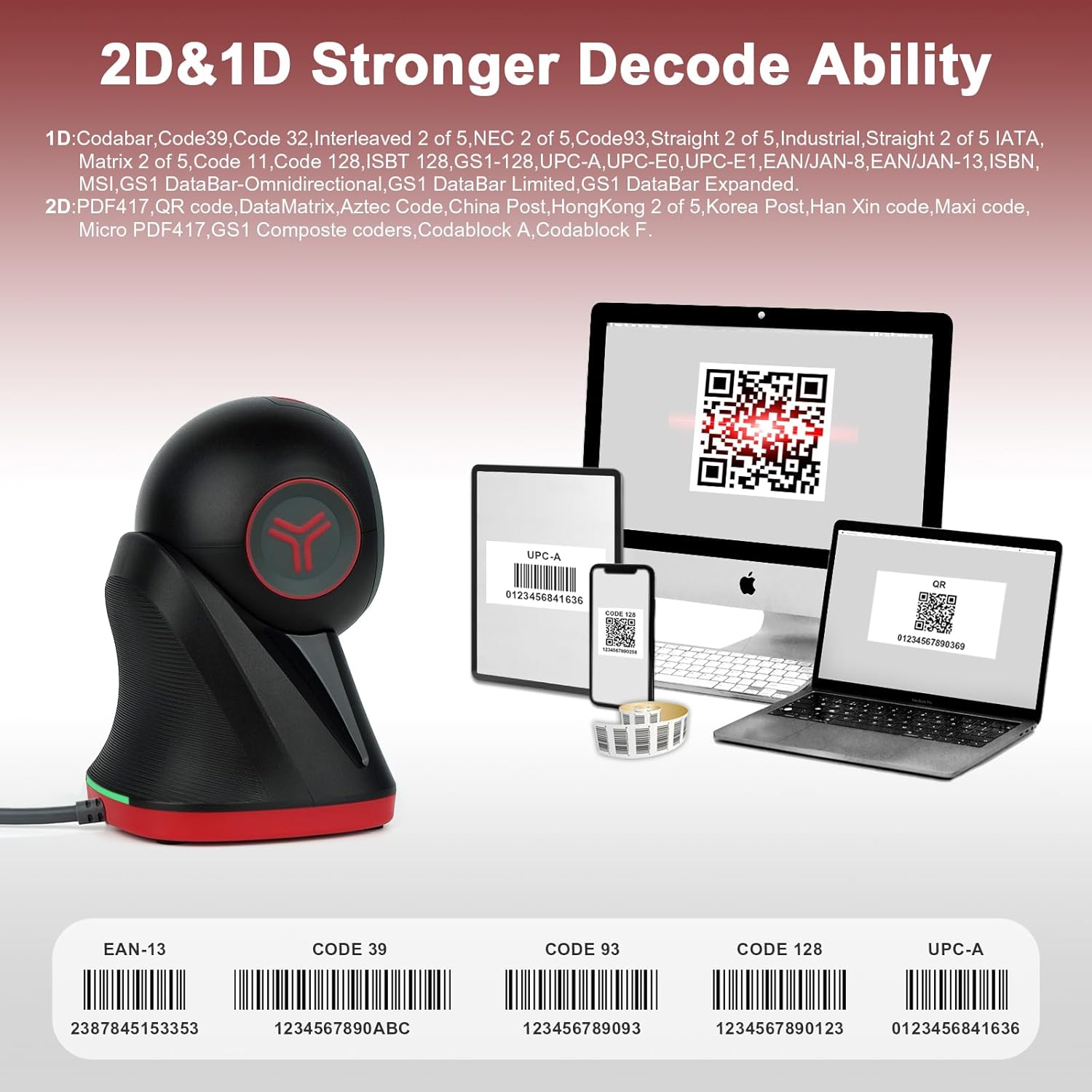
画像: The scanner is shown decoding multiple 1D and 2D barcode types, such as UPC-A, EAN-13, Code 39, Code 93, and Code 128, emphasizing its strong decoding capabilities.

画像: 詳細な view of the scanner highlights its high-resolution scanning module and the simple USB cable connection, indicating ease of use and advanced technology.
3. セットアップ手順
The OBZ Desktop Barcode Scanner is designed for simple plug-and-play installation. Follow these steps to set up your device:
- スキャナーを開梱します。 スキャナーをパッケージから慎重に取り出します。
- USBケーブルを接続します: Insert the USB cable from the scanner into an available USB port on your computer (Desktop, Laptop, or POS system).
- システム認識: Your operating system (Windows, Android, Mac OS, Linux) will automatically detect and install the necessary drivers. No manual software installation is required.
- 使用する準備ができて: スキャナーは認識されるとすぐに使用できるようになります。

画像: This image shows the scanner connected to a laptop, emphasizing its plug-and-play functionality and compatibility with Windows, Android, Linux, MAC, PC, Laptop, and POS systems. It also indicates incompatibility with iPad and iPhone.
4. 操作手順
4.1 基本的なスキャン
- Place the item with the barcode directly under the scanner's reading window.
- スキャナーは自動的にバーコードを検出し、スキャン成功の表示(ビープ音やライトの変化など)を発します。
- スキャンされたデータは、接続されたデバイスにキーボード入力として送信されます。
4.2 Automatic Smart Sensing
The scanner features an automatic sleep and wake-up function to conserve energy and enhance convenience:
- If the scanner is not used for a period, it will automatically enter a sleep mode, and the fill light will turn off.
- To wake the scanner, simply move an item with a barcode into its scanning area. The scanner will activate and read the barcode.

画像: This visual illustrates the scanner's automatic sleep and wake-up capabilities. The top panel shows the scanner in a dormant state, while the bottom panel depicts it activating upon detecting an object for scanning.
4.3 カスタム設定
The scanner supports custom settings to tailor its output:
- Add/Hide Prefix or Suffix: You can configure the scanner to add specific characters before or after the scanned data.
- キーボードのキーを追加します: Integrate keyboard keys such as TAB or CR (Carriage Return) after each scan for automated data entry.
- Refer to the separate programming guide (if provided) for detailed instructions on configuring these advanced settings.
5. メンテナンスと安全性
5.1 クリーニング
- To clean the reading window, use a soft, dry cloth.
- Avoid using abrasive materials or harsh chemicals that could scratch or damage the window.
- Ensure the reading window remains clear of dust and debris for optimal scanning performance.
5.2一般的なケア
- スキャナーは 防水ではありません. Avoid spilling liquids onto the device, especially near the reading window.
- スキャナーを極端な温度や直射日光から保護してください。
- スキャナーを落としたり、強い衝撃を与えたりしないでください。
5.3 安全警告
- Do not stare directly into the LED light when the scanner is active, as it may cause eye discomfort.
6。 トラブルシューティング
- スキャナーが応答しません: USBケーブルがスキャナーとコンピュータの両方にしっかりと接続されていることを確認してください。別のUSBポートを試してください。
- バーコードがスキャンされない: Make sure the barcode is clean, undamaged, and properly aligned within the scanning window. Check for sufficient lighting.
- 不正なデータ出力: Verify that the scanner is correctly recognized by your system. If custom settings were applied, ensure they are configured as intended.
- No beep sound: Check if the scanner's sound settings are enabled (if applicable, refer to advanced configuration options).
- If problems persist, try restarting your computer or contacting customer support.
7. 仕様
| ブランド | OBZ |
| モデル | デスクトップバーコードスキャナー |
| 接続技術 | USBケーブル |
| 対応デバイス | デスクトップ、ラップトップ、POSシステム |
| 電源 | コード式電気 |
| アイテム重量 | 302グラム |
| メーカー | GUANGZHOU XUNBAO ELECTRONICS TECHNOLOGY CO.LTD |
8. 保証とサポート
保証情報およびテクニカルサポートについては、ご購入時に付属の説明書をご参照いただくか、販売店にお問い合わせください。保証請求の際は、購入証明としてレシートを保管してください。


