1. はじめに
The Phomemo M950 Label Maker is a versatile, portable thermal label printer designed for both home and office use. It offers dual printing modes: direct input via its integrated keyboard and wireless printing via Bluetooth connection to a mobile application. This device utilizes thermal printing technology, eliminating the need for ink cartridges, and supports various label tape types for diverse labeling needs.
2. 安全情報
- 感電や損傷を防ぐため、デバイスを水や高湿度から遠ざけてください。
- ご自身でデバイスを分解したり修理したりしないでください。サポートが必要な場合はカスタマー サポートにお問い合わせください。
- Use only Phomemo-approved label tapes to ensure optimal performance and prevent damage to the print head.
- お子様の手の届かない場所に保管してください。
- デバイスを直射日光や極端な温度にさらさないでください。
- Charge the device using a compatible Type-C USB power adapter.
3. パッケージ内容
Please check the package contents upon unboxing. If any items are missing or damaged, contact your retailer or Phomemo customer support.
- PhomemoM950ラベルメーカー
- 12mm Label Tape Roll (pre-installed or included separately)
- USB Type-C充電ケーブル
- ユーザーマニュアル(このドキュメント)
4.製品オーバーview
Familiarize yourself with the components of your Phomemo M950 Label Maker.

Image: Phomemo M950 Label Maker showing its main features including no ink, one-touch key, keyboard editing, app editing, 203 DPI resolution, backlight support, Type-C recharge, and built-in cutter.
主な特徴:
- キーボード入力: Integrated QWERTY keyboard for direct label creation.
- Bluetooth接続: Connects to smartphones for advanced label design via the Phomemo app.
- サーマルプリント: No ink required, uses thermal label tapes.
- Backlight Screen: 暗い場所でも視認性を確保します。
- 内蔵カッター: For clean and precise label cutting.
- 充電式バッテリー: Integrated 1200mAh battery, rechargeable via Type-C port.
5. セットアップ
5.1. デバイスの充電
Before first use, fully charge the label maker.
- Connect the provided USB Type-C cable to the charging port on the side of the label maker.
- ケーブルのもう一方の端を互換性のある USB 電源アダプター (別売) またはコンピューターの USB ポートに接続します。
- 充電インジケーターライトが充電状態を示します。充電が完了すると、インジケーターの色が変わるか消灯します。

Image: Phomemo M950 Label Maker highlighting the Type-C charging port and its compact dimensions.
5.2. ラベルテープをセットする
Ensure the device is powered off before loading or replacing tape.
- Open the tape compartment cover located on the top or back of the device.
- Insert the label tape roll with the label side facing up, ensuring it sits securely in the compartment.
- Feed the end of the label tape through the tape guide until it protrudes slightly from the output slot.
- テープ収納部のカバーをしっかり閉めてください。
5.3.電源のオン/オフ
電源ボタン (通常は電源記号が付いています) を数秒間押し続けると、デバイスの電源がオンまたはオフになります。
6. 操作手順
The Phomemo M950 offers two primary methods for creating labels.

Image: Phomemo M950 Label Maker illustrating the two usage modes: direct printing from the keyboard and printing via a mobile device using the 'Print Master' app.
6.1. Keyboard Printing
This mode allows you to create labels directly on the device without needing a smartphone.
- 電源オン: Turn on the label maker. The screen will illuminate.
- Type Text: Use the QWERTY keyboard to type your desired label text. The text will appear on the display.
- カスタマイズ: Use the function keys (e.g., 'Fn', 'Shift', 'Symbol', 'Caps', 'Accent') to access various customization options such as font styles, sizes, symbols, and borders. The device supports multiple languages, borders, and symbols.
- 前view: Use the 'Preview' button to see how your label will look before printing.
- 印刷: Press the 'Print' button to print the label. The built-in cutter will automatically cut the label after printing.

Image: Phomemo M950 Label Maker showcasing its extensive features including support for 23+ languages, 103+ borders, and 790+ symbols and icons for label customization.
6.2. Bluetooth App Printing
For more advanced design options, connect your label maker to the 'Print Master' mobile app.
- アプリをダウンロードする: Download the 'Print Master' app from your mobile device's app store (App Store for iOS, Google Play for Android).
- Bluetoothを有効にする: Ensure Bluetooth is enabled on your mobile device and the Phomemo M950.
- 接続する: Open the 'Print Master' app and follow the on-screen instructions to connect to your M950 label maker via Bluetooth.
- デザインラベル: Use the app's interface to design your label. The app offers massive templates, additional fonts, borders, and icons.
- 印刷: Once your design is complete, tap the print icon in the app to send the label to the M950 for printing.

Image: Phomemo M950 Label Maker demonstrating the use of the 'Print Master' app with numerous templates, 270+ borders, 110+ fonts, 1500 icons, and 14+ languages for creative label design.
6.3. Adjusting Print Density
For optimal print quality, especially with ribbon tapes, adjust the print density.
- Press the 'Fn' key, then select 'Pinter Densities' (Printer Densities).
- Choose 'High' for clearer prints, particularly when using ribbon tapes.

Image: Step-by-step guide on how to set the print density to 'High' on the Phomemo M950 Label Maker for clear prints, especially for ribbon tapes.
7. メンテナンス
7.1. プリントヘッドのクリーニング
Regular cleaning ensures consistent print quality.
- Turn off the label maker and open the tape compartment.
- プリントヘッドを柔らかく糸くずの出ない布で優しく拭いてください。ampイソプロピルアルコールで消毒しました。
- Allow the print head to dry completely before closing the compartment and powering on the device.
7.2. テープストレージ
Store label tapes in a cool, dry place away from direct sunlight to preserve their quality and adhesive properties.
8。 トラブルシューティング
If you encounter issues with your Phomemo M950, refer to the following common problems and solutions.
| 問題 | 考えられる原因 | 解決 |
|---|---|---|
| 電源なし | バッテリー残量が少ない。デバイスの電源がオフです | Charge the device; Press and hold power button to turn on. |
| 印刷品質が悪い | Print head dirty; Incorrect print density; Low battery | Clean print head; Adjust print density to 'High'; Charge device. |
| Label not feeding | Tape incorrectly loaded; Tape jammed; Out of tape | Re-load tape correctly; Clear any jams; Replace tape roll. |
| Bluetooth接続失敗 | Bluetooth off; Device not paired; App issue | Ensure Bluetooth is on for both devices; Re-pair in app; Restart app/device. |
| カッターが動作しない | Tape jammed; Cutter mechanism obstructed | Clear any tape jams; Ensure no debris is blocking the cutter. |
9. 仕様
| 特徴 | 詳細 |
|---|---|
| モデル名 | M950 |
| ブランド | フォメモ |
| 印刷技術 | サーマル |
| 接続技術 | Bluetooth, Keyboard |
| プリンタ出力 | モノクロ |
| 最大印刷解像度 | 203dpi |
| 最大メディアサイズ | 12mm×4000mm |
| 対応デバイス | スマートフォン |
| 力 | 10ワット |
| 電池のタイプ | 1200mAhリチウムイオン内蔵 |
| 充電ポート | USBタイプC |
| 製品寸法 | 15.2 x 5.4 x 11.2 cm |
| アイテム重量 | 490グラム |
| 色 | 白 |
| 特集 | Portable, Backlight Screen, Built-in Cutter |
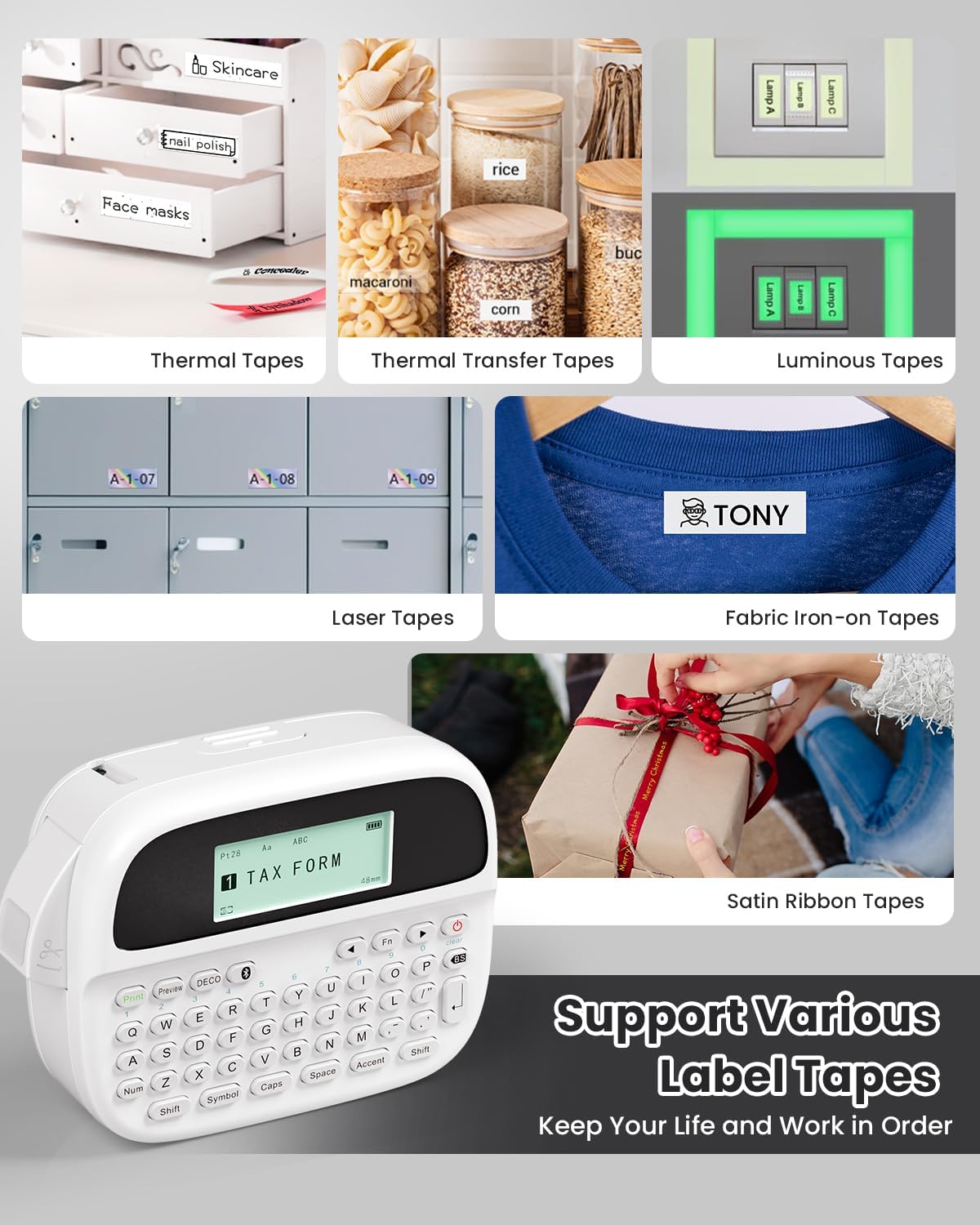
Image: Phomemo M950 Label Maker supporting various label tape types including Thermal, Thermal Transfer, Luminous, Laser, Fabric Iron-on, and Satin Ribbon tapes.

Image: Phomemo M950 Label Maker demonstrating its backlight screen feature, allowing for comfortable use even at night.
10. 保証とサポート
For warranty information, technical support, or service inquiries, please refer to the official Phomemo web公式サイトをご覧いただくか、カスタマーサービスに直接お問い合わせください。保証請求の際は、購入証明としてレシートを保管してください。
Phomemo Official Webサイト: Visit Phomemo Store


