1. はじめに
This manual provides essential information for the installation, operation, and maintenance of your Dell OEM Nvidia RTX A2000 4GB GDDR6 Graphics Card. Please read these instructions carefully before proceeding with installation or use to ensure proper functionality and to prevent damage to the component or your system.
2. セットアップとインストール
Proper installation is crucial for the performance and longevity of your graphics card. Ensure your computer is powered off and unplugged from the wall outlet before beginning.
2.1 インストール前のチェックリスト
- システム互換性: Verify your motherboard has an available PCI-Express x16 slot.
- 電源: 電源ユニット(PSU)が最小ワット数を満たしていることを確認してくださいtage requirements for your system configuration, including the RTX A2000.
- クリアランス: Check your computer case for adequate space to accommodate the card's dimensions.
- ツール: プラスドライバーが必要になる場合があります。
2.2物理的な設置
- システムを準備する: Power down your computer completely and unplug the power cable. Open the computer case.
- PCIe スロットを見つけます: Identify an available PCI-Express x16 slot on your motherboard. Remove any expansion slot covers from the back of the case that correspond to the slot.
- グラフィック カードを挿入します: Carefully align the graphics card with the PCI-Express x16 slot. Apply even, firm pressure to both ends of the card until it is fully seated in the slot. You should hear a click as the retention clip engages.
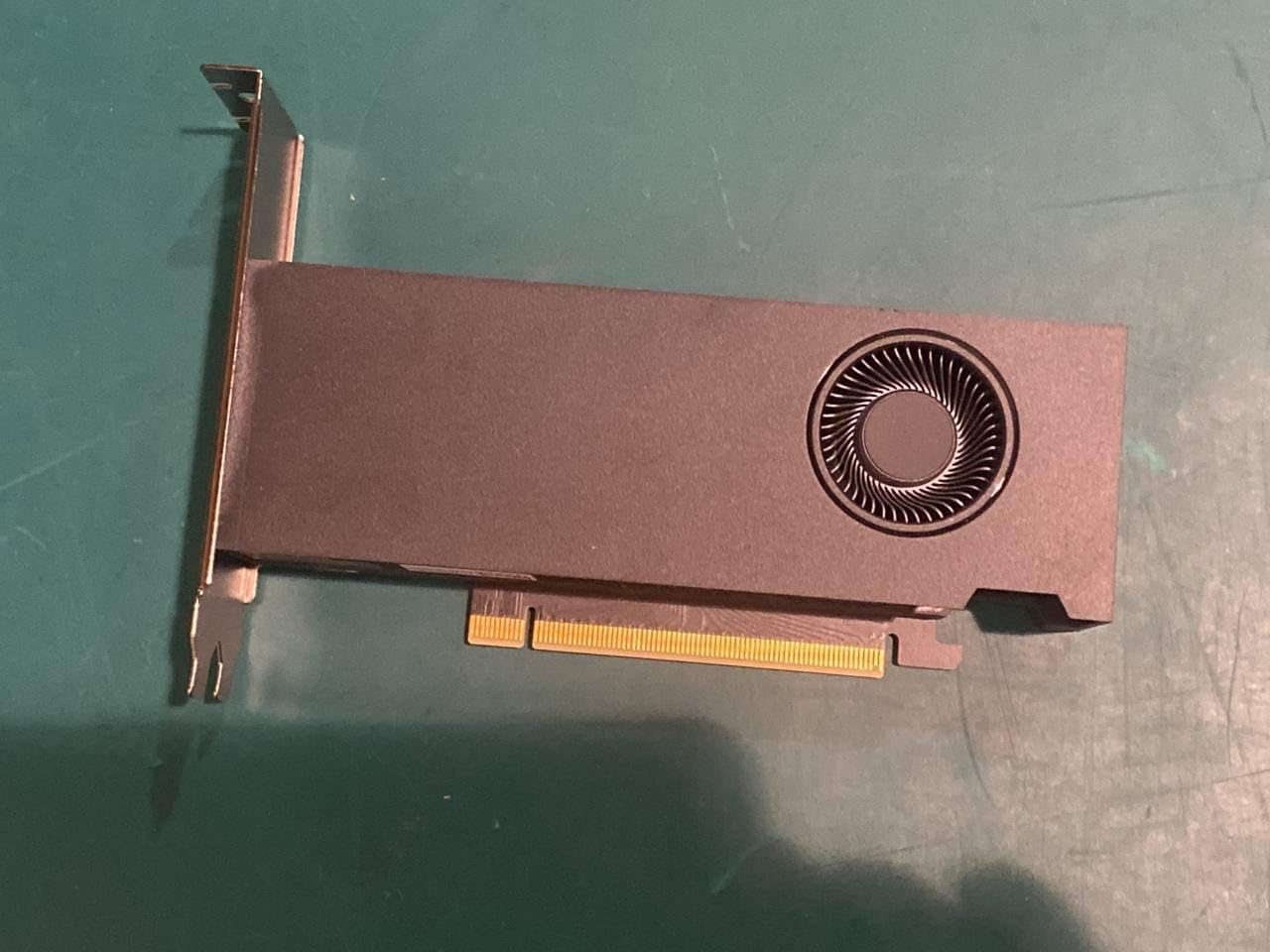
図1:側面 view of the Dell OEM Nvidia RTX A2000 graphics card, illustrating its compact design with a single fan cooler and the PCIe connector.
- カードを安全に保管する: Use a screw to secure the graphics card's mounting bracket to the computer case.
- 電源を接続する(該当する場合): The RTX A2000 typically draws power directly from the PCIe slot. If your specific model requires an auxiliary power connector, connect the appropriate PCIe power cable from your PSU to the card.
- ケースを閉じて周辺機器を接続します。 Close your computer case, reconnect all peripherals (monitor, keyboard, mouse), and plug in the power cable.
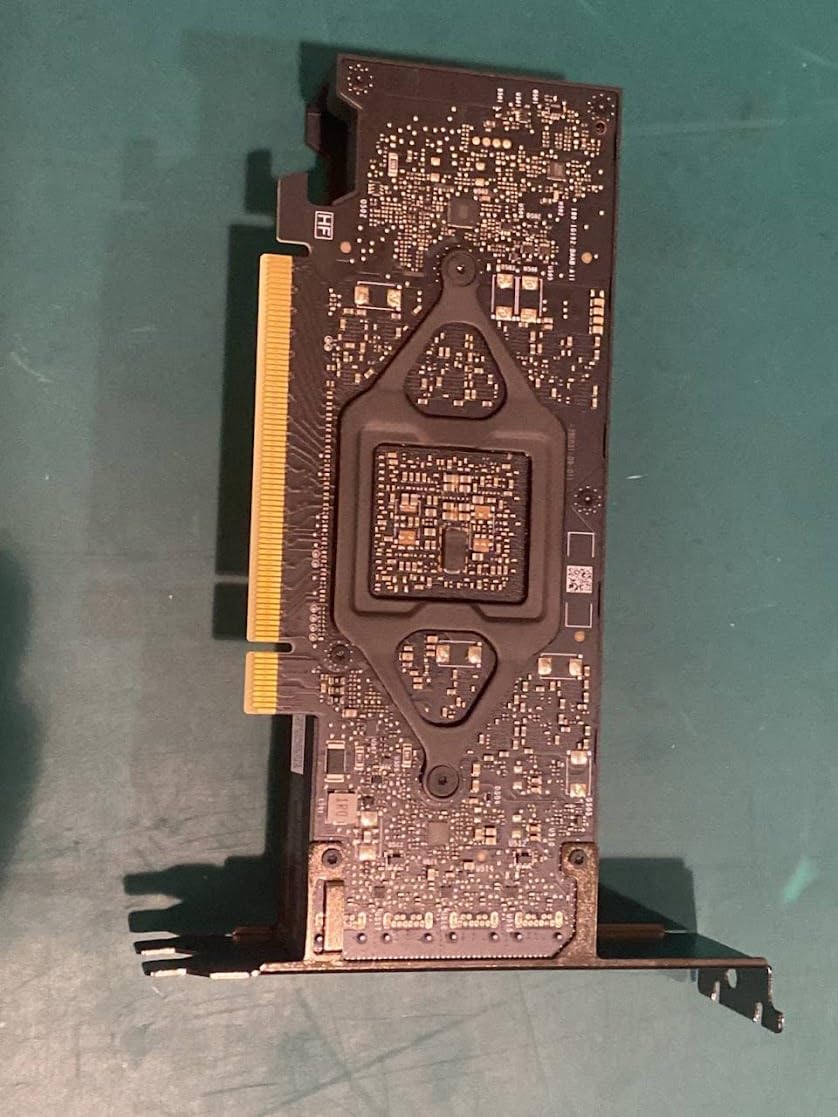
図2:背面 view of the RTX A2000 PCB, displaying the intricate circuitry and component layout.
2.3 ドライバのインストール
- 電源オン: Turn on your computer. It may boot into a basic display mode.
- ドライバーをダウンロード: Visit the official Nvidia web地点 (www.nvidia.com/drivers) or the Dell support website. Select your product (RTX A2000) and operating system to download the latest recommended drivers.
- ドライバーのインストール: Run the downloaded driver installer and follow the on-screen prompts. A system restart will likely be required to complete the installation.
3. グラフィックカードの操作
Once installed and drivers are updated, your RTX A2000 is ready for use. The card will automatically handle graphics processing for applications and games.
3.1 表示出力
Connect your monitor(s) to the display outputs on the graphics card. The RTX A2000 typically features Mini DisplayPort outputs. Ensure you use appropriate cables and adapters if necessary.
3.2 Nvidia Control Panel
The Nvidia Control Panel software, installed with the drivers, allows you to configure various display and 3D settings. You can access it by right-clicking on your desktop and selecting 'Nvidia Control Panel'.
- Adjust display resolution and refresh rates.
- Configure multiple displays.
- Optimize 3D application settings for performance or quality.
4. メンテナンス
定期的なメンテナンスを行うことで、最適なパフォーマンスが確保され、グラフィック カードの寿命が延びます。
4.1 クリーニング
Dust accumulation can impede cooling performance. Periodically, with the computer powered off and unplugged:
- コンピューターのケースを開きます。
- Use compressed air to gently clear dust from the graphics card's fan, heatsink fins, and surrounding areas. Hold the fan blades to prevent them from spinning rapidly during cleaning.
- Avoid touching the PCB directly with your hands to prevent electrostatic discharge.
4.2 ドライバーの更新
Regularly check for and install the latest graphics drivers from the Nvidia or Dell website. Driver updates often include performance improvements, bug fixes, and compatibility enhancements for new software and games.
5。 トラブルシューティング
If you encounter issues with your graphics card, refer to the following common troubleshooting steps.
5.1 ディスプレイ出力なし
- ケーブルを確認してください: Ensure all display cables (e.g., DisplayPort) are securely connected to both the graphics card and the monitor.
- モニター入力: モニターが正しい入力ソースに設定されていることを確認します。
- カードを再装着してください: Power off your PC, unplug it, and reseat the graphics card in its PCIe slot to ensure it's fully connected.
- 統合グラフィックスを使用したテスト: If your CPU has integrated graphics, remove the RTX A2000 and test if the system displays output using the integrated graphics. This helps determine if the issue is with the card or another system component.
5.2 ドライバーの問題または不安定性
- ドライバーを再インストールします。 Perform a clean installation of the graphics drivers. Use the 'Custom' installation option in the Nvidia installer and select 'Perform a clean installation'.
- 競合の確認: Ensure no other graphics drivers (e.g., from a previous AMD card) are installed. Use a tool like Display Driver Uninstaller (DDU) in Safe Mode to thoroughly remove old drivers before installing new ones.
5.3 パフォーマンスの問題
- 温度を監視します: Use monitoring software (e.g., HWMonitor, MSI Afterburner) to check the GPU temperature during load. High temperatures can lead to thermal throttling and reduced performance.
- ドライバーの更新: 最新のドライバーがインストールされていることを確認してください。
- システムリソース: Close unnecessary background applications that might be consuming CPU or RAM resources.
6. 仕様
| 特徴 | 仕様 |
|---|---|
| ブランド | デル |
| モデル名 | RTEX A2000 スペック |
| グラフィックプロセッサ | Nvidia RTX A2000 |
| ビデオメモリ | 4GB DDR6 |
| メモリインターフェース | 192ビット |
| メモリクロック速度 | 12Gbps |
| ベースクロック速度 | 562MHz |
| クロック速度をブースト | 1200MHz |
| インタフェース | PCI-Express 4.0 x16 |
| Maximum Digital Resolution | 3840x2160 |
| 推奨用途 | ゲーム |
| メーカー | デルコンピュータ |
| 欧州連合 | 787058646113 |
| ASIN | B0CS9FLM6T |
7. 保証とサポート
This product is listed as 'Amazon Renewed'. For specific warranty details and support related to renewed products, please refer to the Amazon Renewed program terms and conditions or contact Amazon customer service directly.
For technical support regarding the Dell OEM Nvidia RTX A2000, you may also visit the official Dell support website or Nvidia's support resources for driver updates and troubleshooting guides.
- Amazon Renewedサポート: https://www.amazon.com/renewed
- Dellサポート: https://www.dell.com/support
- Nvidia Drivers: https://www.nvidia.com/drivers


