1. はじめに
This manual provides essential instructions for the safe and efficient use of your Epson LQ-310 24-Pin Narrow Carriage Impact Printer. Please read this manual thoroughly before operating the printer and keep it for future reference.
The Epson LQ-310 is a compact and reliable dot matrix printer designed for fast and efficient printing of various documents, including multi-part forms, invoices, and reports. It features versatile connectivity options including USB, Serial, and Parallel ports.
2. 安全情報
Observe the following safety precautions to ensure safe operation and to prevent damage to the printer or injury to yourself.
- プリンターは常に安定した平らな面に置いてください。
- Do not block or cover the ventilation slots on the printer.
- プリンターに付属の電源コードのみを使用してください。
- Do not expose the printer to water, moisture, or excessive heat.
- 清掃やメンテナンスを行う前に、プリンターの電源プラグをコンセントから抜いてください。
- お子様の手の届かない場所に保管してください。
3. パッケージ内容
パッケージにすべてのアイテムが揃っていることを確認します。
- Epson LQ-310 Printer Unit
- 電源ケーブル
- リボンカートリッジ
- ユーザーマニュアル(このドキュメント)
- ドライバーCD(地域によって異なる場合があります)
4. セットアップ
4.1開梱と配置
- プリンターをパッケージから取り出します。
- すべての保護テープと梱包材を取り外します。
- Place the printer on a flat, stable surface with adequate ventilation.
4.2電源ケーブルの接続
電源ケーブルをプリンタに接続し、次にアースされた電源コンセントに接続します。
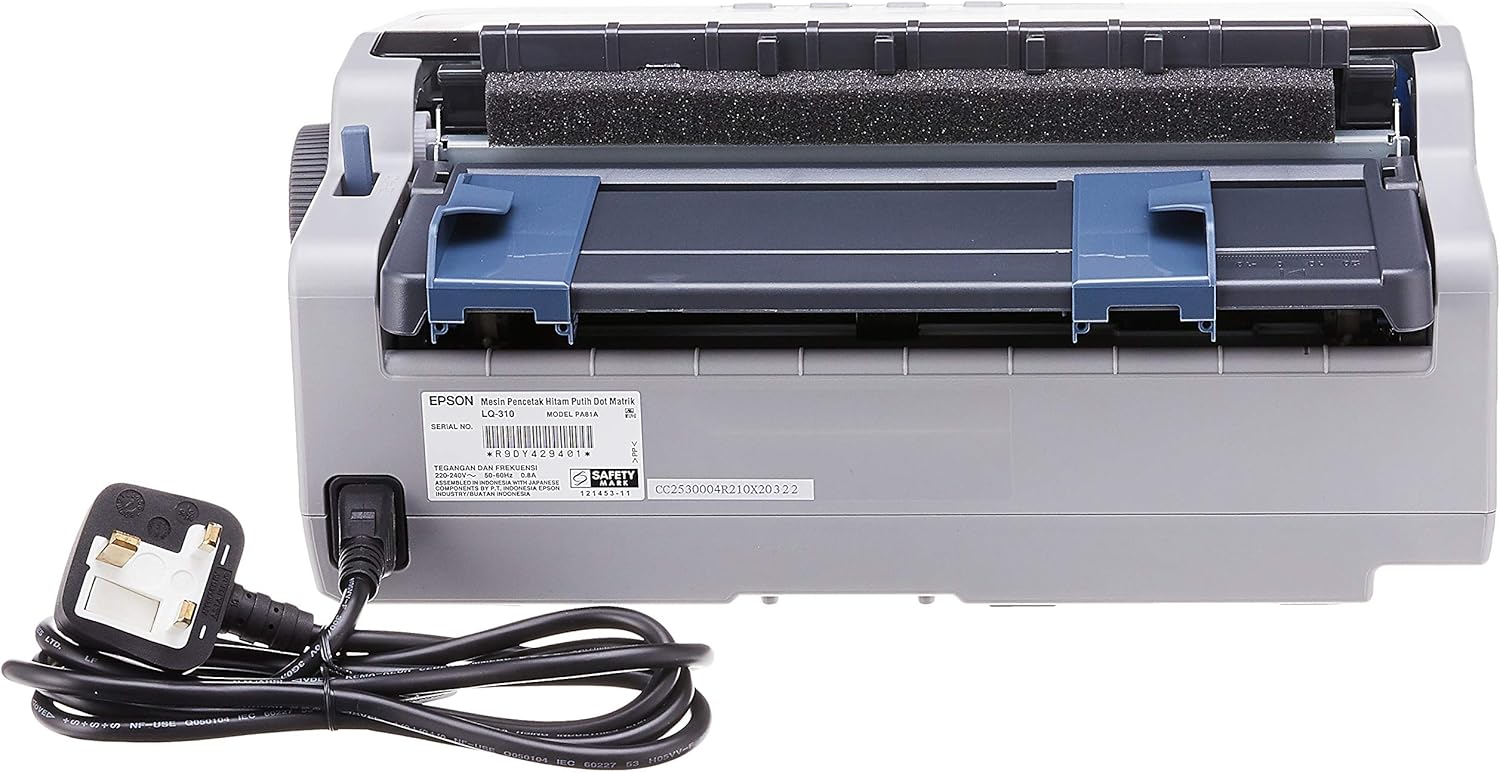
図4.2.1: 後方 view of the Epson LQ-310 printer, highlighting the power input and various data ports (USB, Serial, Parallel) for connection to a computer.
4.3コンピューターへの接続
The LQ-310 supports USB, Serial, and Parallel connections. Choose the appropriate cable for your computer and connect it to the corresponding port on the printer.
- USB接続: Use a standard USB A-B cable.
- シリアル接続: Use a serial cable (RS-232C).
- 並列接続: Use a parallel cable (Centronics).
4.4 リボンカートリッジの取り付け
- プリンターの電源がオフになっていることを確認してください。
- プリンターのカバーを開きます。
- Unpack the new ribbon cartridge.
- Align the ribbon cartridge with the guides inside the printer and press down firmly until it clicks into place.
- Turn the ribbon feed knob on the cartridge to ensure the ribbon is taut and not twisted.
- プリンターのカバーを閉じます。

図4.4.1: The ribbon cartridge for the Epson LQ-310 printer, which needs to be installed correctly for printing.
4.5用紙のセット
The LQ-310 can handle various paper types, including continuous forms and single sheets.
- For Continuous Forms: Place the forms on the tractor feed mechanism at the rear of the printer. Adjust the tractor guides to match the paper width and engage the pins.
- For Single Sheets: Insert a single sheet into the front paper slot, ensuring it is straight.
4.6 ドライバのインストール
After connecting the printer, install the necessary drivers on your computer. You can typically find these on the included CD or download them from the official Epson support webサイト。
5. 操作手順
5.1コントロールパネルオーバーview
The control panel on the front of the printer allows you to manage basic functions.

図5.1.1: フロント view of the Epson LQ-310 printer, showing the control panel with buttons for Tear Off, LF/FF, Load/Eject, Paper Out, Pause, Lock, Font, Item, Micro Adjust, and Set.
- 電源ボタン: プリンターの電源をオンまたはオフにします。
- 用紙切れインジケーター: Lights up when the printer is out of paper.
- 一時停止ボタン: 印刷を一時停止します。もう一度押すと再開します。
- LF/FF (Line Feed/Form Feed) Button: Advances paper by one line or one page.
- ロード/イジェクトボタン: 用紙を 1 枚セットするか、現在の用紙を排出します。
- Tear Off Button: 連続紙を切り取り位置まで送ります。
- フォントボタン: 異なるフォントを選択します。
- Item/Set Buttons: Used for menu navigation and setting options.
5.2 基本的な印刷
- プリンタの電源がオンになっており、コンピューターに接続されていることを確認します。
- Load paper according to the instructions in Section 4.5.
- 印刷したい文書をコンピューターで開きます。
- Select the Epson LQ-310 as your printer in the print dialog.
- Adjust print settings (e.g., paper size, print quality) as needed.
- 「印刷」をクリックします。
6. メンテナンス
6.1 リボンカートリッジの交換
印刷品質が低下したり、リボンが目に見えて摩耗している場合は、リボン カートリッジを交換してください。
- プリンタの電源を切り、電源コードを抜きます。
- プリンターのカバーを開きます。
- 古いリボン カートリッジを慎重に持ち上げて取り外します。
- Install a new ribbon cartridge as described in Section 4.4.
- Close the printer cover and reconnect the power.
6.2プリンターのクリーニング
定期的にクリーニングすると、プリンターのパフォーマンスを維持するのに役立ちます。
- プリンタの電源を切り、電源コードを抜きます。
- プリンタの外側を柔らかくて乾いた布で拭いてください。amp 布で拭いてください。研磨剤や溶剤は使用しないでください。
- Gently clean the print head area with a soft, lint-free cloth if necessary, being careful not to touch the pins.
- 用紙経路から紙粉やゴミを取り除きます。
7。 トラブルシューティング
This section addresses common issues you might encounter with your LQ-310 printer.
7.1 Printer Does Not Turn On
- 電源ケーブルがプリンタと正常な電源コンセントの両方にしっかりと接続されていることを確認します。
- 別のデバイスを接続して、電源コンセントが機能するかどうかを確認します。
7.2 "Paper Out" Indicator is On
- Load paper correctly as described in Section 4.5.
- Ensure the paper sensor is not obstructed.
7.3 印刷出力がない
- Verify the printer is powered on and connected to the computer.
- Check if the correct printer driver is installed and selected in your application.
- Ensure the ribbon cartridge is installed correctly and has ink.
- Check the printer's status on your computer; clear any pending print jobs.
7.4 印刷品質が悪い
- The ribbon cartridge may be old or running out of ink. Replace it if necessary.
- 用紙の種類がインパクト印刷に適していることを確認します。
- Clean the print head area if there is visible debris.
8. 仕様
| 特徴 | 仕様 |
|---|---|
| 印刷技術 | 24ピンナローキャリッジインパクトドットマトリックス |
| 印刷速度 | Up to 347 / 416 cps (10 / 12 cpi) |
| 接続性 | 1 Full-Speed USB 2.0, Serial Port, Parallel Port |
| プリンタ出力 | Colour (Ink Color: Black) |
| 解決 | 240 x 170 dpi (Max Print Resolution Black and White: 240 dpi) |
| アイテム重量 | 4.1キログラム |
| 製品寸法(奥行き×幅×高さ) | 27.5D x 36.2W x 15.4H センチメートル |
| 最大メディアサイズ | レター/A4 |
| 印刷メディア | 紙(普通紙) |
| モデル名 | LQ 310 |
| モデル番号 | LQ-310 |
9. 保証とサポート
The Epson LQ-310 printer comes with a limited warranty. For detailed warranty information, please refer to the warranty card included with your product or visit the official Epson webサイト。
For technical support, driver downloads, or further assistance, please visit the Epson support website or contact your local Epson customer service center. Have your printer model number (LQ-310) and serial number ready when contacting support.


