מָבוֹא
This manual provides essential instructions for setting up, operating, and maintaining your Epson EcoTank L1270 WiFi printer. Please read this guide thoroughly to ensure proper use and to maximize the performance and longevity of your device. The Epson EcoTank L1270 is an inkjet printer designed for efficient printing with a rechargeable ink tank system and Wi-Fi connectivity.
1. התקנה
1.1 פירוק המדפסת
הוצא בזהירות את המדפסת מאריזתה. ודא שכל סרטי ההגנה והחומרים הוסרו מהחלק החיצוני והפנימי של המדפסת. שמור את חומרי האריזה להובלה או אחסון עתידיים.
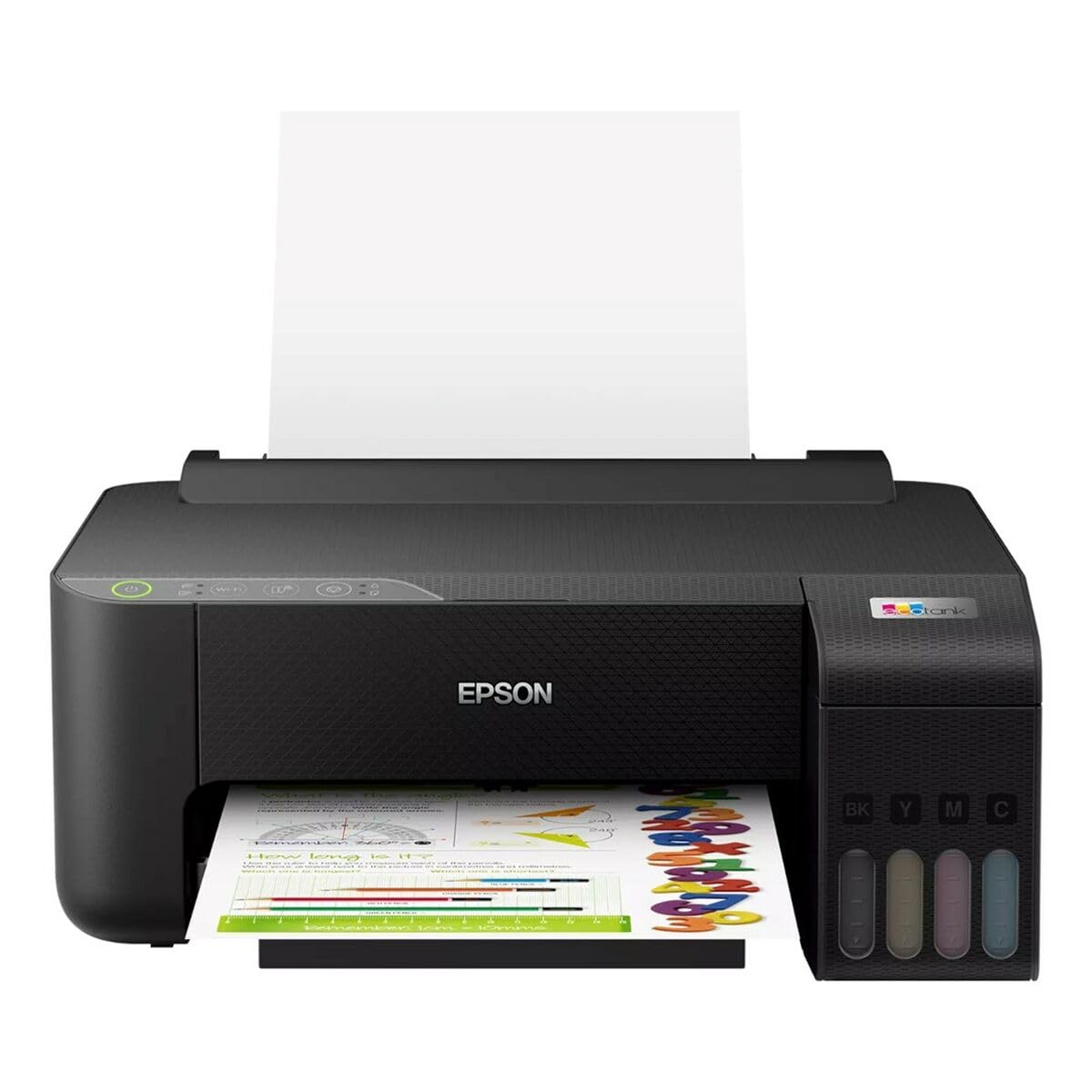
Image 1.1: Epson EcoTank L1270 WiFi Printer. This image shows the printer ready for initial setup after unpacking.
1.2 מילוי מיכלי הדיו
The EcoTank L1270 uses a refillable ink tank system. Follow these steps to fill the ink tanks:
- פתח את מכסה יחידת מיכל הדיו במדפסת.
- Uncap the ink bottle for the corresponding color. Each bottle is keyed to fit only the correct tank.
- הכנס את בקבוק הדיו לפתח המילוי. הדיו יתחיל למלא את המיכל באופן אוטומטי. אל תלחץ על הבקבוק.
- לאחר שהמיכל מלא, הסר את המיכל וסגור אותו. סגור את מכסה יחידת מיכל הדיו.
- חזור על הפעולה עבור כל הצבעים.
פֶּתֶק: Use only genuine Epson ink bottles to prevent damage and ensure optimal print quality.
1.3 חיבור מתח
Connect the power cord to the printer and then to a wall outlet. Press the power button to turn on the printer. The printer will perform an initial setup process, which may take a few minutes.
1.4 התקנת תוכנה ומנהלי התקנים
To use your printer, you need to install the necessary drivers and software on your computer. Visit the official Epson support website for the EcoTank L1270 model to download the latest drivers and utilities. Follow the on-screen instructions provided by the installer.
- עבור אל תמיכה של Epson.
- חפש "EcoTank L1270".
- Download and run the recommended driver package.
1.5 הגדרות Wi-Fi
The Epson EcoTank L1270 supports Wi-Fi connectivity. You can connect the printer to your wireless network using one of the following methods:
- שימוש בלוח הבקרה של המדפסת: Navigate to the Wi-Fi settings on the printer's control panel, select your network, and enter the password.
- Using EpsonNet Setup: If installed, use the EpsonNet Setup utility on your computer to configure the wireless connection.
- WPS (הגדרה מוגנת Wi-Fi): If your router supports WPS, press the WPS button on your router, then follow the instructions on the printer's control panel to establish a connection.
2. הפעלת המדפסת
2.1 טעינת נייר
Load paper into the rear paper feeder. Ensure the paper guides are adjusted to the width of the paper. The printer supports various paper types and sizes, up to A4.
- Fan the paper stack before loading to prevent misfeeds.
- Do not overload the paper feeder; refer to the maximum capacity (100 sheets for plain paper).
2.2 הדפסת מסמכים
כדי להדפיס מסמך מהמחשב שלך:
- פתח את המסמך שברצונך להדפיס.
- בחר "הדפסה" מתפריט היישום (לדוגמה, File > הדפס).
- בחר את "Epson EcoTank L1270" כמדפסת שלך.
- התאם הגדרות הדפסה כגון גודל נייר, איכות הדפסה ומספר עותקים.
- לחץ על "הדפס".
2.3 Duplex Printing (Two-Sided Printing)
The EcoTank L1270 supports manual duplex printing. To print on both sides of the paper:
- In your print settings, select the option for "Manual Duplex Printing" or "Print on Both Sides".
- הדפס תחילה את העמודים בעלי המספר האי-זוגי.
- When prompted, reload the printed pages into the paper feeder according to the on-screen instructions to print the even-numbered pages on the reverse side.
3. תחזוקה
3.1 בדיקת מפלסי דיו
Visually inspect the ink tanks on the front of the printer to check current ink levels. The tanks are transparent, allowing for easy monitoring. Refill ink when levels are low to avoid running out during a print job.
3.2 מילוי מיכלי דיו
When an ink tank is low, purchase genuine Epson replacement ink bottles. Follow the same procedure as described in Section 1.2 "Filling the Ink Tanks".
3.3 ניקוי ראש ההדפסה
If print quality declines (e.g., missing lines, faded colors), perform a print head cleaning. This can be done through the printer's utility software on your computer or via the printer's control panel. Refer to the software's help guide for detailed steps.
3.4 ניקוי נתיב הנייר
If you experience paper jams or streaks on prints, the paper path may need cleaning. Consult the printer's software utility or the online manual for instructions on how to perform a paper path cleaning.
4. פתרון תקלות
סעיף זה עוסק בבעיות נפוצות שאתה עשוי להיתקל בהן במדפסת Epson EcoTank L1270 שלך.
4.1 Printer Not Printing / Blank Pages
- בדיקת מפלסי דיו: Ensure all ink tanks have sufficient ink.
- Print Head Clogged: Perform a print head cleaning (see Section 3.3).
- Paper Loaded Correctly: Verify paper is loaded properly and not jammed.
- התקנת דרייבר: Ensure printer drivers are correctly installed and up to date. Reinstall if necessary.
4.2 בעיות חיבור Wi-Fi
- Router Range: ודא שהמדפסת נמצאת בטווח קליטה של נתב ה-Wi-Fi שלך.
- סיסמת רשת: Double-check that the correct Wi-Fi password has been entered.
- הפעל מחדש מכשירים: Try restarting your printer, computer, and Wi-Fi router.
- Reconfigure Wi-Fi: Attempt to set up the Wi-Fi connection again (see Section 1.5).
4.3 איכות הדפסה ירודה
- ניקוי ראש הדפסה: בצע ניקוי ראש ההדפסה ובדיקת חרירי ההדפסה.
- סוג נייר: ודא שאתה משתמש בסוג הנייר הנכון עבור הגדרות ההדפסה שלך.
- Ink Quality: Use genuine Epson inks for best results.
For more complex issues, refer to the comprehensive online manual on the Epson support webאתר או צור קשר עם תמיכת הלקוחות של Epson.
5. מפרטים
| תכונה | פְּרָט |
|---|---|
| מותג | אפסון |
| שם הדגם | EcoTank L1270 WiFi |
| טכנולוגיית הדפסה | הזרקת דיו |
| קישוריות | Wi-Fi |
| רזולוציית הדפסה מקסימלית (צבע) | 5760 x 1440 dpi |
| רזולוציית הדפסה מקסימלית (שחור-לבן) | 5760 dpi |
| מהירות הדפסה מרבית (מונוכרום) | 15 דפים לדקה |
| Max Paper Capacity | 100 דפים (נייר רגיל) |
| הדפסה דופלקס | כן (ידני) |
| תכונה מיוחדת | Rechargeable Ink Tank |
| מידות (L x W x H) | 26P x 42,5l x 46H cm (approx.) |
6. מידע על אחריות
The Epson EcoTank L1270 WiFi printer comes with a limited warranty. For specific terms, conditions, and duration of your warranty, please refer to the warranty documentation included with your product or visit the official Epson support webאתר. שמור את הוכחת הרכישה שלך לצורך תביעות אחריות.
7. תמיכה
לסיוע נוסף, תמיכה טכנית או הורדת מנהלי ההתקנים והמדריכים העדכניים ביותר, אנא בקרו באתר התמיכה הרשמי של Epson. webאֲתַר:
התמיכה הרשמית של אפסון Webאֲתַר
ייתכן שתמצאו גם משאבים מועילים ושאלות נפוצות בנושאים שלהם webאֲתַר.


