1. המוצר נגמרview
The HP OfficeJet Pro 9125e is a versatile All-in-One printer designed for office and hybrid workspace environments. This certified refurbished unit offers print, scan, copy, and fax functionalities, along with advanced features like a color touchscreen and HP Wolf Pro Security. It is engineered for professional-quality color documents and efficient operation.
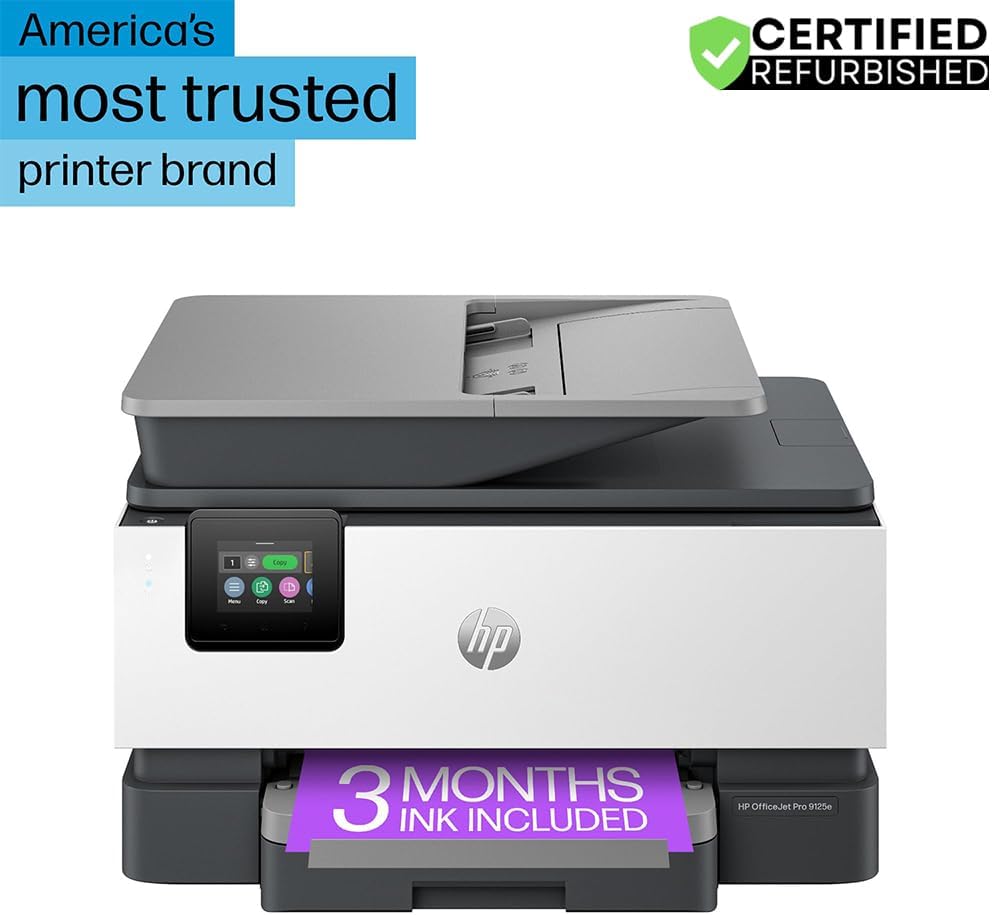
איור 1: חזית view of the HP OfficeJet Pro 9125e All-in-One Printer.
תכונות עיקריות:
- פונקציונליות הכל-ב-אחד: Print, copy, scan, and fax capabilities.
- הדפסה במהירות גבוהה: עד 22 עמודים לדקה (ppm) בשחור ו-18 עמודים לדקה בצבע.
- קישוריות אלחוטית: Reliable dual-band Wi-Fi with automatic connection issue resolution.
- אפליקציית HP Smart: מאפשר הדפסה, סריקה, העתקה ושליחת פקסים ישירות מסמארטפון.
- HP Wolf Pro Security: Integrated security tools to protect data and networks.
- מסך מגע צבעוני בגודל 2.7 אינץ': Intuitive user interface for easy navigation.
- מזין מסמכים אוטומטי (ADF): לסריקה והעתקה יעילות של מספר עמודים.
- הדפסה דו - צדדית: הדפסה דו-צדדית אוטומטית.
- עיצוב בר קיימא: Constructed with over 40% recycled plastic.

איור 2: מעלview of the HP OfficeJet Pro 9125e's primary functions and features.
2. הוראות התקנה
2.1 פירוק ותכולה
Carefully unpack the printer and ensure all components are present. The package should contain the following:
- מדפסת HP OfficeJet Pro 9125e משולבת
- מחסנית דיו שחורה להתקנה HP 936
- מחסנית דיו ציאן להתקנה HP 936
- מחסנית דיו מגנטה להתקנה HP 936
- מחסנית דיו צהובה להתקנה HP 936
- כבל חשמל
- פלייר רגולטורי
- עלון זהירות דיו
- פוסטר התקנה
- מדריך עזר

Figure 3: Included items in the HP OfficeJet Pro 9125e package.
2.2 הגדרת מדפסת ראשונית
- חיבור חשמל: חבר את כבל החשמל למדפסת ולאחר מכן לשקע בקיר.
- הפעלה: לחץ על לחצן ההפעלה כדי להפעיל את המדפסת.
- התקנת מחסנית דיו: Follow the on-screen instructions on the 2.7-inch touchscreen to install the HP 936 setup ink cartridges. Ensure each cartridge clicks into place.
- טעינת נייר: Load plain paper into the 250-sheet input tray. Adjust the paper guides to fit the paper size.
- שפה ואזור: Select your preferred language and region on the touchscreen.
- חיבור רשת: Connect the printer to your wireless network using the touchscreen. The dual-band Wi-Fi will help ensure a stable connection.
- HP Smart App Installation: Download the HP Smart App on your smartphone or computer for guided setup and advanced features.
- הפעלת HP+ (אופציונלי): If you wish to enroll in the Instant Ink delivery service and extend your warranty, activate HP+ during the setup process. This may include 3 months of Instant Ink.
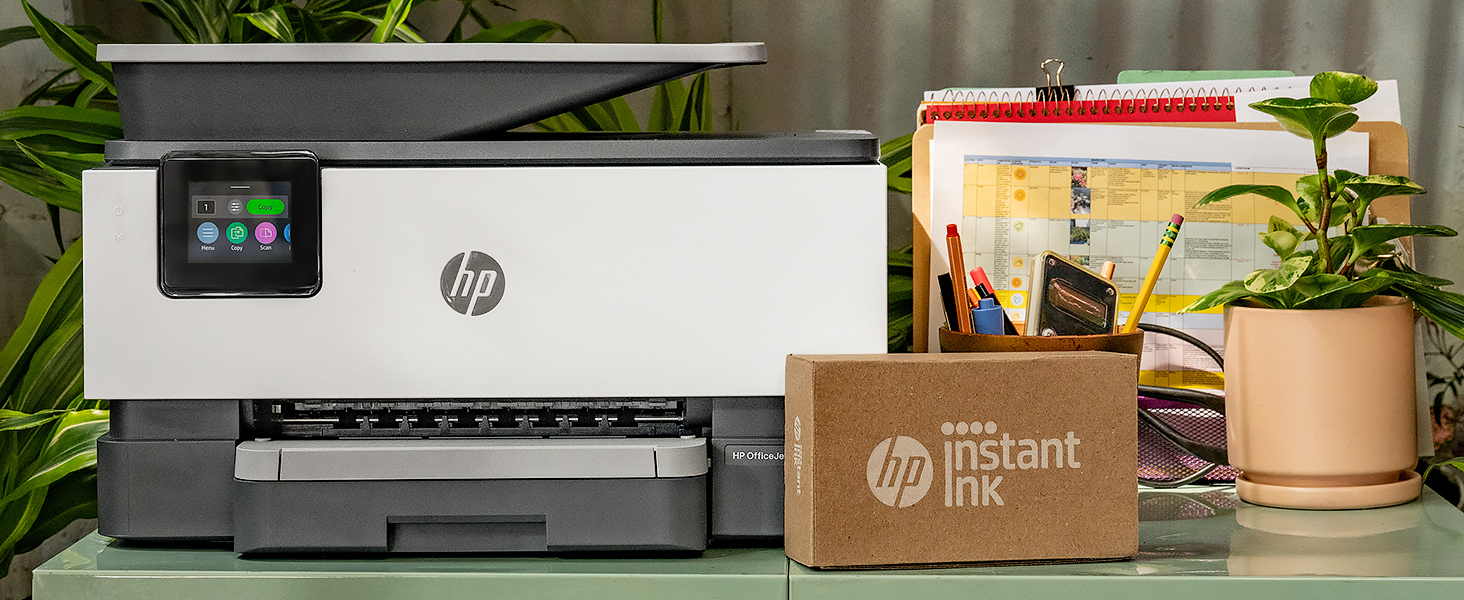
Figure 4: Printer ready for setup, showing the Instant Ink box.
3. הוראות הפעלה
3.1 הדפסת מסמכים
The HP OfficeJet Pro 9125e supports printing from various devices, including computers and smartphones.
- ממחשב: Ensure the printer drivers are installed. Select "Print" from your application, choose the HP OfficeJet Pro 9125e, and adjust settings as needed (e.g., color, black and white, duplex printing).
- ממכשיר נייד (אפליקציית HP Smart): Open the HP Smart App, select "Print Documents" or "Print Photos," choose the file, and send it to the printer.
- מהירויות הדפסה: Up to 22 ppm for black and 18 ppm for color.
- הדפסה דו - צדדית: The printer supports automatic two-sided printing. This option can be selected in your print settings.
3.2 סריקת מסמכים
Documents can be scanned using the flatbed scanner or the Automatic Document Feeder (ADF).
- שימוש במשטח השטוח: Place a single document face down on the scanner glass. Close the lid. Select "Scan" on the printer's touchscreen or through the HP Smart App.
- שימוש במזין המסמכים האוטומטי (ADF): Load multiple pages face up into the ADF. The ADF supports dual-pass 2-sided scanning. Select "Scan" on the printer's touchscreen or through the HP Smart App and choose the ADF option.
- יעדי סריקה: Scanned documents can be sent to a computer, email, or cloud services via the HP Smart App.
3.3 העתקת מסמכים
The printer allows for quick and efficient copying.
- התחלת העתקה: Press the "Copy" icon on the printer's touchscreen.
- מסמך מקום: הנח את המסמך על הסורק השטוח או במזין המסמכים האוטומטי (ADF).
- התאם הגדרות: Select the number of copies (up to 99), color or black and white, and other options like resizing or quality.
- התחל העתקה: לחץ על כפתור "התחל העתקה" במסך המגע.
3.4 שליחת מסמכים בפקס
The HP OfficeJet Pro 9125e includes fax functionality.
- טעינת מסמך: הנח את המסמך על הסורק השטוח או במזין המסמכים האוטומטי (ADF).
- הזן מספר: Press the "Fax" icon on the touchscreen and enter the recipient's fax number.
- שלח פקס: Confirm settings and send the fax.
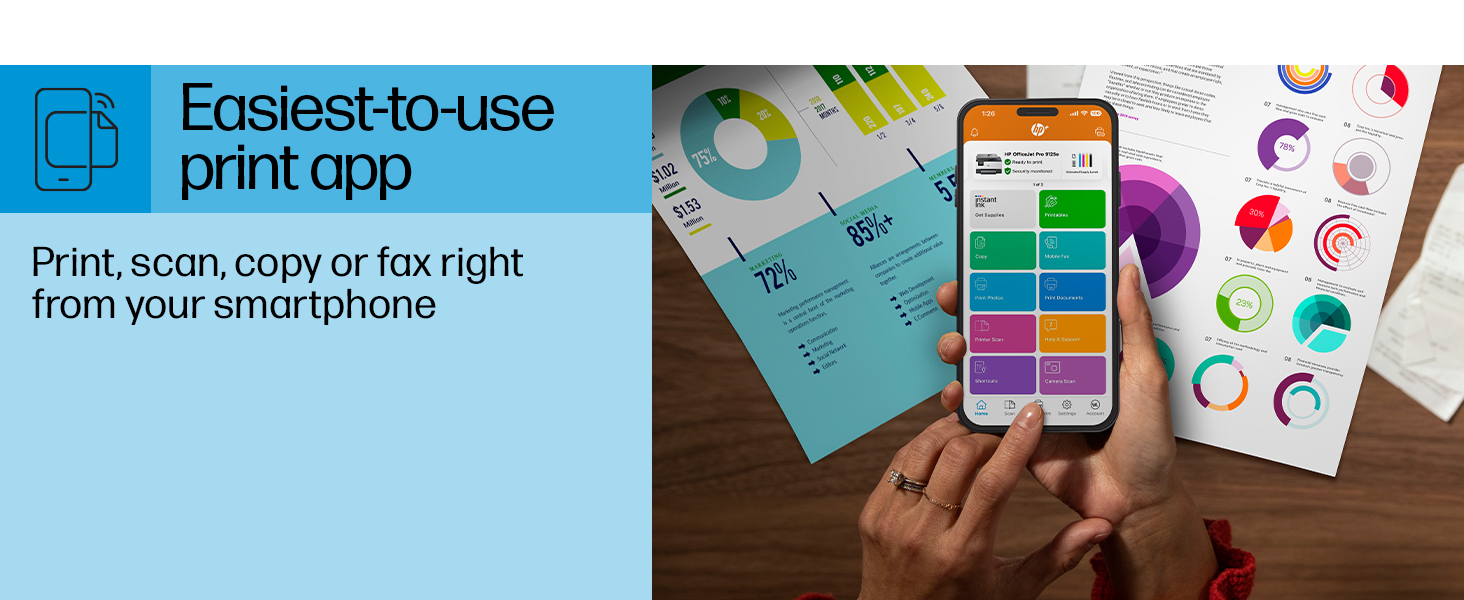
Figure 5: The HP Smart App allows control of print, scan, copy, and fax functions from a smartphone.
4. תחזוקה
4.1 החלפת מחסנית דיו
The printer uses HP 936 series ink cartridges (Black, Cyan, Magenta, Yellow). The touchscreen will indicate when ink levels are low or when a cartridge needs replacement.
- פתח את דלת הגישה למחסנית הדיו.
- לחץ על הלשונית שעל המחסנית הישנה כדי לשחרר אותה, ולאחר מכן משוך אותה החוצה.
- Unpack the new HP 936 cartridge, being careful not to touch the electrical contacts or ink nozzles.
- הכנס את המחסנית החדשה לחריץ המתאים לה עד שהיא תיכנס למקומה בנקישה.
- סגור את דלת הגישה למחסנית הדיו.
4.2 טיפול בנייר
- מגש הזנה: The printer features a 250-sheet input tray. Ensure paper is loaded correctly and paper guides are adjusted to prevent jams.
- מגש פלט: The output tray has a capacity of 60 sheets.
- מדיה נתמכת: The printer supports various paper types and sizes, including plain paper, photo paper, and envelopes. Supported sizes range from 3 x 5 inches to 8.5 x 14 inches.
- Envelope Stopper: Utilize the built-in envelope stopper to prevent jams when printing envelopes.
4.3 ניקוי
ניקוי קבוע מסייע לשמור על איכות ההדפסה ועל אורך חיי המדפסת.
- חִיצוֹנִי: נגבו את החלק החיצוני של המדפסת בעזרת מטלית רכהamp, בד נטול מוך.
- זכוכית הסורק: נקו את זכוכית הסורק בעזרת מטלית רכה וחומר ניקוי זכוכית שאינו שוחק.
- גלילי ADF: פנו לתמיכה של HP website or the HP Smart App for instructions on cleaning ADF rollers if paper feed issues occur.
5. פתרון תקלות
This section provides solutions to common printer issues. For more detailed troubleshooting, refer to the HP support webאתר או אפליקציית HP Smart.
5.1 בעיות קישוריות
- מדפסת במצב לא מקוון: Ensure the printer is powered on and connected to the correct Wi-Fi network. Restarting both the printer and your router can often resolve temporary network glitches.
- ניתוק Wi-Fi: The printer's dual-band Wi-Fi is designed to automatically resolve connection issues. If problems persist, try reconnecting through the printer's touchscreen or the HP Smart App.
- חיבור USB/אתרנט: If using a wired connection, ensure cables are securely plugged into both the printer and the computer/router.
5.2 בעיות באיכות ההדפסה
- הדפסים דהויים או מפוספסים: Check ink levels and replace any low or empty cartridges. Perform a printhead cleaning cycle through the printer's maintenance menu.
- צבעים שגויים: Ensure you are using genuine HP ink cartridges. Run a printhead alignment from the printer's maintenance menu.
- חסימות נייר: Follow the on-screen instructions to clear any jammed paper. Ensure paper is loaded correctly and not overfilled in the input tray.
5.3 בעיות סריקה/העתקה
- Blank Scans/Copies: Ensure the document is placed correctly on the scanner glass or in the ADF.
- Lines on Scans/Copies: Clean the scanner glass and the ADF rollers.
6. מפרט טכני
| תכונה | מִפרָט |
|---|---|
| שם הדגם | HP OfficeJet Pro 9125e |
| פונקציות | הדפסה, העתקה, סריקה, פקס |
| טכנולוגיית הדפסה | Inkjet (Four-color inkjet cartridges) |
| מהירות הדפסה מרבית (שחור) | 22 עמודים לדקה |
| מהירות הדפסה מרבית (צבע) | 18 עמודים לדקה |
| רזולוציית הדפסה מקסימלית (שחור) | 1200 x 1200 dpi |
| רזולוציית הדפסה מקסימלית (צבע) | עד 4800 x 1200 dpi אופטימלי |
| הדפסה דופלקס | אוֹטוֹמָטִי |
| סוג סורק | משטח זכוכית קל להחלקה, מזין מסמכים אוטומטי דו-צדדי במעבר כפול |
| רזולוציית העתקה מקסימלית | 600 x 600 dpi (שחור וצבע) |
| מקסימום עותקים לכל ריצה | 99 |
| קישוריות | Ethernet, USB, Wi-Fi (Dual-band) |
| שיטת בקרה | אפליקציה, מסך מגע |
| גודל מסך מגע | 2.7 אינץ' |
| קיבולת גיליון קלט | 250 גיליונות |
| קיבולת גיליון פלט | 60 גיליונות |
| גדלי מדיה נתמכים | 3 x 5 אינץ' עד 8.5 x 14 אינץ' |
| קיבולת אחסון זיכרון | 512 מגה-בייט |
| מידות המוצר (D x W x H) | 13.48 אינץ' x 17.3 אינץ' x 10.94 אינץ' |
| משקל פריט | 20.5 פאונד |
| צריכת חשמל | 5.06 וואט |

Figure 6: Physical dimensions of the HP OfficeJet Pro 9125e.
7. אחריות ותמיכה
7.1 מידע אחריות
- Certified Refurbished Warranty: This unit comes with a 90-day manufacturer warranty, ensuring reliable, like-new performance.
- Extended Protection Pack: The product bundle includes a 2-year CPS Enhanced Protection Pack.
- HP+ Offer Warranty: A one-year limited hardware warranty is provided, with an option to extend to two years upon acceptance of the HP+ Offer during setup.
For specific terms and conditions regarding your warranty, please refer to the documentation included with your product or visit the official HP support webאֲתַר.
7.2 תמיכת לקוחות
For further assistance, technical support, or to access detailed user guides and drivers, please visit the official HP support webאֲתַר:
You can also utilize the HP Smart App for troubleshooting and accessing support resources directly from your mobile device.