1. הקדמה
This manual provides essential information for setting up, operating, maintaining, and troubleshooting your HP ProDesk 600 G4 Small Form Factor (SFF) Desktop PC. The HP ProDesk 600 G4 SFF is designed for various computing needs, offering a compact design with robust performance.
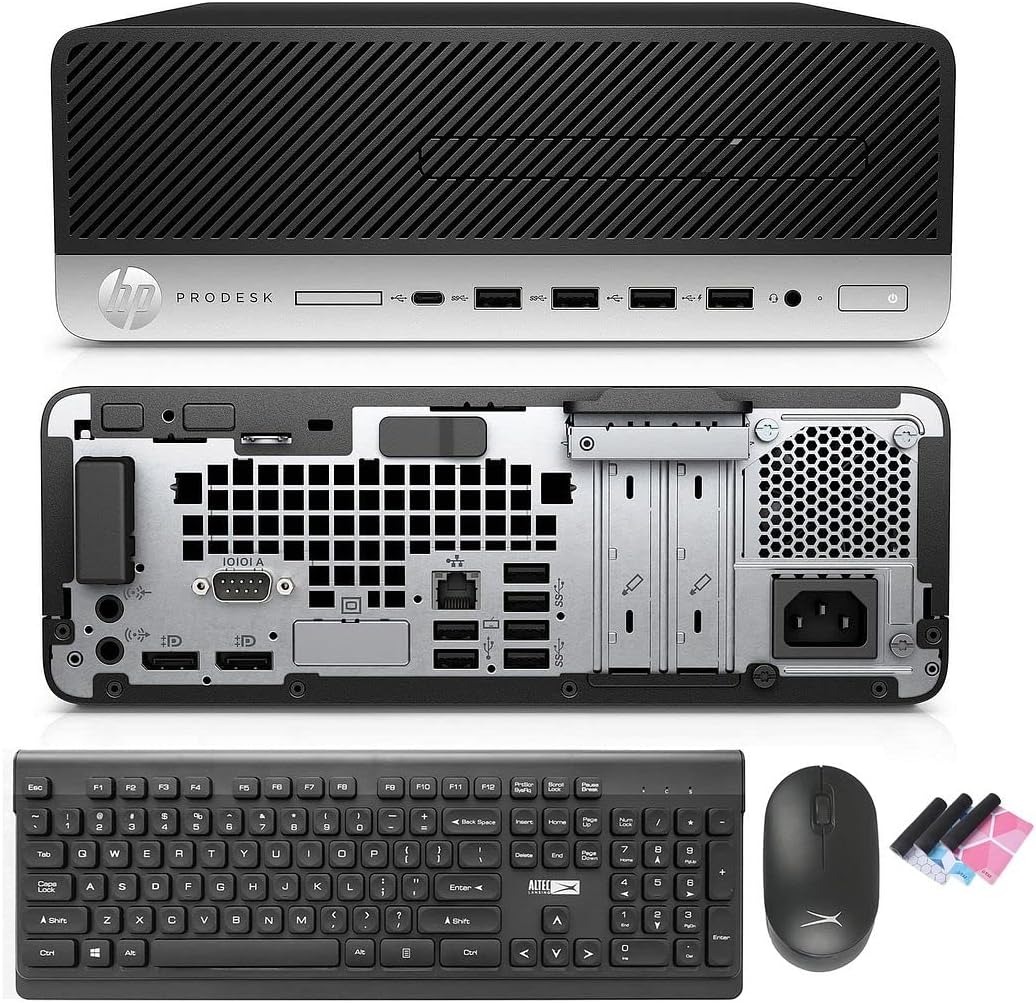
This system comes pre-installed with Windows 11 Pro and features an Intel i7-8700 processor, 32GB DDR4 RAM, a 512GB NVMe M.2 SSD, and a 1TB HDD for ample storage. Integrated Wi-Fi and Bluetooth 6E AX210 provide wireless connectivity, while a range of ports including USB-C, USB-A, HDMI (via adapter), and DisplayPort ensure broad compatibility with peripherals.

2. מדריך התקנה
2.1 פירוק
הוציאו בזהירות את כל הרכיבים מהאריזה. ודאו שהפריטים הבאים נמצאים:
- HP ProDesk 600 G4 SFF Computer Desktop PC
- Altec Wireless Keyboard and Mouse Combo
- TJJ Large Mouse Pad (color may vary)
- כבל חשמל
- מתאם DP ל-HDMI
2.2 חיבור ציוד היקפי
Follow these steps to connect your computer:
- חבר את המסך: Use the provided DP to HDMI adapter or a DisplayPort cable to connect your monitor to one of the DisplayPort outputs on the rear of the PC.
- חיבור מקלדת ועכבר: Insert the wireless USB receiver for the Altec keyboard and mouse combo into any available USB-A port on the front or rear of the PC.
- חבר חשמל: Plug the power cord into the power input on the rear of the PC, then plug the other end into a wall outlet or surge protector.
- חיבורים אופציונליים: Connect any other peripherals such as speakers, printers, or external drives to the appropriate ports.
2.3 אתחול ראשוני
Press the power button on the front of the PC. The system will boot into Windows 11 Pro. Follow the on-screen instructions for initial Windows setup, including language, region, and user account creation.
3. הוראות הפעלה
3.1 Windows 11 Pro מעלview
Your PC comes with Windows 11 Pro. Familiarize yourself with the new Start Menu, taskbar, and multi-window snapping layout for improved productivity.

3.2 קישוריות רשת
The HP ProDesk 600 G4 features built-in Wi-Fi 6E AX210 for wireless internet access. To connect to a Wi-Fi network:
- לחץ על סמל ה- Wi-Fi בשורת המשימות.
- בחר את הרשת הרצויה מהרשימה.
- הזן את סיסמת הרשת אם תתבקש.
For wired connections, connect an Ethernet cable to the Ethernet port on the rear of the PC.

3.3 תצורת תצוגה
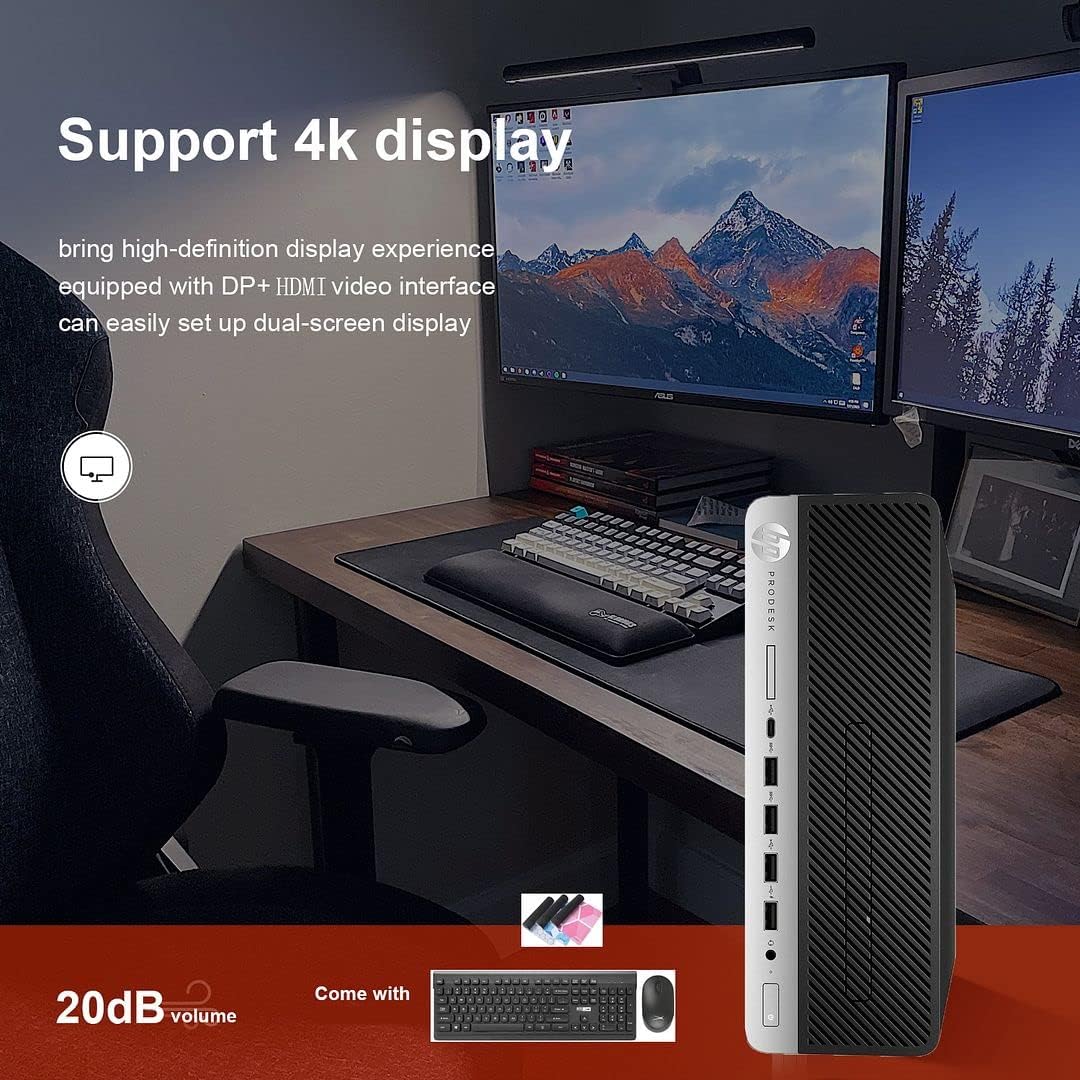
The PC supports 4K display output and dual-screen configurations using its DisplayPort outputs. Use the provided DP to HDMI adapter for HDMI-only monitors. To configure multiple displays in Windows 11:
- לחצו לחיצה ימנית על שולחן העבודה ובחרו "הגדרות תצוגה".
- Detect and arrange your displays as needed.
3.4 שימוש בכונן אופטי
The integrated DVD-RW drive allows you to read and write CDs and DVDs. Insert the disc into the drive, and Windows will typically prompt you with options for playback or burning.
4. תחזוקה
4.1 ניקוי המערכת
To ensure optimal performance and longevity, regularly clean your PC:
- השתמש במטלית רכה ויבשה כדי לנגב את החלק החיצוני.
- Use compressed air to clear dust from vents and ports. Ensure the PC is powered off before cleaning.
- Keep the area around the PC clear to allow for proper airflow.
4.2 עדכוני תוכנה
Regularly update Windows and device drivers to maintain security and performance. Windows Update can be accessed via Settings > Windows Update.
4.3 גיבוי נתונים
מומלץ לגבות באופן קבוע נתונים חשובים לכונן חיצוני או לאחסון ענן כדי למנוע אובדן נתונים.
4.4 שדרוג
The Small Form Factor design allows for some internal upgrades, such as adding a low-profile graphics card or additional storage, thanks to its PCIe slots.
5. פתרון תקלות
If you encounter issues with your HP ProDesk 600 G4, refer to the following common troubleshooting steps:
- אין כוח: Ensure the power cord is securely connected to both the PC and the power outlet. Try a different outlet.
- אין תצוגה: Verify that the monitor is powered on and correctly connected to the PC. Check that the correct input source is selected on your monitor.
- אין חיבור אינטרנט: For Wi-Fi, ensure you are connected to the correct network and have entered the password correctly. For wired connections, check the Ethernet cable and router status.
- התקן היקפי לא מגיב: Ensure the keyboard, mouse, or other peripherals are properly connected. Try connecting them to a different USB port.
- האטת מערכת: Close unnecessary applications. Check for background processes in Task Manager. Ensure sufficient free space on your drives.
For more complex issues or persistent problems, please contact technical support.
6. מפרטים
Below are the key technical specifications for the HP ProDesk 600 G4 SFF Desktop PC:
| רְכִיב | מִפרָט |
|---|---|
| מעבד | Intel Core i7-8700 (3.20-4.60 GHz, 6 Cores, 12 Threads, 12 MB Cache) |
| מַעֲרֶכֶת הַפעָלָה | Windows 11 Pro |
| זיכרון (RAM) | 32GB DDR4 |
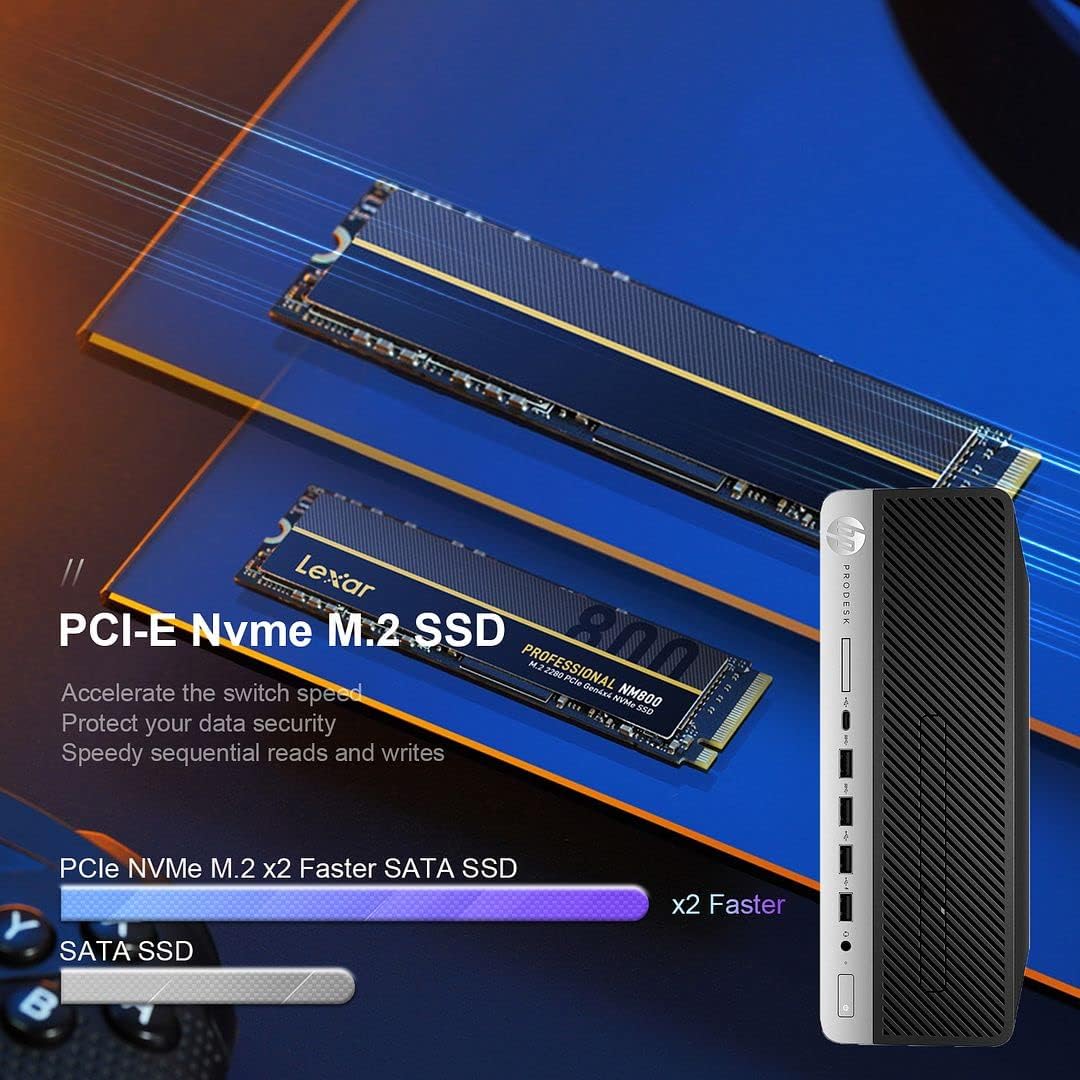
| אִחסוּן | 512GB NVMe M.2 SSD + 1TB HDD |
| גרָפִיקָה | Intel UHD Graphics 630 |
| קישוריות אלחוטית | Built-in Wi-Fi + Bluetooth 6E AX210 Combo |
| יציאות USB-C | 1 (USB 3.1) |
| יציאות USB-A | 4 (USB 3.1) + 2 (USB 3.0) + 4 (USB 2.0) |
| יציאות תצוגה | 2 (with 1x DP to HDMI Adapter included) |
| יציאת Ethernet | 1 |
| כונן אופטי | DVD-RW |
| מידות (LxWxH) | 16 x 11 x 7 אינץ' |
| מִשׁקָל | 22 פאונד |
7. אחריות ותמיכה טכנית
Your HP ProDesk 600 G4 SFF Desktop PC comes with a אחריות ל-90 יום. אחריות זו מכסה פגמים בחומרים ובעבודה בשימוש רגיל.
For any technical issues, questions, or warranty claims, please contact the seller's technical support. They are committed to responding within 24 hours to assist you.
אנא שמור את הוכחת הרכישה שלך לצורך אימות האחריות.