1. הקדמה
The TP-Link Archer AX80/A is a high-performance AX6000 WiFi 6 router designed to deliver ultra-fast wireless speeds and enhanced network capacity. Featuring advanced technologies like OFDMA, MU-MIMO, and 8-stream connectivity, it ensures a stable and efficient network experience for numerous connected devices, including smartphones, tablets, and IoT devices. This manual provides detailed instructions for setting up, operating, and maintaining your Archer AX80/A router.


2. תכולת החבילה
ודא שהחבילה שלך מכילה את הפריטים הבאים:
- TP-Link Archer AX80/A AX6000 WiFi 6 Router
- מתאם מתח
- כבל Ethernet
- מדריך התקנה מהירה
3. אובר פיזיview
3.1 יציאות וכפתורים
The Archer AX80/A router features various ports and buttons for connectivity and control.

- יציאת WAN/LAN של 2.5 ג'יגה-ביט לשנייה: One port for high-speed internet connection or LAN device.
- יציאת ג'יגה-ביט WAN/LAN: One port for standard internet connection or LAN device.
- Gigabit LAN Ports: Three ports for connecting wired devices.
- יציאת USB 3.0: One port for connecting external storage devices for network sharing.
- לחצן הפעלה / כיבוי: To power the router on or off.
- לחצן איפוס: To restore factory default settings (use a pin to press and hold).

3.2 אפשרויות מיקום
The Archer AX80/A offers flexible placement options to suit your environment.

4. מדריך התקנה
4.1 חיבור חומרה
- כבה את המודם שלך והסר את סוללת הגיבוי אם יש כזו.
- Connect the modem to the router's WAN port (usually the 2.5Gbps port) using an Ethernet cable.
- Power on the modem, then power on the router.
- Wait for the router's LED indicators to stabilize, indicating a successful connection.
4.2 Easy Setup via TP-Link Tether App
The TP-Link Tether app provides an intuitive way to set up and manage your router from your smartphone or tablet.
- הורידו את אפליקציית TP-Link Tether מחנות האפליקציות או מגוגל פליי.
- Connect your mobile device to the router's default Wi-Fi network (SSID and password are on the router's label).
- Open the Tether app and follow the on-screen instructions to complete the initial setup, including creating a TP-Link ID, setting up your Wi-Fi name and password, and configuring internet settings.

5. הוראות הפעלה
5.1 חיבור התקנים
- חיבור אלחוטי: חפש your Wi-Fi network name (SSID) on your device and enter the password you set during setup.
- חיבור קווי: Connect your computer or other wired devices to the router's LAN ports using Ethernet cables.

5.2 ניהול הרשת שלך
You can manage your router settings through the TP-Link Tether app or by accessing the web ממשק ניהול באמצעות web browser (typically at http://tplinkwifi.net or http://192.168.0.1).
- שנה את הגדרות ה-Wi-Fi (SSID, סיסמה, סוג אבטחה).
- ניטור מכשירים מחוברים.
- Configure advanced network settings.
6. תכונות מתקדמות
6.1 OneMesh™ Support
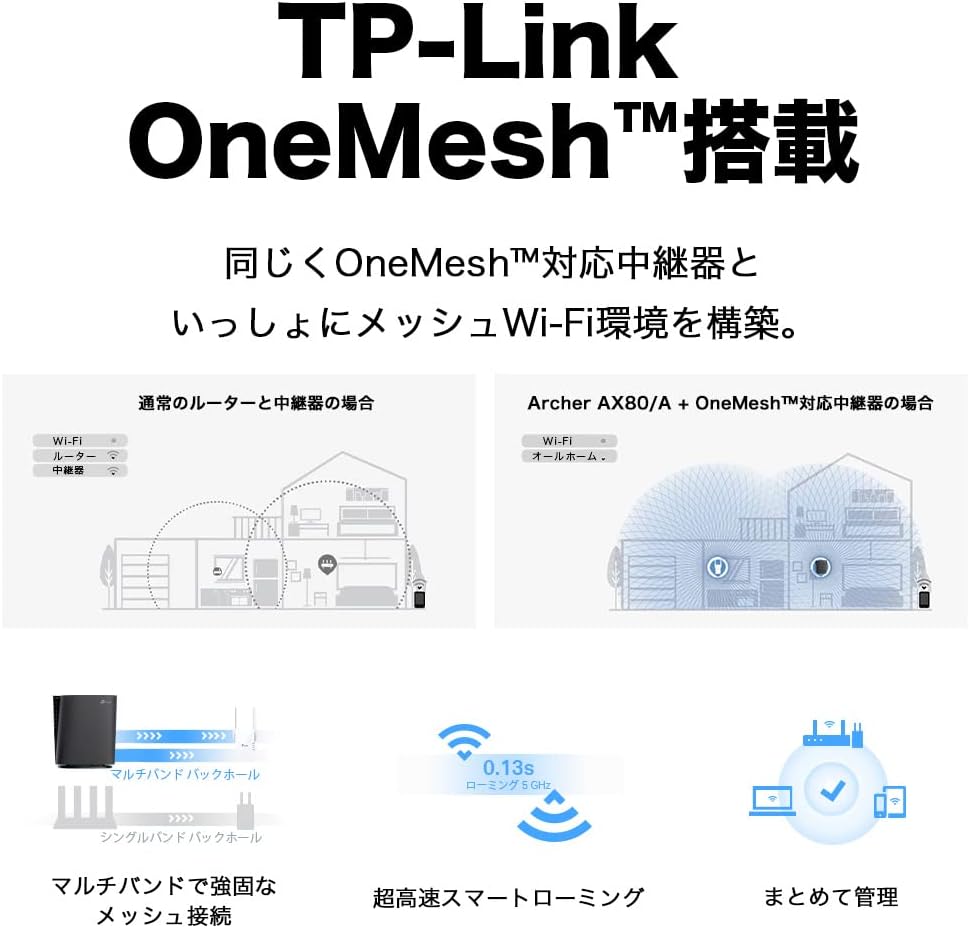
The Archer AX80/A supports TP-Link OneMesh™, allowing you to create a seamless whole-home Wi-Fi network by connecting to OneMesh-compatible range extenders. This eliminates Wi-Fi dead zones and provides uninterrupted roaming.
6.2 VPN Client Functionality
The router includes VPN client functionality, enabling you to establish a secure VPN connection without needing additional VPN software on each device. It supports OpenVPN, PPTP VPN, and L2TP VPN protocols.

6.3 IPv6 IPoE Support
The Archer AX80/A supports IPv6 IPoE (IPv4 over IPv6), including v6 Plus, OCN Virtual Connect, and DS-Lite, ensuring compatibility with modern internet service provider configurations for optimal performance.
6.4 בקרת הורים
Manage and control internet access for family members with robust parental control features available through the Tether app. Set time limits, block inappropriate content, and monitor usage.

6.5 WPA3 Security
The router supports WPA3, the latest Wi-Fi security protocol, providing enhanced encryption and protection against cyber threats for a more secure home network.

6.6 US-Based Security Standards
TP-Link adheres to US government cybersecurity and infrastructure security agency (CISA) promoted "Secure-by-Design" principles, ensuring high-level security throughout design, development, and maintenance.

7. תחזוקה
7.1 עדכוני קושחה
Regularly update your router's firmware to ensure optimal performance, security, and access to new features. Firmware updates can be performed via the Tether app or the web ממשק ניהול.
- Open the Tether app or log in to the web ממשק ניהול.
- נווט אל כלי מערכת > שדרוג קושחה.
- Follow the instructions to check for and install available updates.
7.2 Rebooting the Router
If you experience network issues, a simple reboot can often resolve them. You can reboot the router through the Tether app, web management interface, or by unplugging and replugging the power adapter.
8. פתרון תקלות
8.1 אין גישה לאינטרנט
- בדוק אם המודם שלך פועל כראוי.
- ודא שכל הכבלים מחוברים היטב ליציאות הנכונות.
- הפעל מחדש את המודם והראוטר שלך.
- Verify your internet settings in the router's management interface.
8.2 אות Wi-Fi חלש
- Relocate the router to a central location, away from obstructions and interference sources.
- Consider adding a TP-Link OneMesh™ compatible range extender to expand coverage.
- Adjust Wi-Fi channel settings in the router's management interface to avoid interference.
8.3 שכחת סיסמת Wi-Fi או סיסמת התחברות
- סיסמת ה-Wi-Fi המוגדרת כברירת מחדל מודפסת על התווית בתחתית הנתב.
- If you changed it and forgot, you can retrieve or reset it via the Tether app or web ממשק ניהול.
- If you forgot the router's login password, you may need to perform a factory reset (see Section 3.1) and reconfigure the router.
9. מפרטים
| תכונה | תֵאוּר |
|---|---|
| מותג | TP-Link |
| שם הדגם | Archer AX80/A |
| תקן אלחוטי | 802.11ax (Wi-Fi 6) |
| מחלקה להקת תדרים | Dual-Band |
| קצב העברת נתונים | AX6000 (4804 Mbps on 5GHz + 1148 Mbps on 2.4GHz) |
| נמלים | 1x 2.5Gbps WAN/LAN, 1x Gigabit WAN/LAN, 3x Gigabit LAN, 1x USB 3.0 |
| סוג אנטנה | פְּנִימִי |
| פרוטוקול אבטחה | WPA3 |
| שיטת ניהול | אפליקציית Tether, Web UI |
| מכשירים תואמים | טלפונים חכמים, טאבלטים, מחשבים ניידים |
| מידות (L x W x H) | 18.9 ס"מ x 5.9 ס"מ x 20 ס"מ |
10. אחריות ותמיכה
10.1 מידע אחריות
The TP-Link Archer AX80/A router comes with a אחריות יצרן לשנהאנא שמור את הוכחת הרכישה שלך לצורך תביעות אחריות. האחריות מכסה פגמים בחומרים ובביצוע בשימוש רגיל.
10.2 תמיכה טכנית
For technical support, firmware updates, and additional resources, please visit the official TP-Link website or contact TP-Link customer support. You can find contact information and FAQs on the TP-Link support page:


