1. הקדמה
Welcome to the user manual for your Logitech M705 Marathon Wireless Mouse. This document provides essential information for setting up, operating, and maintaining your device, ensuring optimal performance and longevity. The M705 mouse is designed for comfort and efficiency, featuring a long battery life and customizable controls for enhanced productivity.
2. המוצר נגמרview
תכונות מפתח
- חיי סוללה מורחבים: Enjoy up to 3 years of battery life, reducing the need for frequent replacements.
- עיצוב ארגונומי: Sculpted to fit the natural curve of your right hand, providing comfort during prolonged use.
- גלילה מהירה במיוחד: Navigate through long documents and web pages with a single spin of the scroll wheel, or switch to click-to-click scrolling for precision.
- כפתורים ניתנים לתכנות: Five customizable buttons, including forward/back thumb buttons, allow for personalized shortcuts and enhanced control.
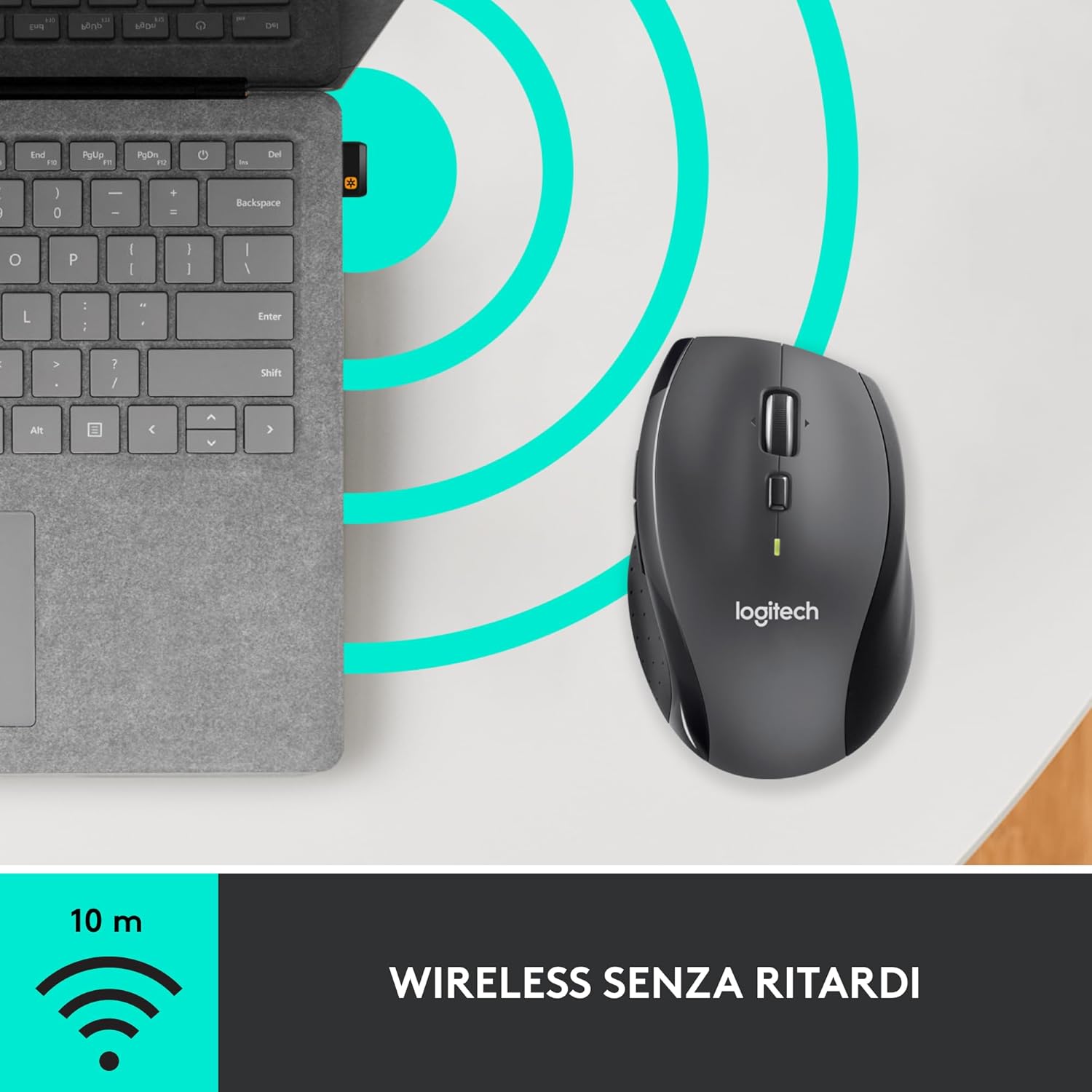
- מקלט מאחד: A small USB Unifying receiver connects up to six compatible Logitech devices, freeing up USB ports.
- תאימות רחבה: Compatible with Windows, macOS, Chrome OS, and Linux operating systems.
תוכן החבילה
The Logitech M705 Marathon Wireless Mouse package typically includes:
- עכבר אלחוטי Logitech M705
- Logitech Unifying USB Receiver
- 2 AA Alkaline Batteries (may vary by region/packaging)

3. הוראות התקנה
3.1. התקנת סוללות
- Turn the mouse over and locate the battery compartment cover on the underside.
- Press the release button or slide the cover to open the compartment.
- הכניסו את שתי סוללות ה-AA, תוך הקפדה על קוטביות נכונה (+/-).
- החזר את מכסה תא הסוללות למקומו.

3.2. Connecting the USB Unifying Receiver
- Locate the small USB Unifying receiver. It may be stored inside the battery compartment of the mouse.
- חבר את מקלט ה-USB ליציאת USB זמינה במחשב שלך.
- הפעל את העכבר באמצעות מתג ההפעלה/כיבוי הממוקם בתחתית העכבר.
- Your computer should automatically detect the mouse. If not, visit the Logitech support website for driver installation.
4. הוראות הפעלה
4.1. פונקציות עכבר בסיסיות
The M705 mouse features standard left and right-click buttons, a scroll wheel, and additional programmable buttons.

4.2. גלילה מהירה במיוחד
The scroll wheel offers two modes:
- Hyper-Fast Mode: Press the button directly below the scroll wheel to unlock it for smooth, rapid scrolling through long documents or web דפים.
- מצב לחיצה-ללחיצה: Press the button again to engage precise, stepped scrolling, ideal for navigating lists or image galleries.

4.3. כפתורים ניתנים לתכנות
The M705 features five programmable buttons, including two thumb buttons and tilt-scroll functionality. These can be customized using the Logitech Options software.

5. התאמה אישית
To unlock the full potential of your M705 mouse, download and install the Logitech Options software from the official Logitech webאתר. תוכנה זו מאפשרת לך:
- Assign custom functions to the five programmable buttons.
- התאם את מהירות המעקב (DPI).
- Configure application-specific settings.
- בדוק את מצב הסוללה.

6. תחזוקה
6.1. ניקיון
לניקוי העכבר, השתמשו במטלית רכה ונטולת סיבים. במקרה של לכלוך עיקש, נגבו מעטampen the cloth with water. Avoid using harsh chemicals or abrasive materials, as these can damage the mouse surface or internal components.
6.2. החלפת סוללה
When the battery indicator light on your mouse begins to flash or if performance degrades, it's time to replace the batteries. Follow the steps in Section 3.1 to replace the two AA batteries. Dispose of old batteries responsibly according to local regulations.
7. פתרון תקלות
7.1. עכבר לא מגיב
- ודא שהעכבר מופעל.
- בדוק את רמת הסוללה והחלף סוללות במידת הצורך.
- Verify the USB Unifying receiver is securely plugged into a working USB port.
- Try plugging the receiver into a different USB port or a different computer to isolate the issue.
- אם משתמשים ברכזת USB, נסה לחבר אותה ישירות למחשב.
7.2. תנועת סמן לא יציבה
- נקו את החיישן האופטי בחלק התחתון של העכבר.
- Ensure you are using the mouse on a suitable surface. Highly reflective or transparent surfaces may cause tracking issues. A mouse pad is recommended.
- Check for interference from other wireless devices. Move the mouse closer to the USB receiver.
7.3. Unifying Receiver Issues
If the mouse loses connection or you need to pair it with a new receiver, download the Logitech Unifying Software from the Logitech support website. This software guides you through the pairing process.
8. מפרטים
| תכונה | פְּרָט |
|---|---|
| מותג | Logitech |
| שם הדגם | M705 |
| מספר דגם | 910-001949 |
| טכנולוגיית קישוריות | Wireless (2.4 GHz USB Unifying Receiver) |
| טכנולוגיית זיהוי תנועה | לייזר |
| רזולוציית תנועה | 1000 DPI (up to 3200 DPI maximum resolution) |
| מספר כפתורים | 5 לחצנים ניתנים לתכנות |
| מקור כוח | Battery (2 x AA Alkaline) |
| חיי סוללה ממוצעים | עד 3 שנים |
| טווח אלחוטי | עד 10 מטר |
| גורם צורה | Right-hand ergonomic |
| מידות (L x W x H) | 20 x 13 x 12 ס"מ (מידות אריזת המוצר) |
| מִשׁקָל | 136 גרם |
| מערכות הפעלה תואמות | Windows 7, 8, 10; macOS 10.11 or later; Chrome OS; Linux |
9. אחריות ותמיכה
למידע מפורט על אחריות ותמיכה טכנית, אנא עיינו באתר הרשמי של Logitech webאתר או צרו קשר עם שירות הלקוחות של Logitech. שמרו את הוכחת הרכישה שלכם לצורך תביעות אחריות.


