Introduzione
This manual provides detailed instructions for the proper setup, operation, and maintenance of your FEELWORLD FW759 PRO 7-inch 1280x800 IPS Touch Screen Camera Field Video Monitor. Please read this manual thoroughly before using the product to ensure optimal performance and to prevent damage.
The FW759 PRO is designed to provide precise monitoring for professional video and photography applications. It features a 7-inch 1280x800 IPS display, 4K HDMI input, and a touch screen interface for intuitive control.
Contenuto della confezione
Verifica che tutti gli articoli elencati di seguito siano inclusi nella confezione. Se alcuni articoli risultano mancanti o danneggiati, contatta il rivenditore.

Figura 1: Accessori inclusi
- FEELWORLD FW759 PRO Monitor (1x)
- HDMI Cable (1x)
- Micro HDMI Cable (1x)
- Mini Hot Shoe Mount + Hex Wrench (1x)
- USB-A to USB-C Adapter (1x)
- Sun Shade + Frame (1x)
- Cable Management Tie (1x)
- Quick Start Guide (1x)
Prodotto finitoview
The FW759 PRO monitor features a slim and lightweight design, making it suitable for mobile shooting environments. It incorporates multiple ports for connectivity and versatile power options.

Figura 2: Fronte e lato Views with Ports
Front and Side Features:
- Schermo touch IPS da 7 pollici: High-resolution display for clear monitoring and intuitive control.
- Pulsanti F1, F2, F3: Customizable shortcut keys for quick access to frequently used functions.
- Pulsante di accensione: For turning the monitor on and off.
- Type-C 5V Port: Per alimentazione in ingresso.
- Porta AV: Per ingresso video analogico.
- Porta HDMI: Supports 4K 30Hz signal input.
- Porta DC IN 12V: Per alimentazione esterna.
- Jack per cuffie da 3.5 mm: Per il monitoraggio audio.

Figura 3: Posteriore View with Battery Plate
Caratteristiche posteriori:
- Piastra batteria NP-F: Compatible with NP-F series batteries for portable power.
- 1/4" Mounting Points: Multiple mounting points for flexible attachment to cameras or rigs.
Impostare
1. Montaggio del monitor
The FW759 PRO features multiple 1/4" mounting points on its sides and bottom, allowing for flexible attachment to various camera setups or rigs using the included Mini Hot Shoe Mount or other compatible accessories.

Figure 4: Monitor Mounting Options
- Attach the Mini Hot Shoe Mount to your camera's hot shoe or a compatible rig.
- Secure the monitor to the Mini Hot Shoe Mount using one of the 1/4" screw threads. Ensure it is tightened securely with the hex wrench.
2. Accensione del monitor
The FW759 PRO offers versatile power options:
- Batteria serie NP-F: Insert a charged NP-F series battery into the battery plate on the back of the monitor.
- INGRESSO CC 12V: Connect an external 12V DC power adapter (not included) to the DC IN port.
- Tipo C 5V: Connect a 5V Type-C power source (e.g., power bank, USB adapter) to the Type-C port.
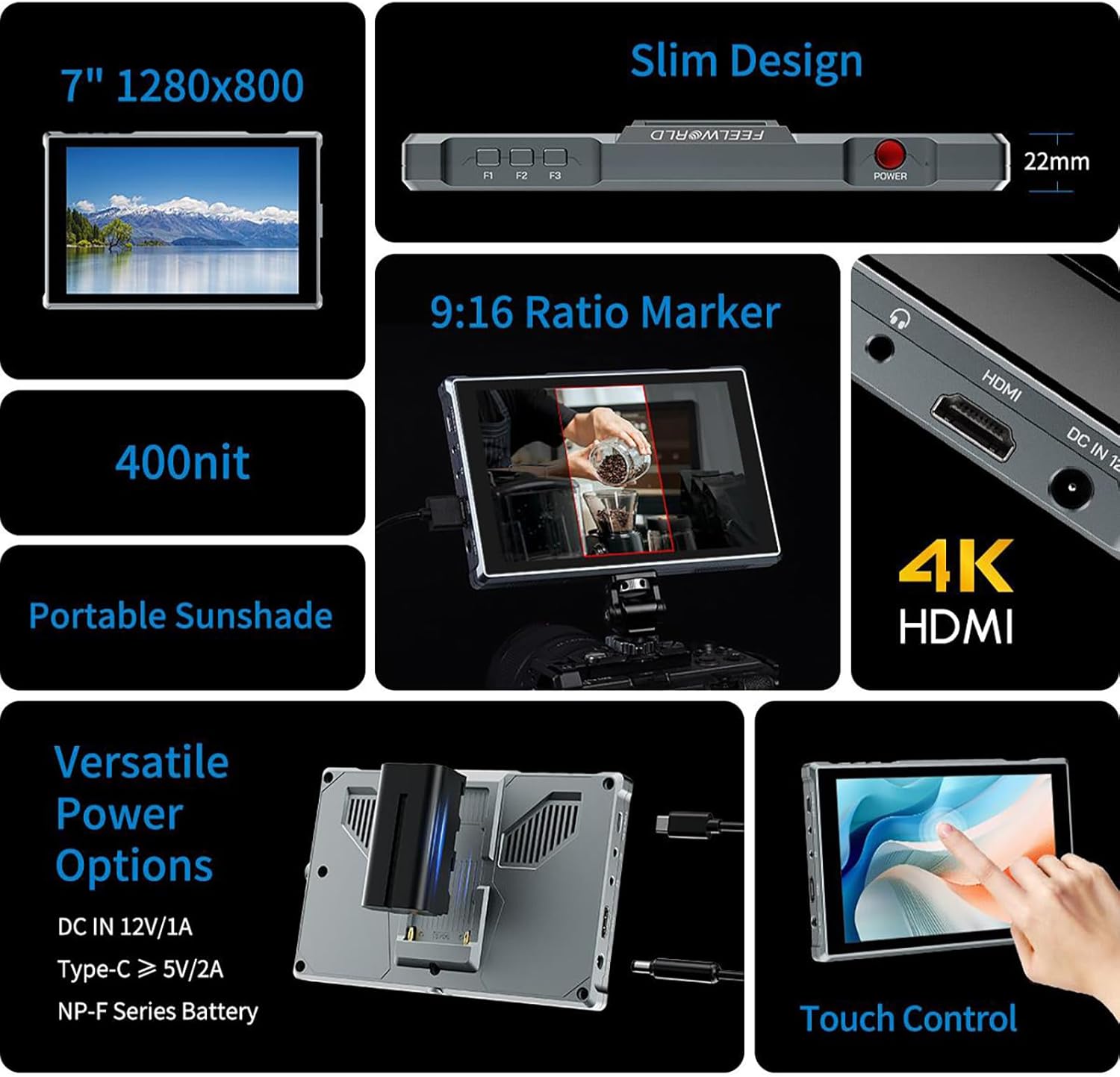
Figure 5: Power Options and Connectivity
3. Connecting Video Input
Connect your camera or video source to the monitor using the appropriate cable:
- Ingresso HDMI: Use the provided HDMI or Micro HDMI cable to connect your camera's HDMI output to the monitor's HDMI input port. The monitor supports 4K 30Hz signals.
- Ingresso AV: For devices with analog video output, connect to the AV port.
4. Attaching the Sun Shade
For improved visibility in bright outdoor conditions, attach the included sun shade:
- Assemble the sun shade frame.
- Slide the sun shade onto the monitor's frame until it clicks into place.
Istruzioni per l'uso
1. Accensione/spegnimento
Premere e tenere premuto il tasto Pulsante di accensione located on the top right side of the monitor to turn it on or off.
2. Funzionamento tramite touch screen
The FW759 PRO features an intuitive touch screen for quick adjustments:

Figure 6: Touch Screen Gestures
- Swipe from the left edge: Regola la luminosità della retroilluminazione.
- Swipe from the right edge: Regola il volume.
- Swipe up from the bottom edge: Access the shortcut menu for quick settings.
- Rubinetto: Select menu items or confirm settings.
3. Customizable Shortcut Keys (F1, F2, F3)
The three customizable function buttons (F1, F2, F3) allow you to assign frequently used features for quick access. To assign a function:
- Access the main menu (via touch screen or a long press on a function button).
- Navigate to the 'Function Key Settings' or similar option.
- Select F1, F2, or F3 and choose the desired function (e.g., Peaking Focus, False Color, Aspect Marker).
4. Navigazione nel menu e impostazioni
The monitor's menu system allows for comprehensive control over display settings, auxiliary functions, and system configurations.
- Main Menu Access: Tap the screen to bring up the main menu interface.
- Navigazione: Use touch gestures to navigate through menu options.
- Funzioni ausiliarie: Access features like Peaking Focus Assist, False Color, Exposure, Histogram, Aspect Markers (including 9:16 vertical marker for social media content), and more.
- Impostazioni lingua: The FW759 PRO supports up to 12 languages. Adjust this in the system settings.
- Menu Setting Saving: The monitor supports saving up to 4 groups of menu settings. After configuring your desired settings, select a group (1-4) to save them automatically. These can be recalled or switched as needed for different shooting scenarios.
5. Monitoraggio audio
Connect headphones to the 3.5mm headphone jack to monitor audio from your HDMI or AV input source.
Manutenzione
Pulizia del monitor
- Use a soft, lint-free cloth to gently wipe the screen and body of the monitor.
- Per macchie ostinate, applicare leggermenteampen the cloth with water or a screen-cleaning solution specifically designed for electronics.
- Evitare l'uso di prodotti chimici aggressivi, detergenti abrasivi o solventi, poiché potrebbero danneggiare lo schermo e la finitura.
Magazzinaggio
- When not in use, store the monitor in a dry, cool place away from direct sunlight and extreme temperatures.
- Use a protective case or pouch to prevent scratches and impacts during transport.
- Rimuovere le batterie se si prevede di conservarle per periodi prolungati per evitare perdite.
Risoluzione dei problemi
If you encounter issues with your FW759 PRO monitor, refer to the following common solutions:
- Nessun potere: Ensure the battery is charged and correctly inserted, or that the external power adapter is properly connected and supplying adequate power. Check the power button.
- Nessun segnale: Verify that the HDMI or AV cable is securely connected to both the monitor and the video source. Confirm that the video source is outputting a signal and that the monitor's input source is correctly selected in the menu.
- Image Distortion/Poor Quality: Check the resolution and frame rate settings on your camera or video source to ensure compatibility with the monitor (up to 4K 30Hz). Inspect cables for damage.
- Touchscreen che non risponde: Try restarting the monitor. Ensure the screen is clean and free of debris.
- Pulsanti non funzionanti: Restart the monitor. If the issue persists, contact support.
For further assistance, please refer to the official FEELWORLD support resources.
Specifiche
| Caratteristica | Specificazione |
|---|---|
| Modello | FW759 PRO |
| Dimensioni dello schermo | 7 pollici |
| Risoluzione | 1280x800 |
| Tipo di pannello | Informazione pubblica |
| Viewangolo di ing | 178° (Ampio) |
| Porte di ingresso | HDMI (4K 30Hz support), AV, Type-C (5V power) |
| Porte di uscita | Jack per cuffie da 3.5 mm |
| Opzioni di alimentazione | DC IN 12V, Type-C 5V, NP-F Series Battery |
| Consumo energetico | 9W |
| Dimensioni del prodotto | 4.53 x 7.17 x 0.87 pollici (11.5 x 18.2 x 2.2 cm) |
| Peso dell'articolo | 1.76 libbre (0.8 kg) |
| Lingue supportate | Fino a 12 lingue |
Garanzia e supporto
FEELWORLD products are manufactured to high-quality standards. For warranty information, please refer to the warranty card included with your product or visit the official FEELWORLD websito. Conservare la ricevuta d'acquisto come prova d'acquisto per eventuali reclami in garanzia.
For technical support, product inquiries, or service, please contact FEELWORLD customer service through their official channels. You can often find support information on the manufacturer's websito o tramite il tuo rivenditore autorizzato.
Visitare il FEELWORLD Store per maggiori informazioni e aggiornamenti sui prodotti.