1. Introduzione
Welcome to the user manual for your new XIAOMI Redmi 15C smartphone. This guide provides essential information to help you get started, operate, maintain, and troubleshoot your device. Please read this manual carefully to ensure optimal performance and longevity of your smartphone.
Caratteristiche principali:
- Massive 6000mAh (typ) battery with 33W fast charging support.
- Immersive 6.9-inch display with up to 120Hz refresh rate.
- Powerful octa-core processor for smooth performance.
- 50MP AI dual camera system for high-quality photos.
- Sleek and refined design.
2. Guida all'installazione
2.1 Cosa c'è nella scatola
Upon unboxing your Redmi 15C, verify that the following items are included:
- Smartphone XIAOMI Redmi 15C
- Cavo USB
- Strumento di espulsione SIM (può variare in base alla regione)
- Guida rapida (questo documento)
Note: A charger is not included with this device and must be purchased separately. For optimal charging, use a 33W compatible charger.
2.2 Inserimento della scheda SIM
- Individua il vassoio della scheda SIM sul lato del dispositivo.
- Inserire lo strumento di espulsione della SIM nel piccolo foro accanto al vassoio e premere con decisione finché il vassoio non fuoriesce.
- Place your Nano-SIM card(s) and/or microSD card into the tray with the gold contacts facing down. Ensure they are correctly aligned.
- Spingere con cautela il vassoio nello slot finché non è a filo con il dispositivo.
2.3 Accensione iniziale e configurazione
- Tenere premuto il pulsante di accensione finché non viene visualizzato il logo XIAOMI.
- Segui le istruzioni sullo schermo per selezionare la lingua, la regione, connetterti al Wi-Fi e configurare il tuo account Google.
- You will be guided through setting up security features like a PIN, pattern, fingerprint, or face unlock.
2.4 Ricarica del dispositivo
Prima del primo utilizzo, si consiglia di caricare completamente il dispositivo.
- Collegare il cavo USB alla porta di ricarica del telefono.
- Connect the other end of the USB cable to a compatible 33W power adapter (sold separately) and plug it into a power outlet.
- L'indicatore di carica apparirà sullo schermo.
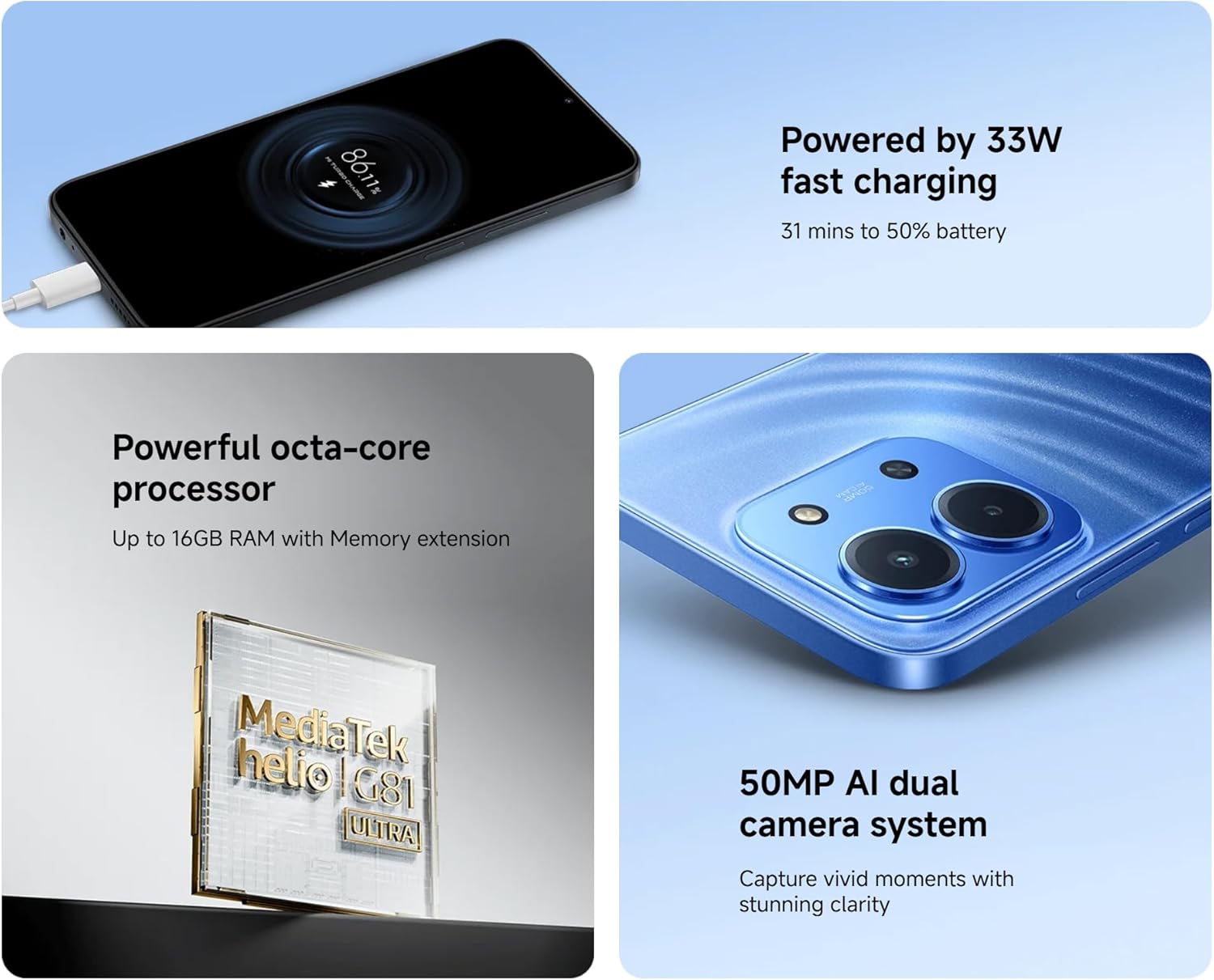
Image: The Redmi 15C connected to a charger, displaying a charging animation indicating 33W fast charging capability.
3. Utilizzo del dispositivo
3.1 Navigazione di base
- Gesti touchscreen: Swipe, tap, pinch-to-zoom are standard.
- Pulsante di accensione: Premere per riattivare/sospendere lo schermo. Tenere premuto per spegnere o riavviare.
- Pulsanti del volume: Regola il volume dei contenuti multimediali, delle chiamate o della suoneria.
3.2 Effettuare chiamate e inviare messaggi
- Apri l'app "Telefono" per comporre numeri o selezionare contatti.
- Open the 'Messages' app to compose and send SMS/MMS messages.
3.3 Utilizzo della fotocamera
Your Redmi 15C features a 50MP AI dual camera system.
- Apri l'app "Fotocamera".
- Seleziona la modalità desiderata (Foto, Ritratto, Video, ecc.).
- Tocca il pulsante di scatto per catturare immagini o avviare/interrompere la registrazione video.

Immagine: un primo piano view of the XIAOMI Redmi 15C's dual camera module, highlighting its 50MP AI capabilities.
3.4 Funzionalità di visualizzazione
The 6.9-inch immersive display offers a smooth visual experience with up to a 120Hz refresh rate.
- Adjust display settings (brightness, color scheme, refresh rate) in 'Settings > Display'.
- AdaptiveSync technology automatically adjusts the refresh rate for optimal viewe l'efficienza della batteria.

Image: The XIAOMI Redmi 15C's large 6.9-inch display, showcasing its immersive viewesperienza di acquisizione.
3.5 Gestione della batteria
La batteria da 6000 mAh garantisce un utilizzo prolungato. Per ottimizzare la durata della batteria:
- Use 'Battery Saver' mode when needed.
- Ridurre la luminosità dello schermo e il timeout dello schermo.
- Chiudi le app inutilizzate in esecuzione in background.
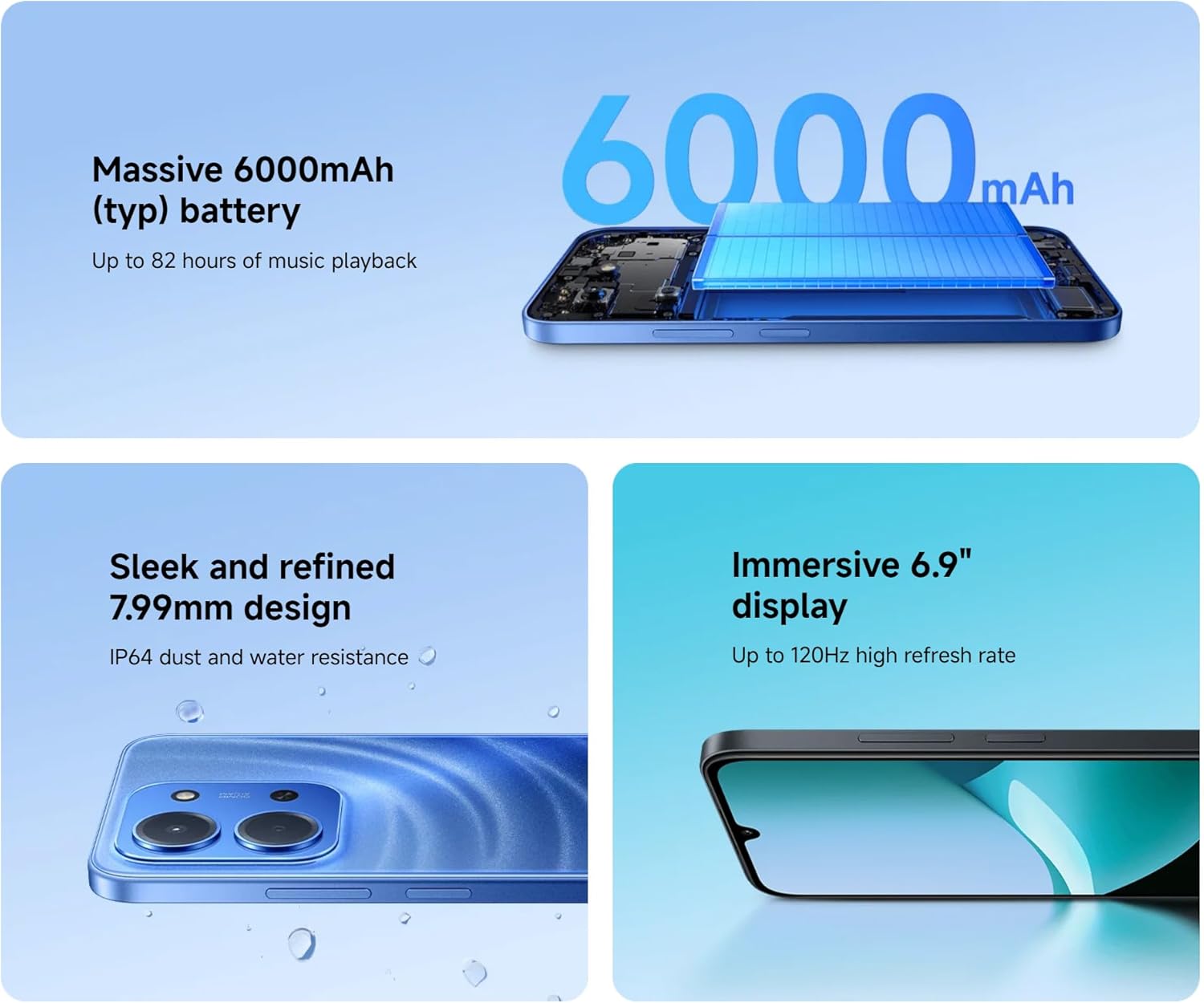
Image: An illustration of the XIAOMI Redmi 15C's internal structure, highlighting its massive 6000mAh battery.
3.6 Prestazioni del processore
The powerful octa-core processor ensures smooth multitasking and efficient app performance.

Image: A visual representation of the MediaTek Helio G81-Ultra octa-core processor, emphasizing its power and efficiency.
3.7 Google Gemini Integration
The Redmi 15C integrates with Google Gemini, your AI assistant from Google, to enhance productivity and creativity. Use Gemini for writing, brainstorming, learning, and more.
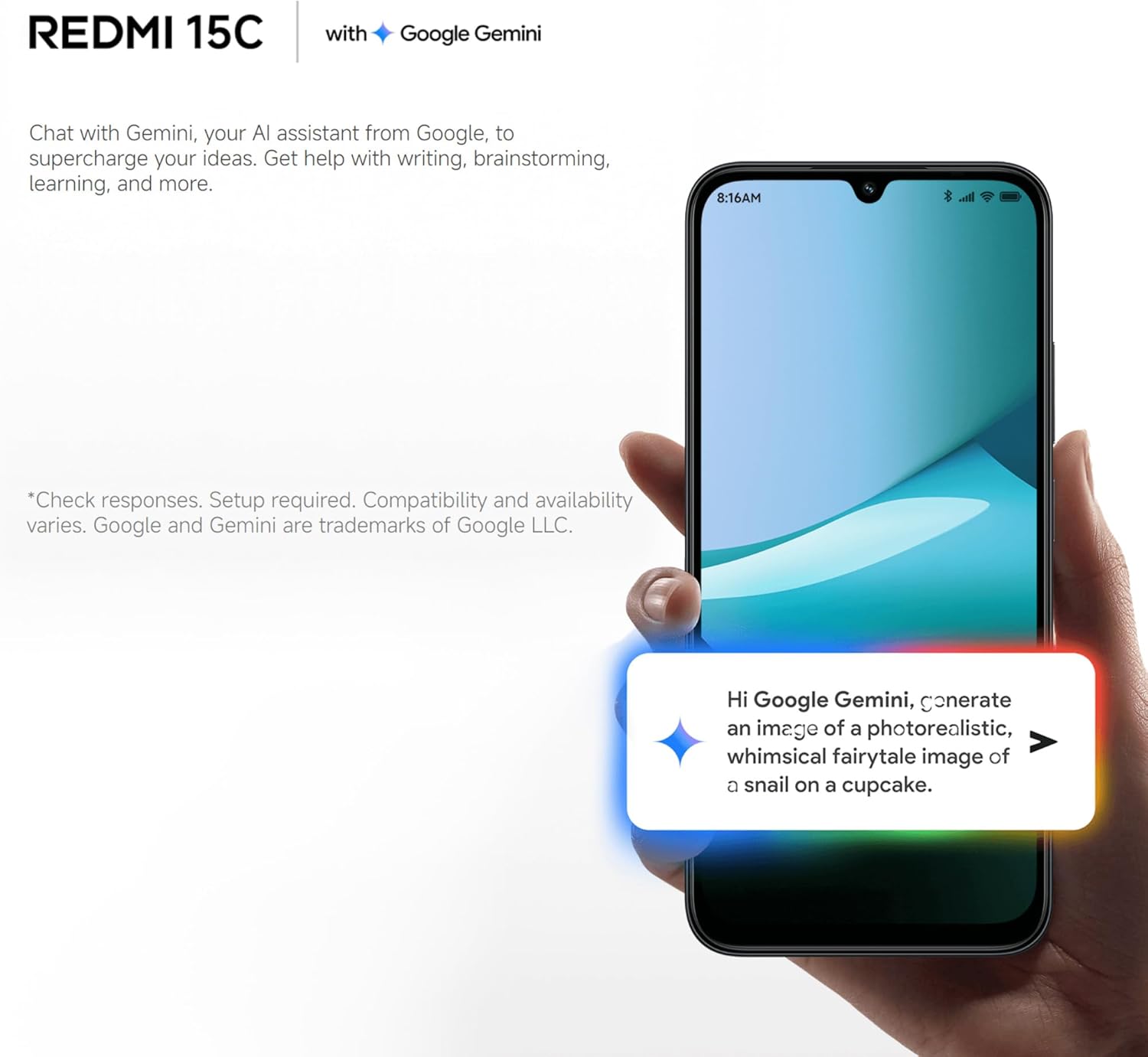
Image: A Redmi 15C displaying a chat interface with Google Gemini, demonstrating its AI capabilities.
4. Manutenzione
4.1 Pulizia del dispositivo
- Per pulire lo schermo e il corpo del dispositivo, utilizzare un panno morbido e privo di lanugine.
- Evitare l'uso di prodotti chimici aggressivi, detergenti abrasivi o aria compressa.
- Mantenere le porte libere da polvere e detriti.
4.2 Aggiornamenti software
Regularly check for and install system updates to ensure your device has the latest features, security patches, and performance improvements. Go to 'Settings > About phone > MIUI version' to check for updates.
4.3 Cura della batteria
- Evitare temperature estreme, poiché possono ridurre la durata della batteria.
- Non lasciare il telefono in carica per periodi prolungati dopo averlo caricato completamente.
- Use only original or certified compatible chargers and cables.
4.4 Gestione dell'archiviazione
To maintain optimal performance, regularly manage your device's storage:
- Elimina non necessario files, foto e video.
- Disinstallare le applicazioni non utilizzate.
- Cancella i dati della cache per le app.
5. Risoluzione Dei Problemi
Questa sezione affronta i problemi più comuni che potresti riscontrare con il tuo Redmi 15C.
| Problema | Possibile soluzione |
|---|---|
| Il dispositivo non si accende | Ensure the battery is charged. Connect to a charger for at least 30 minutes. If it still doesn't turn on, try a forced restart by holding the Power button for 10-15 seconds. |
| Prestazioni lente / Blocco delle app | Close background apps. Clear app caches. Restart the device. Check for system updates. If issues persist, consider a factory reset (back up data first). |
| La batteria si scarica rapidamente | Reduce screen brightness. Disable unused features like GPS, Bluetooth, Wi-Fi when not needed. Check battery usage in settings to identify power-hungry apps. |
| Cannot connect to Wi-Fi / Mobile Data | Toggle Wi-Fi/Mobile Data off and on. Restart the device. Forget the Wi-Fi network and reconnect. Ensure SIM card is properly inserted and activated. |
| La fotocamera non funziona | Restart the device. Clear the Camera app's cache and data in 'Settings > Apps'. Ensure no other app is using the camera. |
5.1 Ripristino delle impostazioni di fabbrica (ultima risorsa)
Se riscontri problemi software persistenti, un ripristino delle impostazioni di fabbrica può risolverli. Warning: This will erase all data on your device. Back up all important information before proceeding.
- Go to 'Settings > About phone > Factory reset'.
- Seguire le istruzioni visualizzate sullo schermo per confermare il ripristino.
6. Specifiche
Below are the detailed technical specifications for the XIAOMI Redmi 15C:
| Caratteristica | Specificazione |
|---|---|
| Nome del modello | Il mio Redmi 15C |
| Sistema operativo | Hyper OS 2 |
| Processore | MediaTek Helio Octa-core (20 GHz CPU speed) |
| Memoria RAM | 4 GB |
| Capacità di archiviazione | 256 GB |
| Dimensioni dello schermo | 6.9 pollici |
| Risoluzione dello schermo | 720x1560 |
| Frequenza di aggiornamento | Frequenza 120 Hz |
| Capacità della batteria | 6000 mAh |
| Ricarica | 33W Fast Charging compatible |
| Telecamera posteriore | Doppia fotocamera AI da 50 MP |
| Connettività | 4G LTE, Wi-Fi, Bluetooth, GPS |
| Dimensioni | Dimensioni: 0.82 x 8.1 x 17.3 cm |
| Peso | 200 grammi |
| Caratteristiche speciali | Dual SIM, International Functionality, Wi-Fi Hotspot, Integrated GPS |
7. Garanzia e supporto
Per informazioni dettagliate sulla garanzia, fare riferimento alla scheda di garanzia inclusa con il prodotto o visitare il sito ufficiale XIAOMI website. XIAOMI provides customer support for product inquiries, technical assistance, and service requests.
You can find support resources, FAQs, and contact information on the official XIAOMI support page. Please have your device's model number and purchase details ready when contacting support.
Nei dati forniti non sono stati trovati video ufficiali del prodotto.