Introduzione
The Razer BlackShark V3 X HyperSpeed is a wireless esports gaming headset designed for high-performance audio and clear communication across multiple platforms. This manual provides essential information for setting up, operating, maintaining, and troubleshooting your headset.
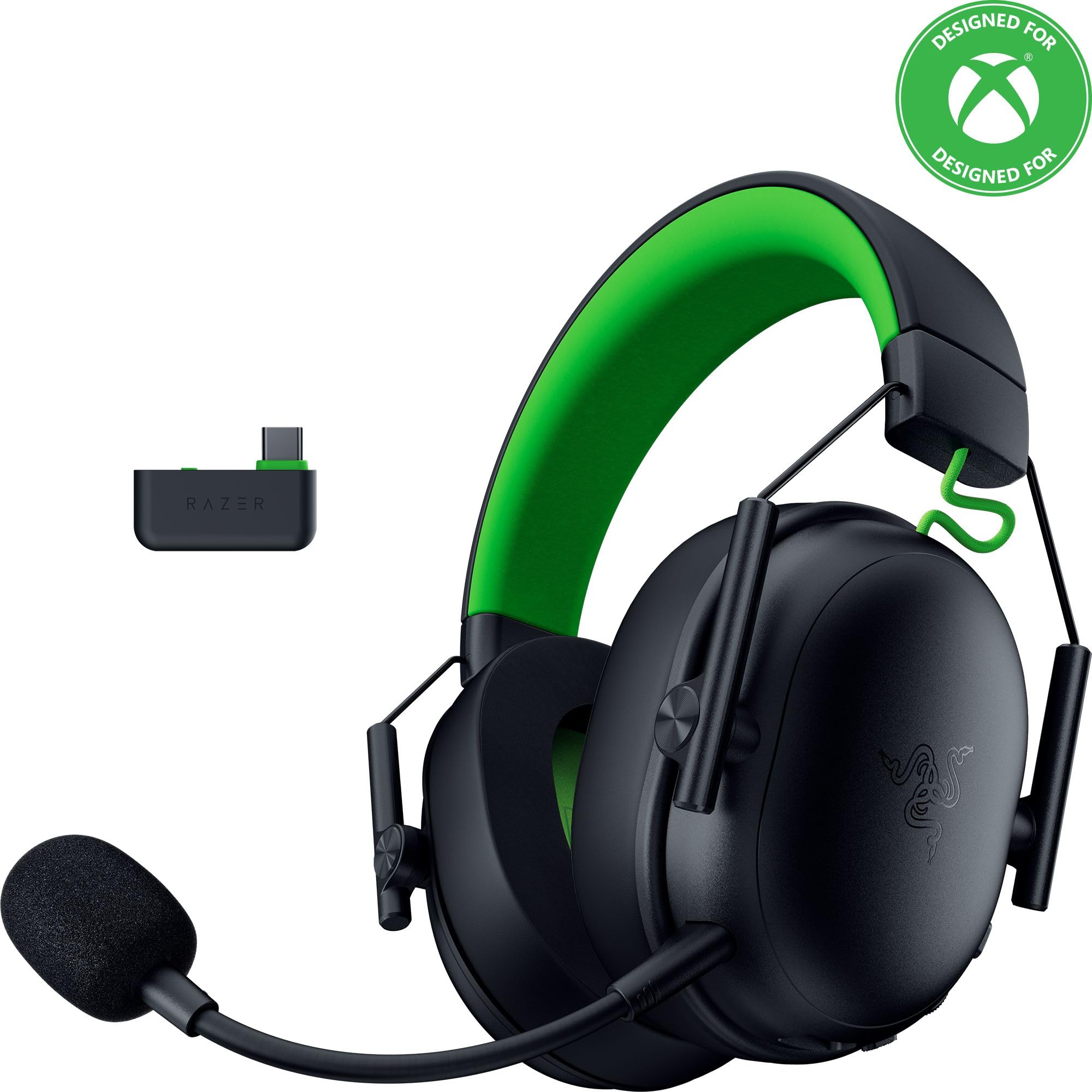
Image: The Razer BlackShark V3 X HyperSpeed Wireless Gaming Headset, showcasingrazie al suo design e al microfono staccabile.
Cosa c'è nella scatola
Assicurati che tutti i seguenti componenti siano presenti nel tuo pacchetto:
- Razer BlackShark V3 X HyperSpeed Wireless Gaming Headset
- Adattatore wireless Razer HyperSpeed USB di tipo C
- Detachable Razer HyperClear Cardioid 9.9mm Mic
- USB Type A to Type C Cable (for charging and wired connection)
- USB Type A to Type C Adapter Cable
- Manuale dell'utente (questo documento)

Image: The Razer BlackShark V3 X HyperSpeed headset on a stand next to its retail packaging, illustrating the product and its box.
Impostare
1. Caricare l'auricolare
Before initial use, fully charge your headset using the provided USB Type A to Type C cable. Connect the USB-C end to the headset's charging port and the USB-A end to a powered USB port.
2. Collegamento del microfono
Insert the detachable Razer HyperClear Cardioid 9.9mm Mic into the microphone port located on the left earcup. Ensure it is securely connected.

Image: Close-up of the Razer BlackShark V3 X HyperSpeed headset showing the detachable HyperClear Cardioid microphone attached.
3. Opzioni di connettività
The headset supports three modes of connectivity: 2.4 GHz HyperSpeed Wireless, Bluetooth, and wired USB-C.
- 2.4 GHz HyperSpeed Wireless (PC, Mac, PS5, Nintendo Switch, Xbox Series X|S, Xbox One):
Insert the USB Type C Razer HyperSpeed Wireless Dongle into an available USB-C port on your device. If your device only has USB-A ports, use the provided USB Type A to Type C Adapter Cable. Ensure the switch on the dongle is set to 'USB' for PC/Mac/PS5/Switch or 'XBOX' for Xbox consoles. The headset will automatically connect. - Bluetooth (Smartphones, Tablets, Handheld Gaming Devices):
With the headset powered on, press and hold the power button until the LED indicator blinks blue, indicating pairing mode. On your device, search for and select "Razer BlackShark V3 X HyperSpeed" from the list of available Bluetooth devices. - USB-C cablato:
Connect the headset directly to your device using the USB Type A to Type C Cable. This mode provides audio and microphone functionality without relying on battery power.

Image: The Razer BlackShark V3 X HyperSpeed headset alongside its USB-C wireless dongle, illustrating the wireless connectivity component.

Image: A visual representation of the headset's three connectivity modes: 2.4 GHz Wireless, Bluetooth, and USB, highlighting its versatility.
Utilizzo dell'auricolare
1. Controlliview
Le cuffie sono dotate di comandi intuitivi posizionati sui padiglioni auricolari:
- Pulsante di accensione: Press and hold to power on/off. Single press to switch between 2.4 GHz HyperSpeed Wireless and Bluetooth modes.
- Pulsante di disattivazione del microfono: Premere per disattivare o riattivare il microfono.
- Ruota del volume: Regola il volume audio complessivo.
- Rotella di monitoraggio del microfono: Adjusts the volume of your own voice heard through the headset (sidetone).

Immagine: Lato view of the Razer BlackShark V3 X HyperSpeed headset, highlighting the location of the power button, volume wheel, and mic mute button.
2. Audio Quality and Features
- Razer TriForce 50mm Drivers Gen-2: Experience powerful, clear audio with enhanced positional accuracy for competitive gaming.
- Razer HyperClear Cardioid 9.9mm Mic: The detachable microphone features a unidirectional pickup pattern to focus on your voice and minimize background noise.
- Suono surround: Enjoy immersive surround sound with Windows Sonic on Xbox and 7.1 Surround Sound on PC for precise audio cues.

Immagine: Un esploso view of the Razer TriForce 50mm Drivers Gen-2, illustrating their internal components for powerful and clear audio.

Image: The Razer BlackShark V3 X HyperSpeed headset surrounded by sound waves, representing its advanced surround sound capabilities for Xbox and PC.
3. Comfort e design
Weighing just 270g, the headset is designed for extended gaming sessions with plush memory foam cushions and a fatigue-free design.

Image: The Razer BlackShark V3 X HyperSpeed headset with an icon representing its ultra-lightweight design, emphasizing comfort for long gaming sessions.
4. Video ufficiale del prodotto
Video: An official product video from Razer showcasing the BlackShark V3 headset line, highlighting its features and design for esports performance.
Manutenzione
1. Pulizia
- Per pulire le superfici delle cuffie, utilizzare un panno morbido e asciutto.
- Per i padiglioni auricolari, pulire delicatamente con un panno.amp panno e sapone neutro se necessario, quindi asciugare accuratamente. Evitare l'eccessiva umidità.
- Non utilizzare prodotti chimici aggressivi o materiali abrasivi.
2. Conservazione
- Conservare le cuffie in un luogo fresco e asciutto, lontano dalla luce solare diretta e da temperature estreme.
- When not in use, consider placing it on a headset stand to maintain its shape and prevent damage.
Risoluzione dei problemi
Nessun audio/scarsa qualità audio
- Controlla il volume: Ensure the volume wheel on the headset is turned up.
- Connettività: Verify the headset is correctly connected via 2.4 GHz dongle, Bluetooth, or USB-C. For 2.4 GHz, ensure the dongle switch is set to the correct platform (USB/XBOX).
- Impostazioni del dispositivo: Confirm the headset is selected as the default audio output device in your computer's or console's sound settings.
- Riparazione: For wireless connections, try re-pairing the headset with your device.
Il microfono non funziona
- Controlla Muto: Ensure the mic mute button on the headset is not activated.
- Mic Connection: Verify the detachable microphone is securely inserted into the port.
- Impostazioni del dispositivo: Confirm the headset microphone is selected as the default input device in your computer's or console's sound settings.
- Monitoraggio del microfono: Adjust the mic monitoring wheel to hear your own voice, confirming mic functionality.
Problemi di connettività
- Interferenza: Allontanarsi da altri dispositivi wireless che potrebbero causare interferenze.
- Allineare: Ensure you are within the effective range of the wireless dongle or Bluetooth connection.
- Dongle Switch: Double-check that the switch on the USB-C dongle is set to the correct position (USB for PC/Mac/PS5/Switch, XBOX for Xbox).
Durata della batteria inferiore al previsto
- Ricarica: Assicurarsi che l'auricolare sia completamente carico prima dell'uso.
- Utilizzo: High volume levels or continuous use of certain features can reduce battery life.
Specifiche
| Nome del modello | BlackShark V3 X HyperSpeed |
| Numero di modello | RZ04-05420200-R3U1 |
| Tecnologia di connettività | Bluetooth, USB, 2.4 GHz Wireless |
| Tipo di driver audio | Dynamic Driver (Razer TriForce 50mm Drivers Gen-2) |
| Risposta in frequenza | 12 Hz - 28 KHz |
| Sensibilità | 106 dB |
| Microfono | Detachable Razer HyperClear Cardioid 9.9mm Mic |
| Controllo del rumore | Isolamento acustico |
| Dispositivi compatibili | Xbox Series X|S, Xbox One, PS5, PS4, PC, Mac, Nintendo Switch, Smartphones, Tablets |
| Peso dell'articolo | 270 grams (without mic) |
| Batterie | 1 batteria agli ioni di litio (inclusa) |
| Versione Bluetooth | 5.3 |
Garanzia e supporto
Per informazioni sulla garanzia, supporto tecnico o ulteriore assistenza, visitare il supporto ufficiale Razer websito. Conservare la prova d'acquisto per eventuali reclami in garanzia.
Supporto online: www.razer.com/support


