Introduzione
This manual provides detailed instructions for the VEILZOR Ergonomic Backlit Keyboard, Model KG812D. This keyboard is designed to enhance typing comfort and efficiency with its wave-shaped key layout and integrated wrist rest. It features customizable backlighting and broad compatibility with various operating systems.

Figura 1: Oltreview of the VEILZOR Ergonomic Backlit Keyboard, showcasing its wave-shaped design, integrated wrist rest, and vibrant RGB backlighting.
Caratteristiche del prodotto
- Design ergonomico a onda: Features a wave-shaped key layout that aligns with natural hand positions, reducing strain during extended use. UV-coated keycaps enhance durability.
- Poggiapolsi integrato: A comfortable leather wrist rest provides essential support, minimizing wrist fatigue.
- Retroilluminazione RGB personalizzabile: Offers 7 distinct colors and 4 brightness levels, allowing users to personalize their typing environment.
- Supporto per dispositivo integrato: A convenient groove accommodates phones, tablets, or other devices, aiding in multitasking.
- Wired USB-A Connection: Ensures a stable and lag-free connection with a 5.2 ft braided cable, eliminating battery concerns.
- Multifunctional Keys & Dual System Compatibility: Supports FN key combinations and multimedia shortcuts. Seamlessly switches between Windows and Mac operating systems.

Figure 2: The keyboard's wave ergonomic design, shown with a tablet positioned in the integrated holder, illustrating how it keeps fingers comfortable and natural.

Figura 3: dettagliata view of the wrist rest construction, highlighting its comfort leather surface, high-density foam support, and strong plastic base, designed to relieve pressure on the wrist.
Impostare
- Disimballare la tastiera: Estrarre con cautela la tastiera dalla confezione.
- Connessione al computer: Locate the USB-A connector at the end of the keyboard's braided cable. Insert the USB-A connector into an available USB port on your computer (PC or Mac).
- Riconoscimento del sistema: La tastiera è plug-and-play e dovrebbe essere riconosciuta automaticamente dal sistema operativo. In genere non sono necessari driver aggiuntivi.
- Initial Backlight Check: Upon connection, the backlight should illuminate. If not, refer to the "Operating Instructions" section for backlight control.

Figure 4: The keyboard's dimensions and its 5.2ft USB wired connection, illustrating its compact yet full-sized design for easy setup.
Istruzioni per l'uso
Controllo della retroilluminazione
- Attiva/disattiva la retroilluminazione: Premere FN + Canc per accendere o spegnere la retroilluminazione.
- Cambia modalità di retroilluminazione: Premere FN + M1/M2/M3 to cycle through the 3 available light modes:
- M1: RGB Rainbow Wave Effect
- M2: Solid Color Static Backlit
- M3: Cycle Ripple Backlit
- Regola luminosità: Premere FN + per aumentare la luminosità o FN + to decrease brightness. There are 4 levels of lighting.

Figure 5: Visual guide to backlight control, showing key combinations for turning the backlight on/off, changing modes, and adjusting brightness levels.

Figure 6: Illustration of the three distinct light modes: RGB Rainbow Wave Effect (M1), Solid Color Static Backlit (M2), and Cycle Ripple Backlit (M3).
Commutazione del doppio sistema
The keyboard supports seamless switching between Windows and Mac operating systems.
- Switch to Windows System: Premere FN + LA.
- Switch to Mac System: Premere FN+S.
- Nota: Pressing the Win key opens the Start menu on Windows systems; the opposite is true for Mac systems.
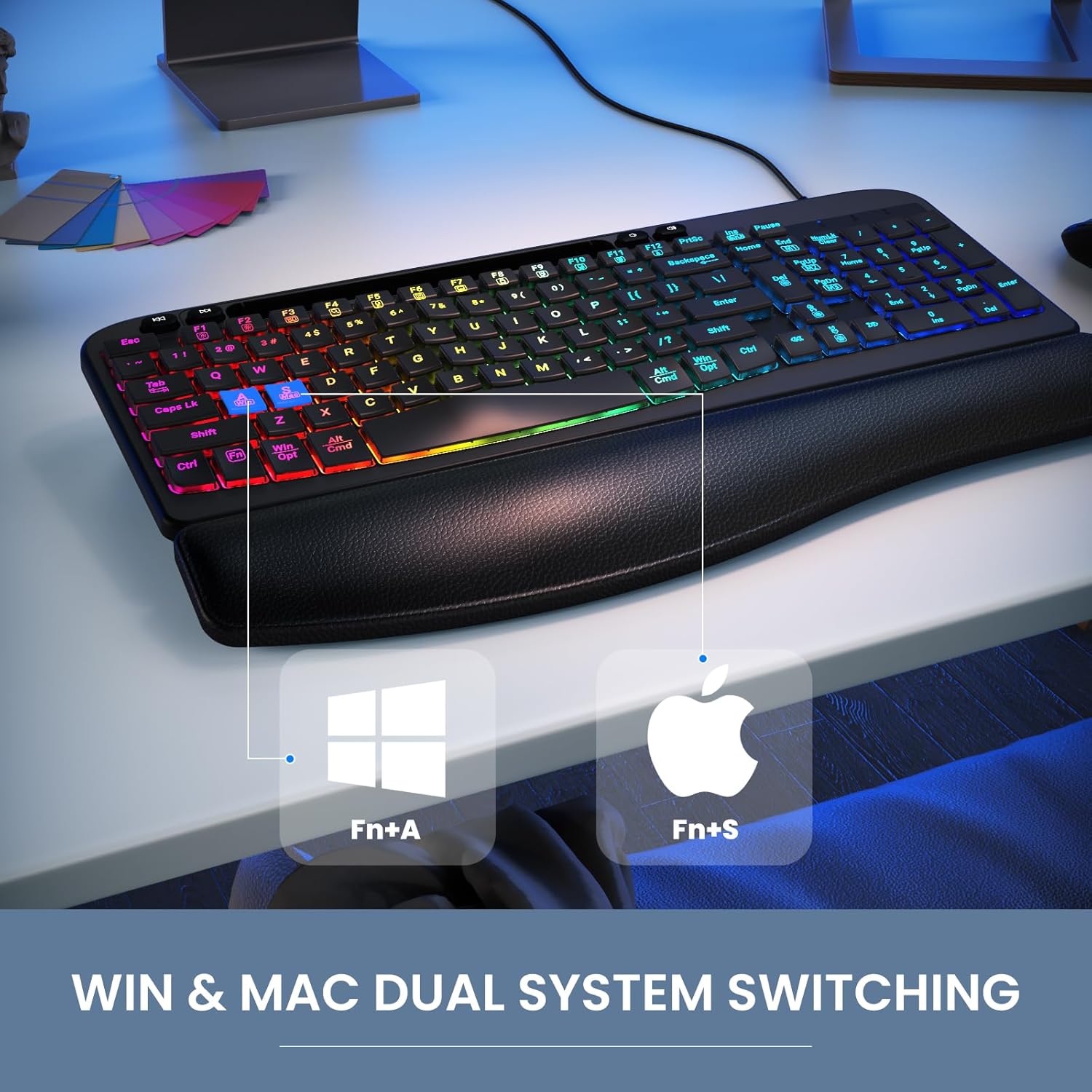
Figure 7: The keyboard's capability for dual system switching between Windows and Mac, activated by specific FN key combinations.
Tasti multimediali e funzione
The keyboard includes 4 independent multimedia keys and 12 FN combination keys for enhanced functionality. Refer to the table below for common multimedia functions:
| Funzione | Windows Key Combination | Mac Key Combination |
|---|---|---|
| Diminuzione della luminosità dello schermo | Tasto F1 | Tasto F1 |
| Aumento della luminosità dello schermo | Tasto F2 | Tasto F2 |
| Converti finestra | Tasto F3 | Tasto F3 |
| Cerca | Tasto F4 | Tasto F4 |
| Microfono | Tasto F5 | FN + F5 (Exhale Siri) |
| Chiudi programma | Tasto F6 | FN + F6 (Exit program) |
| Il mio computer | Tasto F7 | Tasto F7 |
| Schermata di blocco | Tasto F8 | FN + F8 (Lock screen) |
| Seleziona tutto | Tasto F9 | FN + F9 (Select All) |
| Copia | Tasto F10 | FN + F10 (Copy) |
| Impasto | Tasto F11 | FN + F11 (Paste) |
| Condividere | Tasto F12 | FN + F12 (Share) |

Figure 8: A diagram highlighting the 4 independent multimedia keys, 12 FN combination keys, and 4 navigation keys for various functions.
Utilizzo del supporto del dispositivo
The keyboard features a built-in groove at the top to securely hold your smartphone or tablet, allowing for convenient viewmultitasking.

Figura 9: primo piano view of the integrated phone/tablet holder, indicating its dimensions (7.28 in x 0.59 in) and the presence of 2 foldable stands and 6 non-slip rubber pads for stability.
Manutenzione
To ensure the longevity and optimal performance of your VEILZOR keyboard, follow these maintenance guidelines:
- Pulizia regolare: Utilizzare un panno morbido e privo di lanugine leggermente dampened with water or a mild cleaning solution to wipe down the keycaps and surfaces. Avoid harsh chemicals or abrasive materials.
- Rimozione della polvere: Utilizzare aria compressa per rimuovere polvere e detriti dagli spazi tra i tasti.
- Cura del poggiapolsi: The leather wrist rest can be wiped clean with a damp cloth. Avoid prolonged exposure to direct sunlight or extreme temperatures.
- Gestione dei cavi: Per evitare danni, evitare di piegare bruscamente o tirare eccessivamente il cavo USB.
- Magazzinaggio: Quando non viene utilizzata per lunghi periodi, conservare la tastiera in un ambiente pulito e asciutto, lontano dalla luce solare diretta.
Risoluzione dei problemi
If you encounter any issues with your keyboard, please refer to the common problems and solutions below:
- La retroilluminazione non funziona:
Please check whether the light switch is turned on. Press FN + Canc keys to turn on the backlight switch. If the backlight is too dim, press Tasto funzione + ↑/↓ keys to adjust the brightness of the light.
- Number Keys on Right Side Not Working:
Please try pressing the Blocco numerico key (alphabetic lock key) to activate the number pad.
- Keyboard Not Recognized by Computer:
Ensure the USB cable is securely plugged into both the keyboard and the computer. Try plugging the keyboard into a different USB port. Restart your computer.
- Keys Not Responding or Sticky:
Clean the keyboard thoroughly, especially around the affected keys, to remove any debris or spills. Avoid eating or drinking directly over the keyboard.
If you encounter other problems and cannot solve them, please contact our customer service. We will provide assistance and do our best to reply within 24 hours.
Specifiche
| Caratteristica | Dettaglio |
|---|---|
| Marca | VELO |
| Modello | KG812D |
| Tecnologia di connettività | USB-A cablata |
| Dispositivi compatibili | Laptop, PC (Windows & Mac) |
| Descrizione della tastiera | Multifunzionale |
| Caratteristiche speciali | Backlit, Ergonomic, Hotkeys and Media Keys, Wave Keys Design, Wrist Rest |
| Colore | Nero |
| Numero di chiavi | 107 |
| Supporto del colore della retroilluminazione della tastiera | RGB (7 colori) |
| Peso dell'articolo | 2.33 libbre |
| Dimensioni del pacco | 17.28 x 10.87 x 1.61 pollici |
Garanzia e supporto
VEILZOR offers a one-year unconditional return and exchange policy for this product. Additionally, you will receive servizio post-vendita a vita.
Per qualsiasi domanda, supporto tecnico o richiesta di garanzia, contatta il nostro servizio clienti:
- E-mail: veilzorcustomer@gmail.com
We are committed to providing prompt assistance and will do our best to reply within 24 hours.