1. Introduzione
This manual provides comprehensive instructions for the setup, operation, maintenance, and troubleshooting of your vretti D467B Bluetooth Thermal Shipping Label Printer. This high-performance thermal printer is designed for efficient label printing for various applications, including shipping, address, and barcode labels, supporting both USB and Bluetooth connectivity.

Figure 1: vretti D467B Printer and accessories. A sample label with barcode 4206047823456789012345678901 viene mostrato.
2. Impostazione
2.1 Disimballaggio e contenuto
Rimuovere con cautela tutti i componenti dall'imballaggio. Assicurarsi che siano presenti i seguenti elementi:
- vretti D467B Thermal Label Printer
- Adattatore di alimentazione
- Cavo USB
- USB Flash Drive (containing drivers and software)
- Label Spindle and Holders
- Guida rapida
2.2 Collegamento della stampante
- Collegare l'adattatore di alimentazione alla porta di alimentazione della stampante e quindi a una presa elettrica.
- For USB connection: Connect the USB cable from the printer to your computer.
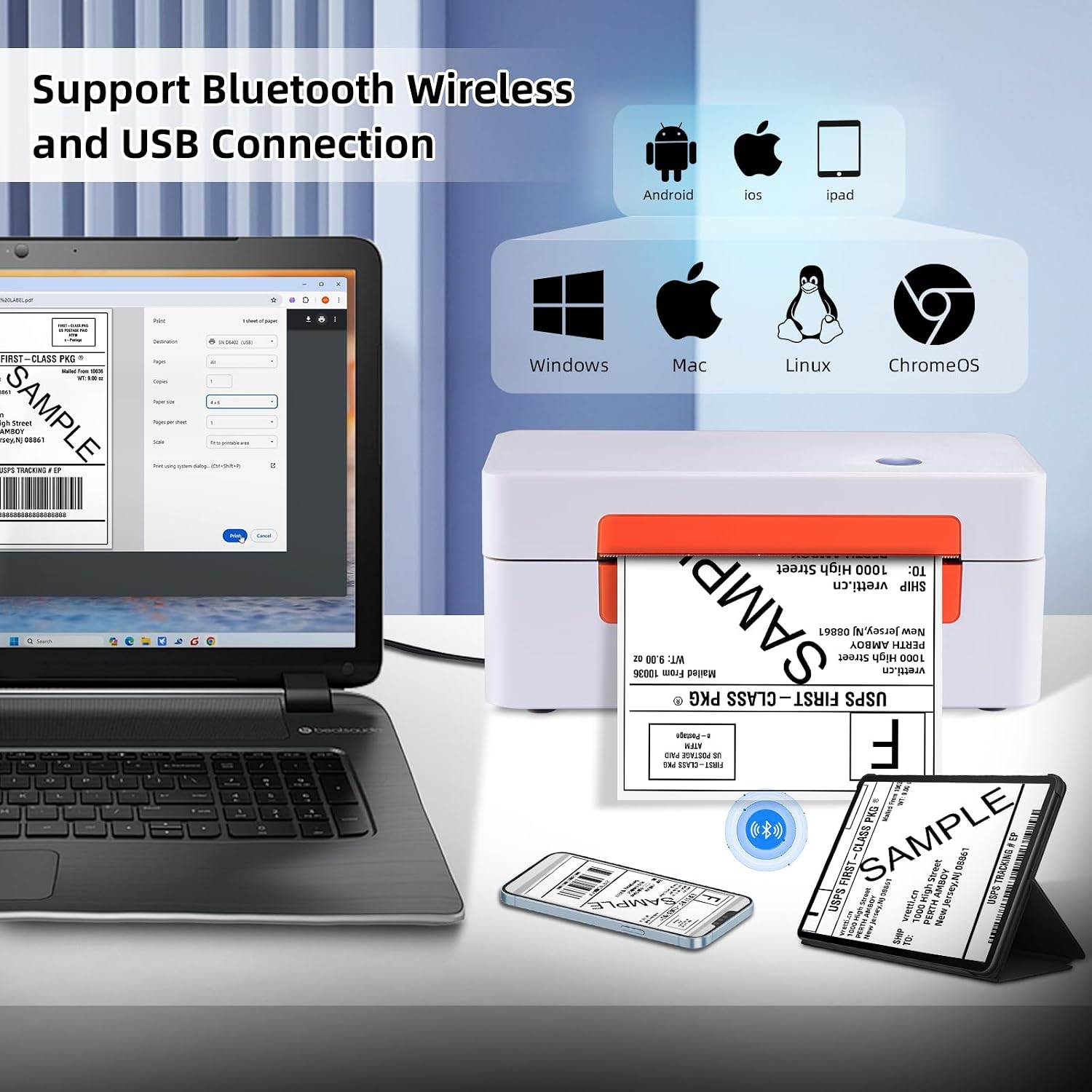
Figure 2: Printer connectivity options (USB and Bluetooth).
2.3 Caricamento delle etichette
- Aprire il coperchio della stampante.
- Place the label roll onto the label spindle and secure it with the holders.
- Feed the labels through the guide until the leading edge is slightly past the print head.
- Chiudere il coperchio della stampante.
- Premere una volta il pulsante di avanzamento per consentire alla stampante di rilevare e calibrare automaticamente le dimensioni dell'etichetta.

Figure 3: Label loading and supported label sizes. A nutrition facts label with barcode 0403685400125 viene mostrato.
2.4 Driver Installation and Software
The printer supports Windows, macOS, Chrome OS, and Linux systems via USB, and Android/iOS via Bluetooth using the "Ezlabel" app.
- Per la connessione USB: Insert the provided USB flash drive into your computer. Follow the instructions to install the appropriate drivers for your operating system. For Chrome OS users, an extension may need to be installed from the USB flash drive.
- Per la connessione Bluetooth: Download the "Ezlabel" app from your device's app store (available for Android and iOS).
3. Funzionamento
3.1 Passaggi di stampa di base
- Ensure the printer is powered on and labels are loaded correctly.
- For USB Printing:
- Apri il documento o l'etichetta file sul tuo computer.
- Select the vretti D467B printer from your print options.
- Regolare le impostazioni di stampa (ad esempio, dimensione dell'etichetta, orientamento) secondo necessità.
- Avviare la stampa.
- For Bluetooth Printing (via Ezlabel App):
- Open the "Ezlabel" app on your Android or iOS device.
- Pair your device with the printer via Bluetooth.
- Import or create your label design within the app.
- Customize and preview l'etichetta.
- Invia il lavoro di stampa alla stampante.

Figure 4: High-speed and high-resolution printing capabilities.
3.2 Compatibilità della piattaforma
The vretti D467B printer is compatible with various e-commerce and shipping platforms, including but not limited to:
- Amazzone
- E-Bay
- Negozio
- Etsy
- Servizio postale degli Stati Uniti
- UPS
- Fedex
- Corriere espresso
- Negozio di abbigliamento
- Stamps.com
- Stazione di spedizione
- Lavori navali
- Nave
- Posta facile
- Endicia
- Desiderio
- AliExpress
- Nave XPS

Figura 5: Piattaforme di e-commerce e spedizione compatibili.
3.3 Tipi di etichette supportati
The printer supports a wide range of thermal label types, including:
- Shipping Labels (e.g., 4x6 inches)
- Etichette per indirizzi
- Etichette con codice a barre
- Etichette dei prodotti
- Etichette fai da te
- Business Logos

Figura 6: Esamples of supported label applications.
4. Manutenzione
4.1 Pulizia della testina di stampa
To ensure optimal print quality, regularly clean the print head. Use an alcohol swab or a specialized print head cleaning pen. Power off the printer and allow the print head to cool before cleaning. Gently wipe the print head surface to remove any dust or adhesive residue.
4.2 Cura generale
- Conservare la stampante in un ambiente pulito e privo di polvere.
- Evitare di esporre la stampante alla luce solare diretta o a temperature estreme.
- Utilizzare solo etichette termiche di alta qualità per evitare danni alla testina di stampa.
- Non utilizzare detergenti abrasivi o solventi sulla parte esterna della stampante.
5. Risoluzione Dei Problemi
This section addresses common issues you might encounter with your vretti D467B printer.
5.1 La stampante non risponde
- Assicurarsi che il cavo di alimentazione sia collegato saldamente e che la stampante sia accesa.
- Verificare che il cavo USB sia collegato correttamente sia alla stampante che al computer.
- For Bluetooth, ensure the printer is paired with your device and the "Ezlabel" app is open.
- Riavviare la stampante e il computer/dispositivo mobile.
5.2 Scarsa qualità di stampa
- Check if the thermal labels are loaded correctly and are facing the right direction.
- Pulire la testina di stampa come descritto nella sezione Manutenzione.
- Assicuratevi di utilizzare etichette termiche di alta qualità.
- Adjust print density settings in your printer preferences or the "Ezlabel" app.
5.3 Le etichette non vengono alimentate correttamente
- Ensure labels are properly aligned within the guides.
- Perform a label calibration by pressing the feed button.
- Controllare che non vi siano ostruzioni nel percorso dell'etichetta.
5.4 Problemi di connettività
- USB: Reinstall the printer drivers from the provided USB flash drive. Try a different USB port or cable.
- Bluetooth: Ensure Bluetooth is enabled on your device. Forget the printer from your device's Bluetooth settings and re-pair it through the "Ezlabel" app. Ensure the printer is within range.
6. Specifiche
| Caratteristica | Dettaglio |
|---|---|
| Modello | D467B |
| Tecnologia di stampa | Termico |
| Connettività | Bluetooth, USB |
| Risoluzione di stampa | 203 DPI |
| Max Velocità di stampa | 152 mm/s (72 labels/minute for 4x6) |
| Larghezza etichetta supportata | 1 inch to 4.5 inches (25.4mm to 115mm) |
| Formati dei supporti supportati | 4x6 inches (standard shipping labels) and other custom sizes |
| Uscita della stampante | Monocromo |
| Dimensioni del prodotto | 7.6 x 3.9 x 3.9 pollici |
| Peso dell'articolo | 2.89 libbre |
| Metodo di controllo | Applicazione, USB |
| Codice UPC | 692878863544 |
7. Supporto e garanzia
7.1 Supporto tecnico
For any technical assistance or inquiries, vretti offers comprehensive support through various channels:
- Supporto tecnico remoto: Available for complex issues.
- Supporto via e-mail: Contact via email for detailed queries.
- Messaggistica istantanea: Support available via WhatsApp.
- Online Q&A: Check the product's Q&A section for common questions and answers.
Please refer to the contact information provided with your product packaging or on the official vretti websito per i dettagli di supporto più aggiornati.
7.2 Garanzia del prodotto
Information regarding the product warranty is typically provided with your purchase documentation or can be obtained from the retailer where the printer was purchased. Please retain your proof of purchase for warranty claims.


