1. Introduzione
Thank you for choosing the NOVOO 11-in-1 USB-C Docking Station. This device is designed to expand the connectivity of your USB-C enabled laptop, providing multiple ports for display, data transfer, networking, and power delivery. Please read this manual carefully to ensure proper setup and operation.

Image 1.1: The NOVOO 11-in-1 USB-C Docking Station with connected peripherals.
2. Prodotto finitoview
The NOVOO 11-in-1 USB-C Docking Station provides a comprehensive solution for expanding your laptop's connectivity. It features the following ports:
- 2 porte HDMI: For connecting external displays (HDMI 1: up to 4K@30Hz, HDMI 2: up to 4K@60Hz).
- 1 porta VGA: For connecting external displays (up to 1080P@60Hz).
- 1 porta Gigabit Ethernet (RJ45): For stable wired network connection (up to 1Gbps).
- 2 porte USB-A 3.0: Per il trasferimento dati ad alta velocità (fino a 5 Gbps).
- 2 porte USB-A 2.0: For connecting peripherals like keyboards and mice (up to 480Mbps).
- 1 x USB-C PD Port: For power delivery to your laptop (up to 100W).
- 1 lettore di schede SD: For accessing SD memory cards.
- 1 x TF (Micro SD) Card Reader: For accessing Micro SD memory cards.

Image 2.1: Labeled diagram of the 11-in-1 docking station ports.
3. Istruzioni per l'installazione
Follow these steps to set up your NOVOO 11-in-1 USB-C Docking Station:
- Verifica la compatibilità del laptop: Ensure your laptop's USB-C port supports video output (DisplayPort Alternate Mode) and power delivery. Refer to your laptop's manual or the port symbols shown below. Ports that only support charging or data transfer will not enable full docking station functionality.
- Connetti al laptop: Collega il cavo USB-C integrato dalla docking station a una porta USB-C compatibile del tuo laptop.
- Collegare l'adattatore di alimentazione (facoltativo ma consigliato): For optimal performance, especially when using multiple peripherals or monitors, connect a 100W or higher-rated USB-C power adapter (not included) to the docking station's USB-C PD port. This ensures stable power delivery to your laptop and connected devices.
- Collegare schermi esterni: Connect your monitors to the HDMI and/or VGA ports on the docking station using appropriate cables.
- Connetti le periferiche: Plug in your USB devices (keyboard, mouse, external drives, etc.) into the USB-A 3.0 and USB-A 2.0 ports. Insert SD or TF cards into their respective slots if needed.
- Collegare il cavo Ethernet: Per una connessione di rete cablata, collegare un cavo Ethernet alla porta RJ45 della docking station.

Image 3.1: USB-C port symbol guide for compatibility check.

Immagine 3.2: Es.ample setup of the docking station with a laptop and multiple displays.
4. Istruzioni per l'uso
4.1 Modalità di visualizzazione
La docking station supporta diverse configurazioni di visualizzazione a seconda del sistema operativo.
Sistema operativo Windows:
- Modalità specchio: Visualizza lo stesso contenuto su tutti gli schermi collegati (laptop e monitor esterni).
- Modalità estesa: Estendi il desktop su più schermi, consentendoti di avere più spazio di lavoro.
- MST (Multi-Stream Transport) Mode: Allows for independent display output to multiple external monitors. This mode supports extending to up to 3 displays simultaneously, provided your laptop's USB-C port supports DP1.4 or Thunderbolt 3/4.
Resolution Support for Windows:
- Single Display: HDMI 1 (4K@30Hz), HDMI 2 (4K@60Hz), VGA (1920x1080@60Hz).
- Dual Display: Up to 4K@30Hz (HDMI 1) + 1080P@60Hz (HDMI 2 or VGA). May vary to dual 1080P@60Hz depending on monitor capabilities.
- Triple Display: Up to 1920x1080@60Hz on all three external displays (HDMI 1, HDMI 2, VGA). Requires DP1.4 or Thunderbolt 3/4.

Image 4.1: Single Display Configurations (Windows/Mac OS).

Image 4.2: Windows Dual Display Configurations.

Image 4.3: Windows Triple Display Configurations.
Mac OS:
Due to macOS system limitations, only screen mirroring is supported for multiple external displays. MST (Multi-Stream Transport) is not supported by macOS, resulting in identical images displayed on external monitors.
Resolution Support for macOS:
- Mirror & Extend Mode: Supports 4K@30Hz.
- Dual Display: Up to 4K@30Hz (HDMI 1) + 4K@30Hz (HDMI 2) or 1920x1080@60Hz (HDMI 1/2) + 1920x1080@60Hz (VGA).
- Triple Display: Up to 1920x1080@60Hz on all three external displays (HDMI 1, HDMI 2, VGA) in mirror or extend mode (extended desktop on all external monitors will show the same content).

Image 4.4: Mac OS Dual Display Configurations.

Image 4.5: Mac OS Triple Display Configurations.
4.2 Trasferimento dati
Utilize the USB-A ports and card readers for efficient data management:
- USB-A 3.0: Connect external hard drives, USB flash drives, or other high-speed devices for data transfer up to 5Gbps.
- USB-A 2.0: Ideale per collegare periferiche standard come tastiere, mouse e stampanti.
- Lettori di schede SD/TF: Inserisci le tue schede di memoria per accedere rapidamente alle foto e files.
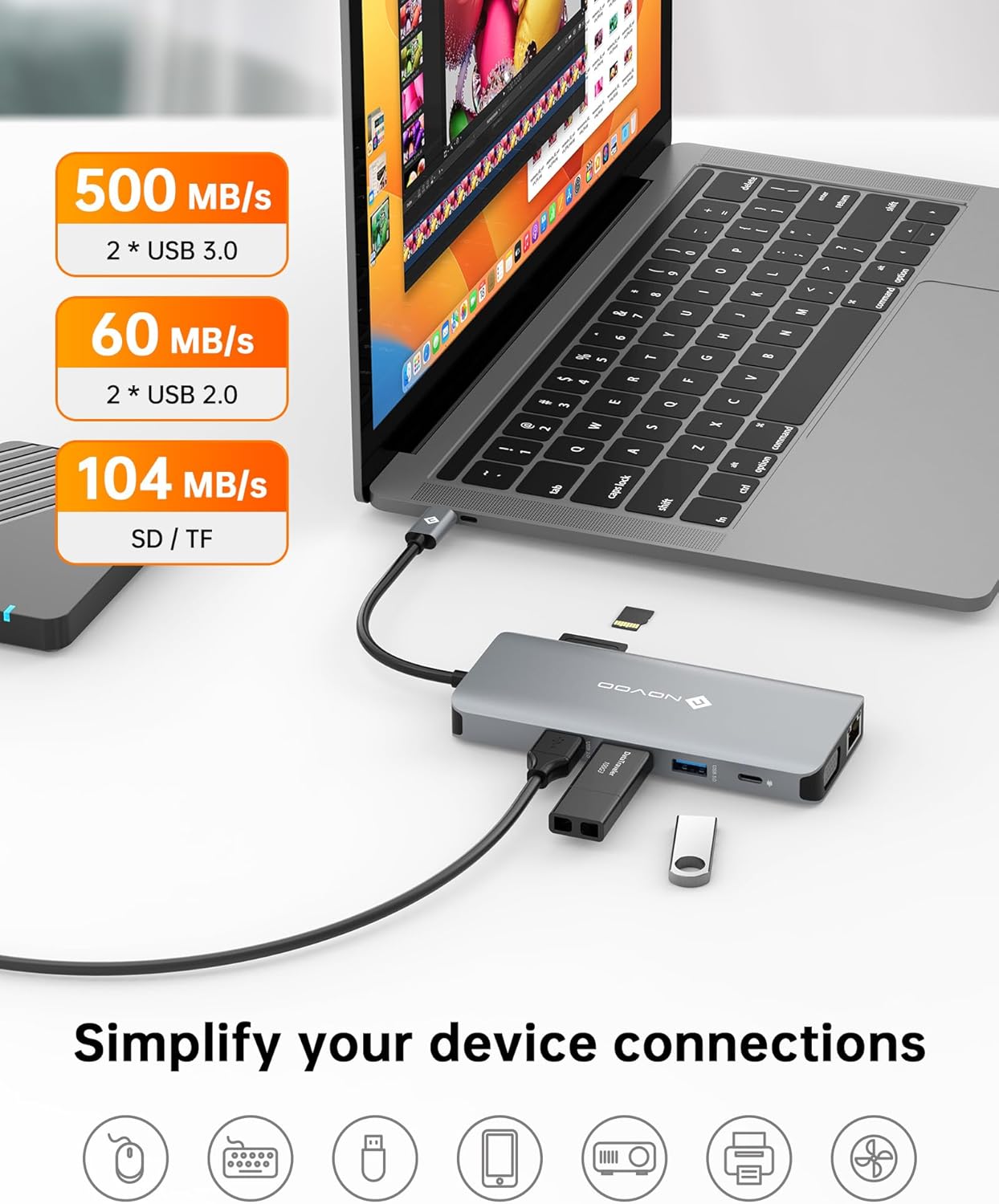
Image 4.6: Data transfer capabilities with USB 3.0, USB 2.0, and SD/TF card slots.
4.3 Connettività di rete
The Gigabit Ethernet port provides a reliable and fast internet connection:
- Connect an Ethernet cable to the RJ45 port for speeds up to 1Gbps, offering a more stable connection than Wi-Fi.

Image 4.7: Gigabit Ethernet port for stable internet connection.
4.4 Erogazione di potenza
The USB-C PD port allows you to charge your laptop while using the docking station:
- Connect your laptop's original USB-C power adapter (or a compatible 100W+ USB-C PD charger) to the docking station's PD port. This will pass power through to your laptop, ensuring it remains charged during use.

Image 4.8: 100W Power Delivery feature.
5. Manutenzione
Per garantire la longevità e le prestazioni ottimali della tua docking station, segui queste linee guida per la manutenzione:
- Pulizia: Utilizzare un panno morbido e asciutto per pulire l'esterno della docking station. Evitare detergenti liquidi o materiali abrasivi.
- Magazzinaggio: Conservare la docking station in un luogo fresco e asciutto, lontano dalla luce solare diretta e da temperature estreme.
- Gestione: Evitare di far cadere o sottoporre il dispositivo a forti urti. Non tentare di smontare l'unità.
- Gestione dei cavi: Assicurarsi che i cavi non siano eccessivamente piegati o tesi, poiché ciò potrebbe danneggiarli nel tempo.
6. Risoluzione Dei Problemi
Se riscontri problemi con la docking station, fai riferimento ai seguenti problemi comuni e alle relative soluzioni:
| Problema | Possibile causa | Soluzione |
|---|---|---|
| No display output on external monitor(s). |
|
|
| External monitors are mirroring instead of extending (macOS). | macOS limitation. | This is expected behavior for macOS when connecting multiple external displays via a single MST-enabled hub. macOS does not support MST for extended displays. |
| Bassa velocità di trasferimento dati. | Dispositivo collegato alla porta USB 2.0 anziché alla porta USB 3.0. | Ensure high-speed devices are connected to the blue USB-A 3.0 ports. |
| Il portatile non si carica o si carica lentamente. |
|
|
| Problemi di connessione Ethernet. |
|
|
7. Specifiche
| Caratteristica | Dettaglio |
|---|---|
| Numero di modello | NHM11D-111S2 |
| Dimensioni del prodotto | 2.2 x 0.6 x 5.1 pollici |
| Peso dell'articolo | 3.84 once |
| Colore | Grigio argento |
| Interfaccia Hardware | USB tipo C |
| Uscita HDMI 1 | Fino a 4K@30Hz |
| Uscita HDMI 2 | Fino a 4K@60Hz |
| uscita VGA | Fino a 1080P@60Hz |
| Trasferimento dati USB-A 3.0 | Fino a 5 Gbps |
| Trasferimento dati USB-A 2.0 | Fino a 480 Mbps |
| Velocità Ethernet | 10/100/1000 Mbps (Gigabit) |
| Ingresso USB-C PD | Fino a 100W |
| Lettore di schede | SD/TF (Micro SD) |
| Dispositivi compatibili | Laptops with full-function USB-C ports (DisplayPort Alt Mode, Power Delivery) |
| Produttore | NOVOOO |
8. Garanzia e supporto
NOVOO provides a Servizio post-vendita di 2 anni for this product. If you encounter any issues or require assistance, please contact NOVOO customer support. We are committed to ensuring customer satisfaction.
Per assistenza, fare riferimento alle informazioni di contatto fornite con la confezione del prodotto o visitare il sito ufficiale NOVOO websito.


