SSK SST-DS14

Manuale di istruzioni della docking station per laptop USB C 14 in 1 SSK (modello: SST-DS14)

Comprehensive guide for setup, operation, and troubleshooting.

1. Introduzione

This manual provides detailed instructions for the SSK 14-in-1 USB C Laptop Docking Station. Please read this manual carefully before using the product to ensure proper functionality and to maximize your experience.

The SSK 14-in-1 docking station is designed to expand the connectivity of your USB-C enabled laptop or device, offering a wide array of ports for various peripherals and display configurations.

2. Contenuto della confezione

Verifica che tutti gli articoli siano presenti nel tuo pacco:

3. Caratteristiche del prodotto

The SSK 14-in-1 USB C Laptop Docking Station offers extensive connectivity options:

SSK 14-in-1 USB C Docking Station with all ports labeled

Figura 1: Oltreview of the SSK 14-in-1 Docking Station with labeled ports. This image illustrates the various input and output ports available on the device, including HDMI, VGA, USB, Ethernet, and card reader slots.

4. Requisiti di compatibilità

For full functionality, your host device (laptop, tablet, or smartphone) must meet the following criteria:

Compatibility chart for USB-C ports

Figure 2: USB-C port compatibility guide. This diagram helps users identify if their laptop's USB-C port supports data, DisplayPort Alt Mode, and Power Delivery, which are crucial for the docking station's full functionality.

5. Istruzioni per l'installazione

  1. Connetti al dispositivo host: Plug the integrated USB-C cable from the docking station into a compatible USB-C port on your laptop or host device.
  2. Collegamento dell'alimentazione (facoltativo ma consigliato): For stable operation and laptop charging, connect a USB-C Power Delivery (PD) charger (up to 100W) to the PD 3.0 USB-C port on the docking station. (Wall charger and cable are not included.)
    Connecting power to the docking station

    Figure 3: Power Delivery connection. This image shows how to connect a USB-C power adapter to the docking station to provide power to both the dock and the connected laptop.

  3. Collegare schermi esterni:
    • Per i display HDMI, collegare i cavi HDMI dai monitor alle porte HDMI sulla docking station.
    • Per i display VGA, collegare un cavo VGA dal monitor alla porta VGA della docking station.
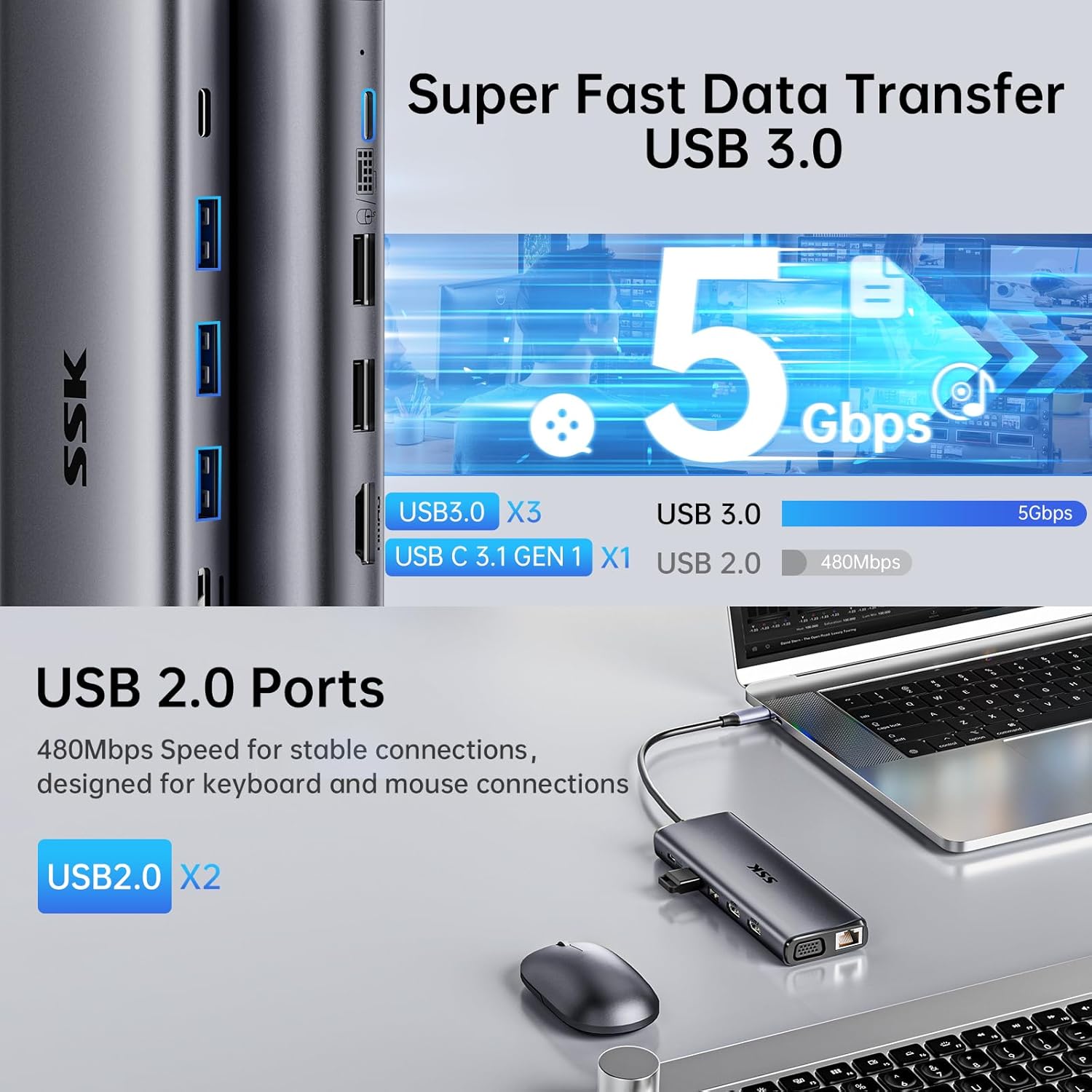
  4. Connetti le periferiche: Plug your USB devices (keyboard, mouse, external drives, etc.) into the available USB 3.0, USB 2.0, or USB C data ports.
    Connecting USB devices to the docking station

    Figure 4: USB data transfer ports. This image highlights the USB 3.0 and USB 2.0 ports, demonstrating their use for connecting various peripherals like mice, keyboards, and external storage devices.

  5. Connetti Ethernet: For a wired network connection, plug an Ethernet cable into the RJ45 port.
    Connecting Ethernet and audio to the docking station

    Figure 5: RJ45 Ethernet and 3.5mm audio port. This image shows the connection of an Ethernet cable for a stable network and headphones to the audio jack.

  6. Inserire schede SD/TF: Se necessario, inserisci le tue schede SD o TF negli slot corrispondenti.
    Inserting SD and TF cards into the docking station

    Figure 6: SD/TF card reader. This image demonstrates how to insert SD and MicroSD (TF) cards into the dedicated slots for data transfer.

  7. Connetti audio: Plug headphones or speakers into the 3.5mm audio/mic port.

6. Istruzioni per l'uso

6.1. Modalità di visualizzazione

La docking station supporta diverse configurazioni di visualizzazione a seconda del sistema operativo:

Triple monitor display modes for Windows and Mac OS

Figure 7: Display mode configurations. This image illustrates the different display modes (Mirror and Extend) available for both Windows and Mac OS, showing how multiple monitors can be arranged.

Resolution Notes:

6.2. Configurazione dell'uscita audio

If using the 3.5mm audio port, you may need to select the correct audio output device in your operating system settings:

7. Manutenzione e cura

8. Risoluzione Dei Problemi

Q: No video output to external monitors.
A: Ensure your laptop's USB-C port supports DisplayPort Alternate Mode. Check all cable connections. Try restarting your laptop and reconnecting the docking station.
Q: Laptop is not charging.
A: Verify that your laptop's USB-C port supports Power Delivery. Ensure a compatible USB-C PD charger (up to 100W) is connected to the docking station's PD port.
Q: Ethernet connection is not working (Windows 7/XP/Linux).
A: You may need to manually install the Gigabit RJ45 Ethernet driver. Refer to the manufacturer's websito per il download dei driver.
Q: External monitors show the same content on macOS in Extend Mode.
A: This is a limitation of macOS, which does not support Multi-Stream Transport (MST). The docking station will mirror the extended display across all external monitors (A-BBB).
D: I dispositivi USB non vengono riconosciuti.
A: Ensure the docking station is properly connected to your host device. Try connecting the USB device directly to your laptop to confirm functionality. If using high-power devices, ensure the docking station is connected to a power source.

9. Specifiche tecniche

CaratteristicaDettaglio
ModelloSST-DS14
MarcaSSK
ConnettivitàUSB-C (connessione host)
Porte HDMI2 (Max 4K@60Hz single, 4K@30Hz dual)
Port VGA1 (Max 1080P@60Hz)
Porte USB 3.03 (Up to 5Gbps)
Porte USB 2.02
Porta dati USB C1 (USB C 3.1 Gen1, up to 5Gbps)
USB C PD Port1 (PD 3.0, 100W input, 85W output)
Porta EthernetRJ45 Gigabit (1000 Mbps)
Lettore di schedeSD/TF (simultaneous, up to 104MB/s)
Porta audioAudio/microfono da 3.5 mm
Dimensioni9.02 x 3.98 x 0.87 pollici
Peso7.4 once

10. Garanzia e supporto

SSK products are designed for reliability and performance. For warranty information and technical support, please refer to the official SSK websito o contattare direttamente il servizio clienti.

Conservare la prova d'acquisto per eventuali richieste di garanzia.

Documenti correlati - SST-DS14

Preview Manuale del prodotto dell'adattatore All-in-One di tipo C SSK SC211
Manuale utente completo per l'adattatore All-in-One SSK SC211 Type-C, con informazioni dettagliate su specifiche, interfacce, schemi di collegamento e domande frequenti. Questo adattatore espande la connettività per laptop e altri dispositivi Type-C.
Preview Manuale utente della docking station multifunzionale di tipo C SSK SC302
Manuale utente per la docking station multifunzione SSK SC302 Type-C. Questa guida fornisce informazioni dettagliate sulla descrizione del prodotto, schemi di collegamento, specifiche tecniche e domande frequenti. L'adattatore supporta la risoluzione 4K/60Hz tramite HDMI e la ricarica rapida Power Delivery (PD) da 100W, ed è compatibile con vari sistemi operativi, tra cui Windows, macOS, Android e Linux.
Preview Manuale utente della docking station per HDD a doppio alloggiamento SSK-DK100
Manuale utente per la docking station per hard disk a doppio alloggiamento SSK-DK100, che descrive in dettaglio le sue caratteristiche, specifiche, installazione, modalità hard disk mobile e capacità di clonazione offline.
Preview Manuale utente della docking station per HDD a doppio alloggiamento SSK DK108
Manuale utente per la docking station per HDD a doppio alloggiamento SSK DK108. Scopri le sue caratteristiche, come utilizzarla in modalità disco rigido mobile e HUB e trova soluzioni ai problemi più comuni. Supporta HDD/SSD SATA da 2.5/3.5 pollici con connettività USB 3.0.
Preview Manuale utente unità flash a stato solido portatile SSK SD300
Manuale utente per l'unità flash a stato solido portatile SSK SD300, che descrive in dettaglio le caratteristiche del prodotto, le istruzioni di connessione, la compatibilità e la risoluzione dei problemi.
Preview SSK Portable Solid State Drive SD500 User Manual
User manual for the SSK Portable Solid State Drive SD500, providing instructions on connection, usage, disconnection, and file management with various devices including Windows, Mac, iPhone, iPad, and Android.