1. Introduzione
This manual provides comprehensive instructions for the installation, configuration, and operation of your ORICO 4 Bay RAID External Hard Drive Enclosure (Model: WS400RU3). Please read this manual thoroughly before use to ensure proper functionality and data integrity.
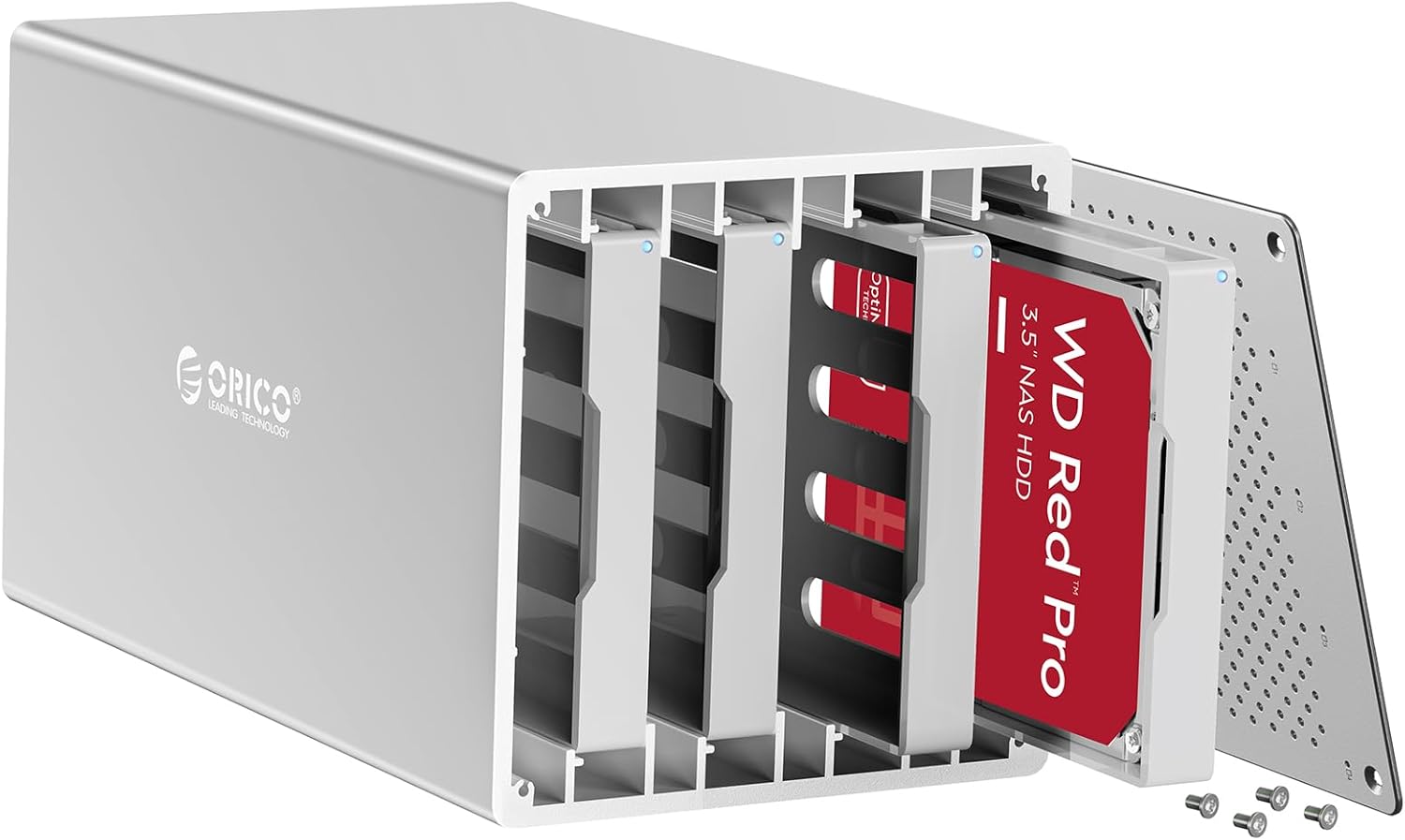
Figure 1: ORICO 4 Bay RAID External Hard Drive Enclosure
2. Prodotto finitoview
Caratteristiche principali:
- Supporto ad alta capacità: Accommodates up to four 3.5-inch SATA hard disks, with a maximum total capacity of 80TB (4x20TB).
- RAID Functionality: Supports RAID 0, RAID 1, RAID 3, RAID 5, RAID 10, JBOD, CLONE, and Normal modes for flexible data management and protection.
- Dissipazione efficiente del calore: Presenta una lega di alluminio casing, an 80mm cooling fan, and honeycomb ventilation holes for optimal thermal performance.
- Secure Drive Installation: Includes separate ABS mounting brackets for 2.5-inch/3.5-inch HDDs/SSDs, utilizing screw mounting for enhanced stability and vibration reduction.
- Trasferimento dati veloce: Equipped with USB 3.0 interface, providing data transfer rates up to 5Gbps.
- Sistema multiprotezione: Incorporates safeguards against over-voltage, over-current, overheating, short-circuits, and leakage.
- Modalità sospensione automatica: Features a 10-minute automatic sleep mode to conserve energy and extend drive lifespan.
- Ampia compatibilità: Compatible with Windows XP / Vista / 7 / 8, Mac OS X 10.2 and higher, and Linux operating systems.
Cosa c'è nella scatola:
- 1x ORICO 4 Bay RAID Hard Drive Enclosure
- 1x 1M USB 3.0 Type-A Data Cable
- 1x adattatore di alimentazione da 12 V
- 1x set di viti
- 1x Manuale utente

Figure 2: Centralized Storage Capability
3. Configurazione e installazione
3.1 Installazione del disco rigido
- Preparare il recinto: Unscrew and remove the front panel of the enclosure.
- Installare un HDD da 3.5 pollici: Slide a 3.5-inch SATA HDD into an empty drive bay. Ensure it is firmly seated. Secure the drive using the provided screws through the enclosure's side panels.
- Install 2.5-inch HDD/SSD (with bracket): Attach your 2.5-inch SATA HDD or SSD to the provided ABS mounting bracket using screws. Then, slide the bracket with the attached drive into an empty drive bay. Secure the bracket using the provided screws.
- Chiudere l'involucro: Once all drives are installed, reattach the front panel and secure it with screws.

Figure 3: DIY Hard Drive Installation
3.2 Connessione al computer
- Connect the 12V power adapter to the enclosure's power input and then to a power outlet.
- Connect the USB 3.0 data cable from the enclosure's USB 3.0 Type-B port to an available USB 3.0 Type-A port on your computer.
- Power on the enclosure using the power button. The LED indicators for each drive will illuminate.
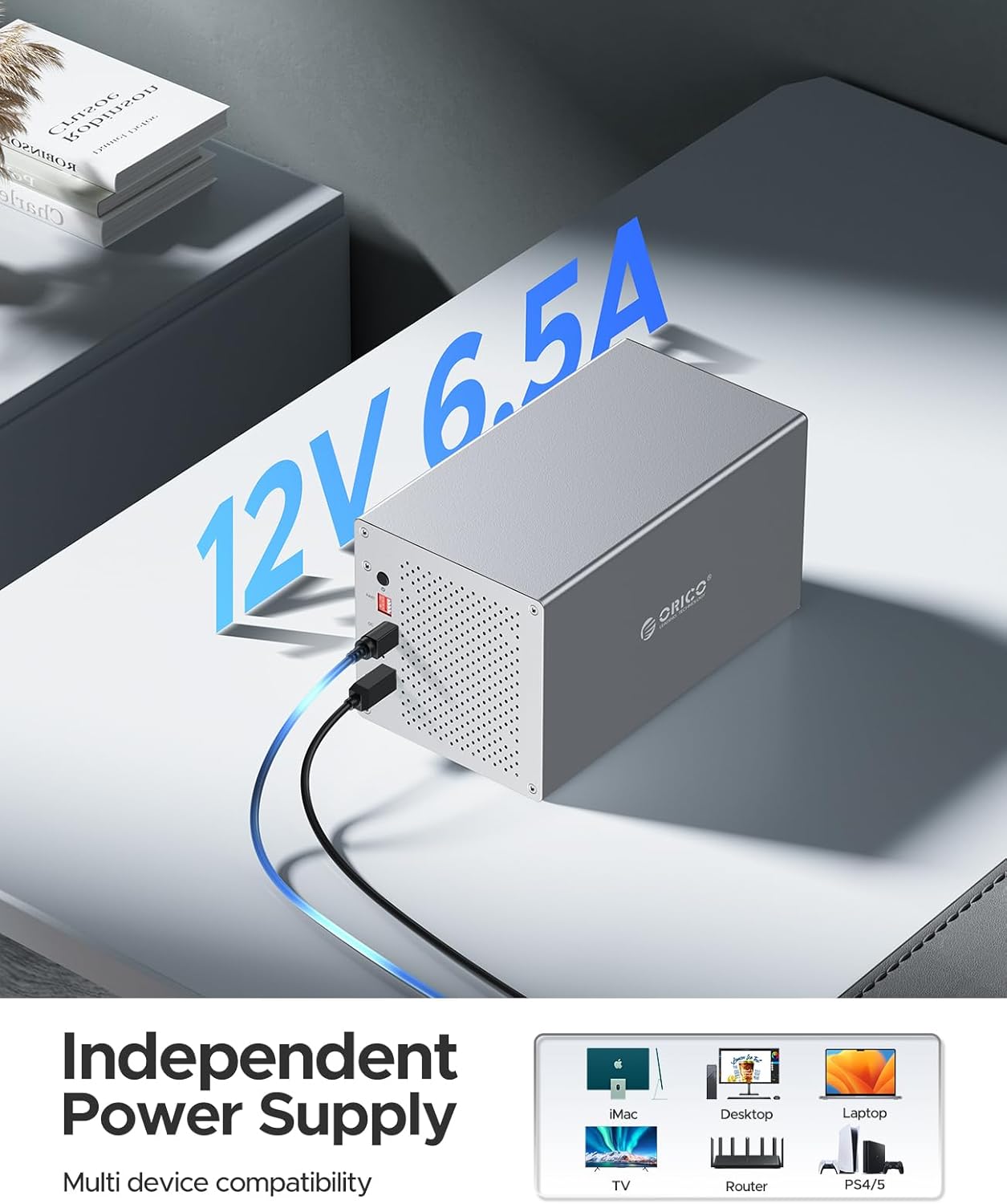
Figure 4: Independent Power Supply and Device Compatibility
3.3 Video Guide: Hard Drive Installation
For a visual guide on installing hard drives with screws, please refer to the video below:
Video 1: How to DIY Install with Screw -WS Series. This video demonstrates the process of installing hard drives into the ORICO WS series enclosure using screws for secure mounting.
4. Configurazione RAID
WARNING: Always back up all data before changing RAID modes, as this process typically erases all data on the drives.
The ORICO WS400RU3 supports various RAID modes to suit different needs for capacity, performance, and data redundancy. You can configure RAID either via software or manually using the physical switches.
4.1 Available RAID Modes
| Modalità RAID | Minimum Disks | Descrizione |
|---|---|---|
| RAID 0 | 2 | Striping. Offers maximum performance and capacity by combining drives, but no redundancy. Data loss on one drive means total data loss. |
| RAID 1 | 2 | Mirroring. Provides full data redundancy by duplicating data across drives. Capacity is limited to the size of the smallest drive. |
| RAID 3 | 3 | Striping with dedicated parity. Offers good performance for large sequential reads and writes, with single drive redundancy. |
| RAID 5 | 3 | Striping with distributed parity. Balances performance, capacity, and redundancy. Can withstand the loss of one drive. |
| RAID 10 | 4 | Striping and Mirroring. Combines RAID 1 and RAID 0 for high performance and excellent redundancy. Can withstand multiple drive failures, but requires more drives. |
| JBOD (Just a Bunch Of Disks) | 1 | Treats each drive as an independent disk. No striping or mirroring. |
| CLONE | 2 | Creates an exact copy of one drive onto another. |
| Normal (Clear-RAID) | 1 | Each drive is recognized as a separate, individual disk. |

Figure 5: Multiple RAID Modes Overview
4.2 Setting RAID Mode
There are two primary methods for configuring RAID on the WS400RU3:
- Funzionamento del software: The ORICO HW RAID Manager tool allows for customization of hard disk storage modes. This software can be downloaded from the official ORICO website. Note that the software management tool may not be compatible with Mac OS 11 or above, and Linux systems.
- Funzionamento manuale: The enclosure features physical array switches on the back panel. To set a RAID mode manually:
- Power off the enclosure.
- Adjust the DIP switches on the back panel to the desired RAID configuration (refer to the diagram on the enclosure or the full user manual for specific switch settings).
- Press and hold the 'SET' button (often recessed, requiring a paperclip or similar tool).
- Tenendo premuto il pulsante 'SET', accendere l'involucro.
- Continue holding the 'SET' button for approximately 6 seconds, then release. The new RAID mode will be applied.
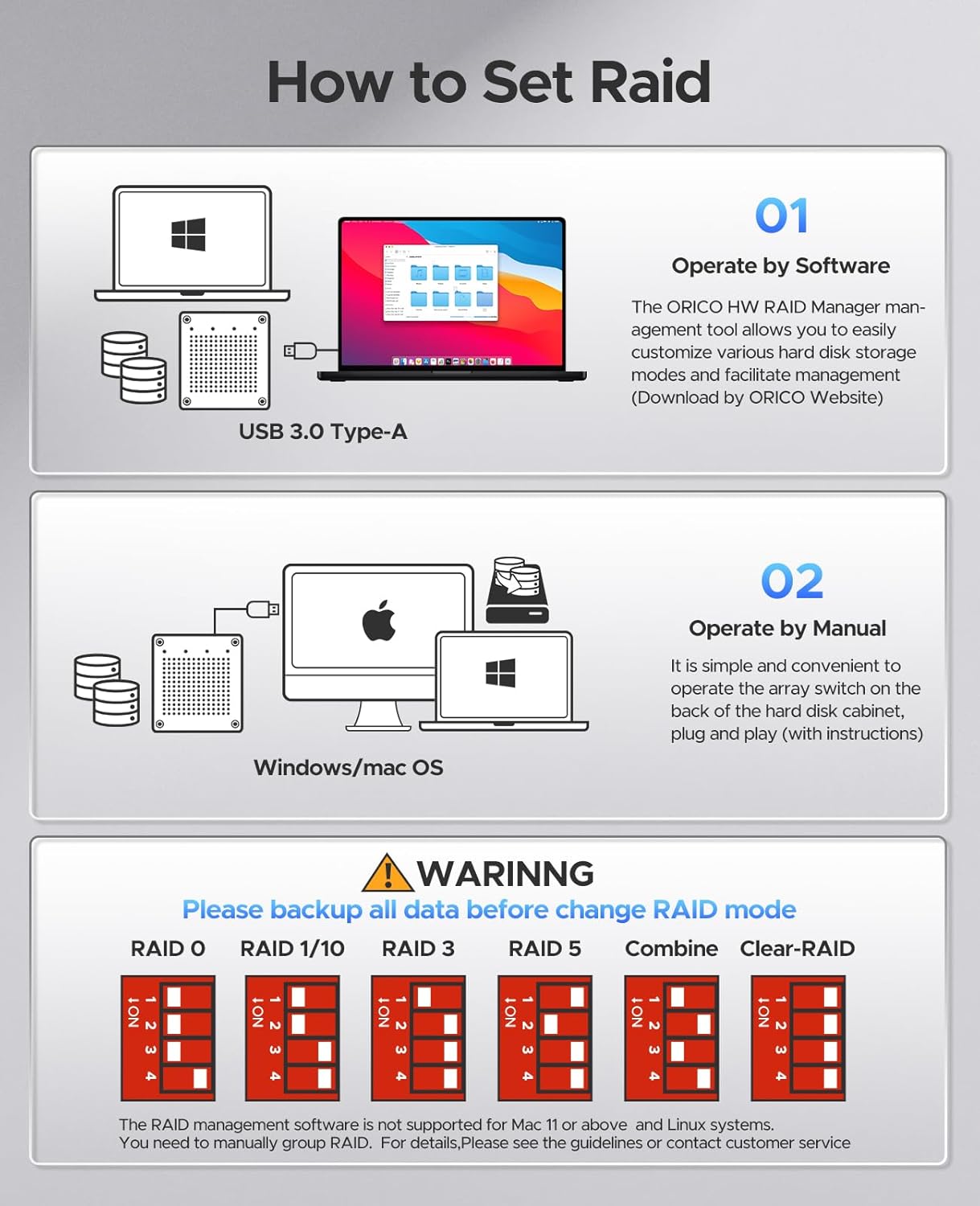
Figure 6: How to Set RAID
5. Istruzioni per l'uso
5.1 Initializing and Formatting Hard Drives
After installing the hard drives and configuring the RAID mode (if applicable), the drives will need to be initialized and formatted by your operating system before they can be used. The process varies slightly depending on your OS:
- Finestre: Access Disk Management (Right-click 'This PC' -> 'Manage' -> 'Disk Management'). Locate the newly installed disk(s), initialize them (MBR or GPT), create new simple volumes, and format them (NTFS is common for Windows).
- Mac OS: Open Disk Utility (Applications -> Utilities -> Disk Utility). Select the disk, click 'Erase', choose a format (e.g., APFS or Mac OS Extended), and a scheme (e.g., GUID Partition Map).
- Linux: Use disk management tools like GParted or command-line utilities (e.g., `fdisk`, `mkfs`) to partition and format the drives.
5.2 Video Guide: Hard Drive Formatting
For detailed steps on how to format hard drives in Windows, Mac, and Linux, please watch the video below:
Video 2: How to format Hard Drive when operating Windows/Mac/Linux. This video provides a step-by-step demonstration of formatting hard drives across different operating systems.
5.3 Trasferimento dati
Once formatted, your drives are ready for data transfer. The USB 3.0 interface supports speeds up to 5Gbps, allowing for quick transfer of large files.

Figura 7: Velocità di trasferimento dati di 5 Gbps
6. Manutenzione
- Pulizia: Utilizzare un panno morbido e asciutto per pulire l'esterno dell'involucro. Evitare detergenti liquidi o materiali abrasivi.
- Ventilazione: Ensure the enclosure's honeycomb ventilation holes are not obstructed to maintain optimal airflow and prevent overheating. The built-in fan assists in heat dissipation.
- Aggiornamenti del firmware: Periodically check the ORICO official websito per eventuali aggiornamenti firmware disponibili per il tuo modello, per garantire prestazioni e compatibilità ottimali.
- Modalità sospensione automatica: The 10-minute auto sleep mode helps reduce power consumption and prolong drive life. Ensure your system settings do not interfere with this feature if you wish to utilize it.

Figura 8: Progettazione della dissipazione del calore
7. Risoluzione Dei Problemi
- Unità non riconosciuta:
- Assicurarsi che tutti i cavi (alimentazione e USB) siano collegati saldamente.
- Verificare che il contenitore sia acceso.
- Check Disk Management (Windows) or Disk Utility (macOS) to see if the drive appears as uninitialized or unformatted. If so, initialize and format it.
- Try connecting the enclosure to a different USB port or computer.
- Ensure hard drives are properly seated in their bays and secured.
- RAID Configuration Issues:
- If manually setting RAID, ensure the DIP switches are correctly set for the desired mode and the 'SET' button procedure is followed precisely.
- Remember to back up data before changing RAID modes, as this will erase existing data.
- For software-based RAID, ensure the ORICO HW RAID Manager is installed and up-to-date.
- Trasferimento dati lento:
- Ensure you are using a USB 3.0 port on your computer. Connecting to a USB 2.0 port will result in slower speeds.
- Check the quality of the USB cable. Use the provided cable or a high-quality USB 3.0 cable.
- Performance can be affected by the speed of the installed hard drives and the RAID mode selected.
- Surriscaldamento:
- Assicurarsi che il contenitore sia posizionato in un'area ben ventilata.
- Check that the cooling fan is operating and that the honeycomb ventilation holes are not blocked.
8. Specifiche
| Caratteristica | Specificazione |
|---|---|
| Numero di modello | WS400RU3 |
| Materiale | Alluminio |
| Alloggiamenti unità | 4 baie |
| Capacità massima | 80 TB (4 x 20TB) |
| Tipi di unità compatibili | HDD/SSD SATA da 2.5 pollici/3.5 pollici |
| Modalità RAID | RAID 0, RAID 1, RAID 3, RAID 5, RAID 10, JBOD, CLONE, Normal |
| Interfaccia Hardware | USB 3.0 Type A, USB 3.0 Type B |
| Velocità di trasferimento dati | Fino a 5 Gbps (USB 3.0) |
| Alimentazione elettrica | 12V 6.5A External Power Adapter |
| Sistema di raffreddamento | 80mm Cooling Fan, Honeycomb Ventilation |
| Sistema operativo compatibile | Windows XP / Vista / 7 / 8, Mac OS X 10.2+, Linux |
| Dimensioni del prodotto | 9.45 x 5.51 x 5.12 pollici (240 x 140 x 130 mm) |
| Peso dell'articolo | 6.85 libbre (3.11 kg) |
9. Informazioni sulla sicurezza
- Utilizzare solo l'adattatore di alimentazione fornito. L'utilizzo di un adattatore non corretto potrebbe danneggiare il dispositivo e invalidare la garanzia.
- Avoid exposing the enclosure to water, moisture, or extreme temperatures.
- Do not open the enclosure or attempt to repair it yourself. Refer to qualified service personnel.
- Handle hard drives with care to prevent damage.
- Ensure proper ventilation around the enclosure to prevent overheating.
- Tenere il dispositivo lontano da forti campi magnetici.
10. Garanzia e supporto
ORICO products typically come with a limited warranty. For specific warranty terms, duration, and support options, please refer to the warranty card included with your product or visit the official ORICO website. You can also contact ORICO customer service for technical assistance or product inquiries.
ORICO Official Websito: www.oricotech.com


