Manuale utente del mouse ottico wireless Hama MW-300 V2
Model: MW-300 V2
1. Introduzione
This manual provides comprehensive instructions for the Hama MW-300 V2 Wireless Optical Mouse. It covers setup, operation, maintenance, and troubleshooting to ensure optimal performance and longevity of your device. The MW-300 V2 is designed for precise and smooth cursor control, featuring silent main buttons and a compact USB receiver for convenience.
2. Contenuto della confezione
Si prega di controllare la confezione per verificare la presenza dei seguenti elementi:
- 1 Hama MW-300 V2 Wireless Optical Mouse
- 1 ricevitore USB
- 2 AAA Micro Batteries
- 1 Manuale d'uso
3. Impostazione
3.1. Inserimento delle batterie
- Individuare il vano batteria sul lato inferiore del mouse.
- Aprire il coperchio del vano batterie.
- Insert the two AAA Micro batteries, ensuring correct polarity (+/-).
- Chiudere saldamente il coperchio del vano batterie.
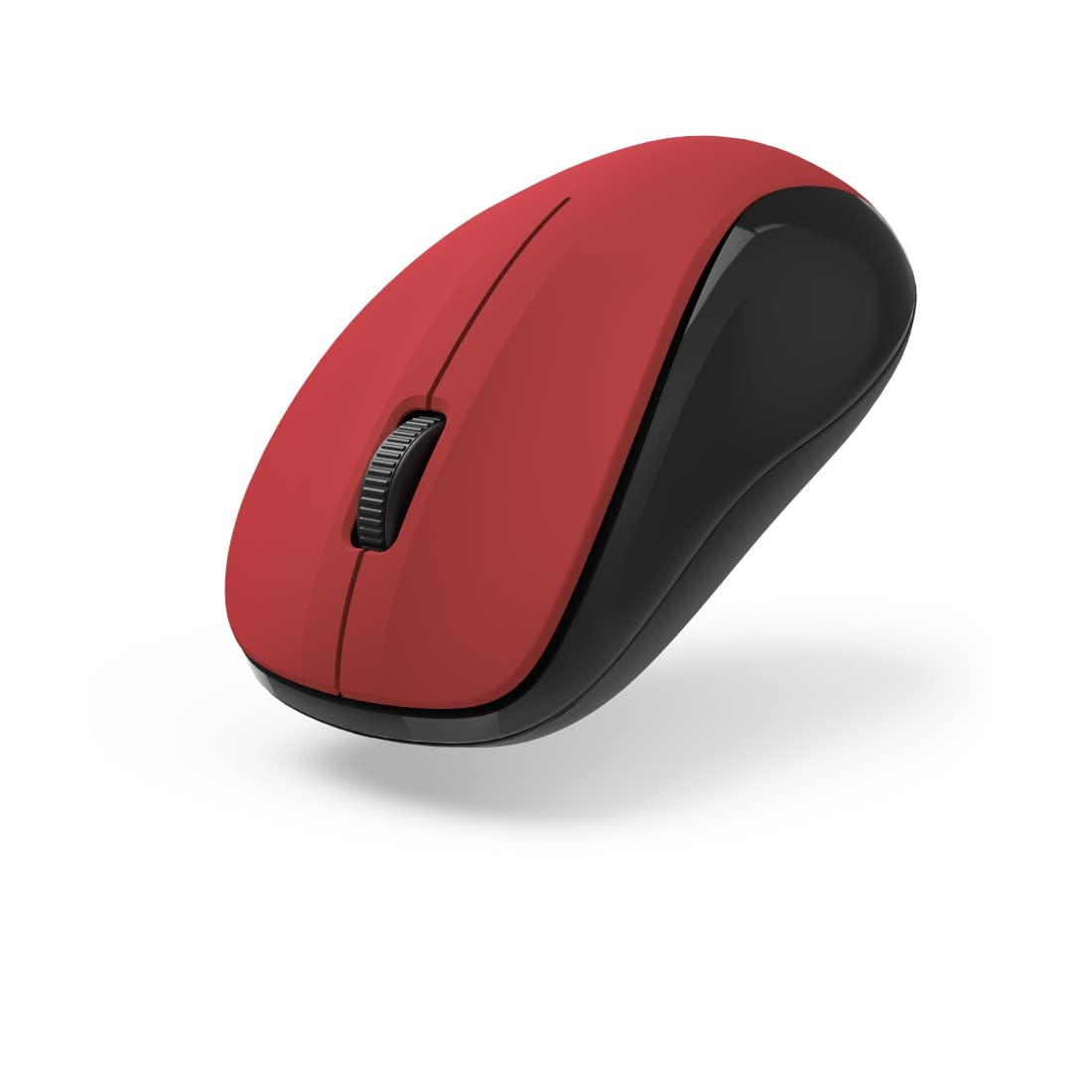
Figura 1: in alto view of the Hama MW-300 V2 Wireless Optical Mouse. This image displays the mouse's ergonomic shape, the central scroll wheel, and the left and right click buttons. The red top surface contrasts with the black sides.
3.2. Collegamento del ricevitore USB
- Remove the compact USB receiver from its storage slot, usually located within the battery compartment or near it.
- Collega il ricevitore USB a una porta USB-A disponibile sul tuo computer (laptop o PC).
- The mouse will automatically connect to the receiver using Smart Link technology. No additional drivers are typically required for Windows or macOS.

Figura 2: Angolato view of the Hama MW-300 V2 Wireless Optical Mouse. This perspective shows the comfortable curve of the mouse, designed for both left and right-handed users, and the textured scroll wheel.
4. Istruzioni per l'uso
4.1. Funzioni di base
- Clic sinistro: Selezione e attivazione primaria.
- Clic destro: Apre i menu contestuali.
- Rotella di scorrimento: Scorre i documenti e web pagine in verticale. La rotellina di scorrimento funziona anche come pulsante centrale.
4.2. Funzione clic silenzioso
The main buttons of the MW-300 V2 mouse are designed to be silent, providing a quiet working environment. This feature is integrated into the mouse's design and does not require any special activation.
4.3. Wireless Range and Power Saving
The mouse operates on a reliable 2.4 GHz wireless technology with a range of up to 10 meters, depending on environmental conditions. To conserve battery life, the mouse features an automatic power-saving mode that activates during periods of inactivity. To reactivate, simply move the mouse or click a button.
5. Manutenzione
- Pulizia: Per pulire il mouse, utilizzare un panno morbido e asciutto. Evitare l'uso di prodotti chimici aggressivi o materiali abrasivi.
- Sostituzione della batteria: Replace batteries when the mouse performance degrades or stops responding. Always use new AAA Micro batteries.
- Magazzinaggio: When not in use for extended periods, remove the batteries to prevent leakage. The USB receiver can be stored inside the mouse for safe transport.
6. Risoluzione Dei Problemi
| Problema | Soluzione |
|---|---|
| Il mouse non risponde |
|
| Movimento irregolare del cursore |
|
| Problemi di connessione |
|
7. Specifiche
| Nome del modello | MW-300V2 |
| Marca | Hama |
| Tecnologia di connettività | 2.4 GHz RF Wireless, USB Receiver |
| Tipo di sensore | Ottico |
| Sensibilità DPI | 1200 DPI |
| Numero di pulsanti | 3 (Sinistra, Destra, Rotellina di scorrimento/Clic centrale) |
| Orientamento della mano | Ambidestro |
| Caratteristiche speciali | Silent Clicks, Power Saving Mode, Rubberized Surface, PTFE Gliding Pads |
| wireless Range | Fino a 10 metri |
| Sistemi operativi compatibili | Windows 11/10/8/7, macOS 10.10 or higher |
| Tipo di batteria | 2 x AAA Micro (included) |
| Dimensioni (L x A x P) | Dimensioni: 5.8 x 3.7 x 10.3 cm |
| Colore | Rosso/Nero |
8. Garanzia e supporto
Hama products are covered by a limited warranty. For detailed warranty information, please refer to the warranty card included with your product or visit the official Hama website. For technical support, product inquiries, or service, please contact Hama customer support through their official channels.
Conservare la prova d'acquisto per eventuali richieste di garanzia.
© 2023 Hama GmbH & Co KG. Tutti i diritti riservati.