1. Introduzione
This manual provides detailed instructions for the installation, operation, maintenance, and troubleshooting of your Everycom EC-901 Thermal POS Receipt Printer. Please read this manual thoroughly before using the printer to ensure proper functionality and longevity.

Figura 1: Everycom EC-901 Thermal POS Receipt Printer. This image displays the compact design of the printer with a sample receipt emerging from the top.
Caratteristiche principali:
- Velocità di stampa veloce: Up to 160mm per second for efficient receipt generation.
- Caricamento della carta facile: Drop-in paper loading mechanism for quick and simple media changes.
- Design compatto: Integrated power supply for a clean and space-saving workstation.
- Variable Paper Width: Supports both 58mm and 80mm thermal paper rolls.
- Built-In Buzzer: Provides audible notifications for various printer statuses.
- Taglierina automatica: Automatically cuts receipts after printing for convenience.
- Connettività: USB and LAN interfaces for versatile integration.
2. Configurazione e installazione
2.1 Disimballaggio e verifica del contenuto
Carefully unpack the printer and verify that all components are present. The package should contain:
- Everycom EC-901 Thermal POS Receipt Printer
- Roll paper × 1 (for initial testing)
- CD-ROM (containing drivers, utility software, and digital manuals)
- Guida cartacea
- Paper Bearing
- Cavo USB
- Cavo adattatore di alimentazione
2.2 Collegamento della stampante
- Collegamento elettrico: Connect the power adapter cable to the printer's power port and then to a suitable power outlet.
- Connessione dati:
- Interfaccia USB: Connect the provided USB cable from the printer's USB port to an available USB port on your computer or POS system.
- Interfaccia LAN: For network printing, connect an Ethernet cable from the printer's LAN port to your network router or switch.
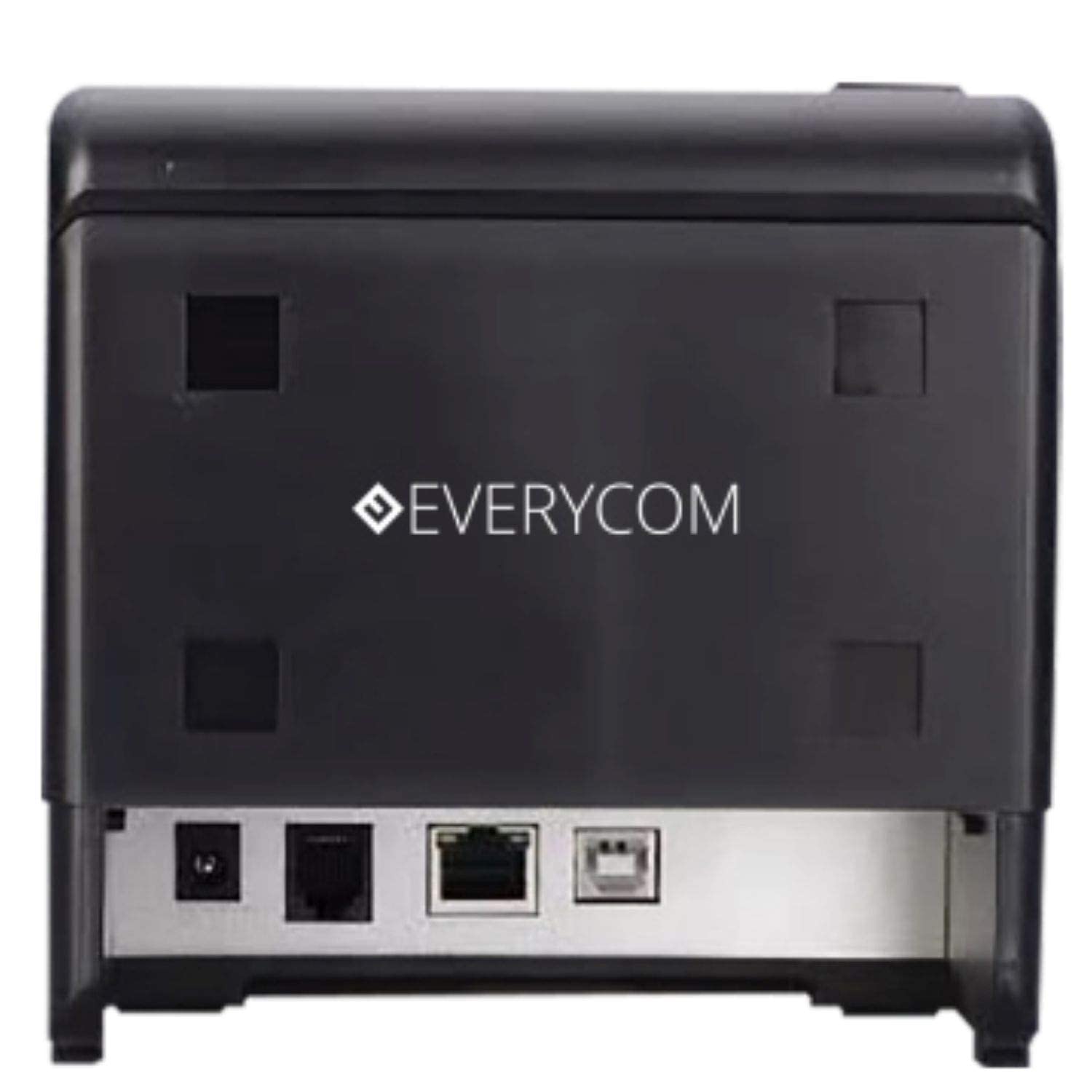
Figura 2: Posteriore view of the Everycom EC-901 printer. This image highlights the various connectivity ports including USB, LAN, and the power input.
2.3 Caricamento della carta termica
The EC-901 printer features a convenient drop-in paper loading system.
- Assicurarsi che la stampante sia spenta o in modalità standby.
- Press the cover open button (usually located on the side or front) to open the top cover of the printer.
- Insert the thermal paper roll into the paper compartment with the printing side facing the print head. Ensure the roll is seated correctly and feeds smoothly.
- Estrarre una piccola quantità di carta dalla taglierina.
- Close the top cover firmly until it latches securely. The printer will automatically feed the paper to the correct position.

Figura 3: Everycom EC-901 printer with the top cover open. This image illustrates the internal compartment where the thermal paper roll is loaded.
2.4 Installazione del driver
Insert the provided CD-ROM into your computer's optical drive and follow the on-screen instructions to install the printer drivers and utility software. Alternatively, drivers can be downloaded from the Everycom official websito.
3. Utilizzo della stampante
3.1 Accensione/Spegnimento
To power on the printer, press the power switch located on the front or side of the unit. The power indicator light will illuminate. To power off, press the switch again.
3.2 Stampa delle ricevute
Once the printer is connected and drivers are installed, you can print receipts from your POS software or application. The printer supports fast printing at up to 160mm per second.
3.3 Funzione di taglio automatico
The EC-901 is equipped with an auto cutter that automatically cuts the receipt paper after each print job, ensuring clean and professional-looking receipts.
3.4 Buzzer Notifications
The built-in buzzer provides audible alerts for various printer statuses, such as paper out, cover open, or error conditions. Refer to the utility software for configuring buzzer settings.
3.5 Funzionamento a basso rumore
Thermal printers generally operate with reduced noise levels, making the EC-901 suitable for various work environments where quiet operation is desired. The printer uses heat for printing, eliminating the need for ink cartridges and contributing to lower operating noise.
4. Manutenzione
Regular maintenance ensures optimal performance and extends the lifespan of your Everycom EC-901 printer.
4.1 Pulizia della testina di stampa
The thermal print head should be cleaned periodically to maintain print quality. Use a soft, lint-free cloth dampcon alcol isopropilico. Pulire delicatamente la superficie della testina di stampa. Assicurarsi che la stampante sia spenta e raffreddata prima di pulirla.
4.2 Pulizia del rullo di stampa
The platen roller can accumulate paper dust. Clean it with a soft cloth dampimbevuto di alcol isopropilico. Ruotare manualmente il rullo per pulirne l'intera superficie.
4.3 Pulizia esterna
Pulire l'esterno della stampante con un panno morbido e asciutto. Evitare l'uso di prodotti chimici aggressivi o detergenti abrasivi.
5. Risoluzione Dei Problemi
Se riscontri problemi con la stampante, fai riferimento ai seguenti passaggi comuni per la risoluzione dei problemi:
- Nessun potere: Ensure the power cable is securely connected to both the printer and the power outlet. Check if the power switch is in the 'On' position.
- Nessuna stampa in uscita:
- Verify that the paper roll is loaded correctly and there is sufficient paper.
- Check the data cable connection (USB or LAN) to your computer/POS system.
- Ensure the printer drivers are correctly installed and the printer is selected as the default printer in your software.
- Check for any error indicator lights or buzzer sounds.
- Scarsa qualità di stampa:
- Pulire la testina di stampa come descritto nella sezione Manutenzione.
- Assicuratevi di utilizzare carta termica di alta qualità.
- Adjust print density settings through the printer driver if available.
- Inceppamenti della carta:
- Aprire il coperchio superiore e rimuovere con cautela la carta inceppata.
- Ensure the paper roll is installed correctly and not too tight or loose.
- Clean the paper path and platen roller.
For persistent issues, please contact Everycom customer support.
6. Specifiche
The following table details the technical specifications of the Everycom EC-901 Thermal POS Receipt Printer:
| Caratteristica | Specificazione |
|---|---|
| Modello | EC-901 |
| Tecnologia di stampa | Stampa termica |
| Velocità di stampa | Fino a 160 mm/secondo |
| Risoluzione di stampa | 203 x 203 DPI |
| Larghezza della carta | 80mm (3 inches), supports 58mm |
| Interfaccia | USB, LAN |
| Taglierina automatica | SÌ |
| Dimensioni del prodotto | 19.8D x 14.8W x 14.8H centimetri |
| Peso dell'articolo | 1.8 chilogrammi |
| Componenti inclusi | Printer, 1 Roll Paper, CD-ROM, Paper Guide, Paper Bearing, USB Cable, Power Adapter Cable |
7. Garanzia e supporto
7.1 Informazioni sulla garanzia
The Everycom EC-901 Thermal POS Receipt Printer comes with a Garanzia di 1 anno from the date of purchase. Please retain your purchase receipt as proof of warranty. The warranty covers manufacturing defects under normal use conditions. It does not cover damage caused by misuse, accidents, unauthorized repairs, or consumables.
7.2 Assistenza clienti
For technical assistance, warranty claims, or any product-related inquiries, please contact Everycom Customer Care:
- Numero verde: 1800 121 4480
- Orario di lavoro: Monday - Saturday, 10:00 AM - 6:30 PM (Except on Public Holidays)

Figura 4: Everycom Customer Service details. This image provides the toll-free number and working hours for customer support.