1. Prodotto finitoview
The HP EliteDesk 800 G2 Business Desktop Mini Tower is a high-performance computing solution designed for business environments. This renewed product has undergone testing and certification to ensure it functions like new. It features an Intel Core i7 6700 processor, 32GB DDR4 RAM, and a 512GB SSD, running on Windows 11 Pro.

Immagine: Angolata view of the HP EliteDesk 800 G2 Mini Tower desktop computer, showcasing il suo design compatto.
2. Contenuto della confezione
Verifica che tutti i seguenti elementi siano inclusi nel tuo pacchetto:
- HP EliteDesk 800 G2 Mini Tower Computer
- Cavo di alimentazione
- Tastiera USB
- Mouse USB
- USB WIFI Adapter
- Istruzioni di garanzia

Image: Included USB keyboard and mouse, essential peripherals for desktop operation.
3. Guida all'installazione
3.1. Disimballaggio
Rimuovere con cautela tutti i componenti dall'imballaggio. Conservare il materiale di imballaggio per eventuali trasporti o interventi di assistenza futuri.
3.2. Collegamento di periferiche
Connect your monitor, keyboard, mouse, and other devices to the appropriate ports on the desktop.
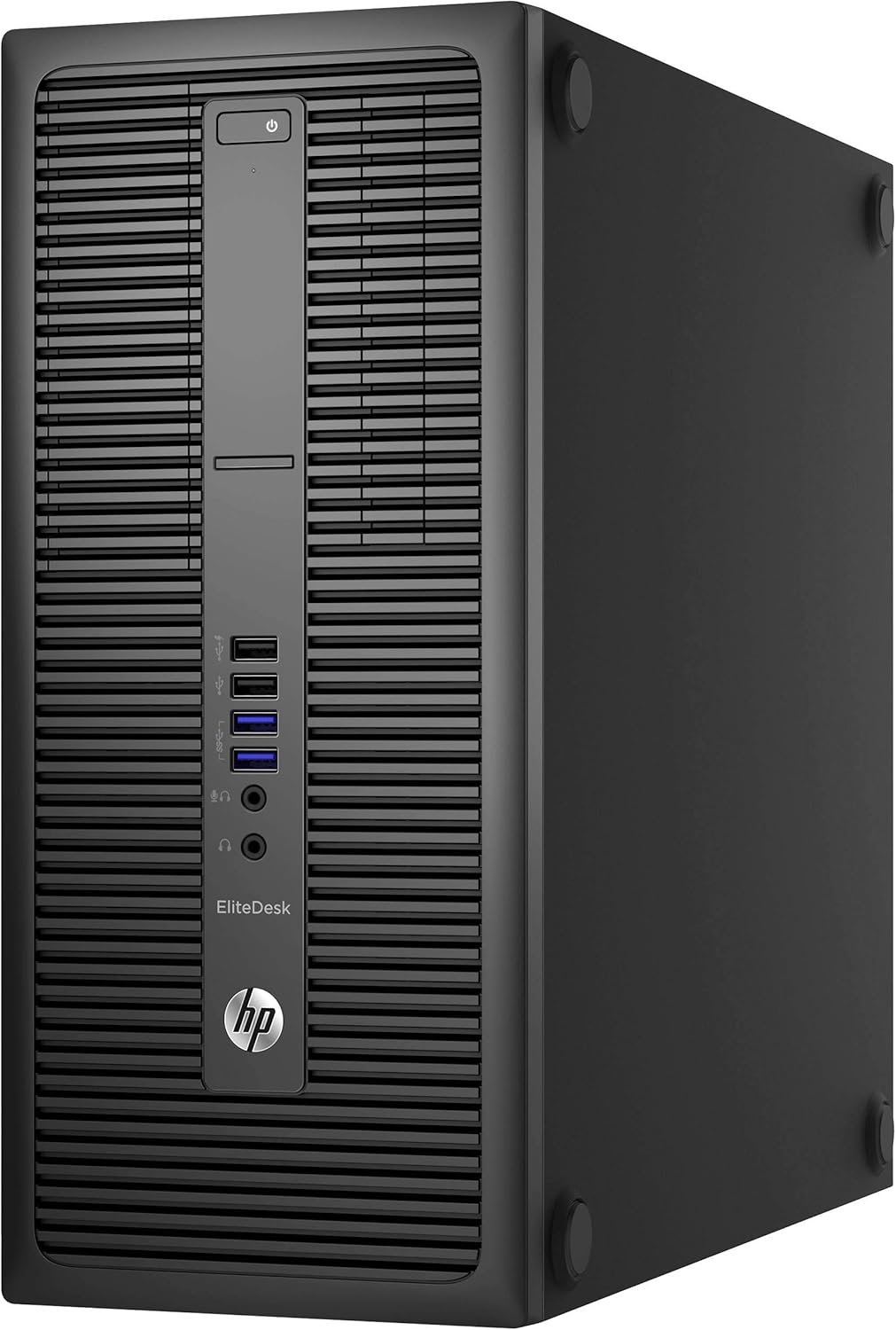
Image: Front panel of the HP EliteDesk 800 G2, showing the power button, optical drive bay, and front USB and audio ports.
- Energia: Collegare il cavo di alimentazione all'ingresso di alimentazione del computer desktop e quindi a una presa a muro.
- Monitorare: Use a DisplayPort or VGA cable to connect your monitor to the corresponding port on the rear of the desktop.
- Tastiera e mouse: Connect the USB keyboard and mouse to any available USB ports.
- Rete: For wired connection, connect an Ethernet cable to the RJ-45 network connector. For wireless, plug in the provided USB WIFI adapter.
- Audio: Connect speakers or headphones to the audio output port.

Image: Rear panel of the HP EliteDesk 800 G2, highlighting various connectivity options including DisplayPort, VGA, USB 3.0, Ethernet, and audio ports.
3.3. Accensione iniziale
Press the power button located on the front of the desktop. The system will begin to boot up.
3.4. Configurazione del sistema operativo
Follow the on-screen prompts to complete the Windows 11 Pro setup. This typically involves selecting language, region, accepting terms, and creating a user account.
4. Utilizzo del desktop
4.1. Accensione/spegnimento
- Per accendere: Premere il pulsante di accensione sul pannello frontale.
- Spegnere: Fare clic sul pulsante Start in Windows, quindi selezionare Arresta il sistema > Arresta il sistema.
- Ricominciare: Fare clic sul pulsante Start in Windows, quindi selezionare Arresta > Riavvia.
4.2. Utilizzo delle porte USB
The desktop features both USB 2.0 and USB 3.0 ports. USB 3.0 ports (often blue) offer faster data transfer speeds and are recommended for external hard drives or high-speed peripherals. Front USB 2.0 ports include a fast-charging option.
4.3. Collegamenti audio
Front panel includes a microphone/headphone combo jack and a dedicated headphone jack. The rear panel has a Line-Out connector for powered audio devices and a Line-In audio connector.
4.4. Collegamenti di visualizzazione
The desktop supports multiple displays via two DisplayPort connectors and one VGA connector on the rear panel.
4.5. Connettività di rete
Connect to a wired network using the RJ-45 Ethernet port. For wireless connectivity, ensure the USB WIFI adapter is installed and configured through Windows settings.
5. Manutenzione
5.1. Pulizia
- Esterno: Utilizzare un morbido, damp panno per pulire le superfici esterne. Evitare detergenti abrasivi.
- Vents: Pulire periodicamente la polvere dalle griglie di ventilazione utilizzando aria compressa per garantire un flusso d'aria adeguato ed evitare il surriscaldamento.
- Schermo (se applicabile): Per i monitor collegati, utilizzare un detergente specifico per schermi e un panno in microfibra.
5.2. Aggiornamenti software
Regularly check for and install operating system updates (Windows Update) and driver updates to maintain system stability and security.
5.3. Backup dei dati
Si consiglia di eseguire regolarmente il backup dei dati importanti su un'unità esterna o su un archivio cloud per evitare la perdita di dati.
6. Risoluzione Dei Problemi
Questa sezione affronta i problemi più comuni che potresti incontrare.
- Nessun potere: Ensure the power cord is securely connected to both the desktop and a working power outlet. Test the outlet with another device.
- Nessuna visualizzazione: Verify that the monitor is powered on and correctly connected to the desktop. Try a different display cable or monitor if available. Ensure the correct input source is selected on your monitor.
- Prestazioni lente: Close unnecessary applications. Check for background processes consuming high resources via Task Manager. Ensure sufficient free space on the SSD.
- Problemi di connettività di rete: For wired connections, check the Ethernet cable and router status. For wireless, ensure the USB WIFI adapter is properly installed and drivers are up to date. Restart your router and modem.
- Periferica non funzionante: Ensure the keyboard, mouse, or other peripherals are correctly plugged into the appropriate USB ports. Try a different USB port.
7. Specifiche tecniche
| Caratteristica | Specificazione |
|---|---|
| Processore | Intel Core i7-6700 (3.4 GHz, fino a 4.0 GHz) |
| Memoria RAM | 32 GB DDR4 |
| Magazzinaggio | SSD da 512 GB |
| Grafica | Scheda grafica Intel HD 530 (dedicata) |
| Sistema operativo | Windows 11 Pro a 64 bit |
| Tipo senza fili | 802.11ac (via USB adapter) |
| Porte anteriori | USB 2.0 (1x black), USB 2.0 Fast Charging (1x black), USB 3.0 (2x), Microphone/Headphone Combo, Headphone |
| Porte posteriori | PS/2 Keyboard, PS/2 Mouse, DisplayPort (2x), VGA, USB 3.0 (4x), USB 3.0 with Wake from S4/S5 (2x), Line-Out, Line-In, Serial, RJ-45 Network |
| Dimensioni (LxWxH) | 20 x 17.99 x 10 pollici |
| Peso | 23.6 libbre |
8. Informazioni su garanzia e supporto
8.1. Garanzia
This Certified Refurbished product includes a minimum 90-day warranty. For specific terms and conditions, please refer to the warranty instruction document included in your package or contact the seller directly.
8.2. Supporto tecnico
For technical assistance, troubleshooting beyond this manual, or warranty claims, please contact the seller from whom you purchased this product. You may also visit the official HP support website for general product documentation and drivers related to the EliteDesk 800 G2 series.