Inngangur
The Linksys 5G AX1800 Mobile Hotspot is a portable device designed to provide high-speed 5G and WiFi 6 connectivity for multiple devices. With its ultra-thin design and long battery capacity, it allows you to stay connected on the go. This manual provides essential information for the proper setup, operation, maintenance, and troubleshooting of your mobile hotspot.
Helstu eiginleikar eru:
- Portable 5G supersonic speed and bandwidth.
- WiFi 6 speeds up to 1.8 Gbps (AX1800).
- Supports connection for 15+ devices simultaneously.
- Ultra-thin and lightweight design for maximum convenience.
- Langvarandi rafhlaða fyrir langa notkun.
- Powered by leading-edge 5G technology by Qualcomm.
Mynd 1: Framan view of the Linksys 5G AX1800 Mobile Hotspot, showing LED indicators for battery, 5G/LTE, and Wi-Fi status.
Uppsetning
1. Settu upp SIM-kort
The Linksys 5G AX1800 Mobile Hotspot requires a Nano-SIM card for 5G/LTE connectivity. Ensure the device is powered off before inserting the SIM card.
- Locate the SIM card slot cover on the side of the device.
- Opnaðu lokið varlega.
- Insert the Nano-SIM card into the slot with the gold contacts facing down and the notched corner aligned correctly.
- Lokaðu lokinu á SIM-kortaraufinni vel.

Mynd 2: Hlið view of the mobile hotspot, highlighting the SIM card slot cover.
2. Hleðdu tækið
Before first use, fully charge the mobile hotspot. Use the provided charging cable and a compatible USB power adapter.
- Connect one end of the USB cable to the charging port on the device.
- Connect the other end to a USB power adapter or a computer's USB port.
- The battery indicator LED will show charging status. Allow several hours for a full charge.

Mynd 3: Neðst view of the mobile hotspot, showing the USB-C charging port.
3. Kveikt/slökkt
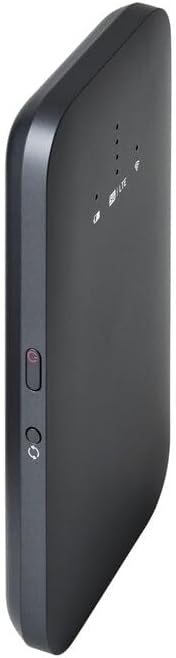
To power on the device, press and hold the power button located on the side until the LED indicators light up. To power off, press and hold the power button again until the indicators turn off.

Mynd 4: Hlið view of the mobile hotspot, indicating the location of the power button.
Notkunarleiðbeiningar
1. Tenging tækja við Wi-Fi
Once powered on, the mobile hotspot will broadcast a Wi-Fi network. You can connect up to 15+ devices simultaneously.
- Opnaðu Wi-Fi stillingarnar á tækinu þínu (snjallsíma, fartölvu, spjaldtölvu).
- Leitaðu að tiltæk Wi-Fi net.
- Select the network name (SSID) of your Linksys Mobile Hotspot. The default SSID and password are usually found on a sticker inside the device or on its packaging.
- Sláðu inn Wi-Fi lykilorðið þegar beðið er um það.
- Your device should now be connected to the internet via the mobile hotspot.
2. Að skilja LED-ljós
The LED indicators on the front of the device provide important status information:
- Rafhlöðuvísir: Sýnir núverandi rafhlöðustöðu og hleðslustöðu.
- 5G/LTE Indicator: Indicates the mobile network connection status (e.g., solid blue for 5G, solid green for LTE, blinking for searching).
- Wi-Fi vísir: Shows if the Wi-Fi network is active and broadcasting.
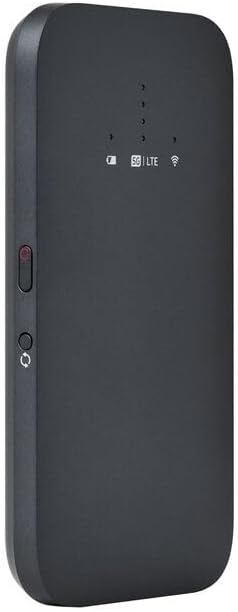
Mynd 5: Hallandi framhlið view of the mobile hotspot, clearly showing the LED indicators for battery, 5G/LTE, and Wi-Fi.
3. Aðgangur að Web Stjórnunarviðmót
For advanced settings, such as changing the Wi-Fi name or password, managing connected devices, or checking data usage, you can access the device's web stjórnendaviðmót.
- Ensure your device is connected to the mobile hotspot's Wi-Fi network.
- Opna a web browser (e.g., Chrome, Firefox, Safari).
- Enter the default IP address for the hotspot (usually
192.168.1.1or192.168.0.1, refer to the device's documentation or sticker for the exact address) into the address bar and press Enter. - Log in using the default username and password (also found on the device sticker or documentation). It is highly recommended to change the default password for security.
Viðhald
1. Umhirða rafhlöðu
- Forðist að útsetja tækið fyrir miklum hita.
- Ekki láta tækið vera alveg tæmt í langan tíma.
- Notið aðeins upprunalegan eða vottaðan samhæfan hleðslutæki.
2. Þrif
Þurrkið tækið með mjúkum, þurrum og lólausum klút. Notið ekki fljótandi hreinsiefni eða úðabrúsa beint á tækið.
3. Fastbúnaðaruppfærslur
Athugaðu reglulega hvort uppfærslur á vélbúnaði séu í boði í gegnum web management interface. Keeping the firmware updated ensures optimal performance and security.
Úrræðaleit
Engin nettenging
- Gakktu úr skugga um að SIM-kortið sé rétt sett í og virkjað með gagnaáætlun.
- Check the 5G/LTE indicator on the device. If it's blinking or off, the device may be searching for a network or have no signal.
- Restart the mobile hotspot and your connected device.
- Verify that your data plan has not been exhausted.
Hægur Wi-Fi hraði
- Move closer to the mobile hotspot to improve signal strength.
- Reduce the number of connected devices or data-intensive activities.
- Athugaðu hvort nettenging sé á þínu svæði.
Device Not Connecting to Hotspot
- Ensure the Wi-Fi indicator on the hotspot is active.
- Athugaðu Wi-Fi lykilorðið tvisvar.
- Restart both the hotspot and the device you are trying to connect.
Factory Reset
If issues persist, you may perform a factory reset. This will revert all settings to their default values, including Wi-Fi name and password. Refer to the device's specific instructions for the reset procedure, usually involving a small reset button.
Tæknilýsing
| Eiginleiki | Smáatriði |
|---|---|
| Vörumerki | Linksys |
| Nafn líkans | FGHSAX1800 |
| Tegundarnúmer vöru | FGHSAX1800-AH |
| Tengitækni | 5G |
| Wi-Fi staðall | WiFi 6 (AX1800) |
| Gagnaflutningshraði | Allt að 1.8 gígabit á sekúndu |
| Frequency Band Class | Dual-band |
| Tegund loftnets | Innri |
| Sérstakir eiginleikar | Aðgangsstaðastilling |
| Innifalið íhlutir | SIM KORTARAUF |
| Voltage | 12 volt |
| Stærðir pakka | 14 x 7.5 x 1.55 cm |
| Þyngd hlutar | 185 g |
Ábyrgð og stuðningur
For warranty information and technical support, please refer to the warranty card included with your product or visit the official Linksys support webÞar er yfirleitt hægt að finna algengar spurningar, niðurhal á rekla og upplýsingar um þjónustuver.
Linksys Official Support: https://www.linksys.com/support


