1. Okwu mmalite
Thank you for choosing the Oakcastle IR200 Internet Radio. This manual provides essential information for the safe and efficient operation of your device. Please read it thoroughly before use and retain it for future reference.
The Oakcastle IR200 is a versatile audio system offering multiple listening options, including Internet Radio, DAB+, FM, Bluetooth 5.3, and AUX input. It features a color display, remote control, and podcast support for a comprehensive audio experience.
2. Ihe ngwugwu
Carefully unpack the box and ensure all items listed below are present and in good condition:
- Oakcastle IR200 Internet Radio Unit
- Igwe ọkụ ọkụ
- Njikwa anya
- Akwụkwọ ntuziaka (akwụkwọ a)
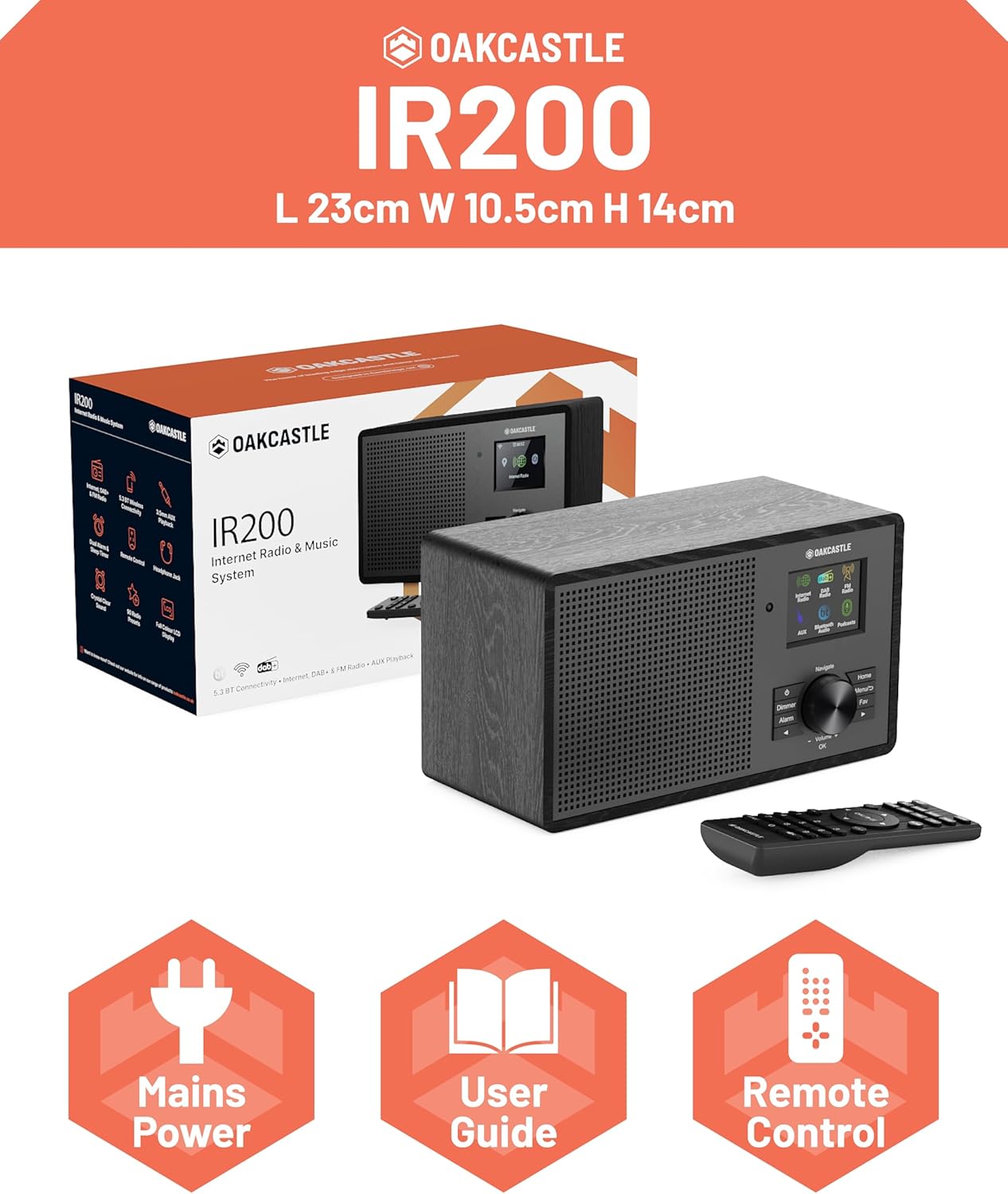
Image 2.1: Contents of the Oakcastle IR200 package, including the radio unit, its box, power cable, remote control, and user manual.
3. Ngwaahịa gafereview
Familiarize yourself with the main components and controls of your Oakcastle IR200 radio.
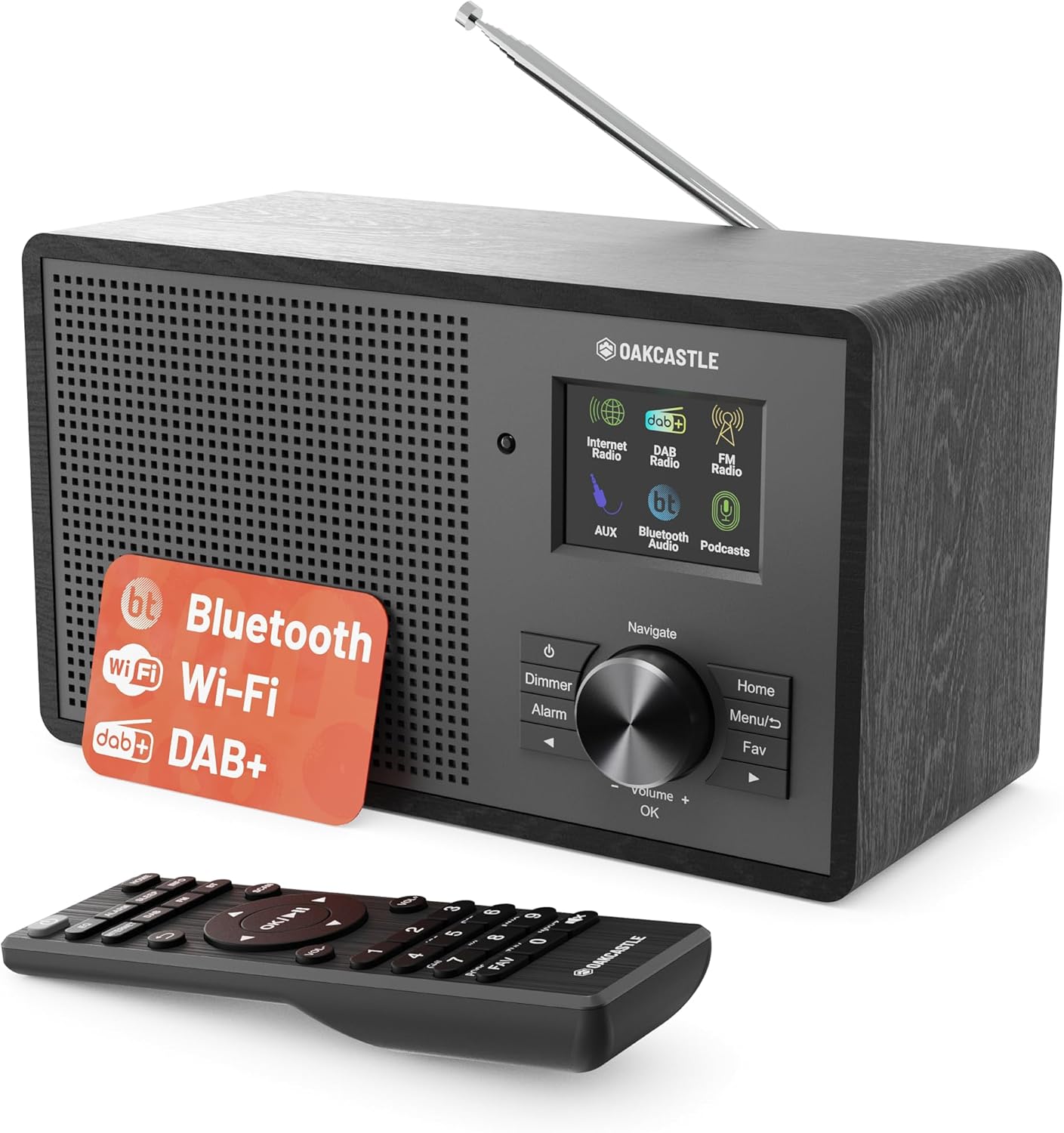
Foto 3.1: N'ihu view of the Oakcastle IR200 radio, showcasing the display, control knob, buttons, and the included remote control.
3.1 Njikwa ihu ihu
- Ngosipụta ihuenyo: Na-egosi ozi ọdụ ụgbọ mmiri, oge, na nhọrọ menu.
- Navigate/Volume/OK Knob: Rotate to navigate menus or adjust volume; press to confirm selections.
- Bọtịnụ ike: Na-agbanyụ/gbanyụọ ngwaọrụ ahụ ma ọ bụ na-etinye ya na njikere.
- Bọtịnụ dimmer: Na-edozi nchapụta ngosi.
- Bọtịnụ mkpu: Accesses alarm settings.
- Bọtịnụ ụlọ: Na-alaghachi na menu isi.
- Bọtịnụ menu: Accesses mode-specific menus.
- Fav Button: Accesses favorite station presets.
3.2 Njikọ azụ azụ

Foto 3.2: N'azụ view of the Oakcastle IR200, highlighting the headphone output and AUX input ports.
- Antenna telescopic: For DAB+ and FM reception.
- Ntinye AUX: Jikọọ ngwaọrụ ọdịyo mpụga.
- Mmepụta ekweisi: Jikọọ ekweisi maka ige ntị nkeonwe.
- DC N'ime: Njikọ nkwụnye ọkụ.
4. Mbido Mbido
4.1 Njikọ ike
- Insert the power cable into the DC IN port on the rear of the radio.
- Plug the other end of the power cable into a wall socket.
- Press the Power button on the front panel or remote control to turn on the radio.
4.2 mmezi nke antenna
For optimal DAB+ and FM reception, fully extend the telescopic antenna located at the rear of the unit.
4.3 Network Connection (for Internet Radio)
- Upon first power-on, the radio will guide you through the network setup.
- Select "Network Wizard" or "Wi-Fi Setup" from the menu.
- The radio will scan for available Wi-Fi networks. Select your network from the list.
- Enter your Wi-Fi password using the navigation knob and OK button.
- Ozugbo ejikọtara ya, redio ahụ ga-egosi ozi nkwenye.
5. Ụdị arụ ọrụ
The Oakcastle IR200 offers several listening modes. Press the "Home" button to access the main menu and select your desired mode.
5.1 Redio ịntanetị
Access thousands of global radio stations via your Wi-Fi connection.

Image 5.1: The radio's display screen in Internet Radio mode, showing station information.
- Site na isi menu, họrọ "Redio Ịntanetị".
- You can browse stations by location, genre, or search by name.
- Rotate the Navigate knob to scroll through options and press OK to select.
- To save a station as a favorite, press the "Fav" button during playback.
5.2 DAB + Redio
Enjoy high-quality digital radio broadcasts.

Image 5.2: The radio's display screen in DAB+ Radio mode, showing the current station.
- From the main menu, select "DAB+ Radio".
- The radio will automatically scan for available DAB+ stations.
- Use the Navigate knob to select a station from the list.
- To save a station as a favorite, press the "Fav" button during playback.
Igwe redio FM 5.3
Tune into traditional analog FM broadcasts.
- Site na isi menu, họrọ "Redio FM".
- To auto-scan for stations, press and hold the OK button or use the scan function via the menu.
- To manually tune, rotate the Navigate knob.
- To save a station as a favorite, press the "Fav" button during playback.
5.4 Njikọ Bluetooth
Gbanye ọdịyo na ikuku site na ngwaọrụ Bluetooth gị nyere.

Image 5.3: The radio's display screen in Bluetooth mode, indicating readiness for pairing.
- From the main menu, select "Bluetooth". The radio will enter pairing mode.
- On your external device (e.g., smartphone), enable Bluetooth and search for "Oakcastle IR200".
- Select "Oakcastle IR200" to pair. Once connected, you can stream audio.
Ntinye AUX 5.5
Connect external audio sources using a 3.5mm audio cable.
- Connect one end of a 3.5mm audio cable to the AUX IN port on the rear of the radio.
- Jikọọ nsọtụ nke ọzọ na jakị ekweisi ma ọ bụ mmepụta ọdịyo nke ngwaọrụ mpụga gị.
- From the main menu, select "AUX".
- Jikwaa ọkpụkpọ dị na mpụga ngwaọrụ gị.
5.6 Pọdkastị
Browse and listen to a wide range of podcasts.
- From the main menu, select "Podcasts".
- Browse podcasts by category or search for specific titles.
- Select a podcast to start listening.
6. Ntọala na atụmatụ
6.1 Ntọala Sistemu
Access general system settings via the main menu to configure time, language, display, and more.
- Oge/Ụbọchị: Set time format, synchronize time.
- Asụsụ: Select your preferred language for the menu.
- Ngosipụta: Adjust backlight, color scheme.
- Netwọk: Reconfigure Wi-Fi settings.
- Mmelite ngwanrọ: Check for and install firmware updates.
6.2 ihe nhata (EQ)
Customize the audio output to your preference using the equalizer settings, accessible via the remote control or system menu.
6.3 Atọrọ atọ
The radio supports over 90 presets for your favorite Internet, DAB+, and FM stations. To recall a preset, press the "Fav" button and select from the list.
6.4 Mkpu
Set alarms to wake up to your favorite radio station or a buzzer sound. Access alarm settings via the "Alarm" button on the front panel or remote.
7. Remote Control
The included remote control provides convenient access to all radio functions from a distance.
Ensure batteries are correctly inserted. Point the remote control towards the front of the radio for optimal response.
7.1 Ọrụ njikwa anya
- Ike: On/Off/Standby.
- Mpịakọta +/-: Gbanwee ọkwa olu.
- Bọtịnụ igodo nsoroụzọ (elu/ala/ekpe/aka nri): Chọgharịa menus.
- Ọ DỊ MMA: Kwenye nhọrọ.
- Mode Buttons (Internet, DAB, FM, Bluetooth, AUX): Gbanwee n'etiti ụdịdị.
- Preset Buttons (1-90+): Directly select saved favorite stations.
- EQ: Nweta ntọala nhazi nhata.
- NchNhr: Access mode-specific menus.
- Ihunanya: Access favorite station list.
8. Nlekọta
8.1 Nhicha
To clean the radio, use a soft, dry cloth. Do not use abrasive cleaners, waxes, or solvents as these may damage the finish.
8.2 Nlekọta n'ozuzu
- Debe unit ahụ pụọ na ìhè anyanwụ kpọmkwem, isi okpomọkụ na mmiri.
- Zere ịtụfu ihe ahụ ma ọ bụ mee ka ọ nwee mmetụta siri ike.
- Gbaa mbọ hụ na ikuku ikuku dị na gburugburu unit ahụ.
9. Nchọpụta nsogbu
| Nsogbu | Ihe nwere ike ime | Ngwọta |
|---|---|---|
| Enweghị ike | Power cable not connected; wall socket not active. | Check power cable connection; try a different wall socket. |
| Enweghị ụda | Volume too low; Mute activated; Incorrect source selected. | Increase volume; Check mute status; Select correct input mode. |
| Internet Radio not connecting | Incorrect Wi-Fi password; Weak Wi-Fi signal; Router issue. | Re-enter Wi-Fi password; Move radio closer to router; Restart router. |
| Poor DAB+/FM reception | Antenna not extended; Poor signal area. | Fully extend antenna; Reposition radio for better signal. |
| Bluetooth anaghị ejikọta | Radio not in pairing mode; Device too far; Device already paired. | Ensure radio is in Bluetooth mode; Move device closer; Unpair from other devices. |
10. Nkọwapụta
| Njirimara | Nkọwa |
|---|---|
| Ụdị | Oakcastle |
| Nlereanya | IR200 |
| Agba | Nwa |
| Teknụzụ Njikọta | Wi-Fi, Bluetooth 5.3, AUX |
| Teknụzụ Ndozi | Internet Radio, DAB+, FM |
| Atụmatụ pụrụ iche | Bluetooth, EQ, Podcasts, Internet Radio, Remote Control |
| Isi Iyi Ike | Electric Cable (Mains) |
| Akụkụ ngwaahịa (H x W x D) | 14 cm x 10.5 cm x 23 cm (ihe dị ka) |
| Ibu ngwaahịa | 0.94 n'arọ |
| Ngwa dakọtara | MP3 Player, Smartphone, Tablet |
11. Akwụkwọ ikike na nkwado
11.1 Ozi akwụkwọ ikike
The Oakcastle IR200 comes with a standard warranty. An extended 3-year warranty is available upon product registration on the manufacturer's website. Please refer to the warranty card included in your package or visit the official Oakcastle websaịtị maka nkọwa.
11.2 Nkwado ndị ahịa
For technical assistance, troubleshooting, or further inquiries, please contact Oakcastle customer support. Contact details can typically be found on the official Oakcastle websaịtị ma ọ bụ na kaadị akwụkwọ ikike.


