1. Okwu mmalite
This manual provides essential information for setting up, operating, maintaining, and troubleshooting your new HP 27-inch Touchscreen All-in-One Desktop Computer. Please read this guide thoroughly to ensure optimal performance and longevity of your device.
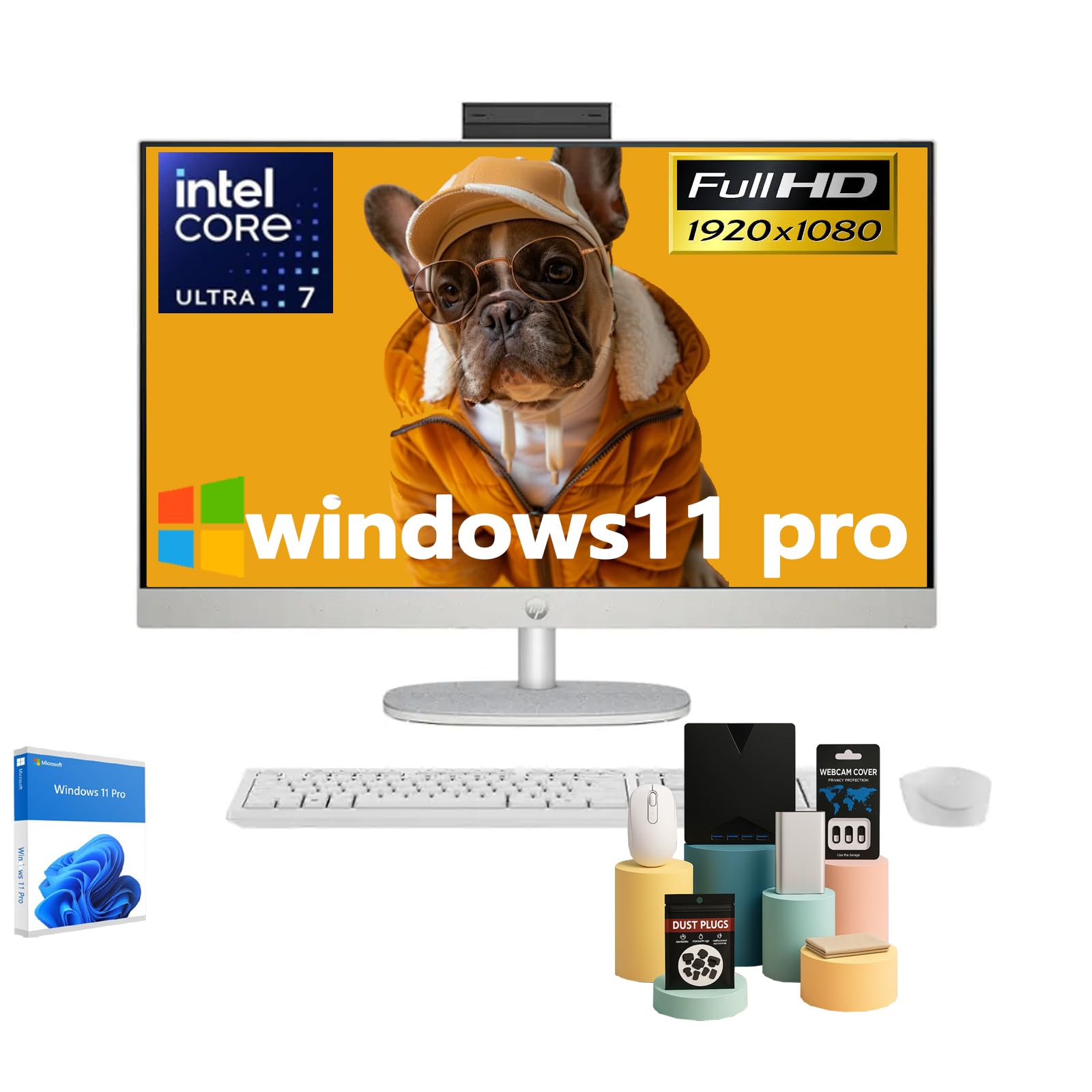
Figure 1: HP 27-inch All-in-One Desktop Computer
2. Kedu ihe dị na Igbe ahụ
Chọpụta na ihe niile dị na nkwakọ ngwaahịa:
- HP 27-inch All-in-One Desktop Computer Touchscreen
- Oghere kiiboodu
- Mouse Wired
- 90 W Smart AC nkwụnye ọkụ
- Ntuziaka nhazi

Foto 2: Ngwa na ihe ndị dị na ya
3. Nhazi
- Mepee ihe na kọmputa ahụ: Carefully remove the All-in-One computer and all accessories from the packaging.
- Debe kọmputa ahụ: Position the computer on a stable, flat surface. Ensure adequate ventilation around the device. The adjustable stand allows for tilting the display to your preferred viewakụkụ n'akuku.
- Ngwa njikọ:
- Connect the wired keyboard and mouse to the available USB ports on the back of the computer.
- Plug the 90 W Smart AC power adapter into the power port on the back of the computer, then connect it to a power outlet.
- Ike Na: Press the power button, typically located on the side or back of the display.
- Mbido Windows mbụ: Follow the on-screen instructions to complete the Windows 11 Pro setup, including language, network connection, and user account creation.

Figure 3: Rear ports for connectivity
4. .rụ ọrụ
4.1 Touchscreen arụ ọrụ
Your HP All-in-One Desktop features a 27-inch Full HD IPS touchscreen. You can interact directly with the display using touch gestures, similar to a tablet or smartphone. This allows for intuitive navigation, scrolling, and selection of items on the screen.
4.2 Ejikọtara Webigwefoto na ọdịyo
The computer includes an HP True Vision 1080p FHD IR Tilt Privacy Camera. This pop-up camera can be manually retracted into the display for privacy when not in use. Dual 2W speakers and integrated dual array digital microphones with temporal noise reduction provide clear audio for video calls and multimedia.
4.3 Njikọta
Ngwaọrụ a nwere nhọrọ njikọta zuru oke:
- Ikuku: Built-in Realtek Rtl8852Be Wi-Fi 6 (2x2) for high-speed internet and Bluetooth 5.3 for connecting wireless peripherals.
- ọdụ ụgbọ mmiri USB: 2x USB Type-A 5Gbps Signaling Rate, 1x USB Type-C 5Gbps Signaling Rate, and 2x USB 2.0 Type-A for connecting various devices.
- Mpụta vidiyo: 1x HDMI-out 1.4 port for connecting an external display.
- Netwọk: 1x RJ45 LAN Ethernet port for wired network connection.
- Audio: 1x Headphone/Microphone Combo jack.
Vidiyo 1: Ngwaahịa gafereview. This video provides a brief visual overview of the HP All-in-One Desktop Computer's features and design.
5. Nlekọta
5.1 Nhicha
- Ihuenyo: Jiri akwa dị nro na-enweghị ntụpọ dampjiri mmiri ma ọ bụ ihe nhicha ihuenyo kpuchie ya. Zere kemịkalụ siri ike.
- Chassis: Jiri ákwà dị nro ma kpọọ nkụ hichaa ya. Maka unyi siri ike, jiri obere d hichaa ya.amp akwa .
- Igwe ikuku: Regularly check and clean the ventilation slots to prevent dust buildup, which can affect performance.
5.2 Mmelite ngwanrọ
Keep your Windows 11 Pro operating system and drivers updated to ensure optimal performance, security, and compatibility. Windows Update will typically handle this automatically, but you can manually check for updates in the system settings.
5.3 Ihe gbasara gburugburu ebe obibi
This HP All-in-One Desktop is designed with sustainability in mind, incorporating post-consumer recycled plastics and ocean-bound plastics in its construction. Please dispose of the product responsibly at the end of its life cycle according to local regulations.

Figure 4: Designed with the planet in mind
6. Nchọpụta nsogbu
If you encounter issues with your computer, try the following steps:
- Enweghị ike: Ensure the power adapter is securely connected to both the computer and a working power outlet. Try a different outlet if necessary.
- Enweghị Ngosipụta: Check if the computer is powered on. If the screen remains black, try restarting the computer.
- Ngwaọrụ Ndị Na-anaghị Azaghachi: Verify that the keyboard and mouse are properly connected to the USB ports. If using wireless peripherals, ensure they are charged and correctly paired.
- Ịrụ ngwa ngwa: Close unnecessary applications. Check for and install any pending Windows updates. Ensure sufficient free space on your SSD.
- Webcam Issues: Ensure the pop-up privacy camera is extended. Check privacy settings in Windows to ensure applications have permission to access the camera.
Maka nsogbu ndị ọzọ siri ike, gaa na nkwado HP websaịtị ma ọ bụ kpọtụrụ ọrụ ndị ahịa HP.
7. Nkọwapụta

Figure 5: Key specifications of the HP All-in-One Desktop
| Njirimara | Nkọwa |
|---|---|
| Ngosipụta ihuenyo guzoro ọtọ | 27 sentimita asatọ |
| Mkpebi ihuenyo | 1920 x 1080 pikselụ (FHD) |
| Ụdị ngosi | Touch Screen, IPS, Three-Sided Micro-Edge, Anti-Glare, 300 Nits, 99% sRGB |
| Nhazi | Intel Ultra 7 155U (12-Core, 1.7 GHz base, 4.8 GHz turbo, 12 MB Intel Smart Cache) |
| RAM | 16 GB DDR5 5600MHz (Upgradeable to 64 GB) |
| Draịvụ ike | 1 TB SSD (Upgradeable to 2 TB) |
| Ihe eserese eserese | Ihe eserese Intel agbakwunyere |
| Sistemụ nrụọrụ | Windows 11 Pro |
| Ụdị ikuku | Realtek Rtl8852Be Wi-Fi 6 (2x2), Bluetooth 5.3 |
| ọdụ ụgbọ mmiri | 2x USB Type-A 5Gbps, 1x USB Type-C 5Gbps, 2x USB 2.0 Type-A, 1x Headphone/Microphone Combo, 1x HDMI-out 1.4, 1x RJ45 LAN Ethernet |
| Ibu Ibu | 14.81 pound |
| Akụkụ ngwaahịa | 24.11 x 20.35 x 7.34 sentimita asatọ |
| Atụmatụ pụrụ iche | Adjustable Stand, Dual Microphone with Advanced Noise Reduction, HP True Vision 1080p with Pop-Up Privacy Camera, Three-Side Micro-Edge Display with Wide-Viewna akụkụ |

Figure 6: Product dimensions
8. Akwụkwọ ikike na nkwado
Your HP 27-inch Touchscreen All-in-One Desktop Computer comes with a standard manufacturer's warranty. Please refer to the warranty card included in your product packaging for specific terms and conditions.
For technical support, driver downloads, and additional product information, please visit the official HP support websaịtị: www.hp.com/udo