1. Okwu mmalite
This manual provides essential information for the safe and efficient operation of your WiMiUS P61 Pro Smart Mini Projector. Please read it thoroughly before using the device and retain it for future reference.
The WiMiUS P61 Pro is a portable smart mini projector featuring native 1080P resolution with 4K support, integrated streaming apps like Netflix, YouTube, and Prime Video, Dolby Audio, WiFi 6, Bluetooth 5.2, auto keystone correction, and electric focus. Its compact design allows for versatile use in various environments.
2. Ozi nchekwa
- Nchekwa anya: Elela anya ozugbo na oghere projector mgbe lamp Ọ na-agba ọkụ. Ọkụ na-egbuke egbuke nwere ike imebi anya.
- Igwe ikuku: Hụ na ikuku zuru oke na ihe ngosi ahụ. Ekpuchila oghere ikuku. Okpomọkụ gabigara ókè nwere ike ibute nsogbu ma ọ bụ ọkụ.
- Ịnye ọkụ: Use only the provided power adapter. Ensure the power source matches the voltage requirements specified on the adapter.
- Mmiri na mmiri: Keep the projector away from water, rain, and excessive humidity. Do not operate with wet hands.
- Nhicha: Disconnect power before cleaning. Use a soft, dry cloth. Avoid abrasive cleaners or solvents.
- Nkwanye: Place the projector on a stable, level surface. Avoid placing it in direct sunlight or near heat sources.
- Ụmụaka: Debe ihe ngosi ahụ ka ụmụaka ghara iru ya aka.
3. Ihe ngwugwu
Chọpụta na ihe niile dị na ngwugwu:
- WiMiUS P61 PRO Projector *1
- Remote Control *1 (Batteries not included)
- Ụdọ ike *1
- HDMI USB * 1
- Ntuziaka mmalite ngwa ngwa * 1
4. Ngwaahịa gafereview
The WiMiUS P61 Pro is designed for ease of use and portability. Below are key features and components.

Foto 4.1: N'ihu view of the WiMiUS P61 Pro Mini Projector displaying its smart system, Dolby Audio, 4K support, and auto keystone features against a Netflix background.

Image 4.2: The WiMiUS P61 Pro Mini Projector showcasing its built-in smart system with pre-installed apps like Netflix, YouTube, Prime Video, Disney+, and Hulu, eliminating the need for external TV sticks.
5. Nhazi
5.1 Ntinye
Position the projector on a stable surface. The optimal projection distance for a 40-120 inch display is between 3 and 11 feet. The projector features a 1.24:1 throw ratio.
- N'elu tebụl: Place the projector on a flat table.
- Njem: Use the M6 threaded mount at the bottom to attach a tripod.
- Ugwu elu ụlọ: Securely mount the projector to the ceiling using a compatible mount.

Image 5.1: Illustration of various placement options for the WiMiUS P61 Pro Mini Projector, including tabletop, tripod, and ceiling mount, demonstrating its versatility.
5.2 Njikọ ike
- Connect the power cord to the projector's power input.
- Tinye nsọtụ nke ọzọ nke eriri ọkụ n'ime oghere eletrik kwesịrị ekwesị.
5.3 Ike mbido
Press the power button on the projector or the remote control to turn on the device. The projector will initiate its startup sequence.
5.4 Focus and Keystone Adjustment
The P61 Pro features automatic adjustments for optimal image quality.
- Eletrik lekwasịrị anya: The projector will automatically adjust focus for a clear image. Manual adjustment can also be performed via the remote if needed.
- Ndozi isi okwu na akpaaka: The projector automatically corrects vertical trapezoidal distortion (up to ±30°). This ensures a rectangular image even if the projector is not perfectly aligned with the screen.
- Ọrụ mbugharị: Adjust the screen size from 50% to 100% without moving the projector.

Image 5.2: Visual representation of the WiMiUS P61 Pro's electric focus, ±30° auto vertical keystone correction, and 50-100% zoom capabilities, ensuring a perfectly aligned and clear image.
6. .rụ ọrụ
6.1 Remote Control Navigation
Use the included remote control to navigate the projector's interface. The remote has dedicated buttons for popular streaming services like Netflix, YouTube, and Prime Video for quick access.
6.2 Jikọọ na Wi-Fi
- From the home screen, navigate to 'Settings'.
- Select 'Network' or 'Wi-Fi Settings'.
- Họrọ netwọk Wi-Fi ịchọrọ site na listi ahụ.
- Enter the password and connect. The projector supports Wi-Fi 6 for fast and stable streaming.
6.3 Streaming Applications
The WiMiUS P61 Pro comes with officially licensed Netflix, YouTube, and Prime Video pre-installed. Other apps can be downloaded from the integrated app store.
- Select the desired app from the home screen.
- Jiri nzere akaụntụ gị banye.
- Begin streaming content directly.
6.4 Njikọ Bluetooth
The projector features two-way Bluetooth 5.2, allowing it to connect to external audio devices or function as a Bluetooth speaker for your phone.
- Connecting to External Audio: Go to 'Settings' > 'Bluetooth', turn on Bluetooth, and select your desired speaker or headphones to pair.
- Iji dị ka Bluetooth Speaker: Switch the projector to Bluetooth speaker mode (refer to on-screen instructions or quick guide). Pair your phone with the projector.

Image 6.1: Depiction of the WiMiUS P61 Pro's two-way Bluetooth 5.2 functionality, enabling connection to external audio devices or streaming music from a phone to the projector's speakers.
6.5 Njikọ Ngwaọrụ Mpụga
The projector offers multiple ports for connecting various devices.
- HDMI: Connect gaming consoles (PS4, Switch), laptops, or other HDMI-enabled devices using the HDMI cable. Supports CEC/ARC.
- USB: Tinye draịva USB iji kpọọ mgbasa ozi files ozugbo.
- Apụọ ọdịyo: Connect to external sound systems via the 3.5mm audio jack.
6.6 Ngosipụta ihuenyo
The projector supports Miracast, DLNA, and AirPlay for wireless screen mirroring from compatible devices.
- Ensure your mobile device and projector are connected to the same Wi-Fi network.
- Select the screen mirroring function on the projector (e.g., 'Miracast', 'AirPlay').
- On your mobile device, enable screen mirroring/casting and select the projector from the list of available devices.

Image 6.2: A user enjoying a racing game projected by the WiMiUS P61 Pro, highlighting its Wi-Fi 6 capability for faster streaming and screen mirroring via Miracast, DLNA, and AirPlay.
7. Nlekọta
7.1 Ihicha oghere
Use a soft, lint-free cloth specifically designed for optical lenses to gently wipe the projector lens. Avoid touching the lens with bare hands.
7.2 Mgba ikuku
Regularly check that the projector's ventilation ports are clear of dust and debris to prevent overheating. Do not place the projector on soft surfaces that might block airflow.
7.3 Nchekwa
When not in use for extended periods, store the projector in a cool, dry, dust-free environment. Use the original packaging or a protective case to prevent damage.
8. Nchọpụta nsogbu
- Enweghị ike: Ensure the power cord is securely connected to both the projector and the power outlet. Try a different outlet.
- Enweghị onyonyo: Check if the projector is powered on. Verify the input source is correctly selected (HDMI, USB, etc.). Ensure cables are properly connected.
- Onyonyo na-adịghị ahụkebe: Allow the auto-focus to complete. If still blurry, manually adjust focus using the remote control. Ensure the projection surface is flat.
- Image Not Rectangular: The auto keystone correction should adjust this automatically. If not, check for obstructions or try repositioning the projector.
- Enweghị ụda: Check the volume settings on the projector and any connected external audio devices. Ensure Bluetooth audio is correctly paired or HDMI ARC is configured.
- Okwu njikọ Wi-Fi: Ensure the Wi-Fi password is correct. Restart the projector and your router. Check for signal interference.
- Njikwa anya anaghị arụ ọrụ: Ensure batteries are correctly inserted and not depleted. Point the remote directly at the projector's IR receiver.
9. Nkọwapụta
| Njirimara | Nkọwapụta |
|---|---|
| Ụdị | WiMiUS |
| Nọmba nlereanya | P61PRO |
| Ngosipụta mkpebi | 1920 x 1080 (Native 1080P), 4K Supported |
| Ibu Ibu | 1.98 pound |
| Akụkụ ngwaahịa | 3.15 x 3.94 x 7.09 sentimita asatọ |
| Agba | Nwa |
| Teknụzụ Njikọta | Bluetooth 5.2, HDMI (CEC/ARC), WiFi 6, USB, Audio Out |
| Atụmatụ pụrụ iche | Netflix Officially-Licensed, Portable Design, Dolby Audio, 20W Speakers, Electric Focus, Auto Keystone (±30° Vertical), 50%-100% Zoom |
| Eji akwadoro | Business, Education, Gaming, Home Cinema |
10. Akwụkwọ ikike na nkwado
WiMiUS is committed to providing excellent customer service and product reliability.
- Reliability Warranty: Ọnwa iri na abụọ
- Iwu nloghachi: 30 Days (no-questions-asked)
- Nkwado mgbe-ahịa: Nkwado ndụ
For any inquiries or technical assistance, please contact our support team:
Email: support@wimius.com
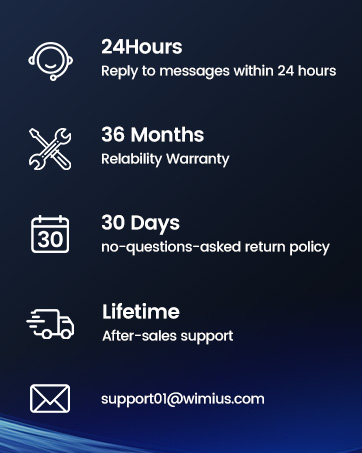
Image 10.1: WiMiUS customer support details, including 24-hour message reply, 36-month warranty, 30-day return policy, lifetime after-sales support, and contact email.


