1. Okwu mmalite
This manual provides comprehensive instructions for the installation, operation, and maintenance of your Weiser Powerbolt 2 Satin Chrome Keyless Entry Door Lock and the accompanying SmartKey Re-Key Kit. The Powerbolt 2 offers convenient keyless entry with a personalized access code and motorized one-touch locking. The SmartKey Re-Key Kit allows for quick and easy re-keying of your Weiser locks without professional assistance.
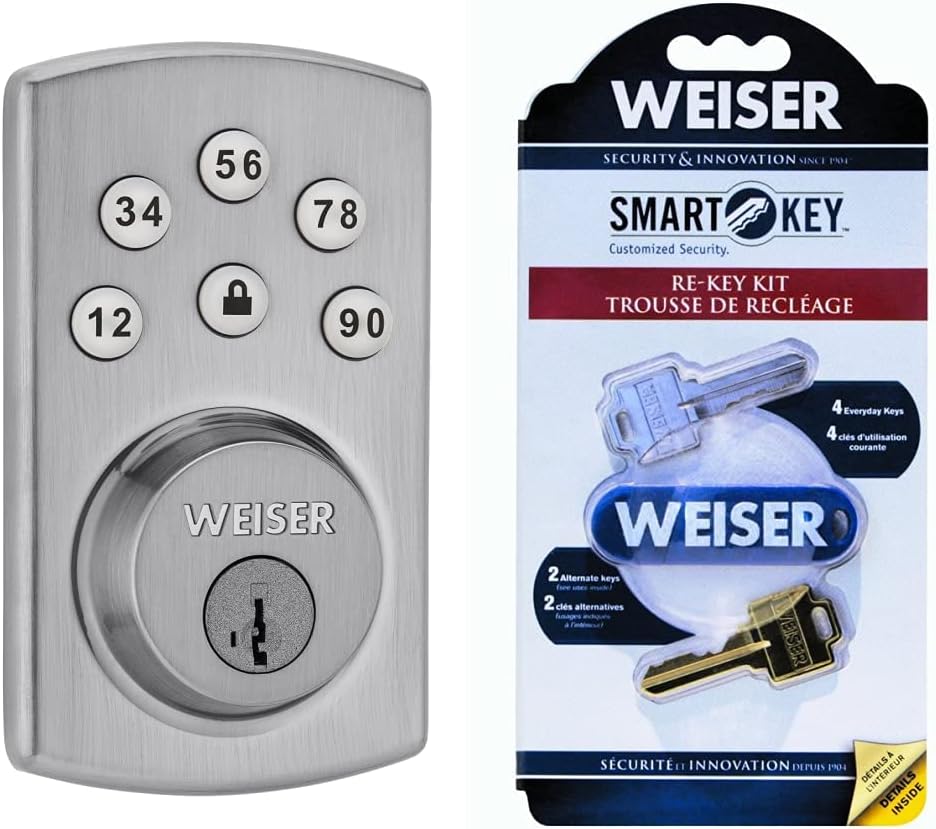
Figure 1: Weiser Powerbolt 2 Keyless Entry Door Lock and SmartKey Re-Key Kit Bundle. This image displays both the Powerbolt 2 deadbolt with its keypad and the SmartKey Re-Key Kit packaging, highlighting the complete security solution.
The Powerbolt 2 features a backlit keypad for enhanced visibility in low light conditions and an automatic locking function after 30 seconds for added security. It supports up to 6 user codes and operates on 4 AA batteries. The SmartKey technology provides advanced protection against common break-in techniques like picking and bumping, and allows you to re-key your lock in seconds.
2. Ozi nchekwa dị mkpa
Please read and understand all instructions before installing and using this product. Keep this manual for future reference.
- Anwala ịkwasa ma ọ bụ gbanwee mkpọchi. Nke a nwere ike mebie akwụkwọ ikike ma mebie nchekwa.
- Use only the specified battery type (4 AA alkaline batteries). Do not mix old and new batteries or different types of batteries.
- Ensure all components are securely fastened during installation to prevent malfunction.
- Protect the keypad from excessive moisture or direct water exposure.
- Regularly check battery levels and replace batteries as needed to ensure continuous operation.
- Keep your access codes confidential and change them periodically for enhanced security.
3. Ihe ngwugwu
Nyochaa na etinyere ihe niile edepụtara n'okpuru na ngwugwu gị:
- Weiser Powerbolt 2 Keyless Entry Deadbolt (Exterior Keypad Assembly, Interior Assembly, Latch, Strike Plate)
- Weiser SmartKey Re-Key Kit (Includes 2 sets of keys: 4 Everyday Keys, 2 Alternate Keys, and SmartKey tool)
- Ịkwanye kposara
- Installation Guide / User Manual (this document)
- 4 AA Batteries (typically not included, but required for operation)
4. Ntọala na nwụnye
4.1 Powerbolt 2 Deadbolt Installation
The Powerbolt 2 is designed for easy installation with just a screwdriver. Ensure your door has a standard bore hole of 2 1/8 inches and a door thickness between 1 3/8 inches and 1 3/4 inches.
- Kwadebe Ọnụ ụzọ: Check the door's bore hole and backset. Adjust the latch if necessary to fit the backset.
- Wụnye Latch: Tinye ihe mkpuchi ahụ n'ọnụ ụzọ ma jiri skru jide ya. Hụ na ihe mkpuchi mkpuchi ahụ na-eche ihu n'ụzọ ziri ezi.
- Wụnye Mgbakọ Mpụga: Feed the cable and spindle through the bore hole. Position the exterior keypad assembly flush against the door.
- Wụnye efere ntinye ime: Secure the interior mounting plate to the exterior assembly using the provided screws. Ensure the cable is routed correctly.
- Jikọọ Mgbakọ Ime: Connect the cable from the exterior assembly to the interior assembly. Align the spindle with the slot on the interior assembly.
- Secure Interior Assembly: Attach the interior assembly to the mounting plate with screws.
- Wụnye batrị: Insert 4 new AA alkaline batteries into the battery pack, observing polarity.
- Mee usoro inye ọnụ ụzọ: This step is crucial for the lock to learn the orientation of your door. Follow the specific instructions in the included quick start guide for your Powerbolt 2 model. Typically, this involves pressing a button on the interior assembly while the door is open and the latch is extended.

Figure 2: Weiser Powerbolt 2 installed on a door. This image shows the sleek appearance of the Powerbolt 2 deadbolt on a residential door, demonstrating its integration into a home security setup.
4.2 SmartKey Re-Key Kit Usage
The SmartKey Re-Key Kit allows you to re-key your Weiser lock in three easy steps without removing it from the door. This is useful for changing keys after moving or for consolidating multiple locks to a single key.

Figure 3: Weiser SmartKey Re-Key Kit packaging back. This image displays the rear of the SmartKey Re-Key Kit packaging, which typically includes visual instructions for the re-keying process.
- Insert Current Key: Insert your currently working key fully into the cylinder.
- Insert SmartKey Tool: While the current key is still in the cylinder, insert the SmartKey tool firmly and fully into the SmartKey hole. You will feel a slight click.
- Remove Current Key & Insert New Key: Remove the current key. Immediately insert the new key (from the SmartKey kit) fully into the cylinder. Turn the new key 90 degrees clockwise, then 90 degrees counter-clockwise. Remove the new key. Your lock is now re-keyed to the new key.
Mara: Ensure the door is unlocked before starting the re-keying process. Test the new key multiple times before closing the door.
5. Ntuziaka ọrụ
5.1 Powerbolt 2 Keyless Entry

Figure 4: Close-up of Powerbolt 2 keypad. This image provides a detailed view of the Powerbolt 2's backlit keypad, showing the numbered buttons and the lock/unlock button.
- Ịkpọghee ụzọ: Enter your 4-8 digit user code on the keypad. The deadbolt will retract, and the door will unlock.
- Ịkpọchi ụzọ:
- Mkpọchi otu mmetụ: Press the "Lock" button (padlock icon) on the keypad. The deadbolt will extend.
- Mkpọchi akpaaka: The lock will automatically extend the deadbolt 30 seconds after being unlocked if no further action is taken. This feature can typically be enabled/disabled via programming.
- Iji igodo: The lock can also be operated with a traditional key from the outside. From the inside, use the turn-button.
5.2 Programming User Codes
The Powerbolt 2 allows for up to 6 unique user codes. Refer to your specific model's quick start guide for detailed programming steps, as these can vary slightly. Generally, the process involves:
- Tinye Ụdị Mmemme: Press the "Program" button on the interior assembly (usually located near the battery pack).
- Tinye koodu nnabata: Input your existing Master Code (if set) or the default programming code.
- Tinye koodu onye ọrụ ọhụrụ: Follow the prompts to enter a new 4-8 digit user code.
- Kwenye: The lock will typically beep or flash to confirm successful programming.
Ihe dị mkpa: It is highly recommended to change the default Master Code immediately after installation for security purposes.

Figure 5: Powerbolt 2 features graphic. This graphic illustrates key features of the Powerbolt 2, including One-Touch Locking, Master Code, Bump-Proof, User Codes, Pick-Proof, and Kick-In Resistant capabilities, highlighting its robust security.
6. Nlekọta
- Ngbanwe batrị: The Powerbolt 2 operates on 4 AA alkaline batteries. When the batteries are low, the lock will typically emit a series of beeps or a red light will flash after a successful code entry. Replace all four batteries simultaneously.
- Nhicha: Clean the keypad and lock exterior with a soft, damp akwa . Zere ihe nchacha ma ọ bụ ihe mgbaze nke nwere ike imebi ngwụcha ma ọ bụ ngwa eletrọnịkị.
- mmanu mmanu: Periodically lubricate the latch bolt and deadbolt mechanism with a silicone-based lubricant to ensure smooth operation. Do not lubricate the cylinder itself.
7. Nchọpụta nsogbu
| Nsogbu | Ihe nwere ike ime | Ngwọta |
|---|---|---|
| Mkpọchi anaghị aza ntinye ahụ igodo. | Dead batteries; incorrect code entered; lock in programming mode. | Replace all 4 AA batteries. Ensure correct code is entered. Exit programming mode. |
| Deadbolt anaghị agbatị/ala azụ kpamkpam. | Misalignment with strike plate; low batteries; door handing process not completed. | Check strike plate alignment. Replace batteries. Perform door handing process. |
| Keypad lights up but lock doesn't operate. | Internal cable disconnected; mechanical binding. | Recheck internal cable connection during installation. Ensure no obstructions. |
| Cannot re-key lock with SmartKey Kit. | Incorrect current key; SmartKey tool not fully inserted; lock not unlocked. | Ensure you are using a working key. Insert SmartKey tool firmly until it clicks. Ensure lock is in the unlocked position. |
8. Nkọwapụta
- Ụdị ngwaahịa: Keyless Entry Door Lock / Deadbolt Lock + Re-Key Kit
- Akara: Weiser
- Ụdị: Ike 2
- Mechaa: Satin Chrome (Polished)
- Ihe: Ọla
- Ọnụọgụ nke Mpekere: 2 (Lock and Re-Key Kit)
- Atụmatụ pụrụ iche: Keyless Entry, Backlit Keypad, Motorized Auto Lock, SmartKey Re-Key Technology
- Koodu onye ọrụ: Up to 6 programmable user codes
- Isi mmalite ike: Batrị 4 AA Alkaline (anaghị etinye ya)
- Ndakọrịta oke ọnụ ụzọ: 1 3/8" - 1 3/4"
- Dayameta oghere olulu: 2 1/8"
- Eji akwadoro: Nchekwa
9. Akwụkwọ ikike na nkwado
Weiser products are manufactured to the highest standards of quality and technology. For specific warranty information regarding your Powerbolt 2 lock and SmartKey Re-Key Kit, please refer to the warranty card included with your product or visit the official Weiser websaịtị.
For technical support, troubleshooting assistance, or to inquire about replacement parts, please contact Weiser Customer Service. Contact information can typically be found on the product packaging or on the official Weiser websaịtị:


