1. Okwu mmalite
This manual provides detailed instructions for the Orbic Speed Mobile Hotspot, Model VZORB400LBVZRT. This device allows you to create a personal Wi-Fi network using a 4G LTE cellular connection, enabling up to 10 Wi-Fi enabled devices to connect to the internet simultaneously. It is designed for portability, offering up to 12 hours of usage time and up to 5 days of standby time on a single charge.
Please read this manual thoroughly to ensure proper setup, operation, and maintenance of your device.
2. Ngwaahịa gafereview
The Orbic Speed Mobile Hotspot is a compact and efficient device for on-the-go internet access. Familiarize yourself with its components:
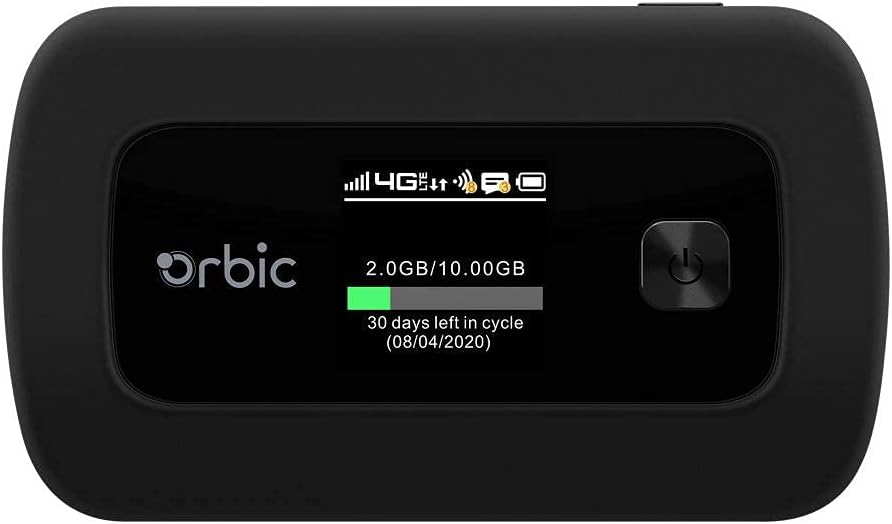
Foto 2.1: N'ihu view of the Orbic Speed Mobile Hotspot, displaying the screen with network status, data usage, and power button.

Foto 2.2: N'azụ view of the Orbic Speed Mobile Hotspot, showing the Verizon logo, indicating network compatibility.
Ọdịnaya ngwugwu:
- Orbic Speed Mobile Hotspot (Model VZORB400LBVZRT)
- Batrị lithium ion
- Eriri Nchaji (USB)
- Power Adapter (Wall Charger)
- Ntuziaka mmalite ngwa ngwa (ọ bụrụ na etinyere ya)
3. Nhazi
Follow these steps to set up your Orbic Speed Mobile Hotspot:
- Fanye SIM kaadị: Open the back cover of the hotspot and carefully insert your activated 4G LTE SIM card into the designated slot. Ensure it is correctly oriented.
- Fanye batrị: Place the provided Lithium Ion battery into the battery compartment, ensuring the contacts align. Replace the back cover.
- Chaja ngwaọrụ: Connect the charging cable to the hotspot and the power adapter. Plug the adapter into a wall outlet. Allow the device to charge fully before first use. The screen will indicate charging status.
- Ike Na: Press and hold the power button (located on the front panel) until the screen illuminates. The device will boot up and attempt to connect to the 4G LTE network.
- Nhazi izizi: Once powered on, the screen will display network status, Wi-Fi name (SSID), and password. Note these details for connecting your devices.
4. Ntuziaka ọrụ
4.1 Connecting Devices to Your Hotspot
- Ensure your Orbic Speed Mobile Hotspot is powered on and connected to the 4G LTE network.
- On your Wi-Fi enabled device (e.g., laptop, smartphone, tablet), open the Wi-Fi settings.
- Scan for available Wi-Fi networks. Locate the network name (SSID) displayed on your hotspot's screen.
- Select the hotspot's SSID and enter the Wi-Fi password (also displayed on the hotspot's screen) when prompted.
- Your device should now be connected to the internet via the hotspot. The hotspot supports up to 10 connected devices simultaneously.
4.2 Using WPS (Wi-Fi Protected Setup)
The Orbic Speed Mobile Hotspot supports WPS for easy connection of compatible devices:
- On your Wi-Fi device, initiate the WPS connection process.
- On the Orbic Speed Mobile Hotspot, navigate to the WPS option (refer to the on-screen menu or a dedicated WPS button if available) and activate it.
- The devices will automatically connect without needing to manually enter the password.
4.3 Monitoring Data Usage
The hotspot's screen displays real-time data usage information, including current usage and remaining data in your billing cycle. This helps you manage your data plan effectively.
4.4 Ịnweta Web Interface (Advanced Settings)
For advanced settings such as changing Wi-Fi name/password, managing connected devices, or configuring network settings, you can access the hotspot's web interface. Typically, you connect a device to the hotspot's Wi-Fi, then open a web browser and enter a specific IP address (e.g., 192.168.1.1 or 192.168.0.1) or a web address provided in the device's documentation. You will need to log in with administrator credentials, usually found on a sticker inside the battery compartment or in the quick start guide.
5. Nlekọta
5.1 Nlekọta batrị
- To maximize battery life, avoid exposing the device to extreme temperatures.
- Charge the battery regularly. If the device will not be used for an extended period, charge it to about 50% before storing.
- Use only the original or approved charging accessories.
5.2 Nhicha
Wipe the device with a soft, dry cloth. Do not use liquid cleaners or abrasive materials, as they may damage the device.
5.3 Mmelite ngwanrọ
Periodically check for software updates for your hotspot. Updates can improve performance, add features, and enhance security. These are typically managed through the device's web interface.
6. Nchọpụta nsogbu
If you encounter issues with your Orbic Speed Mobile Hotspot, refer to the following common solutions:
- Enweghị njikọ netwọkụ:
- Ensure your SIM card is properly inserted and activated with a data plan.
- Check for 4G LTE network coverage in your current location.
- Restart the hotspot.
- Devices Cannot Connect to Wi-Fi:
- Verify the Wi-Fi name (SSID) and password on the hotspot's screen match what you are entering.
- Ensure the hotspot is powered on and broadcasting its Wi-Fi signal.
- Lelee ma ọ bụrụ na erutela ọnụọgụ kachasị nke ngwaọrụ ejikọrọ (10).
- Restart both the hotspot and the device attempting to connect.
- Ọsọ ịntanetị dị nwayọ:
- Relocate the hotspot to an area with better cellular signal strength.
- Belata ọnụọgụ ngwaọrụ ejikọrọ.
- Check your data plan for any speed throttling or data limits.
- Battery Drains Quickly / Not Charging:
- Ensure the charging cable and adapter are securely connected and functioning.
- Avoid using the hotspot in extremely hot or cold environments.
- If the battery life has significantly degraded, it may need replacement.
- Ngwaọrụ anaghị aza:
- Perform a soft reset by holding the power button until the device turns off, then power it back on.
- If a soft reset fails, locate the reset pinhole (if available) and use a paperclip to perform a factory reset (note: this will erase all custom settings).
7. Nkọwapụta
| Njirimara | Nkọwa |
|---|---|
| Nọmba nlereanya | VZORB400LBVZRT |
| Ụdị | Orbic (Verizon compatible) |
| Teknụzụ Njikọta | 4G LTE, Wi-Fi (802.11ac) |
| Klaasị ugboro ugboro | Abụọ-Band |
| Ngwa ejikọrọ kacha | Ruo 10 |
| Oge eji | Ruo awa iri abụọ |
| Oge echere | Ruo ụbọchị 5 |
| Ụdị batrị | 1 batrị lithium ion |
| Njirimara Pụrụ Iche | WPS (Mbido Wi-Fi echekwara) |
| Ụdị antenna | Ime |
| Akụkụ ngwaahịa | 2.55 x 3.46 x 1.85 sentimita asatọ |
| Ibu Ibu | 8.8 ounces |
8. Akwụkwọ ikike na nkwado
For warranty information and technical support, please refer to the documentation provided with your purchase or contact the retailer/manufacturer directly. As this product may be a renewed item, specific warranty terms may vary. Please consult your purchase agreement for details regarding Amazon Renewed Guarantee or other applicable warranties.
For further assistance, you may need your device's serial number, which is typically located on a sticker inside the battery compartment or on the original packaging.


