1. Okwu mmalite
This manual provides detailed instructions for the installation, operation, and maintenance of your BSTUOKEY WiFi Fingerprint Access Controller, Model 20210310. This device is designed to provide secure access control using multiple authentication methods including fingerprint, RFID card, PIN code, and smartphone application. It features a durable, waterproof design suitable for various environments.
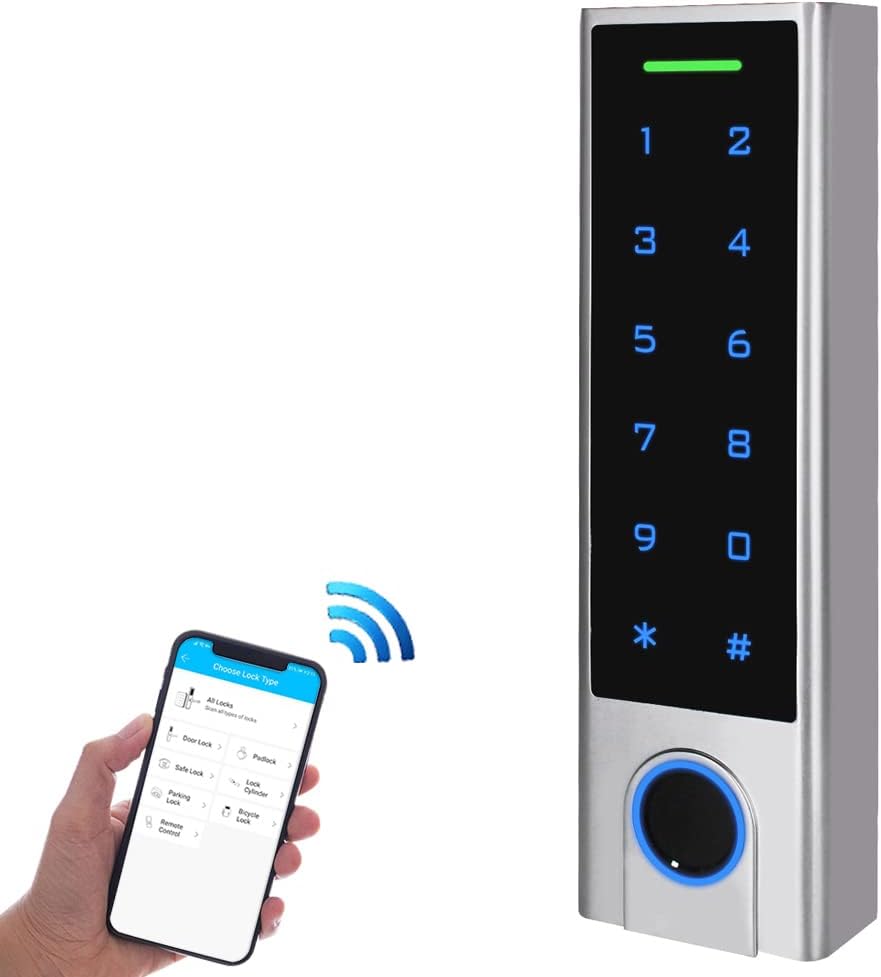
Image 1.1: BSTUOKEY WiFi Fingerprint Access Controller. The image shows the sleek silver keypad with a fingerprint sensor at the bottom and a smartphone wirelessly connected to it.
Keypad Components

Image 1.2: Labeled components of the access controller. Key features include an indicator light at the top, a touch keyboard for numbers and symbols, a card area, a metal case, and a fingerprint sensor at the bottom.
2. Akụrụngwa Ngwaahịa
- Zinc Alloy Electroplated anti-vandal case with a touchscreen interface.
- WiFi 2.4G/5G connectivity for remote access and management.
- Capacitive Fingerprint Sensor for biometric authentication.
- Supports 125Khz RFID EM Cards for card-based access.
- IP67 Waterproof rating, suitable for outdoor installation.
- Integrated with Tuya Mobile APP for iOS and Android devices.
- Supports up to 1000 hardware users and 100 APP users.
- Features relay output, exit button support, alarm, and door contact integration.
- Wiegand 26 input and output, allowing use as a standalone reader or keypad.
- Remote door opening and temporary password generation via Tuya App.
3. Ihe ngwugwu
Nyochaa na etinyere ihe niile edepụtara n'okpuru na ngwugwu gị:

Image 3.1: Product list showing the access controller and included accessories. The package contains the access controller, user manuals, a master card, a Diode IN4004 for relay circuit protection, self-tapping screws, wall anchors, and a screwdriver.
- BSTUOKEY WiFi Fingerprint Access Controller
- User Manual(s)
- Master Card (for user management)
- Diode IN4004 (for relay circuit protection)
- Skru nke onwe
- Mgbidi arịlịka
- Screwdriver
4. Nhazi
4.1 Nwụnye anụ ahụ
Before installation, ensure the power supply is disconnected. The device requires a 12V-18V DC power source.
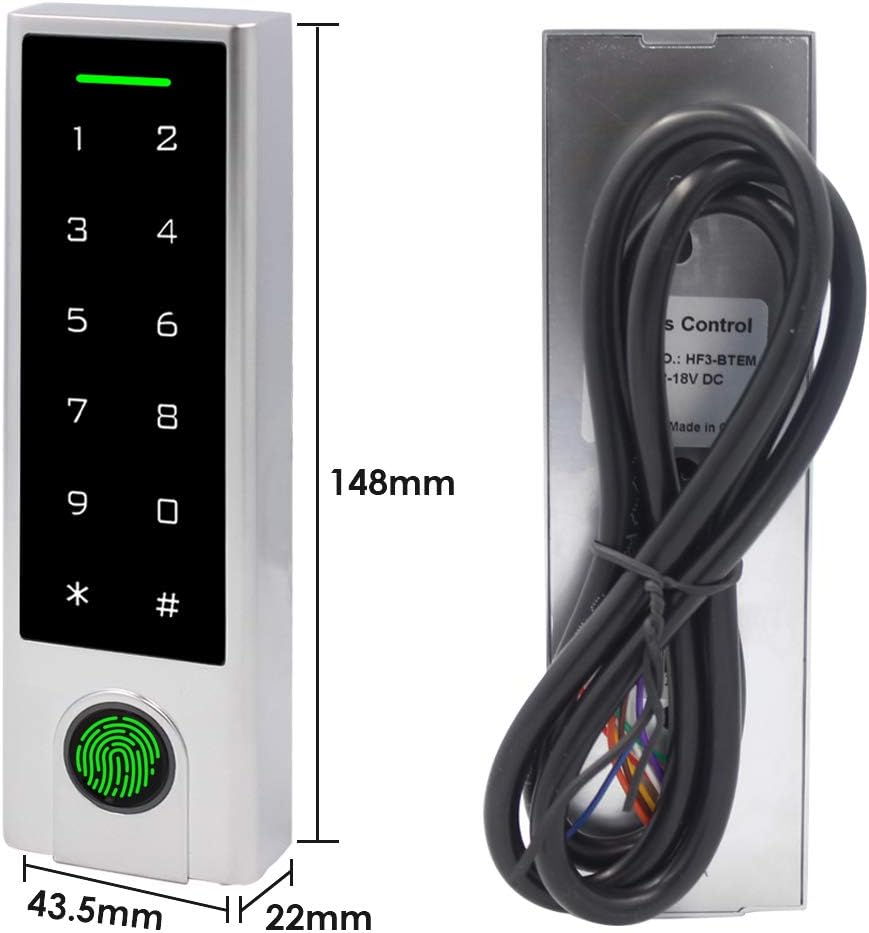
Image 4.1: Dimensions of the access controller. The device measures 148mm in height, 43.5mm in width, and 22mm in depth.
- Choose a suitable mounting location. The device is IP67 rated, allowing for outdoor installation.
- Drill holes for mounting screws and cable routing according to the device's backplate.
- Secure the backplate to the wall using the provided screws and wall anchors.
- Connect the wiring as per the diagram below. Ensure correct polarity and secure connections.

Foto 4.2: N'azụ view of the access controller showing the cable entry point and model information (HF3-BTEM, Input: 12-18V DC).

Image 4.3: Detailed wiring diagram for connecting the access controller to a power supply, electric lock (NO/NC), exit button, and doorbell. The diagram illustrates connections for 12V, GND, COM, NO, and NC terminals.
4.2 Tuya App Setup
The BSTUOKEY Access Controller integrates with the Tuya Smart app for remote management and control.

Image 4.4: The access controller shown alongside a smartphone displaying the Tuya app interface, indicating support for Tuya integration.
- Download the 'Tuya Smart' app from the App Store (iOS) or Google Play Store (Android).
- Register or log in to your Tuya Smart account.
- Ensure the access controller is powered off.
- Open the Tuya Smart app on your smartphone.
- Power on the access controller. The device should appear in the app for pairing. Follow the on-screen instructions in the app to complete the pairing process.
- If prompted, connect the device to your WiFi network.
4.3 Initial Programming (Master Card)
The Master Card is used to add or delete other users (fingerprints, cards, PINs).
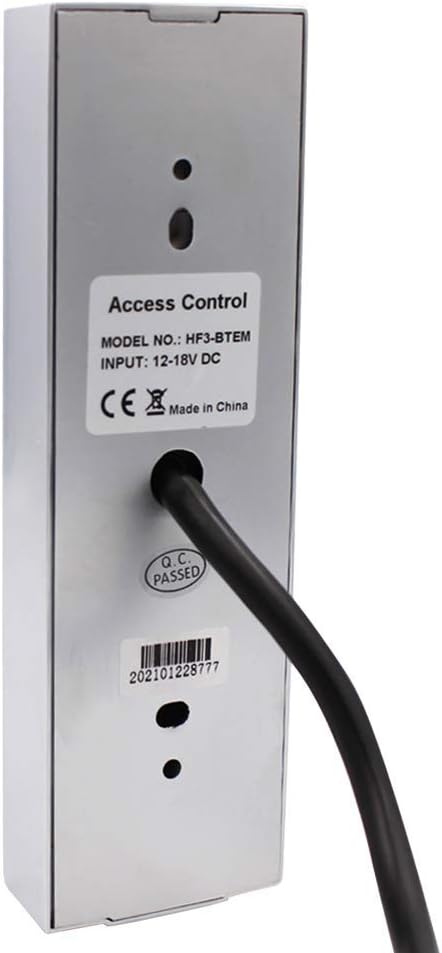
Image 4.5: Flowchart illustrating the process of adding users using the Master Card. It shows reading the Master Card, then reading the user's card/PIN/fingerprint (3 times), and finally reading the Master Card again to confirm.
- Present the Master Card to the access controller's card area. The indicator light will change, signaling entry into programming mode.
- To add a user: Present the new user's RFID card, enter their PIN, or scan their fingerprint (three times for fingerprint enrollment).
- Present the Master Card again to exit programming mode and save the new user.
5. Ntuziaka ọrụ
5.1 Access Modes
The access controller supports multiple methods for unlocking:

Image 5.1: Depiction of the four primary access modes: Smartphone unlocked (via app), PIN unlocked (entering code on keypad), Fingerprint unlocked (using the sensor), and Card unlocked (presenting an RFID card).
- Smartphone (Tuya App): Open the Tuya Smart app, select the access controller, and tap the unlock button.
- Koodu PIN: Enter your registered PIN code on the touch keypad, followed by the '#' key.
- Mkpisiaka: Tinye mkpịsị aka gị edebanyere aha na ihe mmetụta mkpisiaka.
- Kaadị RFID: Present your registered 125Khz EM Card to the card area on the keypad.
5.2 User Management via Tuya App
The Tuya Smart app allows for convenient management of users and access records.

Image 5.2: Screenshots illustrating the Tuya App's capabilities for adding/deleting users and viewing opening records. The app provides a list of access events.
- Na-agbakwunye ndị ọrụ: In the Tuya Smart app, navigate to the device settings and select 'Add User'. Follow the prompts to enroll new fingerprints, cards, or PINs.
- Na-ehichapụ ndị ọrụ: From the app, select 'Delete User' and choose the specific user to remove.
- Viewing Opening Records: The app provides a log of all access events, including who accessed and when.
5.3 Ime Remote
With WiFi connectivity, the access controller can be managed remotely through the Tuya Smart app.

Image 5.3: Diagram showing remote control capabilities. The access controller is connected via WiFi to a smartphone running the Tuya app, allowing remote door opening or temporary password generation.
- Mkpọghe tere aka: Unlock the door from anywhere using the Tuya Smart app, provided the device is connected to WiFi.
- Okwuntughe nwa oge: Generate temporary PIN codes for guests or service personnel, which can be time-limited or single-use.
6. Nlekọta
Regular maintenance ensures optimal performance and longevity of your access controller.
- Nhicha: Wipe the keypad and fingerprint sensor with a soft, damp ákwà. Zere ihe nhicha ma ọ bụ ihe mgbaze nke nwere ike imebi elu ahụ.
- Nchekwa gburugburu: While the device is IP67 waterproof, prolonged exposure to extreme weather conditions (e.g., direct heavy rain, extreme temperatures) should be minimized if possible to extend its lifespan.
- Lelee njikọ: Na-enyocha njikọ waya mgbe niile iji hụ na ha dị nchebe ma ghara imebi emebi.
- Mmelite ngwanrọ: Check the Tuya Smart app regularly for any available firmware updates for the access controller to ensure you have the latest features and security enhancements.
7. Nchọpụta nsogbu
Akụkụ a na-ekwu maka nsogbu ndị ị nwere ike izute.
- Issue: Device does not pair with Tuya Smart app.
- Ngwọta: Ensure the device is powered off, then open the Tuya Smart app. Power the device back on. The app should detect the device for pairing. Also, verify your smartphone's Bluetooth is enabled and the device is within range. Ensure your WiFi network is 2.4GHz, as some devices may not support 5GHz for initial setup.
- Issue: Persistent beeping from the device.
- Ngwọta: This may indicate an anti-theft alarm or a tamper alert. Check if the device has been tampered with or if the backplate is not securely fastened. Refer to the full user manual (if provided separately) for specific alarm codes or settings to disable/adjust the anti-theft feature.
- Issue: Fingerprint or RFID card not recognized.
- Ngwọta: Ensure your finger is clean and dry when using the fingerprint sensor. For RFID cards, ensure the card is correctly presented to the card area. Verify that the fingerprint or card has been properly enrolled in the system (refer to Section 4.3 and 5.2).
- Issue: Keypad is unresponsive.
- Ngwọta: Check the power supply to the device. Ensure all wiring connections are secure. If the issue persists, try power cycling the device (disconnect and reconnect power).
8. Nkọwapụta
- Nọmba nlereanya:
- 20210310
- Akara:
- BSTUOKEY
- Ihe:
- Glass panel, Zinc alloy
- Ụdị ngosi:
- Ihuenyo mmetụ aka
- Voltage:
- 12-18 volts DC
- Ibu ihe:
- 14.1 ounces (0.4 Kilogram)
- Akụkụ ngwugwu:
- 6.26 x 2.83 x 2.44 sentimita asatọ
- User Capacity (Hardware):
- 1000
- User Capacity (APP):
- 100
- Ụdị kaadị:
- 125Khz RFID EM Card
- Ọnụọgụ enweghị mmiri:
- IP67
- Ngwa gụnyere:
- Ahụigodo
9. Akwụkwọ ikike na nkwado
For warranty information or technical support, please contact the BSTUOKEY customer service directly. Refer to the product packaging or the seller's websaịtị maka nkọwa kọntaktị.
You can also visit the official BSTUOKEY store for additional product information and support resources: BSTUOKEY Store