Okwu mmalite
The FlinQ Smart WLAN Doorbell with Camera and Intercom provides enhanced home security and convenience. Featuring Full HD video, two-way audio, motion detection, and night vision, it allows you to monitor your doorstep and communicate with visitors from anywhere using your smartphone. This manual provides detailed instructions for setup, operation, and maintenance of your new smart doorbell system.
Ihe ngwugwu

Image: All components included in the FlinQ Smart WLAN Doorbell package, laid out on a white surface. This includes the doorbell unit, the indoor chime, two rechargeable batteries, a micro USB cable, an assembly kit, a safety wall mount, and the user manual.
Biko chọpụta na ihe niile edepụtara n'okpuru dị na ngwugwu gị:
- FlinQ Smart Video Doorbell Unit
- Indoor Chime Unit (Receiver)
- 2x batrị enwere ike ibugharị
- Igwe chaja USB Micro
- Safety Wall Mount
- Assembly Kit (Screws, Wall Plugs)
- Akwụkwọ ntuziaka onye ọrụ
Ngwaahịa gafereview

Image: The FlinQ Smart WLAN Doorbell, its plug-in indoor chime, and a smartphone displaying the doorbell's live video feed and control options.
The FlinQ Smart WLAN Doorbell is designed for ease of use and comprehensive security. Key components and features include:
- Full HD Camera: Captures clear 1920x1080 video.
- Obosara akụkụ View: A 155-degree viewing angle ensures broad coverage of your doorstep.
- PIR Intelligent Motion Sensor: Detects movement and triggers alerts.
- Bọtịnụ mgbịrịgba: Activates the chime and sends notifications.
- Infrared HD Night Vision: Provides clear video even in low-light conditions.
- Audio Ụzọ Abụọ: Allows real-time communication with visitors.
- Ogo IP52 enweghị mmiri: E mere ya ka ọ nagide ihe ndị dị n'èzí.
- Batrị enwere ike ịchaji: Powered by 2x 2500 mAh batteries, offering extended standby time.
- Ime ụlọ Chime: Plugs into a standard outlet and offers multiple melodies.
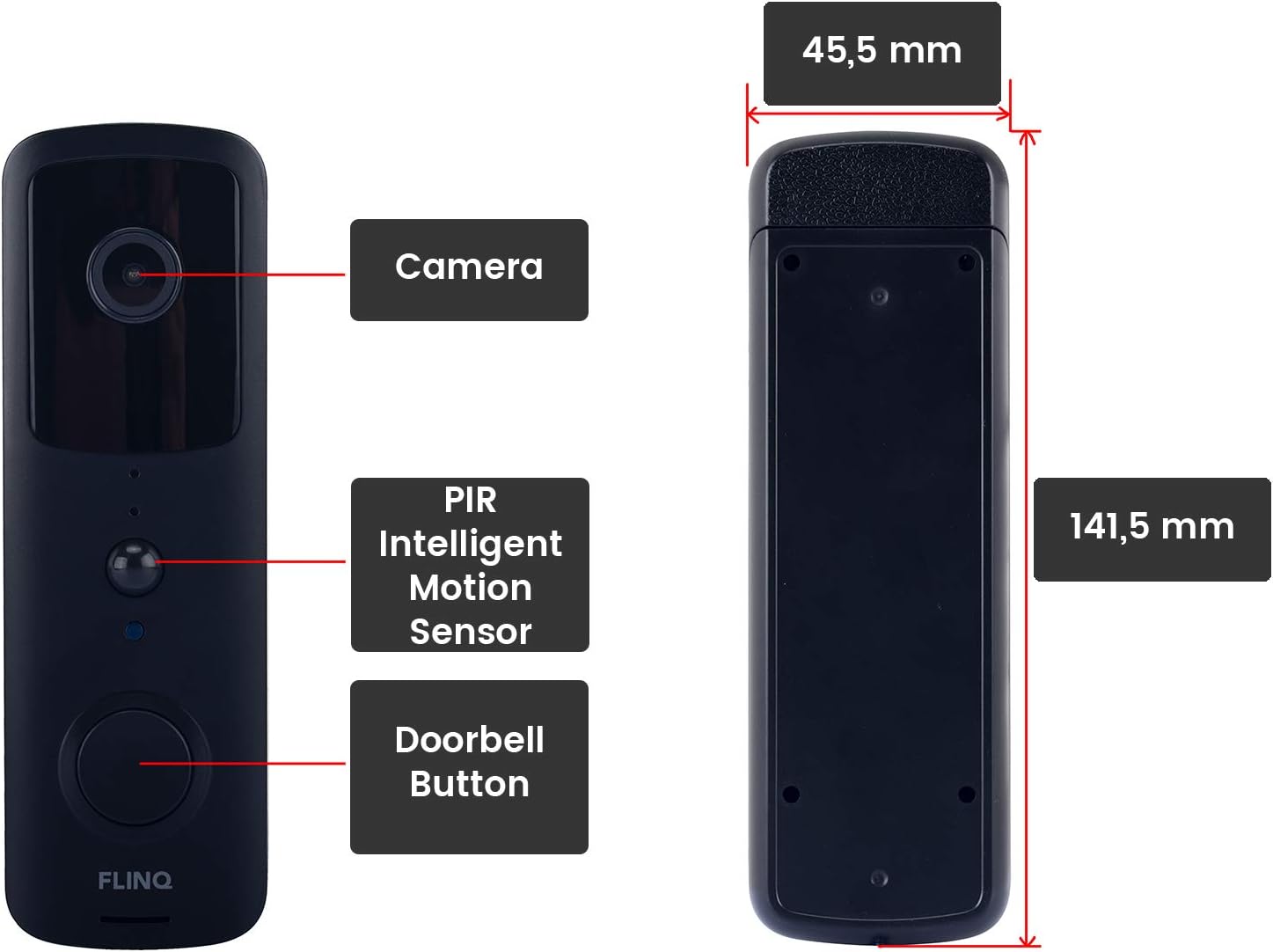
Image: A detailed diagram illustrating the front and side views of the FlinQ Smart WLAN Doorbell, highlighting its camera, PIR intelligent motion sensor, doorbell button, and overall dimensions (141.5 mm height, 45.5 mm width).

Image: A visual representation of the doorbell's 155-degree wide-angle view, showing its broad detection area and real-time HD video capabilities.
Ntuziaka nhazi
1. Ịchaji mgbịrịgba ọnụ ụzọ
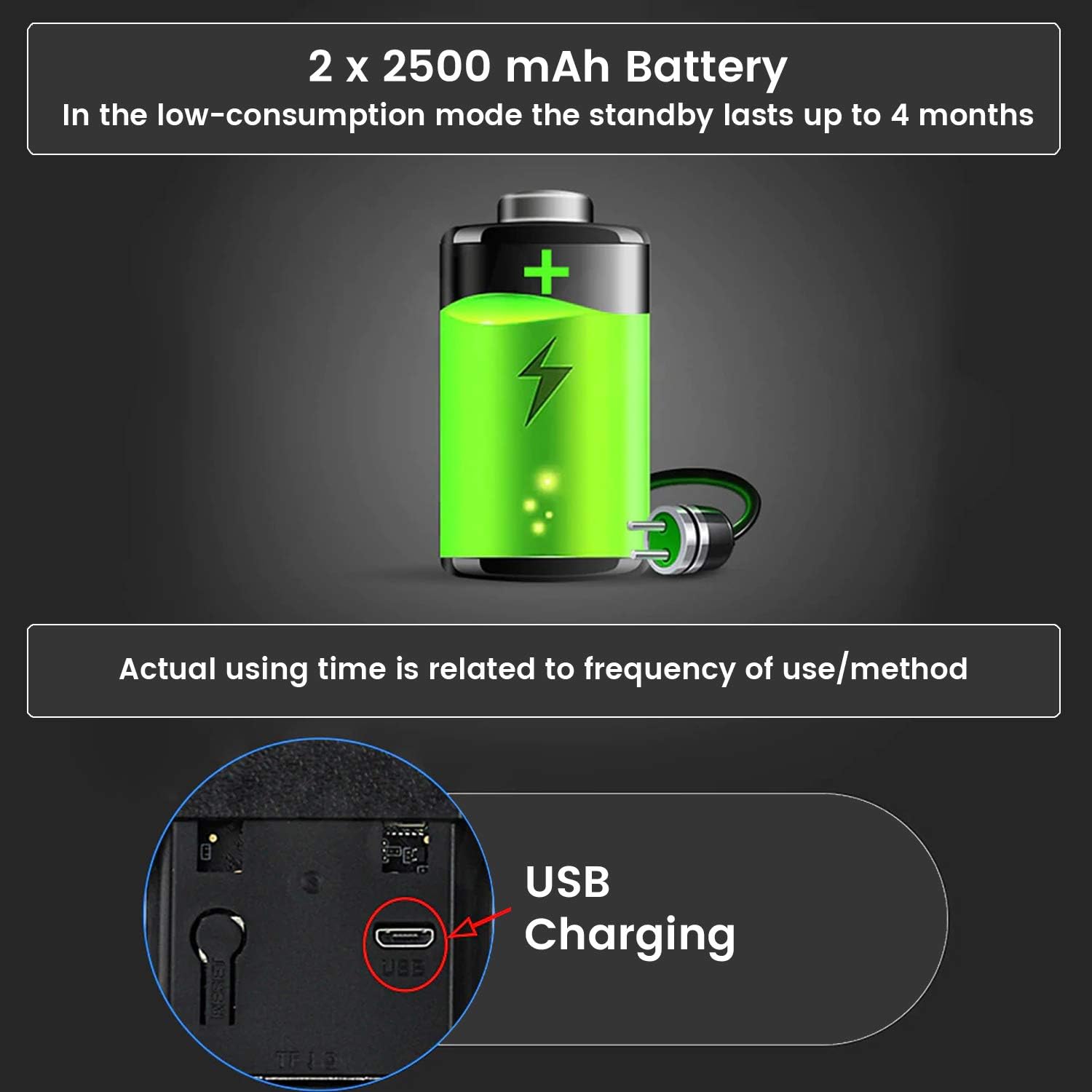
Image: An illustration of the doorbell's battery compartment and the micro USB charging port, indicating the 2x 2500 mAh battery capacity and typical standby time of up to 4 months.
Before initial use, fully charge the doorbell's batteries. Insert the two rechargeable batteries into the doorbell unit. Connect the supplied micro USB cable to the charging port on the doorbell and plug the other end into a standard USB power adapter (not included). The charging indicator light will show the charging status. A full charge can take several hours.
2. Ngwa nwụnye
The FlinQ Smart Doorbell operates with the TUYA application. Download the "TUYA Smart" app from your smartphone's app store (Google Play Store for Android or Apple App Store for iOS).
- Chọọ maka "TUYA Smart" in your app store.
- Budata ma wụnye ngwa ahụ.
- Mepee ngwa ahụ wee denye aha akaụntụ ọhụrụ ma ọ bụ banye ma ọ bụrụ na ị nwere otu.
3. Ngwakọta ngwaọrụ
Follow these steps to pair your doorbell with the TUYA Smart app:
- Hụ na ekwentị gị na-ejikọrọ na netwọk Wi-Fi 2.4GHz. Mgbịrịgba ọnụ ụzọ anaghị akwado Wi-Fi 5GHz.
- Open the TUYA Smart app. Tap the "+" icon in the top right corner to add a device.
- Họrọ "Nledo Vidiyo" ma ọ bụ "Mgbịrịgba ọnụ ụzọ smart" site na ndepụta ngwaọrụ.
- Follow the on-screen instructions to put the doorbell into pairing mode (usually by pressing and holding the doorbell button or a reset button until an indicator light flashes).
- Tinye paswọọdụ netwọk Wi-Fi gị mgbe a gwara gị.
- The app will generate a QR code. Position your doorbell camera to scan this QR code on your phone screen. Hold it about 15-20 cm away until you hear a confirmation sound from the doorbell.
- Ozugbo ejikọtara ya, ị nwere ike ịkpọ aha mgbịrịgba ọnụ ụzọ gị wee mezue ntọala ahụ.
To pair the indoor chime: Plug the chime into a power outlet. Press the pairing button on the chime (refer to the chime's specific instructions if available) and then press the doorbell button on the outdoor unit. The chime should ring, indicating successful pairing.
4. Nwụnye anụ ahụ
Choose a suitable location for your doorbell, ideally near your front door, at a height that allows for optimal viewing. The doorbell is IP52 waterproof, suitable for outdoor installation.
- Mark the drilling points using the provided safety wall mount as a template.
- Gwuo oghere ma tinye plọg mgbidi ma ọ bụrụ na ọ dị mkpa.
- Secure the wall mount to the wall using the screws from the assembly kit.
- Attach the doorbell unit securely to the mounted bracket. Ensure it clicks into place.
Ntuziaka ọrụ
1. Nkwukọrịta ọdịyo ụzọ abụọ

Image: A visual representation of the real-time two-way audio feature, showing a person at the door and a smartphone user communicating directly.
When a visitor presses the doorbell button or motion is detected, you will receive a notification on your smartphone. Tap the notification to open the live view in the TUYA Smart app. From here, you can:
- Kwuo okwu: Tap the microphone icon to speak to the visitor. Your voice will be projected through the doorbell's speaker.
- Gee ntị: The doorbell's built-in microphone allows you to hear the visitor.
2. Nchọpụta ngagharị na ọkwa
The integrated PIR motion sensor detects movement in front of your doorbell. When motion is detected, the doorbell will:
- Send an instant push notification to your smartphone.
- Begin recording video (if configured).
You can adjust the motion detection sensitivity and set detection zones within the TUYA Smart app settings to minimize false alerts.
3. Ọhụụ abalị

Image: A visual representation of the doorbell's infrared HD night vision, showing how it provides clear visibility in dark conditions using 6 night vision lights and auto-sensing technology.
The FlinQ Smart Doorbell is equipped with infrared HD night vision. This feature automatically activates in low-light conditions, ensuring clear video recordings and live views even at night.
4. Video Storage

Image: An illustration detailing the two available video storage methods for the doorbell: 7 days of cloud storage and local storage via a 32GB SD card.
Your video recordings can be stored using two methods:
- Nchekwa igwe ojii: The TUYA app offers cloud storage options, typically including a period of free storage (e.g., 7 days). Check the app for details on subscription plans for extended cloud storage.
- Micro-SD Card Storage: Insert a micro-SD card (up to 32GB, not included) into the designated slot on the doorbell unit for local storage of recordings. This allows you to review footage directly from the card.
5. Indoor Chime Operation
The indoor chime plugs into any standard wall outlet. When the doorbell button is pressed, the chime will ring, providing an audible alert inside your home. The chime unit comes with six different melodies. Refer to the chime's specific instructions (if separate) or the TUYA app settings to change melodies and adjust volume.
Nlekọta
1. Ịchaji batrị
The doorbell's battery life can last up to 4 months under optimal conditions and low usage. However, frequent motion detection events, live view access, and two-way audio usage will reduce battery life. When the battery level is low, you will receive a notification via the TUYA app. Recharge the doorbell using the micro USB cable as described in the Setup section.
Note: Some users report shorter battery life depending on usage frequency and environmental factors. Regular monitoring of battery status via the app is recommended.
2. Nhicha
To maintain optimal performance, periodically clean the doorbell unit. Use a soft, damp cloth to wipe the camera lens and the body of the doorbell. Do not use harsh chemicals or abrasive cleaners, as these can damage the device or its waterproof sealing.
Nchọpụta nsogbu
| Nsogbu | Ihe nwere ike ime | Ngwọta |
|---|---|---|
| Doorbell not connecting to Wi-Fi / App pairing fails. | Incorrect Wi-Fi band (5GHz), wrong password, weak signal, doorbell not in pairing mode. |
|
| Ndụ batrị dị mkpụmkpụ. | Frequent motion detection, high traffic area, frequent live view access, cold weather. |
|
| Motion detection is unreliable or triggers false alarms. | Incorrect sensitivity settings, environmental factors (e.g., swaying trees, passing cars). |
|
| No audio or poor audio quality during two-way communication. | Weak Wi-Fi signal, app permissions, microphone/speaker obstruction. |
|
| Indoor chime not ringing. | Chime unplugged, not paired, out of range. |
|
Nkọwapụta
| Njirimara | Nkọwa |
|---|---|
| Ụdị | FLINQ |
| Ụdị (ASIN) | B08PD3YP2W |
| Mkpebi vidiyo | Full HD 1920 x 1080 Pixels |
| Viewna n'akuku | ogo 155 |
| Njikọta | Wireless (WLAN 2.4G), Wired (for power, if applicable, though primarily battery) |
| Isi Iyi Ike | Battery powered (2x 2500 mAh rechargeable batteries) |
| Nkezi Ndụ batrị | Up to 4 Months (usage dependent) |
| Ọkwa Nguzogide mmiri | Ihe mgbochi mmiri IP52 |
| Atụmatụ pụrụ iche | Motion Sensor, Night Vision, Two-Way Audio, Cloud/SD Card Storage |
| Ngwa dakọtara | Smartphone (via TUYA Smart App) |
| Dimensions (Doorbell) | Approx. 141.5 mm (H) x 45.5 mm (W) |
| Akụkụ ngwugwu | 26.3 x 8.7 x 7.7 cm; 370 g |
| Ụbọchị mbụ dị | Disemba 23, 2020 |
Akwụkwọ ikike na nkwado
For warranty information and technical support, please refer to the official FLINQ webma ọ bụ kpọtụrụ onye na-ere ahịa nke ị zụtara ngwaahịa ahụ n'aka ya. Debe ihe akaebe nke ịzụrụ ihe gị maka akwụkwọ ikike.
For app-related issues, please consult the help section within the TUYA Smart app or visit the TUYA Smart support websaịtị.


