1. Okwu mmalite
Welcome to the user manual for your Orbic Journey V Verizon Postpaid 4G LTE Flip Phone. This guide provides essential information on setting up, operating, maintaining, and troubleshooting your device. The Orbic Journey V is a compact and reliable flip phone designed for clear communication and essential smart features, running on the KaiOS operating system and supporting 4G LTE connectivity.
Please read this manual thoroughly to ensure proper use and to maximize the performance and longevity of your phone.
2. Nhazi
2.1. Unboxing na ngwugwu ọdịnaya
Upon opening your Orbic Journey V package, verify that all components are present:
- Njem Orbic V ekwentị tụgharịa
- Batrị Lithium ion nwere ike ibugharị
- chaja
2.2. Ntinye batrị
- Chọta mkpuchi batrị ahụ n'azụ ekwentị ahụ.
- Gently pry open the battery cover using the designated notch.
- Align the battery's gold contacts with the terminals inside the battery compartment.
- Press the battery down firmly until it clicks into place.
- Replace the battery cover, ensuring it is securely latched.
2.3. Ntinye kaadi SIM
Your Orbic Journey V requires a Nano-SIM card for cellular service. Ensure the phone is powered off before inserting or removing the SIM card.
- Remove the battery cover and the battery as described in Section 2.2.
- Locate the SIM card slot, typically near the battery compartment.
- Insert the Nano-SIM card into the slot with the gold contacts facing down and the notched corner aligned with the slot's guide.
- Gently push the SIM card until it locks into place.
- Tinyegharịa batrị na mkpuchi batrị.
2.4. Agbanye na Nchaji mbụ
To power on your phone for the first time, press and hold the Power/End Call button until the screen illuminates. It is recommended to fully charge the phone before first use.
- Connect the charger to the phone's charging port.
- Tinye chaja n'ime oghere eletrik ọkọlọtọ.
- Ihe ngosi nchaji ga-apụta na ihuenyo.
- Ozugbo chajachara, kwụpụ chaja.
3. Na-arụ ọrụ ekwentị gị
3.1. Phone Layout and Keys
Familiarize yourself with the physical components and buttons of your Orbic Journey V.
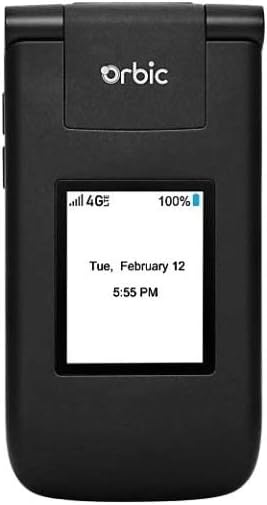
Foto 3.1: N'ihu view of the Orbic Journey V, closed. The external display shows signal strength, battery level, and the current time and date.

Figure 3.2: Orbic Journey V in open position, revealing the main screen and the full alphanumeric keypad with navigation buttons.

Ọgụgụ 3.3: N'azụ view of the Orbic Journey V, highlighting the main camera lens and the Verizon branding.
- Ngosipụta mpụga: Shows time, date, notifications, and caller ID when the phone is closed.
- Internal Display: Main screen for navigating menus, viewing content, and interacting with applications.
- Navigation Key (D-Pad): A na-eji ịkwaga na menus wee họrọ nhọrọ.
- Center Select Key: Na-akwado nhọrọ.
- Call/Send Key: Initiates calls and answers incoming calls.
- Ịkwụsị oku/Igodo ike: Ends calls, returns to the home screen, and powers the phone on/off.
- Back/Clear Key: Returns to the previous screen or deletes characters.
- Igodo olu: Adjusts call volume, media volume, and ringer volume.
- Camera Key: Quick access to the camera function.
3.2. Nsoro ụzọ
The Orbic Journey V operates on KaiOS. Use the Navigation Key to scroll through menu options and the Center Select Key to open applications or confirm actions.
- From the home screen, press the Navigation Key (up, down, left, right) to access shortcuts or navigate the main menu.
- Press the Center Select Key to open the main application menu.
- Press the Back/Clear key to go back to the previous screen.
3.3. Ịkpọ na ịnata oku
- Ka ịkpọ oku: Enter the phone number using the keypad and press the Call/Send key. Alternatively, navigate to Contacts, select a contact, and press the Call/Send key.
- Iji zaa oku: When the phone rings, press the Call/Send key.
- Iji kwụsị oku: Press the End Call/Power key.
3.4. Izipu na ịnata ozi
- To Send a Message: From the main menu, select 'Messages'. Choose 'New Message', enter the recipient's number or select from contacts, type your message using the keypad, and press 'Send'.
- To Receive a Message: New messages will typically display a notification on the screen. Navigate to the 'Messages' application to view igbe mbata gị.
3.5. Ojiji igwefoto
The Orbic Journey V is equipped with front and rear cameras. The rear camera is located on the upper-right back of the phone.
- Imepe igwefoto: Press the dedicated Camera key or navigate to the 'Camera' application from the main menu.
- Ka ịse foto: Frame your shot on the screen and press the Center Select key to capture the image.
- ViewFoto ndị a: Access your photos through the 'Gallery' application.
3.6. Connectivity (Bluetooth, Wi-Fi)
Your phone supports Bluetooth and Wi-Fi for wireless connectivity.
- Bluetooth: Go to 'Settings' > 'Network & Connectivity' > 'Bluetooth'. Turn Bluetooth on, and the phone will search for available devices. Select a device to pair.
- Wi-Fi: Go to 'Settings' > 'Network & Connectivity' > 'Wi-Fi'. Turn Wi-Fi on, select an available network, and enter the password if required.
4. Nlekọta
4.1. Cleaning Your Phone
To keep your phone in optimal condition, clean it regularly:
- Jiri akwa dị nro na-enweghị lint hichapụ ihuenyo na ahụ.
- Zere iji kemịkalụ siri ike, ihe nchacha abrasive, ma ọ bụ aerosol sprays.
- Ensure the phone is powered off and unplugged before cleaning.
4.2. Nlekọta batrị
Nlekọta batrị nke ọma nwere ike ịgbatị ndụ ya:
- Zere oke okpomọkụ.
- Ahapụla ekwentị chaja ogologo oge karịa ka o juru.
- If the phone will not be used for an extended period, store it with a partial charge (around 50%).
4.3. Mmelite ngwanrọ
Mmelite ngwanrọ mgbe niile na-enye atụmatụ ọhụrụ, mmezi nchekwa, na ndozi ahụhụ.
- Jikọọ ekwentị gị na Wi-Fi.
- Go to 'Settings' > 'Device' > 'Software Update'.
- Follow the on-screen prompts to check for and install any available updates.
5. Nchọpụta nsogbu
This section addresses common issues you might encounter with your Orbic Journey V.
5.1. Phone Not Turning On
- Gbaa mbọ hụ na etinyere na chajị batrị nke ọma. Jikọọ chaja wee chere nkeji ole na ole tupu ị nwaa ịgbanye.
- Try removing and reinserting the battery, then attempt to power on again.
5.2. Poor Call Quality or No Signal
- Check your location for network coverage. Move to an area with better signal.
- Hụ na etinyere kaadị SIM gị nke ọma.
- Malitegharịa ekwentị ahụ.
- Verify that your account with Verizon is active and in good standing.
5.3. Batrị na-agbapụta ngwa ngwa
- Mechie ngwa ejighi ya na-agba n'azụ.
- Belata nchapụta ihuenyo.
- Turn off Wi-Fi, Bluetooth, or GPS when not in use.
- Check for and install any available software updates, as these often include battery optimizations.
5.4. Software or Navigation Issues
- If the phone is unresponsive, try a soft reset by removing and reinserting the battery.
- Hụ na ngwanrọ ekwentị ahụ dị ọhụrụ.
- Ọ bụrụ na nsogbu dịgidere, tụlee nrụpụta nrụpụta ụlọ ọrụ (Mara: Nke a ga-ehichapụ data niile dị na ekwentị. Buru ụzọ kwado ozi dị mkpa.). Navigate to 'Settings' > 'Device' > 'Reset Phone'.
6. Nkọwapụta
| Njirimara | Nkọwa |
|---|---|
| Aha Nlereanya | Njem Orbic V |
| Ụdị | Nri |
| ASIN | B08971YYM1 |
| Sistemụ nrụọrụ | KaiOS |
| Onye na-ebu ikuku | Verizon |
| Teknụzụ ekwentị | LTE |
| Teknụzụ Njikọta | Bluetooth, WiFi |
| Ụdị Ihe | tụgharịa |
| Agba | Nwa |
| Nha ihuenyo | 5.8 inches (Standing screen display size) |
| Mkpebi | 1520 x720 |
| Atụmatụ igwefoto | N'ihu, azụ |
| Jack ọdịyo | Enweghị jakị ekweisi |
| Batrị | 1 batrị lithium ion (gụnyere) |
| Ibu Ibu | 12.8 ounces |
| Akụkụ ngwugwu | 5 x 3 x 3 sentimita asatọ |
| Ụbọchị mbụ dị | Mee 26, 2020 |
7. Akwụkwọ ikike na nkwado
For warranty information and technical support regarding your Orbic Journey V phone, please refer to the documentation provided with your purchase or contact Orbic directly. You can also visit the official Orbic websaịtị maka akụrụngwa nkwado.
For service-related inquiries, please contact your wireless carrier, Verizon.
- Onye nrụpụta: Nri
- Onye na-ebu ikuku: Verizon