Weiser Halo WiFi Smart Lock with Touchscreen
Akwụkwọ ntuziaka
Model: 9GED25000-004
Okwu mmalite
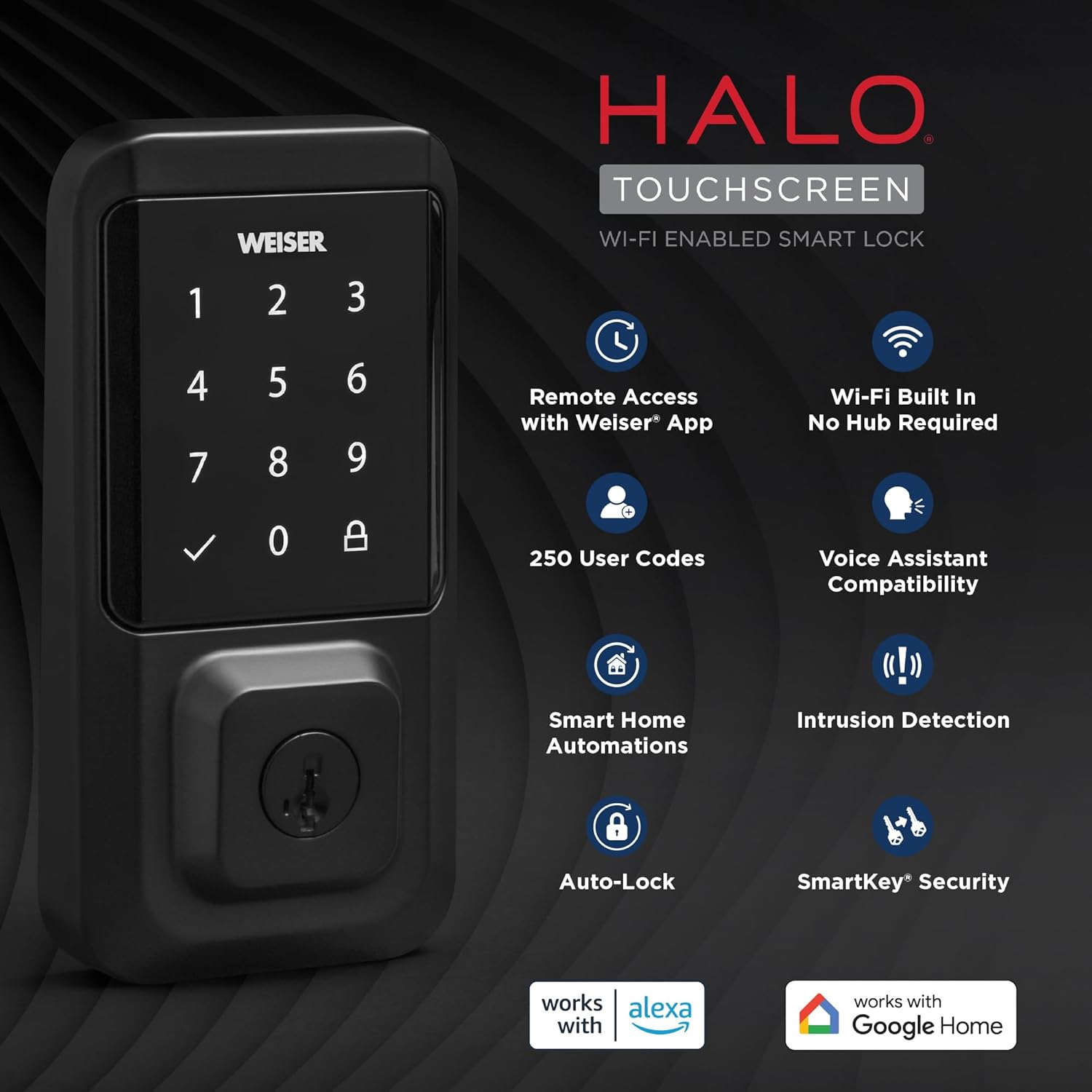
The Weiser Halo WiFi Smart Lock with Touchscreen offers advanced security and convenient access control for your home. This smart lock connects directly to your existing home Wi-Fi network, eliminating the need for a separate hub. With the Weiser app, you can operate, manage, and monitor your lock remotely from anywhere with an internet connection. This manual provides detailed instructions to help you install, set up, operate, and maintain your Weiser Halo Smart Lock.

Figure 1: Weiser Halo WiFi Smart Lock (Exterior and Interior Units)
Ọdịnaya Igbe
Before beginning installation, please verify that all components are present in your package:
- Interior Assembly Unit
- Exterior Assembly Unit
- Latch nwere ike idozi
- Efere efere
- Efere arịọnụ
- Nkwụnye Ring
- 4 x AA batrị
- Tray batrị
- SmartKey® Tool
- 2 Weiser® Keys
- Skrọ (nha dị iche iche)
- Ntuziaka ntinye (akwụkwọ ntuziaka a)
Onyonyo 2: Akụrụngwa gụnyere
Ntuziaka nwụnye
The Weiser Halo Smart Lock is designed for easy installation, typically requiring only a screwdriver. It fits most standard doors 1-3/8" to 1-3/4" thick with an adjustable backset (2-3/8" or 2-3/4").
- Kwadebe Ọnụ ụzọ: Ensure your door is properly prepped for a deadbolt. Check the bore hole and backset dimensions.
- Wụnye Latch: Insert the adjustable latch into the door edge. Ensure the latch is oriented correctly with the 'UP' arrow facing upwards.
- Wụnye Mgbakọ Mpụga: Place the exterior keypad assembly onto the door, feeding the cable through the bore hole.
- Wụnye Plate Nkwalite: Secure the mounting plate to the door using the provided screws, ensuring it aligns with the exterior assembly.
- Wụnye Mgbakọ ime ụlọ: Connect the cable from the exterior assembly to the interior assembly. Carefully tuck the excess cable into the recess. Attach the interior assembly to the mounting plate with the remaining screws.
- Wụnye batrị: Insert the 4 AA batteries into the battery tray and slide the tray into the interior assembly.
- Perform Door Handing: After installation, the lock will automatically perform a door handing process to learn the orientation of your door. Follow the prompts on the lock or in the Weiser app.

Figure 3: Easy Installation Process
Ntọala na Njikọta
The Weiser Halo Smart Lock connects directly to your home Wi-Fi network for remote access and smart home integration.
- Download the Weiser App: Chọọ maka the 'Weiser App' on the Apple App Store or Google Play Store and install it on your smartphone.
- Mepụta akaụntụ: Mepee ngwa ahụ ma soro ntuziaka na ihuenyo ka ịmepụta akaụntụ njirimara ọhụrụ.
- Add Your Lock: In the Weiser app, select the option to add a new device. Follow the in-app prompts to connect your Halo Smart Lock to your home's Wi-Fi network. This process typically involves putting the lock into pairing mode and entering your Wi-Fi credentials.
- Nnweta dị anya: Once connected, you can lock and unlock your door remotely from your smartphone using the Weiser app, from anywhere with an internet connection.

Figure 4: Control Your Lock From Anywhere
Ọrụ
Ịkpọghe na ịkpọchi
- Igodo: Enter your valid user code on the touchscreen keypad, then press the checkmark button to unlock. To lock, simply press the lock icon on the keypad.
- Igodo: Use the physical key provided to manually unlock or lock the deadbolt.
- Weiser App: Use the lock/unlock function within the Weiser app on your smartphone.
- Tụgharịa isi mkpịsị aka: From the interior, manually turn the thumb turn to lock or unlock the deadbolt.
Managing User Codes
The Weiser Halo Smart Lock can store up to 250 unique user codes. You can create permanent, one-time, or scheduled entry codes through the Weiser app.
- Adding Codes: In the Weiser app, navigate to the 'Access Codes' section and follow the instructions to add new codes. You can assign names to codes for easy identification.
- Ihichapụ Koodu: Codes can be deleted at any time through the app.
- Scheduling Codes: Set specific days and times for codes to be active, ideal for guests or service providers.

Figure 5: Share Guest Access
Njirimara mkpọchi akpaaka
The auto-lock feature automatically locks your door after a set duration following entry or exit, providing hands-free locking and enhanced peace of mind. This duration can be customized within the Weiser app.

Figure 6: Auto-Lock Functionality
Ngwakọta ụlọ Smart
The Weiser Halo Smart Lock is compatible with popular voice assistants like Amazon Alexa and Google Assistant (functionality primarily from Android devices). This allows for voice control and integration into smart home routines.
- Njikwa olu: Use voice commands to lock your door (e.g., "Alexa, lock the front door.").
- Akpaaka: Set up custom automations, such as locking the door at a specific time each night or turning on lights when the door is unlocked.
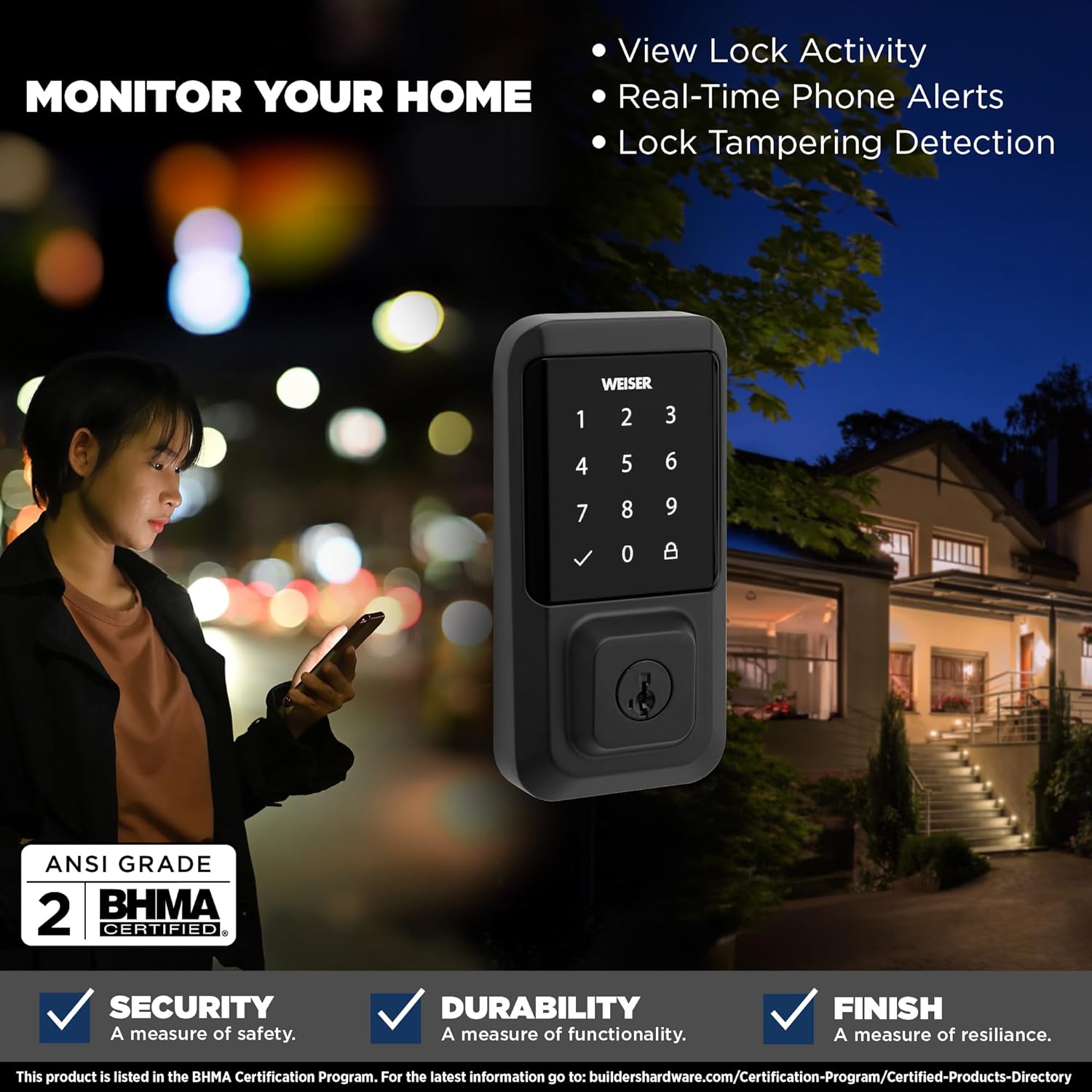
Figure 7: Smart Home Integration
Nleba anya na ọkwa
The Weiser app provides real-time monitoring and alerts for your lock's activity.
- View Lock Activity: Access a detailed history of lock and unlock events, including who accessed the door and when.
- Real-Time Phone Alerts: Receive instant notifications on your smartphone for various events, such as lock/unlock actions or tampmgbalị siri ike.
- Mkpọchi Tampering Detection: The lock is equipped with features to detect and alert you to potential tampiri.

Figure 8: Monitor Your Home
SmartKey Security
The Weiser Halo Smart Lock features SmartKey Security, allowing you to re-key the lock yourself in seconds. This is useful if you've recently moved, lost keys, or wish to use a single key for multiple Weiser SmartKey compatible locks.
- Insert Existing Key: Insert your currently working key fully into the keyhole.
- Igodo ntụgharị: Turn the key 90 degrees clockwise (to the horizontal position).
- Insert SmartKey Tool: While holding the key in the horizontal position, insert the SmartKey tool firmly into the small hole next to the keyway.
- Remove Keys: Remove the SmartKey tool first, then remove the existing key.
- Insert New Key: Insert your new key fully into the keyhole.
- Turn New Key: Turn the new key 90 degrees counter-clockwise (back to the vertical position).
- Test New Key: Remove the new key and test it to ensure the re-keying process was successful.

Figure 9: SmartKey Security Re-keying
Nlekọta
To ensure optimal performance and longevity of your Weiser Halo Smart Lock, follow these maintenance guidelines:
- Ngbanwe batrị: The lock requires 4 AA batteries. When the battery level is low, you will receive notifications through the Weiser app and potentially visual/audible alerts from the lock itself. To replace batteries, slide open the battery cover on the interior assembly, remove the old batteries, and insert new ones, ensuring correct polarity.
- Nhicha: Clean the touchscreen and exterior surfaces with a soft, damp akwa . Zere ihe nhicha ma ọ bụ ihe mgbaze nke nwere ike imebi njedebe.
- Nkwanye ọnụ ụzọ: Periodically check that your door and frame are properly aligned. Misalignment can cause the deadbolt to bind, leading to increased battery drain and reduced performance.
Nchọpụta nsogbu
If you encounter issues with your Weiser Halo Smart Lock, refer to the following common problems and solutions:
| Nsogbu | Ihe nwere ike ime | Ngwọta |
|---|---|---|
| Lock not responding / Dead battery | Batrị agwụla. | Replace all 4 AA batteries with new, high-quality alkaline batteries. |
| Lock frequently goes offline / Wi-Fi connectivity issues | Weak Wi-Fi signal; Router too far; Network interference. | Ensure the lock is within range of your Wi-Fi router. Consider a Wi-Fi extender if necessary. Check for network interference from other devices. Restart your router. |
| Keypad not responding to touch | Secure mode activated; Accidental touches prevented. | If 'Secure Mode' is enabled, the keypad may require a specific sequence (e.g., 4+6) to activate. Disable this feature in the app if not desired. Ensure hands are clean and dry. |
| Deadbolt binds or does not extend fully | Door/frame misalignment; Latch not installed correctly. | Check door and frame alignment. Ensure the strike plate is properly aligned with the deadbolt. Verify the latch was installed with the correct orientation. |
| Cannot add or delete user codes | Lock is offline; App synchronization issue. | Ensure the lock is connected to Wi-Fi and online in the Weiser app. Try closing and reopening the app. |
For further assistance, refer to the Weiser app's help section or contact Weiser customer support.
Nkọwapụta
| Njirimara | Nkọwa |
|---|---|
| Ụdị | Weiser |
| Aha Nlereanya | Halo Touch Smart Lock Deadbolt |
| Nọmba nlereanya | 9GED25000-004 |
| Agba | Matte Black |
| Ihe onwunwe | Ọla |
| Ụdị mkpọchi | Key Lock, Smart Lock |
| Njirimara Pụrụ Iche | Touchscreen, Wi-Fi Enabled |
| Protocol Njikọta | Wi-Fi |
| Usoro njikwa | Touch, Hand Control, SmartThings App |
| Isi Iyi Ike | Batrị 4 AA (gụnyere) |
| Akụkụ ihe (L x W x H) | 2.88 x 1.19 x 5.63 sentimita asatọ |
| Ibu Ibu | 4 pound |
| Ndakọrịta ọnụ ụzọ | 1-3/8" to 1-3/4" thick doors, adjustable backset (2-3/8" or 2-3/4") |
| Koodu onye ọrụ | Ruo 250 |
| UPC | 059184399653 |
Akwụkwọ ikike na nkwado
Weiser products are designed for durability and reliability. For specific warranty information regarding your Weiser Halo WiFi Smart Lock, please refer to the warranty card included with your product or visit the official Weiser website. For technical support, troubleshooting assistance, or to inquire about replacement parts, please contact Weiser customer service through their official channels.


