1. Okwu mmalite
This manual provides comprehensive instructions for the installation, operation, and maintenance of your Cisco CP-DX80-VESA VESA Adapter and Wall Mount. Please read this manual thoroughly before installation to ensure correct setup and to prevent damage to the product or connected devices. Retain this manual for future reference.
2. Ozi nchekwa
Lee ihe ndị a dị mkpa n'oge nrụnye na ojiji:
- Ịdọ aka ná ntị: Improper installation can result in serious personal injury or damage to equipment. Ensure all mounting hardware is securely fastened.
- Ịkpachara anya: Do not exceed the weight capacity specified for this mount. Refer to the specifications section for details.
- Ensure the wall structure can safely support the combined weight of the mount and the attached device.
- Use appropriate tools and follow all steps carefully. If unsure, consult a qualified installer.
- Debe obere akụkụ n'ebe ụmụaka nọ.
3. Ihe ngwugwu
Chọpụta na akụrụngwa niile dị tupu ịmalite nrụnye:
- Cisco CP-DX80-VESA VESA Adapter
- Mgbochi Mgbidi Mgbidi
- Mounting Hardware Kit (screws, anchors, washers)
- Akwụkwọ ntuziaka
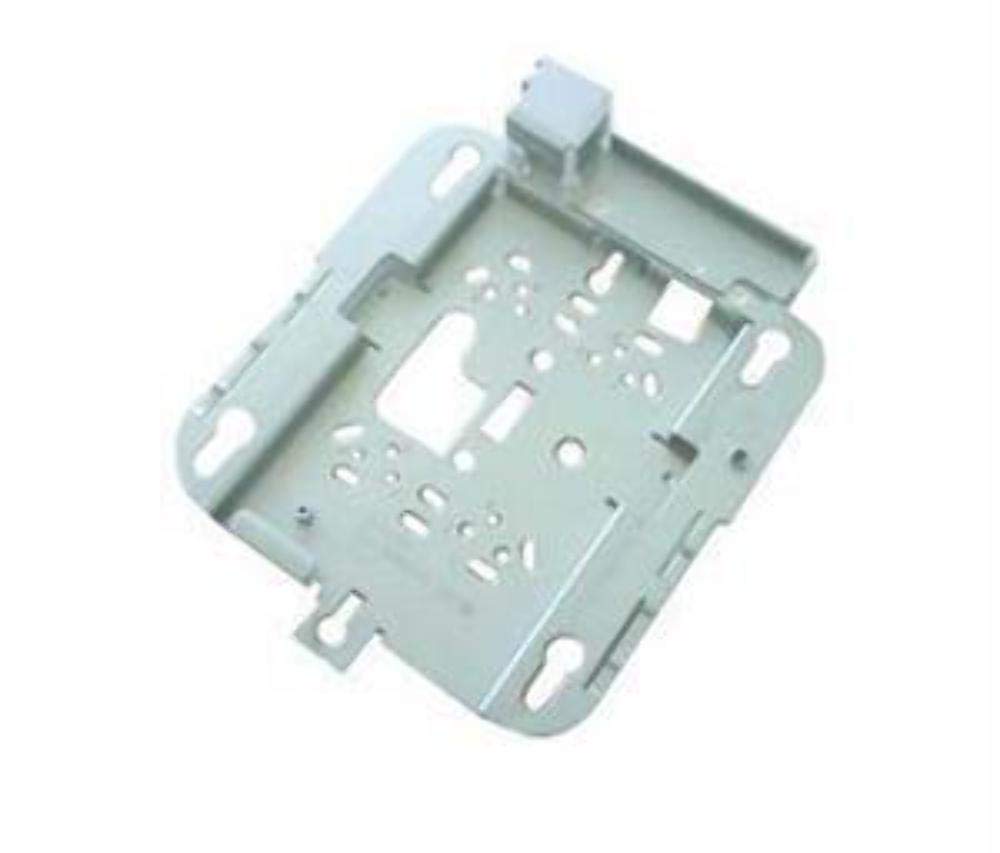
Image: The Cisco CP-DX80-VESA VESA Adapter and Wall Mount. This image displays the primary components of the product, including the adapter plate and the wall mounting bracket, designed to secure a video conferencing system to a wall.
4. Ntọala na nwụnye
4.1 Ngwa achọrọ
- Kwuo egwu
- Drill bits (appropriate for wall material)
- Phillips isi sikruuokwomoto
- Ọkwa
- Pensụl
- Stud finder (recommended for drywall installation)
4.2 Nwụnye mgbidi
- Họrọ ebe: Choose a suitable wall location, ensuring it can support the weight of the mount and the device. Avoid areas with electrical wires or plumbing.
- Mark Drill oghere: Hold the wall mount bracket against the wall at the desired height. Use a level to ensure it is straight. Mark the drill hole locations with a pencil.
- Oghere egwu egwu: Drill pilot holes at the marked locations. Use appropriate drill bits for your wall type (e.g., wood studs, concrete, drywall with anchors).
- Ihe nkwado echekwara: Insert wall anchors (if required) into the pilot holes. Align the wall mount bracket with the holes and secure it to the wall using the provided screws. Ensure it is firmly attached.
4.3 VESA Adapter Attachment to Device
- Identify VESA Pattern: Locate the VESA mounting holes on the back of your Cisco DX80 video conferencing system.
- Tinye nkwụnye: Align the Cisco CP-DX80-VESA adapter with the VESA mounting holes on the DX80 device.
- Ihe nkwụnye echedoro: Use the appropriate screws from the mounting hardware kit to securely fasten the VESA adapter to the DX80 device. Do not overtighten.
4.4 Mounting the Device to the Wall Bracket
- Lift Device: Carefully lift the DX80 device with the attached VESA adapter. It is recommended to have assistance for this step.
- Engage Mount: Hook the VESA adapter onto the wall mount bracket. Ensure the adapter is fully seated and engaged with the bracket's locking mechanism.
- Ngwaọrụ echedoro: Depending on the design, there may be additional screws or clips to secure the device to the wall bracket. Fasten these as instructed to prevent accidental dislodging.
- Nyocha ikpeazụ: Gently pull on the mounted device to ensure it is stable and securely attached to the wall.
5. Atụmatụ ọrụ
Once the Cisco DX80 is securely mounted using the CP-DX80-VESA adapter and wall mount, its operation remains consistent with its standard functionality. The mount provides a stable platform for the device.
- Ensure all cables (power, network, video) are properly connected and routed to avoid strain or interference.
- Periodically check the stability of the mount and the device, especially after any adjustments or movement.
6. Nlekọta
The Cisco CP-DX80-VESA VESA Adapter and Wall Mount requires minimal maintenance.
- Nhicha: Wipe the mount surfaces with a soft, dry cloth. Avoid abrasive cleaners or solvents that could damage the finish.
- Nyocha: Periodically inspect all mounting screws and connections to ensure they remain tight. Over time, vibrations or environmental factors can cause screws to loosen.
- Mmebi: If any part of the mount appears damaged or worn, discontinue use and contact Cisco support for replacement parts or advice.
7. Nchọpụta nsogbu
This section addresses common issues related to the installation and stability of the mount.
| Nsogbu | Ihe nwere ike ime | Ngwọta |
|---|---|---|
| Ugwu ahụ na-enwe mmetụta nke enweghị ike ịrụ ọrụ ma ọ bụ na-ama jijiji. | Loose mounting screws; inadequate wall support; incorrect anchors. | Tighten all screws. Verify wall structure and use appropriate anchors. Reinstall if necessary. |
| Device not attaching correctly to VESA adapter. | Incorrect screw size; misalignment. | Ensure correct VESA screws are used. Realign the adapter with the device's mounting holes. |
| Wall mount bracket not level. | Njehie nwụnye. | Remove bracket, re-mark holes using a level, and reinstall. |
8. Nkọwapụta
Key technical specifications for the Cisco CP-DX80-VESA VESA Adapter and Wall Mount:
| Njirimara | Nkọwa |
|---|---|
| Nọmba nlereanya | CP-DX80-VESA |
| Akụkụ ngwaahịa | 10.63 x 16.14 x 3.54 sentimita asatọ |
| Ibu Ibu | 2.2 pound |
| Ngwaọrụ Akụrụngwa | Ethernet (for connected device) |
| Onye nrụpụta | Ụlọ ọrụ Cisco Systems, Inc |
| Ụbọchị mbụ dị | Ọgọst 21, 2015 |
| UPC | 882658710469 |
9. Akwụkwọ ikike na nkwado
For information regarding the product warranty, please refer to the official Cisco warranty documentation provided with your original purchase or visit the Cisco website. Specific warranty terms may vary by region and product.
9.1 Nkwado nka na ụzụ
If you encounter issues that cannot be resolved using the troubleshooting guide, or require further assistance, please contact Cisco Technical Support:
- Websaịtị: Visit the official Cisco support website for documentation, FAQs, and contact options.
- Ekwentị: Refer to your product's packaging or the Cisco website for regional support telephone numbers.
When contacting support, please have your product model number (CP-DX80-VESA) and purchase information readily available.


